Email Processing
Email Processing is where the administrator manages connections to mailboxes (IMAP, POP3 and Microsoft Graph) and sees a record of all emails from which TAS created cases. A connection only holds where the mailbox is and how to sign in to it. What happens to the mail, that is, which template the case is created from and which variables are filled in, is set in the Email processing cron in Crons. The same connections are also used by the Mail smart event and the sys.mail.* functions in the Service Console. The page is available to users with the Administrator role. Open it from the Administration menu with the Email Processing tile in the Integration and data management category.
Email Processing replaces the Create Processes from MS Graph mails crons (both variants) and the Check unprocessed MS Graph mails cron. How to migrate their settings is described in the article MS Graph (email), section Since version 5.21.
Connections overview
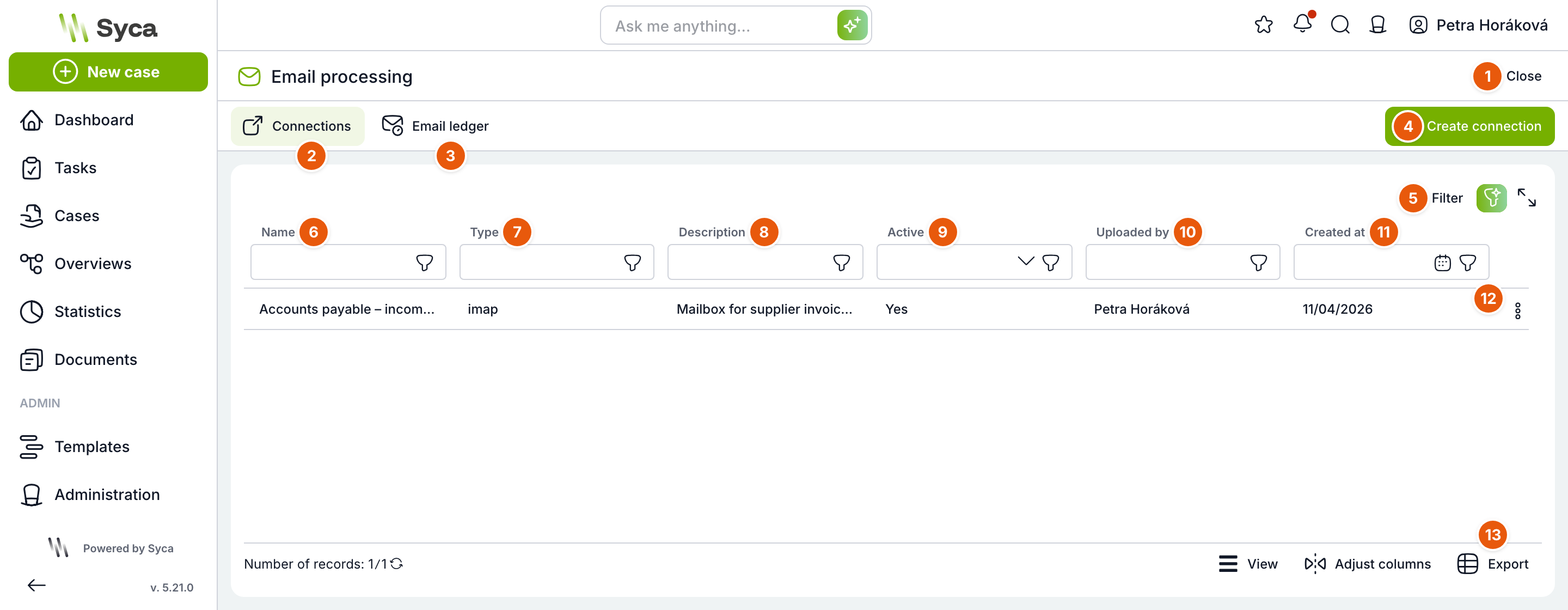
| No. | Element | Purpose |
|---|---|---|
| 1 | Close | Returns you to the Administration menu. |
| 2 | Connections | Tab with the list of mailbox connections. |
| 3 | Email Ledger | Tab with records of processed emails, see below. |
| 4 | Create connection | Opens the dialog for a new connection. |
| 5 | Filter | Saves and clears the filter and opens the detailed filter panel above the table. Next to it is a button that shows the table in full screen. |
| 6 | Name | Unique connection name. Crons, smart events and sys.mail.* functions refer to the connection by its name. By default, the table is sorted by name. |
| 7 | Type | Connection protocol: msgraph (Microsoft 365 via Microsoft Graph), imap, or pop3. |
| 8 | Description | Free text for administrators. |
| 9 | Active | Whether the connection may be used. The cron rejects an inactive connection with an error. |
| 10 | Inserted by | Who created the connection. |
| 11 | Inserted | When the connection was created. |
| 12 | Row actions | Menu with Test connection, Discover folders, Edit and Delete, see below. |
| 13 | Export | Downloads the table to a file. Next to it are the view and column selection options. |
Double-click a row to open the connection for editing.
Row actions
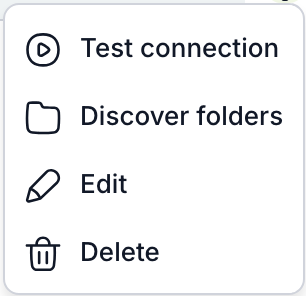
| Action | Purpose |
|---|---|
| Test connection | TAS signs in to the mailbox and tries to read it. The result is shown as a notification Connection “…” works, or Connection “…” failed together with the error returned by the mail server. The test changes nothing; it neither reads nor moves emails. |
| Discover folders | Shows the folder tree of a msgraph mailbox, see below. |
| Edit | Opens the connection dialog with the saved values. The connection type can no longer be changed. |
| Delete | Deletes the connection after confirmation. Crons and smart events that use it will then fail with an error. Records in the email ledger remain, only without the connection name. |
Create and edit a connection
The dialog has two sections: Basic information and Parameters. The parameters change according to the selected type. Each parameter has a question mark with help, the technical name of the parameter and its default value, which you can fill in with a click. The dialog does not close when you click outside it, only with the Close button.
| Field | Purpose |
|---|---|
| Name | Required, must be unique. A connection already used by a cron or smart event cannot be renamed. TAS rejects the save and lists the crons and tasks that use it. First select the new name in them, then rename the connection. |
| Type | Required; msgraph, imap and pop3 are offered. It cannot be changed after saving; for a different protocol, create a new connection. |
| Description | Optional text, shown in the table. |
The Password and Client Secret fields are not text fields but a selection of secrets from the Vault. The connection stores only the reference
{{vault:název}}, not the value itself. Therefore, create the secret in the Vault first. The eye icon next to the field opens the selected secret in the Vault in a new tab. If the secret has been deleted from the Vault, the field shows it and the connection cannot be saved.The Save button checks the required parameters, their format and that the secret exists in the Vault. Empty optional parameters receive their default value on save.
IMAP
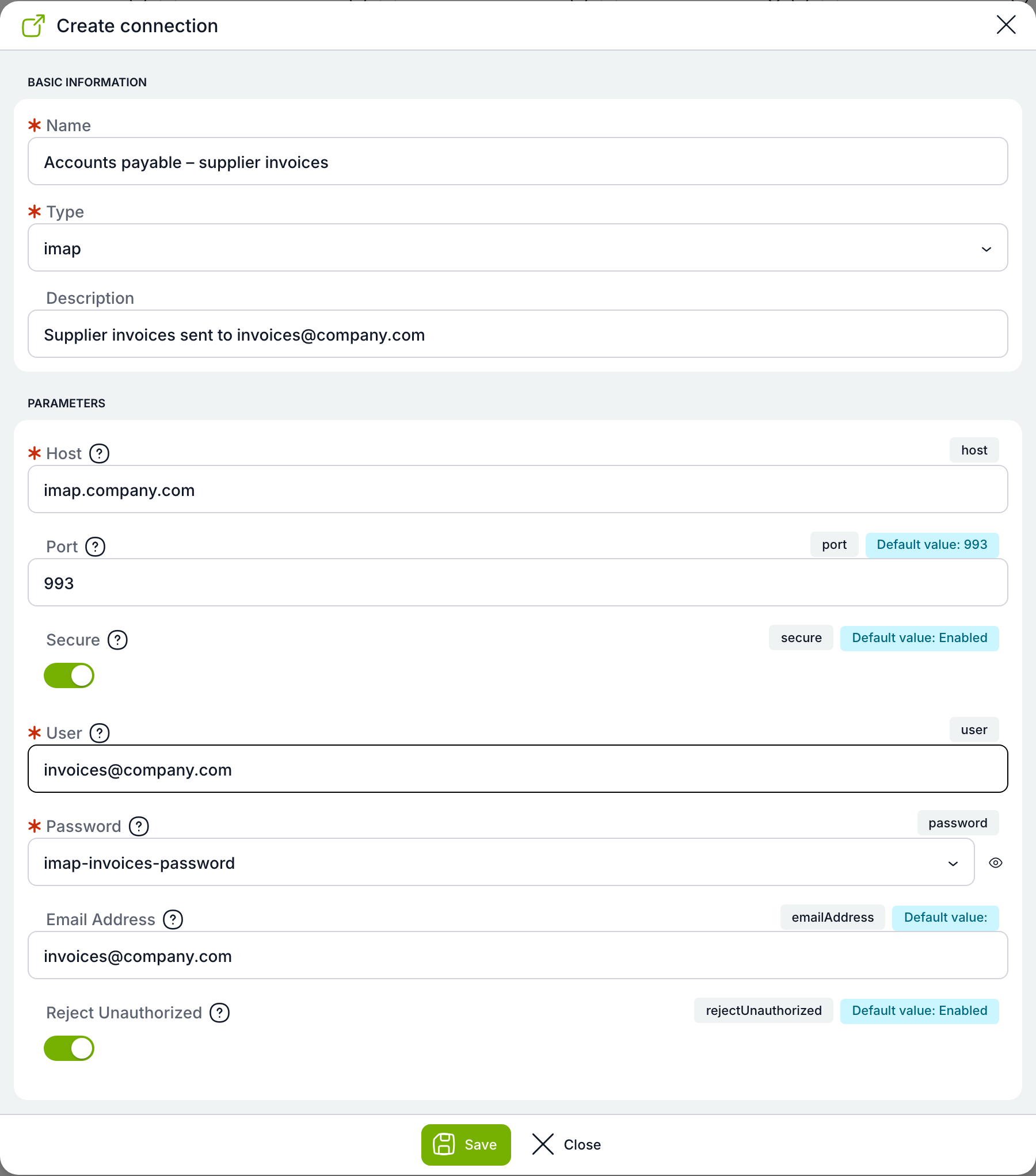
| Parameter | Purpose |
|---|---|
host | Required. IMAP server address, for example imap.company.com. |
port | Server port. Default 993 (encrypted connection), 143 for an unencrypted connection or STARTTLS. |
secure | Encrypted connection (TLS), on by default. Turn it off only for port 143. |
user | Required. Account TAS signs in with. |
password | Required. Account password as a secret from the Vault. |
emailAddress | Mailbox address for logs and the email ledger. If left empty, user is used. |
rejectUnauthorized | Rejects a server with an invalid TLS certificate, on by default. Turn it off only for a known server with a self-signed certificate. |
POP3
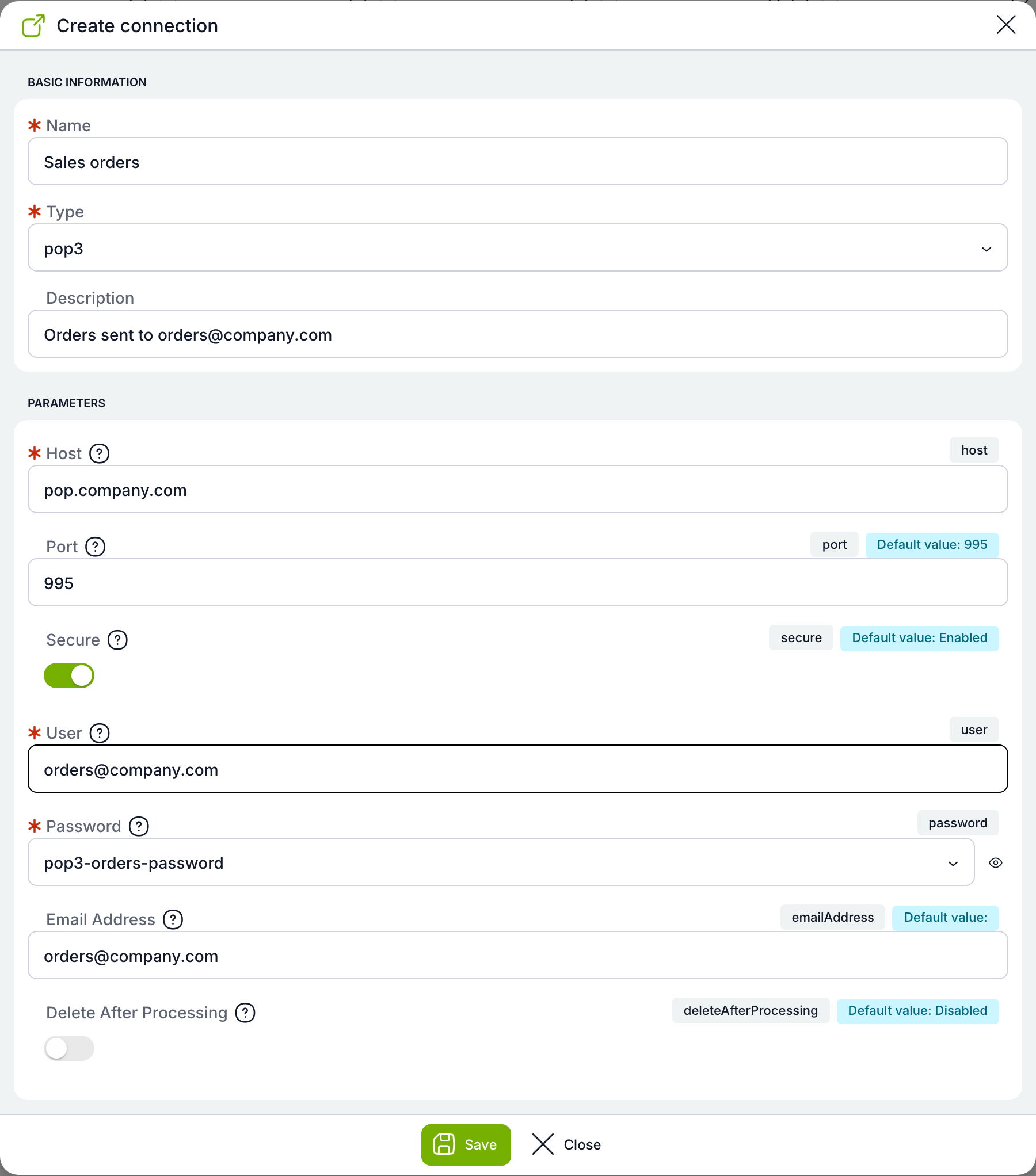
| Parameter | Purpose |
|---|---|
host | Required. POP3 server address, for example pop.company.com. |
port | Server port. Default 995 (encrypted connection), 110 for unencrypted. |
secure | Encrypted connection (TLS), on by default. Turn it off only for port 110. |
user | Required. Account TAS signs in with. |
password | Required. Account password as a secret from the Vault. |
emailAddress | Mailbox address for logs and the email ledger. If left empty, user is used. |
deleteAfterProcessing | Deletes the email from the mailbox once a case has been created from it. Off by default. |
POP3 cannot move an email or remember that it has been read. A processed email can only be deleted or left in the mailbox. With
deleteAfterProcessing turned off, the cron reads the same emails again on every run. Thanks to the email ledger, no second case is created from them, but the cron reads only as many emails as its Limit allows, so it may never get to newer ones. Once you have verified that processing works, turn deletion on.Microsoft Graph
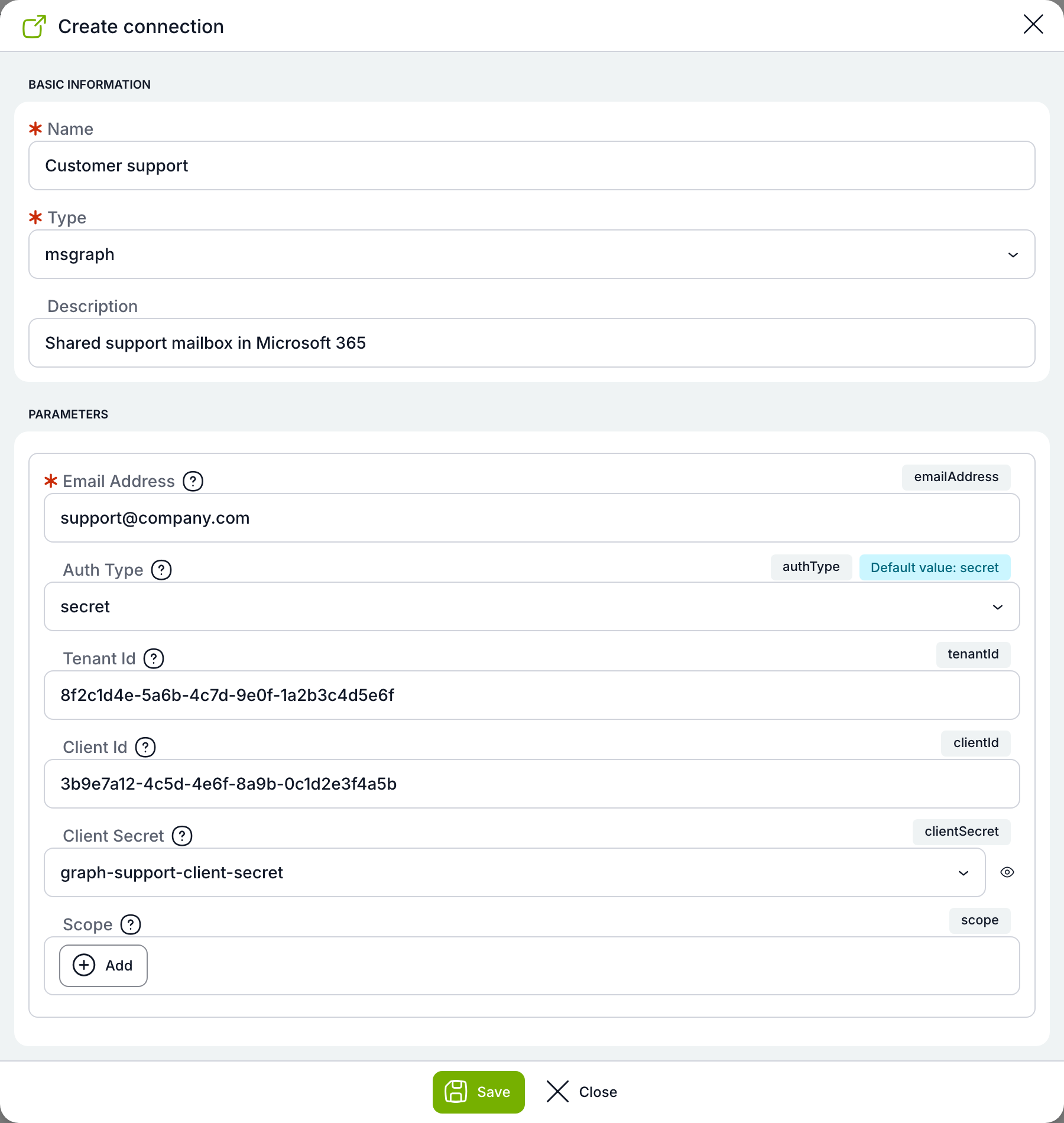
| Parameter | Purpose |
|---|---|
emailAddress | Required. Microsoft 365 mailbox TAS reads from, for example support@company.com. |
authType | Sign-in method. secret (default) uses the Client secret of an app registration in Microsoft Entra ID. managedIdentity uses an Azure managed identity, so no secret is stored in TAS. It works only when TAS runs in Azure. |
tenantId | Tenant (directory) ID in Microsoft Entra ID. Required for secret. |
clientId | Application (Client) ID from the app registration. Required for secret. For managedIdentity, enter the Client ID of a user-assigned managed identity; an empty field means the system-assigned identity. |
clientSecret | Client secret of the app registration as a secret from the Vault. Required for secret. |
scope | OAuth scopes. Empty means https://graph.microsoft.com/.default, i.e. all application permissions the tenant administrator has granted to the app. |
The app registration in Entra ID needs application permissions to read and write mail in the target mailbox (the cron reads emails, marks them as read and moves them), granted by the tenant administrator.
Discover folders
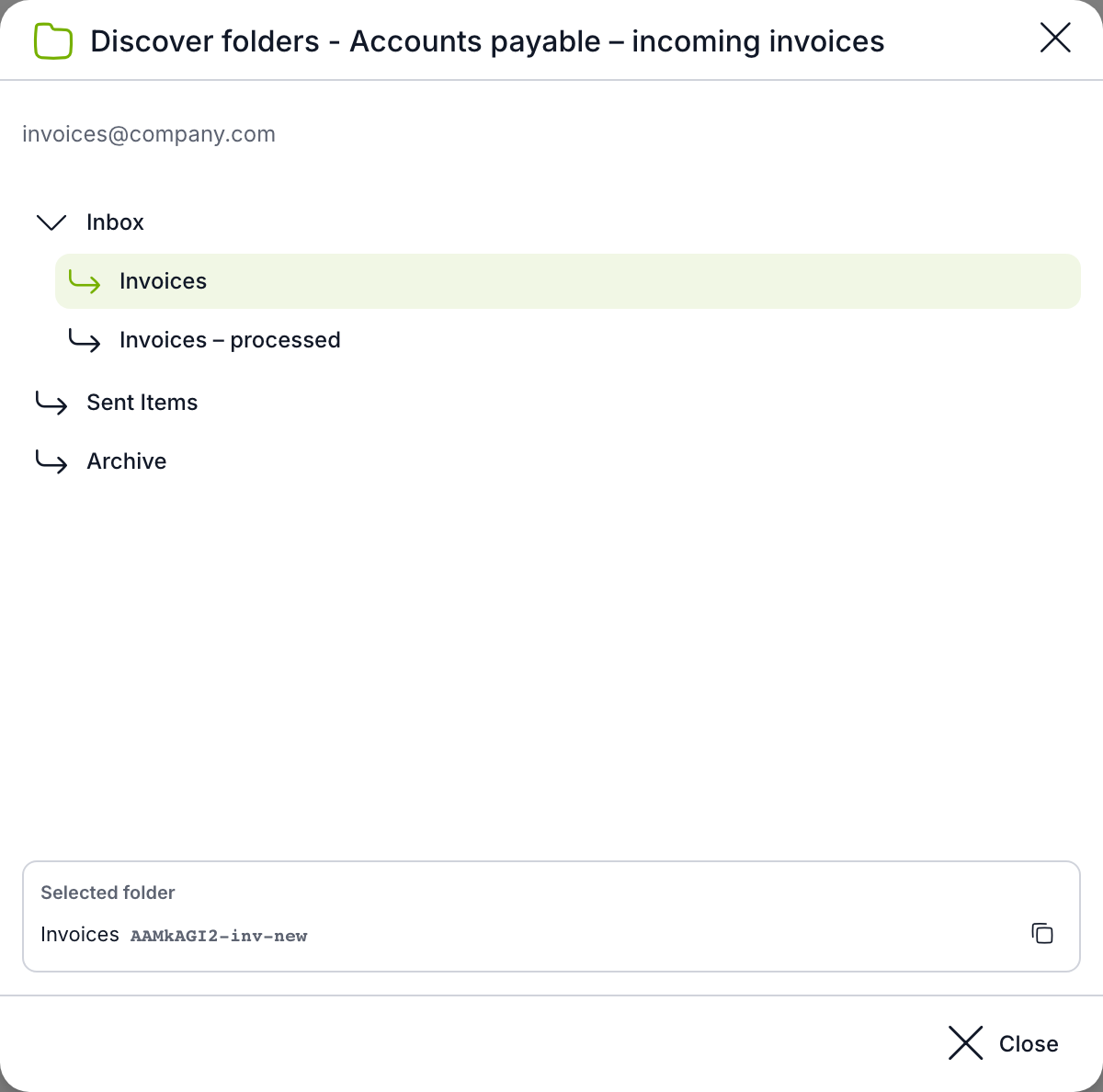
The dialog shows the mailbox address and its folder tree. After you click a folder, its name and ID appear at the bottom; copy the ID with the button on the right. You need the folder ID for the input and output folders in the Email processing cron. However, you do not have to copy the ID into the cron: the folder fields there have their own button with the same tree. For IMAP, you enter the folder name instead of an ID, for example INBOX or INBOX/Processed.
Deleting a connection
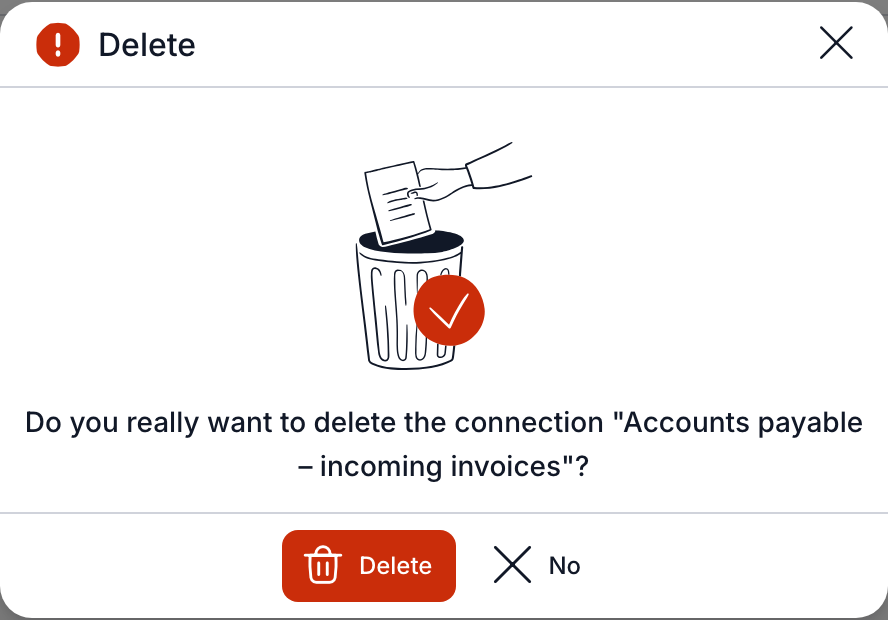
The Delete button removes the connection; the No button closes the dialog without changes. Before deleting a connection, remove it from crons and smart events, otherwise they will fail with an error.
Email Ledger
The Email Ledger tab contains one record for each email that the Email processing cron loaded when creating cases. An email is identified by its connection and Message-ID, so no second case is created from the same email, even if it stays in the input folder.
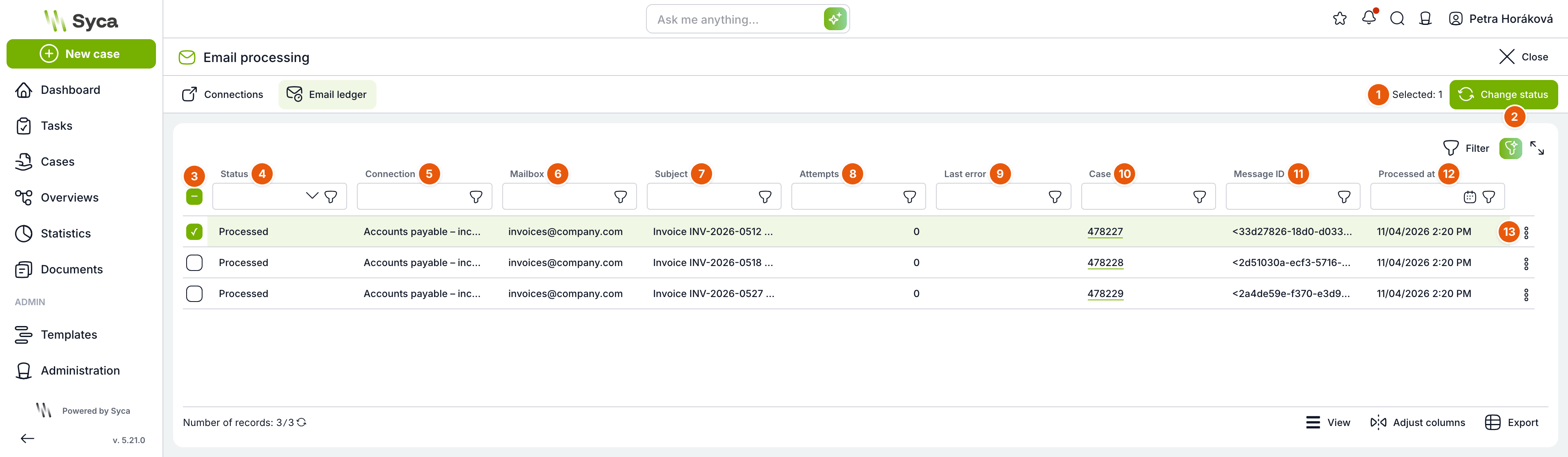
| No. | Element | Purpose |
|---|---|---|
| 1 | Selected | Number of checked rows. |
| 2 | Change status | Opens the dialog for a bulk status change of the checked rows. It is active only when at least one row is selected. At most 1000 records can be changed at once. |
| 3 | Row selection | The checkbox in the header selects all rows; the checkboxes in the rows select individual emails. |
| 4 | Status | Processing status of the email, see the table below. In the filter, you can select one of the statuses. |
| 5 | Connection | Connection through which the cron loaded the email. Empty for a deleted connection. |
| 6 | Mailbox | Mailbox address. |
| 7 | Subject | Email subject. |
| 8 | Attempts | How many times processing of the email failed. |
| 9 | Last error | Error of the last failed attempt. |
| 10 | Case | Number of the case created from the email. Click to open the case. |
| 11 | Message ID | Message-ID of the email from the mail server. |
| 12 | Processed date | Date and time of the last change to the record. By default, the table is sorted from newest. |
| 13 | Row actions | Menu with Change status and, if a case was created from the email, Open case. |
Email statuses
| Status | Meaning |
|---|---|
| Pending | The cron loaded the email and started processing it. The status remains if the cron run crashed midway, and the cron processes the email on the next run. |
| Processed | The case was created. The record is saved together with the case, so the Processed status means the case exists. If the email stayed in the input folder, the cron only marks it as read on the next run and moves it to the output folder. |
| Error | Processing failed and no case was created. The cron tries again on the next run and increases the number of attempts. |
| Gave up after retries | Processing failed five times. The cron keeps skipping the email and writes an error to the log on every run. The email stays in the mailbox input folder, waiting for you to fix the cause. |
Records in the Processed status are deleted by the CleanupCron cron, by default after 365 days. Records in other statuses are not deleted, because their email is still in the input folder. Given-up emails are also reported on the System Status page: a warning when any email is in Gave up after retries, and a critical status when an email has been pending or in error for more than 8 hours.
Changing the status
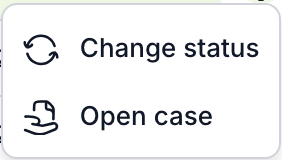
Change the status of a single email from the row menu, and of multiple emails with the Change status button above the table. Open case in the row menu opens the case created from the email.
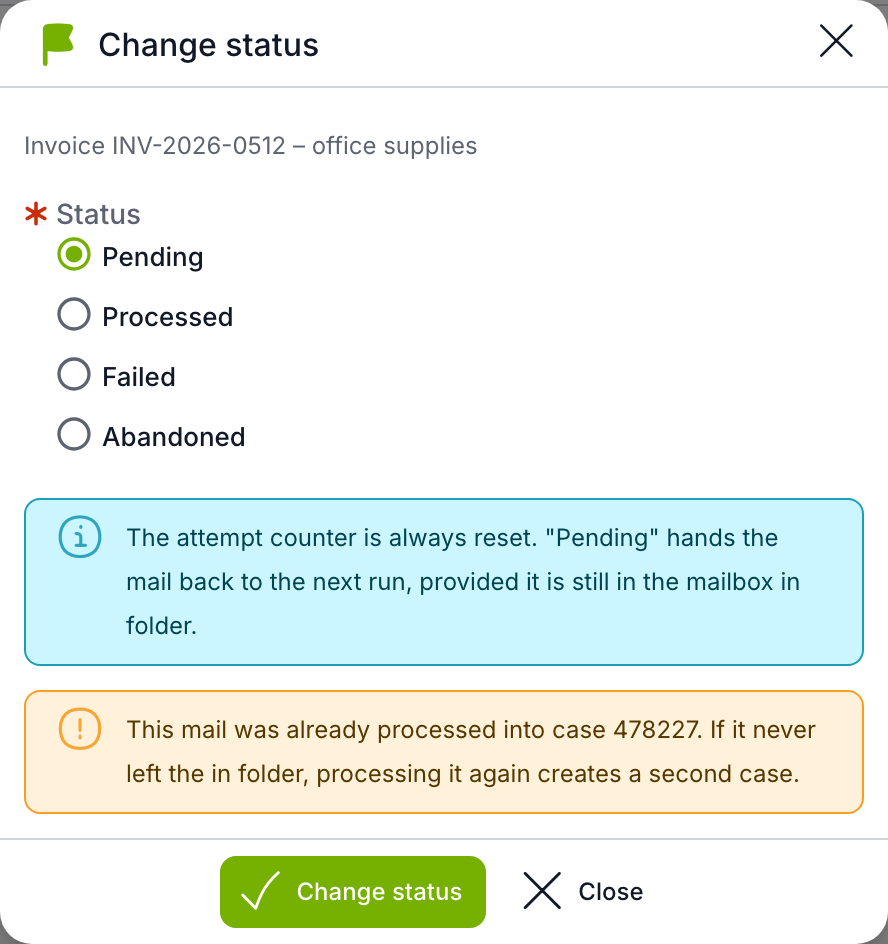
| Field | Purpose |
|---|---|
| Subject / Selected | For a single email, its subject; for a bulk change, the number of selected emails. |
| Status | New status, Pending by default. Any of the four statuses can be selected. |
| Warning | The attempt counter is reset with every change. If the email already has a case and the selected status is not Processed, the dialog warns that further processing will create a second case if the email never left the input folder. |
| Change status | Saves the change. The change is written to the Logs including the administrator's name. |
| Close | Closes the dialog without changes. |
What each status does:
- Pending returns the email to the next cron run if it is still in the input folder. Use it after fixing the cause for emails in the Error or Gave up after retries status.
- Processed stops case creation. On the next run, the cron only marks the email as read and moves it to the output folder.
- Gave up after retries leaves the email in the input folder and the cron skips it.
Email processing cron
Cases are created from emails by the Email processing cron (technical name EmailProcessingCron), which you configure in Administration → Crons. By default, it runs every 5 minutes between 3:00 and 19:59 and is inactive; you turn it on yourself. On a new installation, the cron is ready in the list. On an installation upgraded from an earlier version, add it with the Add cron button and the EmailProcessingCron (PLATFORM) option. You can have several Email processing crons, for example with different schedules.
The cron parameters have two parts: default settings shared by all mailboxes and a list of mailboxes (jobs). Each job reads one connection.
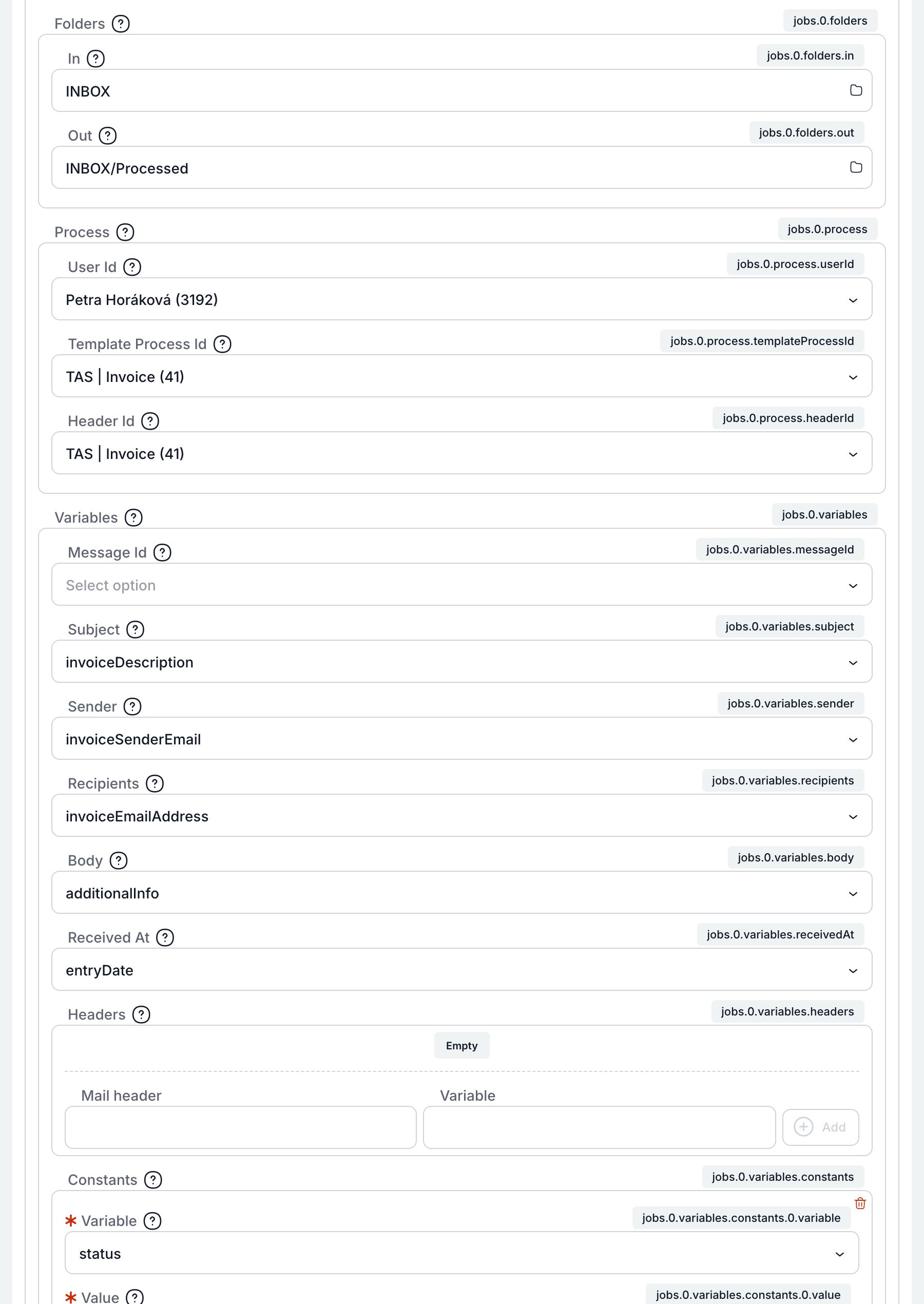
| Parameter | Purpose |
|---|---|
Limit (limit) | How many emails the cron reads from each mailbox per run, default 100. The rest is processed by the next run. |
Attachments (defaults.attachments) | upload (default) uploads the email attachments to the case as documents, skip leaves attachments out. Images embedded in the email body are never uploaded as attachments. If an attachment fails to upload, processing of the email fails and the cron tries again. A case without documents is not created. |
Ignored Attachment Types (defaults.ignoredAttachmentTypes) | File extensions that are not uploaded, for example png and gif for logos in signatures. Empty means all attachments are uploaded. |
Attach Email As Pdf (defaults.attachEmailAsPdf) | Also attaches the email itself to the case as a PDF with the header, body and list of attachments. Off by default. Requires LibreOffice. If the PDF cannot be created, the case and its documents are not affected. |
Ignore Auto Replies (defaults.messageClass.ignoreAutoReplies) | Skips automatic replies (for example out of office), meeting invitations and delivery receipts and does not create a case from them. A skipped email is moved to the output folder. On by default. Works only with Microsoft Graph; with IMAP and POP3, every email is processed. |
Allowed Prefixes, Ignored Classes (defaults.messageClass.advanced) | Only for Exchange with custom message classes. Allowed Prefixes are the classes from which a case is created (default IPM.Note, a regular email); Ignored Classes are classes that are never processed (default IPM.Note.Rules.OofTemplate.Microsoft, an out-of-office reply). Otherwise leave empty. |
Add a mailbox with the Add button under Mailboxes. The icons in the mailbox header copy or delete it.
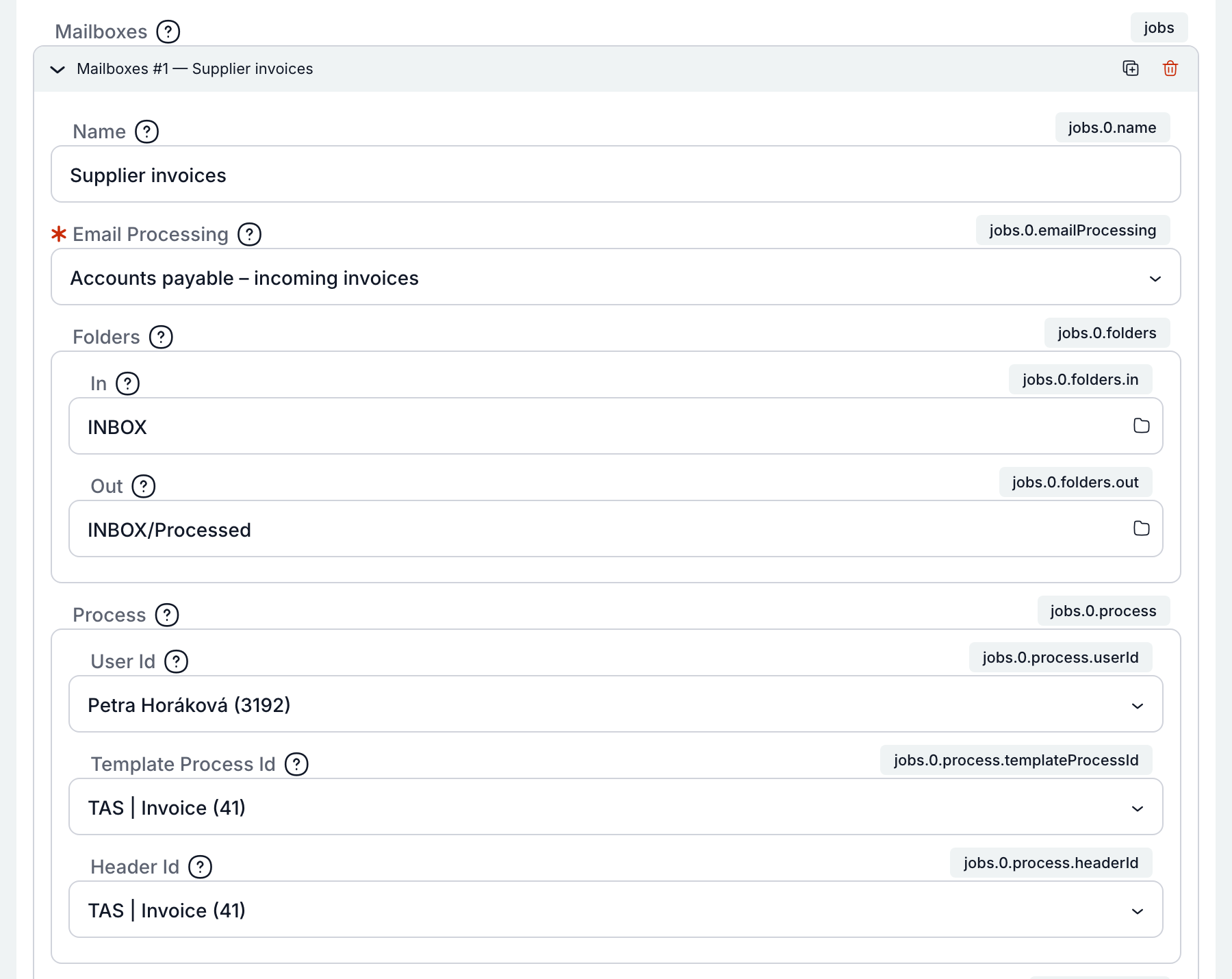
| Parameter | Purpose |
|---|---|
| Name | Job name shown in the header. Optional; without it, the connection name is shown. Useful when several jobs read the same mailbox. |
| Email Processing | Required. Connection from Email Processing that the job reads. |
| Folders: In | Folder the cron reads emails from. The folder button in the field opens the folder tree of the selected connection (Microsoft Graph). For IMAP, type the folder name, for example INBOX. Not filled in for POP3. |
| Folders: Out | Folder the cron moves the email to once a case has been created from it. Not used by POP3. |
| Process: User Id | User on whose behalf the case is created. |
| Process: Template Process Id | Template the case is created from. The variables below are offered based on it. |
| Process: Header Id | Template header under which the case is created. |
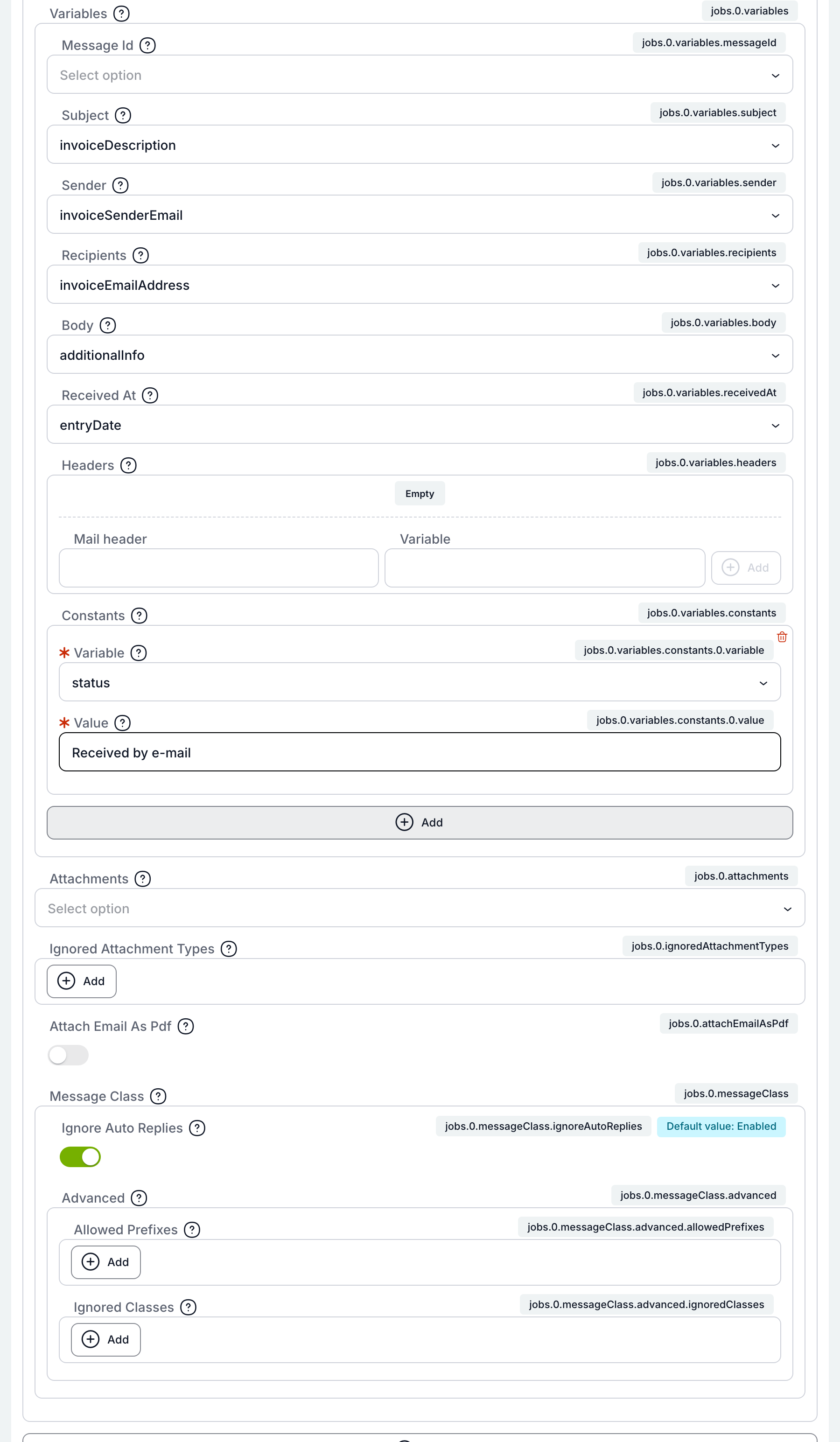
| Parameter | Purpose |
|---|---|
| Variables: Message Id | Variable for the email's Message-ID. Optional; the email ledger knows it even without this. |
| Variables: Subject, Sender, Recipients, Body, Received At | Template variables for the subject, sender address, recipient addresses (separated by semicolons), email body and date received. An empty field means the value is not stored. |
| Variables: Headers | Custom email headers into variables. On the left the header name (for example X-Invoice-Id), on the right the variable; the Add button adds the pair. |
| Variables: Constants | Variables that get a fixed value on every created case, for example status = Received by e-mail. If the same variable also receives a value from the email, the value from the email applies. |
| Attachments, Ignored Attachment Types, Attach Email As Pdf, Message Class | Override of the default settings for this mailbox only. An empty field means the cron's default settings apply. |
How the cron processes an email
- For each mailbox, it loads at most Limit emails from the input folder.
- For each email, it checks the ledger. An email in the Processed status is only marked as read and moved to the output folder. An email in the Gave up after retries status is skipped.
- Other emails are written to the ledger as Pending and a case is created from them: attachments are uploaded, variables are filled in and the ledger record is switched to Processed.
- Depending on the settings, it attaches the email as a PDF, starts the case, marks the email as read and moves it to the output folder.
- If something fails before the case is created, the email gets the Error status and the cron tries again on the next run, at most five times. If only starting the case or moving the email fails, the case goes into an error state and the cron moves the email on the next run.
An error in one mailbox or one email does not stop processing of the others. Every error is written to the Logs.
How to create a case from an email
- Prepare the template. In the template the case should be created from, create text variables for the email data (subject, sender, body) and, if needed, variables with a fixed value. Make sure the template is active and has a header, and that the first task has a solver.
- Store the password in the Vault. In Administration → Vault, create a secret with the mailbox password (IMAP, POP3) or with the Client secret of the app registration (Microsoft Graph).
- Create the connection. On the Email Processing page, click Create connection, enter a name, select the type and fill in the parameters. Select the password from the Vault. Save.
- Test the connection. In the row menu, choose Test connection. If the test fails, fix the parameters according to the displayed error.
- Configure the cron. In Administration → Crons, open the Email processing cron (or add it with the Add cron button). Under Mailboxes, add a mailbox, select the connection, the input and output folders, the user, template and header, and map the variables. Save and turn the cron on.
- Verify the result. Send a test email to the mailbox and wait for the next cron run (every 5 minutes by default). The Email Ledger tab should show a record with the Processed status and a link to the new case.
- If the email ends up in the Error status, read the Last error column, fix the cause and wait for the next run. Return an email in the Gave up after retries status by changing its status to Pending.
Other uses of connections
- The Mail smart event on a task can use a connection to list folders and emails, load an email, mark it as read and move it.
- The Service Console offers the functions
sys.mail.listFolders,listMails,getMail,listAttachments,setRead,moveMailandverify. All of them take the connection name as the first parameter, for examplereturn await sys.mail.verify("Accounts payable – supplier invoices");.
Related: MS Graph (email), Crons, Vault, System Status, Logs, Service Console