Task types
Every template task has a type. The type determines whether the task waits for a person, runs on its own, sends an email, starts a subprocess, triggers an event, waits for an event or calls a Smart Event. The tabs in the task editor also change according to the type. You open the task editor in the Templates menu (visible to administrators and template managers): in the template detail on the Tasks tab, or from the template graph.
Selecting the type of a new task
When you create a new task, the editor shows the Task type selection section at the top, with cards for all types. Click a card to select the type. When you hover over a card, a short description of the type is displayed.
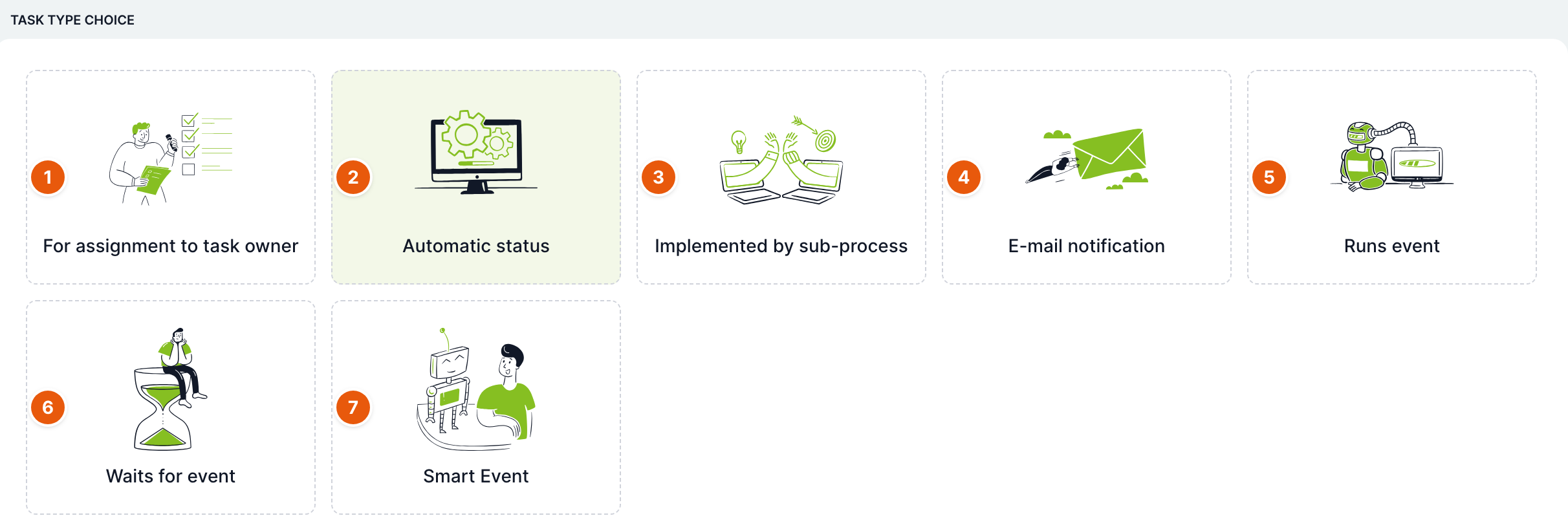
| No. | Card | Purpose |
|---|---|---|
| 1 | To be solved by user | A task for a specific user who has to do something: fill in a form, check, decide or approve. The case waits on the task until the solver completes it. |
| 2 | Automatic task without intervention | A system task. On activation, it runs its calculations and immediately completes itself. It has no solver and no form. A new task has this type preselected. |
| 3 | Controlled by subprocess | Creates a child case from another template and waits until it ends. It can then take over variable values from it. |
| 4 | Email notification | Sends an email according to the settings on the E-mail tab and immediately completes itself. It has no solver. |
| 5 | Triggering an external event | Triggers an event from the Events section, for example creating another case or follow-up logic outside this process. Then it completes itself. |
| 6 | Event | A task that waits for an event. In a case, it is offered in the Event window and allows intervention outside the regular task order, typically cancelling, changing or copying the case. |
| 7 | Smart Event | Runs a built-in action with its own settings, for example an API call, an FTP transfer, generating a JWT token or an AI query. It saves the result into variables and completes itself. |
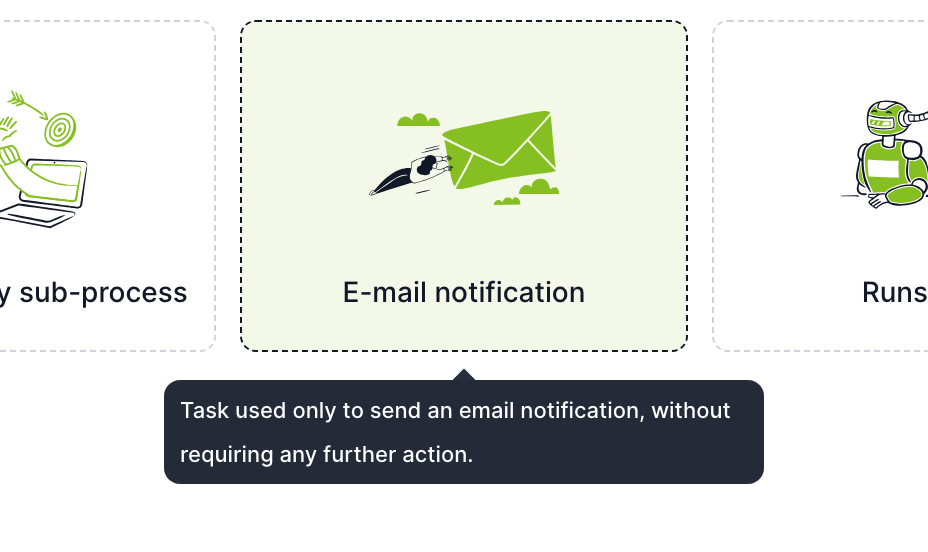
You can later change the type of a saved task using the drop-down list on the left side of the editor's second bar. The list also shows the description of each type. For a new task, this list is displayed instead of the cards when you turn on Expert mode.
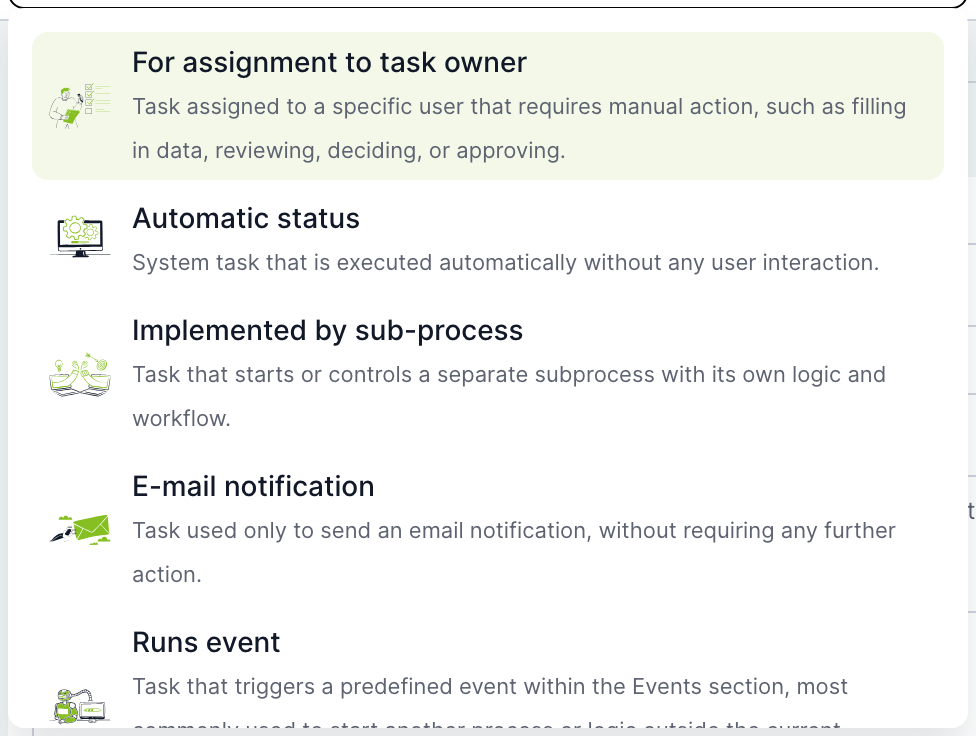
Editor bar and tabs

| No. | Element | Purpose |
|---|---|---|
| 1 | Task type | Drop-down list of types. It is visible only on the General tab. |
| 2 | General | Name, solver, planning, permissions and other task settings. Every type has it. |
| 3 | Assignment | The task form: which variables the solver sees and fills in. Only for the To be solved by user type. |
| 4 | Calculations | Scripts that run on start, at the end and at other moments. Every type has it. The number shows the count of calculation sections. |
| 5 | Conditions | Opens the window with dynamic form conditions. It is missing only for the automatic task. The number shows the count of conditions. |
| 6 | Expert mode | Shows less frequently used settings. A green dot means the mode is turned on. |
Tabs by type:
| Type | Tabs |
|---|---|
| To be solved by user | General, Assignment, Calculations, Conditions |
| Automatic task without intervention | General, Calculations |
| Controlled by subprocess | General, Calculations, Conditions |
| Email notification | General, E-mail, Calculations, Conditions |
| Triggering an external event | General, Calculations, Conditions |
| Event | General, Calculations, Conditions |
| Smart Event | General, Smart Event, Calculations, Conditions |
The sections on the General tab also change according to the type. The automatic task and Email notification have no Task solver section. Event and Smart Event have no Planning section. For details, see the articles General task settings and solver and Planning: start, branching and deadline.
When a task has a description, a different supervisor, a deadline, a non-standard start condition, multi-instance, bulk completion or variable mapping set, the editor turns expert mode on automatically when opened. This way, settings never stay hidden.
To be solved by user
The most common type. After activation, the system determines the solver, assigns the task to them and runs the On start calculations. The solver finds the task in the task list and on the dashboard. The case continues once they complete the task. The task can also be completed or cancelled on its own if it has conditions set in the Task completion section.
Automatic task without intervention
The task has no solver and no form. On activation, it runs the On start calculations and is completed immediately, so the case continues right away. It is used for calculations, setting the case status or technical steps between tasks.
Controlled by subprocess
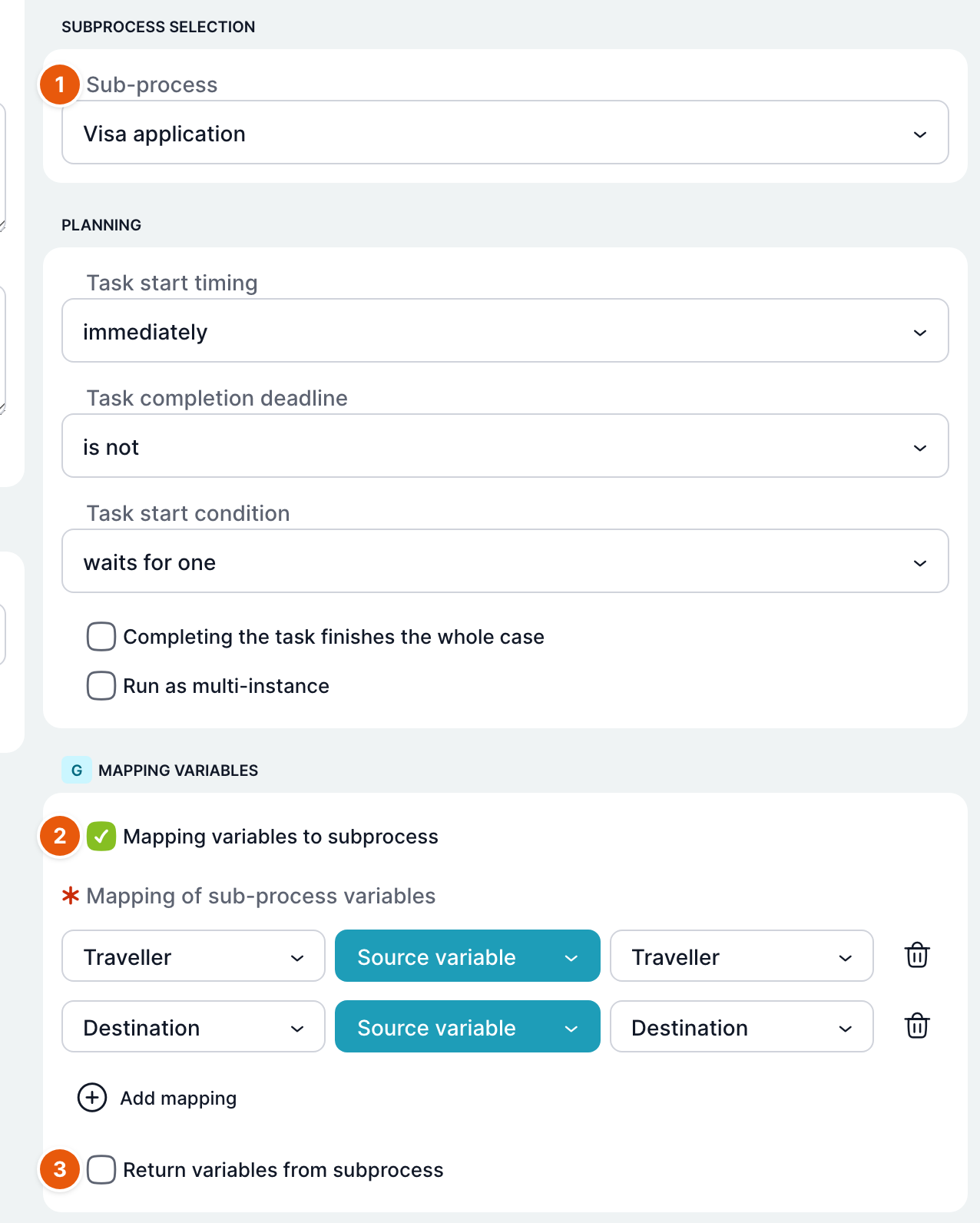
| No. | Field | Purpose |
|---|---|---|
| 1 | Subprocess | The template from which the child case is created. Required. |
| 2 | Mapping variables to subprocess | Values passed to the child case when it is created. Each row has a target subprocess variable, a source type and a source. Add a row with the Add mapping button, delete it with the trash icon. Only in expert mode. |
| 3 | Returning variables from subprocess | Values written back to the variables of this case after the child case ends. Only in expert mode. |
Besides variables, both mappings also offer the $Termín target. When you map it, the child case gets a completion deadline based on the deadline of the parent case.
On activation, the task determines the solver, runs the On start calculations and creates the child case. The task then stays active until the child case ends. After that, the returned values are written and the task is completed. If the child template has no default case name, the child case gets a name composed of the $ character, a number and the name of the parent case.
Email notification
On activation, the task runs the On start calculations, sends the email and is completed immediately. Required variables are not checked for it. If the email cannot be sent, the error is only recorded in the log and the task is completed anyway. Email settings are described in the article Email task and notifications.
Triggering an external event
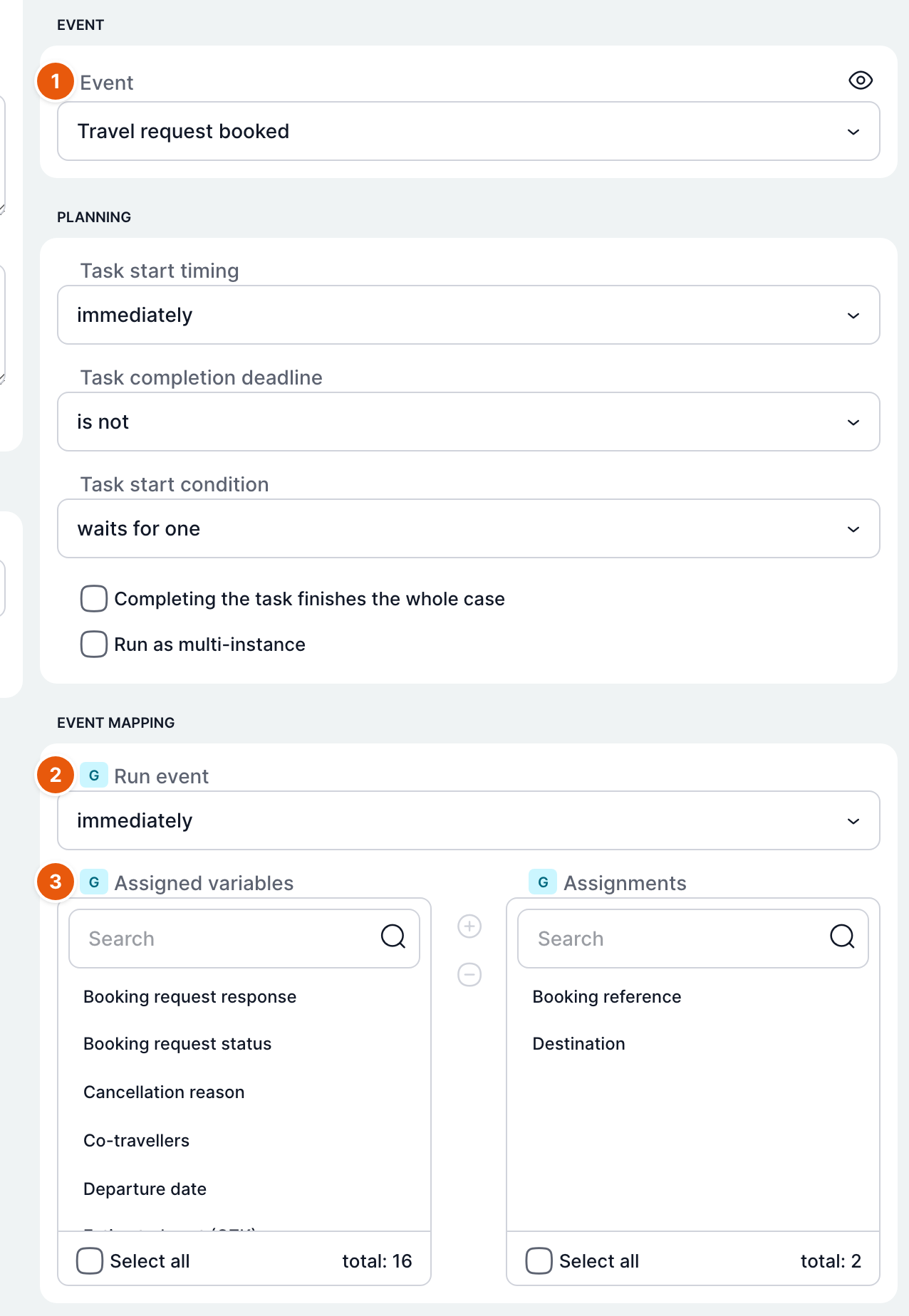
| No. | Field | Purpose |
|---|---|---|
| 1 | Event | The event from the Events section that the task triggers. Required. The eye icon opens the event in a new tab. |
| 2 | Run event | immediately: the event rules run right when the task is activated. in background: the event is saved and processed later by a scheduled job. Only in expert mode. |
| 3 | Variable assignment | Variables whose values are passed to the event as parameters. Move the selected variables to the right list. Only in expert mode. |
The task has a Task solver section like a user task. On activation, the system determines the solver, the task runs the On start calculations, triggers the event and is completed immediately, in both run modes.
Event
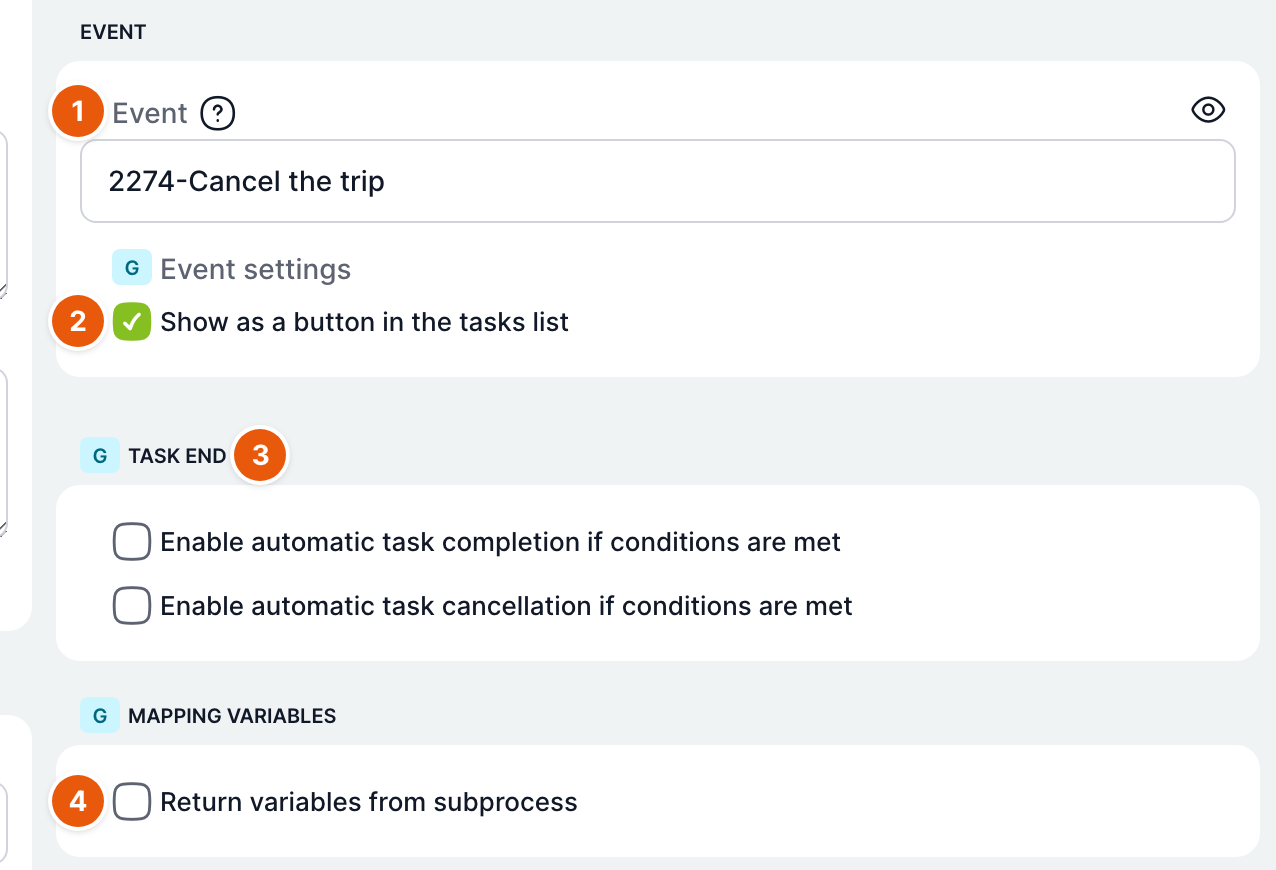
| No. | Field | Purpose |
|---|---|---|
| 1 | Event | The name of the event the task waits for. If you leave the field empty, a new event named in the format template number-task name is created automatically on save. If you type a new name, an event with that name is created. If you select an existing event, nothing new is created. Only in expert mode. |
| 2 | Show as button in task overview | Offers the event as a button outside the Event window as well. |
| 3 | Task completion | Automatic completion or cancellation based on conditions. See the article Automatic task completion and cancellation. |
| 4 | Returning variables from subprocess | Writes the parameters of the received event into case variables. Only in expert mode. |
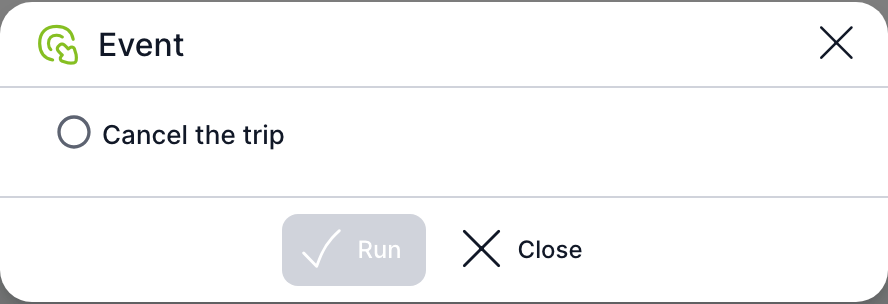
An Event task usually has no incoming link, so it is activated as soon as the case is created. It runs the On start calculations and then waits. The user triggers it in the case detail with the Event button: they select the event, fill in its variables if needed and confirm with Start. It can be triggered by anyone who could solve the task, or by a user with HR rights to the case.
When the same event is triggered by another task or an integration, it wakes up the waiting task in all active cases of this template. If only one case should react, restrict the event with an event filter in the calculations.
Smart Event
On activation, the task runs the selected Smart Event with the parameters from the Smart Event tab, saves the status and the result into variables, runs the On start calculations and is completed immediately. It does not wait for a response or retry. Decide how to proceed based on the status variable. For details, see the article Smart Event task.
Related: General task settings and solver, Planning: start, branching and deadline, Email task and notifications, Smart Event task.