User guide
Quick Start Guide
Case notes
Table component
FAQ
Search
Dashboard
Deleted Documents and Access Log
Solving a task
AI Assistant
Manuals
Substitution and Vacation
Suspending, resuming, archiving and deleting a case
Case variables, history and graph
Basic Terms
Uploading Documents, Folders and Revisions
News
Favorites
Navigating the interface
Dashboard widgets
Case Detail
News/Announcements in Team assistant
Case list
Logging In and Out
Account Settings
Task List
Mobile app settings
Reports and Charts
Searching and Listing Documents
Handing Over, Taking Over and Tasks to Pull
Bulk Tasks
Printing a Case
Creating and Editing an Overview
What Is TAS
Form Fields
Tablet Interface and NFC
Overviews
Creating a New Case
Case Events
Case Permissions
Subscribing to an overview by email
Administrator Guide
Platform guide
Administration
Crons
Authentication and Synchronization
SMTP OAuth authentication
LDAP, SAML, Entra ID and NFC: Settings
Configuring authentication modules
Authentication
Vault
DMS attributes
Service Operations
Mobile App Setup for Your Environment
Scheme
XML Process Import
HR agenda and agenda handover
Logs
Archiving
Scripts
Sequences
System Status
News Management
Migrations
Configuration
Plugins
Email Queue
Service Console
AI monitoring
Shared Files
Settings
CSP Headers
CSV Files
Scheduled Tasks
Processing Queues
Maintenance
Administration Menu
Licenses
Dynamic Tables
Usage Statistics
Access Token Settings & Session Expiration
Visual Identity
Template
Prints
Tasks
Task calculations
Automatic task completion and cancellation
Email Task and Notifications
Task types
Smart Event task
Instructions, Sections and Testing a Task
General task settings and solver
Multi-instance
Planning: start, branching and due date
Dynamic conditions: builder
Variable assignment and sections
Variables
Class diagram, object state import and alias candidates
Document list
Text and Multiline text
Checkbox
Number
Variables: overview and common settings
Lists (texts, numbers, dates)
Dynamic Rows
Date
Dynamic list
Sequence
Dynamic Table
Shredding Process
Template graph
Template Tab
Template List
Importing, Exporting and Copying a Template
Template Headers
Case statuses
Roles
Connecting to a different database
Diagnosing services
Hyper-V: Isolated NAT Network with Port Forwarding
Users
Translations
NFC Integration
Events and Rules
AXIOS API
Plans
Axios with Vault
Users
Axios with SSL Certificate
User Detail
Calculations & Functions
Form condition
Other dynamic conditions
Optimization of API calls on dynamic conditions
Filtering in a dynamic sheet using dynamic conditions
Dynamic Conditions: Script
Dynamic Rows: Script
Calculations
Dynamic Tables
Printing and File Generation
Documents in Calculations — Complete Guide
Printing and File Generation in Calculations
DOCX document creation
Other Calculations
How and when calculations run
Calculations API reference: the lib library
Calculations API reference: variables and case
Global Scripts and React Scripts
Integrations
MS Graph
MS Graph - cron configuration
MS Graph v2 (from v5.7.102)
MS Graph - preparing the mailbox
MS Graph (email)
ISDOC.PDF
DocuSign
TAS call module - TAS 2 TAS (process creation via API)
DB View
DocuSign and electronic signatures
ERP and other integrations
Smart Events for Integrations
TAS Forms
TAS Forms
Activating the module on the environment
TAS Forms - secret creation guide for Docker Swarm
Advanced Features & Tips
Filtering in a dynamic sheet using a URL parameter (static)
Optimizing Overviews with a Large Number of Cases
API Documentation
Product
Technical Changelog
Business Changelog
Version Upgrade Guide
Upgrade to v5.19
Upgrade to TAS 5.19 - Key Changes and Removed Features
Upgrading TAS 5.17 to 5.19 – Technical Part (DevOps)
Upgrate to v5.17
Upgrade to TAS 5.17 - Key Changes and Removed Features
Asset Migration from FE to Backend (5.17 Upgrade) — DevOps
Upgrading to v5.7
Lodash upgrade v4.17.x (>v5.5)
Main changes and deprecated features (v5.3 > v5.7)
Highlighting variables in Read-only status (>v5.7.58)
Upgrading to 5.3
Dynamic conditions migration
PDF printing adjustment
Editing Task Description vs Task Instructions
Transpiling forEach to a for loop
Rendering HTML on Caseoverview
Differences between TAS4 and TAS5 - a complete overview
Best Practices for Upgrading from v4 to v5
Using validation functions
Technical details
Server prerequisites
Security and Data Protection
Security
TAS Operations Runbook
Technological architecture
News / Important information
Microsoft Disabling Basic Auth for SMTP
End of EWS support and transition to Microsoft Graph
Adjustment in EWS after MS Exchange update (29.04.2025)
Security notices
Getting Started
- All Categories /
- Administrator Guide
- Platform guide
- Template /
- Template Headers
Template Headers
A header determines the name under which a template is offered when creating a case and who may create a case from it. One template can have multiple headers: you can then offer the same process under different names to different groups of users, for example "Equipment request" to all employees and "Equipment replacement" only to the IT department. You manage headers in the template on the Headers tab.
The first header is created automatically when a new template is saved for the first time and has the same name as the template.
Header list
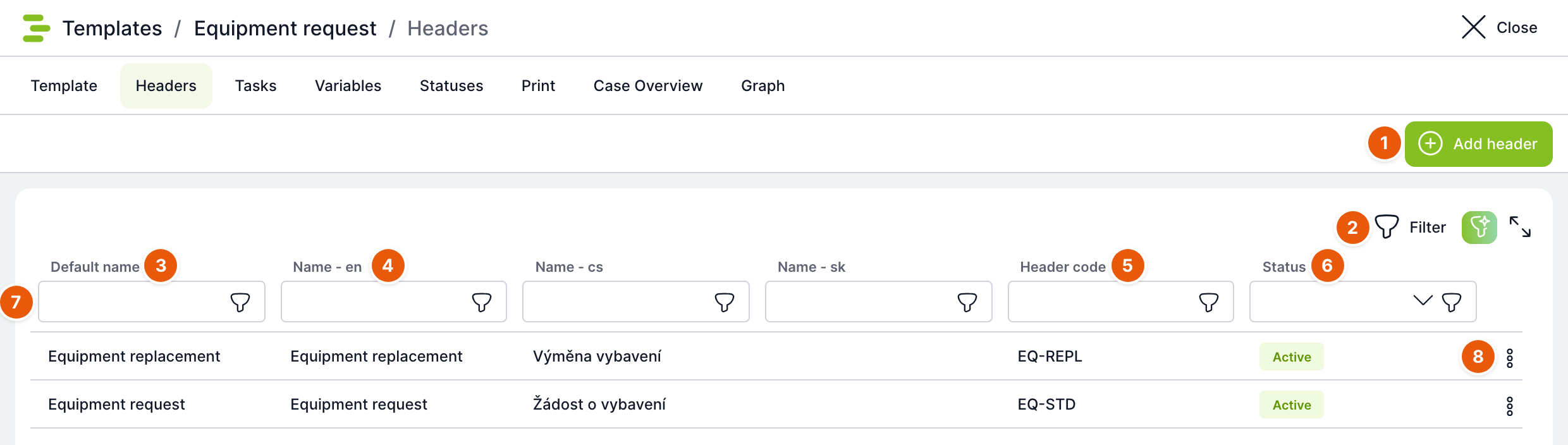
| No. | Element | Purpose |
|---|---|---|
| 1 | Add header | Opens an empty detail of a new header. |
| 2 | Filter | Window for a filter with multiple conditions. Next to it are the AI filter assistant (only when AI is enabled) and full screen. |
| 3 | Default name | Header name. The list is sorted by it. |
| 4 | Name – language | One column with the name translation for each application language. |
| 5 | Header code | Code for calculations and integrations, see Header detail. |
| 6 | Status | Active or Inactive. |
| 7 | Column filter | Filter field below the heading of each column. |
| 8 | Row menu | Header actions, see below. |
Below the list, as usual, are the record count, View, Customize columns and Export list to file. Open a header by double-clicking its row.
Header actions
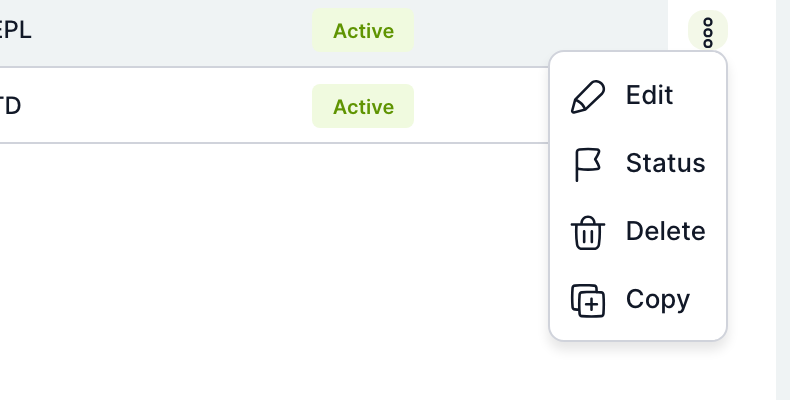
| Action | Purpose |
|---|---|
| Edit | Opens the header detail. |
| Status | After you confirm the question "Do you really want to change the header status?", switches the header from active to inactive or vice versa. |
| Delete | After you confirm the question "Do you really want to delete the header?", deletes the header together with its roles and organizational units. Deletion cannot be undone. Pressing the Delete key on the row does the same. |
| Copy | Without any further prompt, creates a copy of the header named clone(1)_<název> (the number increases with further copies). The copy takes over all settings including roles and organizational units, but it is inactive. Edit its name and activate it. |
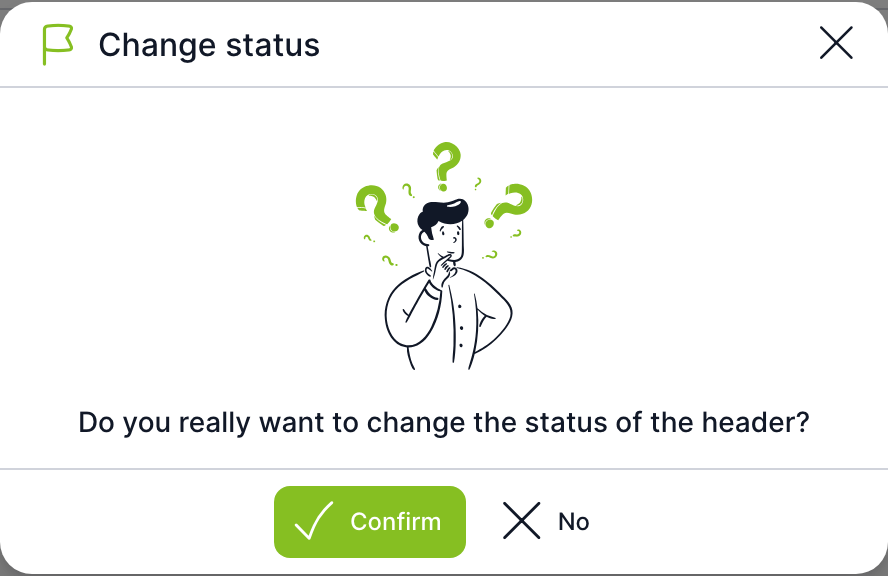
An inactive header is no longer offered for creating cases, but it is preserved. Deletion is permanent.
Header detail
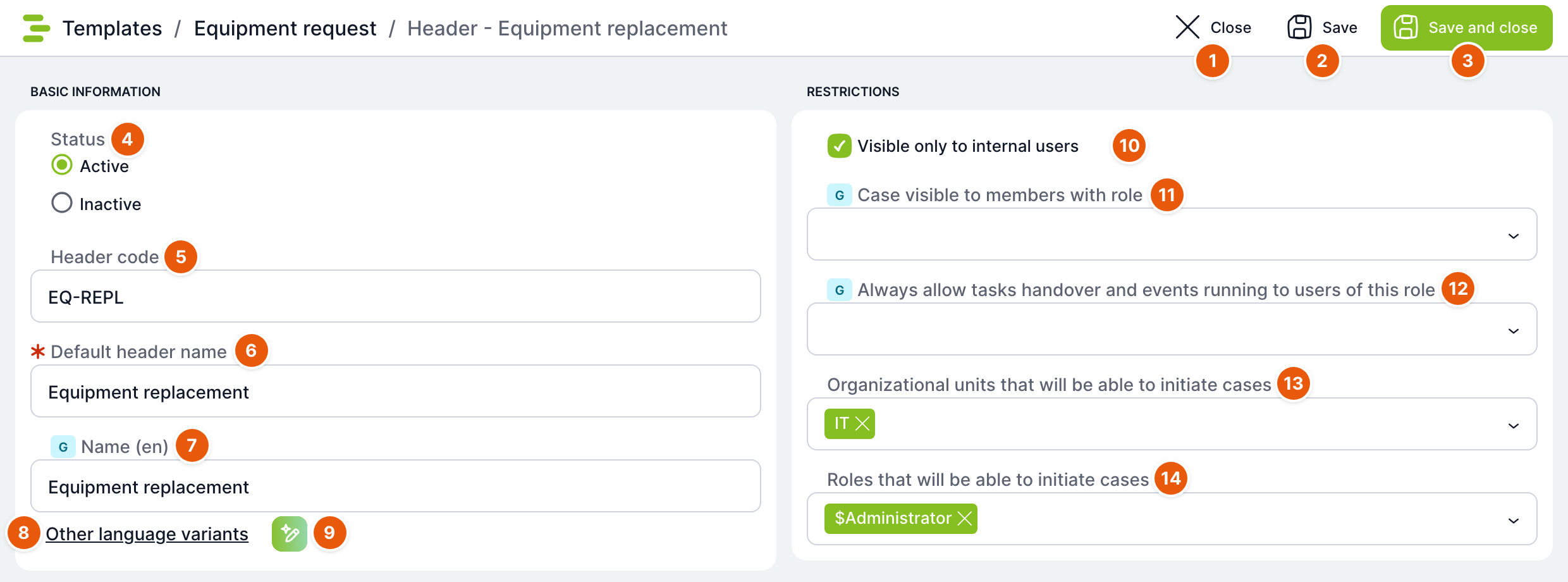
| No. | Element | Purpose |
|---|---|---|
| 1 | Close | Returns you to the header list. If there are unsaved changes, TAS asks. |
| 2 | Save | Saves the header and keeps it open. |
| 3 | Save and close | Saves the header and returns you to the list. |
| 4 | Status | Active – the header is offered for creating cases. Inactive – it is not offered. |
| 5 | Header code | Optional technical code. Calculations read it with the lib.getHeaderCode() function and use it to assign a header to a case with the lib.setHeaderByCode('…') function, for example when a case is created by another process. The code is also available in overviews and for integrations. |
| 6 | Default header name | Required. The user sees the template under this name when creating a case. The header name is also displayed on created cases. |
| 7 | Name (language) | Translation of the name into the first application language. |
| 8 | Other language variants | Expands fields for translations into other languages. |
| 9 | AI translation | Fills in translations using AI. Only when AI.enabled is on. |
| 10 | Visible to internal users only | The header is not offered to users who have the External login flag in their account. |
| 11 | Case visible to role | Users with the selected role see all cases created through this header. It complements the visibility set on the Template tab. |
| 12 | Always allow users of this role to hand over tasks and trigger events | Users with the role see tasks of cases of this header, can take over and hand them over, and can trigger case events. Works the same as the field of the same name on the Template tab, only for cases of this header. |
| 13 | Organizational units that will be able to start cases | A case can be created through the header by a member of any selected unit and also by its manager. Multiple units can be selected. |
| 14 | Roles that will be able to start cases | A case can be created through the header by a user with any selected role. Multiple roles can be selected. On saving, the $Administrator role is always added here. |
Fields marked with the G label also change the behaviour of cases that have already been created.
Who may create a case
A user is offered the template in New Case when all of the following apply at once:
- The template has the status Operational.
- The header is Active.
- The user has one of the roles in the Roles that will be able to start cases field, or is a member or manager of one of the units in the Organizational units that will be able to start cases field.
- If Visible to internal users only is checked, the user must not have external login.
Users with the $Administrator or $Poweruser role can create a case through any active header of an operational template, regardless of point 3.
If you do not fill in any organizational unit and no role other than $Administrator for a header, only administrators and users with the $Poweruser role can create a case through it. To make the template available to everyone, add the $AllUsers role.
How to offer a process to another group under a different name
- On the Headers tab, open the row menu of an existing header and choose Copy.
- Open the new header
clone(1)_…. - Overwrite the Default header name and translations, fill in the Header code.
- Adjust the roles and organizational units that may create the case.
- Switch Status to Active and click Save and close.
The Links button does not connect templates or headers. You will find it on the Tasks tab, and it opens the list of links between template tasks. It is described in the Template Graph article.
Related: Template tab; Template list; Template Graph.