Plans
A plan starts cases automatically at a set time, either once or repeatedly: for example, a meeting room check every Monday, a timesheet collection every month or a contract review once a year. Plans are managed by an administrator or Power user (role $Administrator or $Poweruser) on the Planning page in the main menu.
Plan list
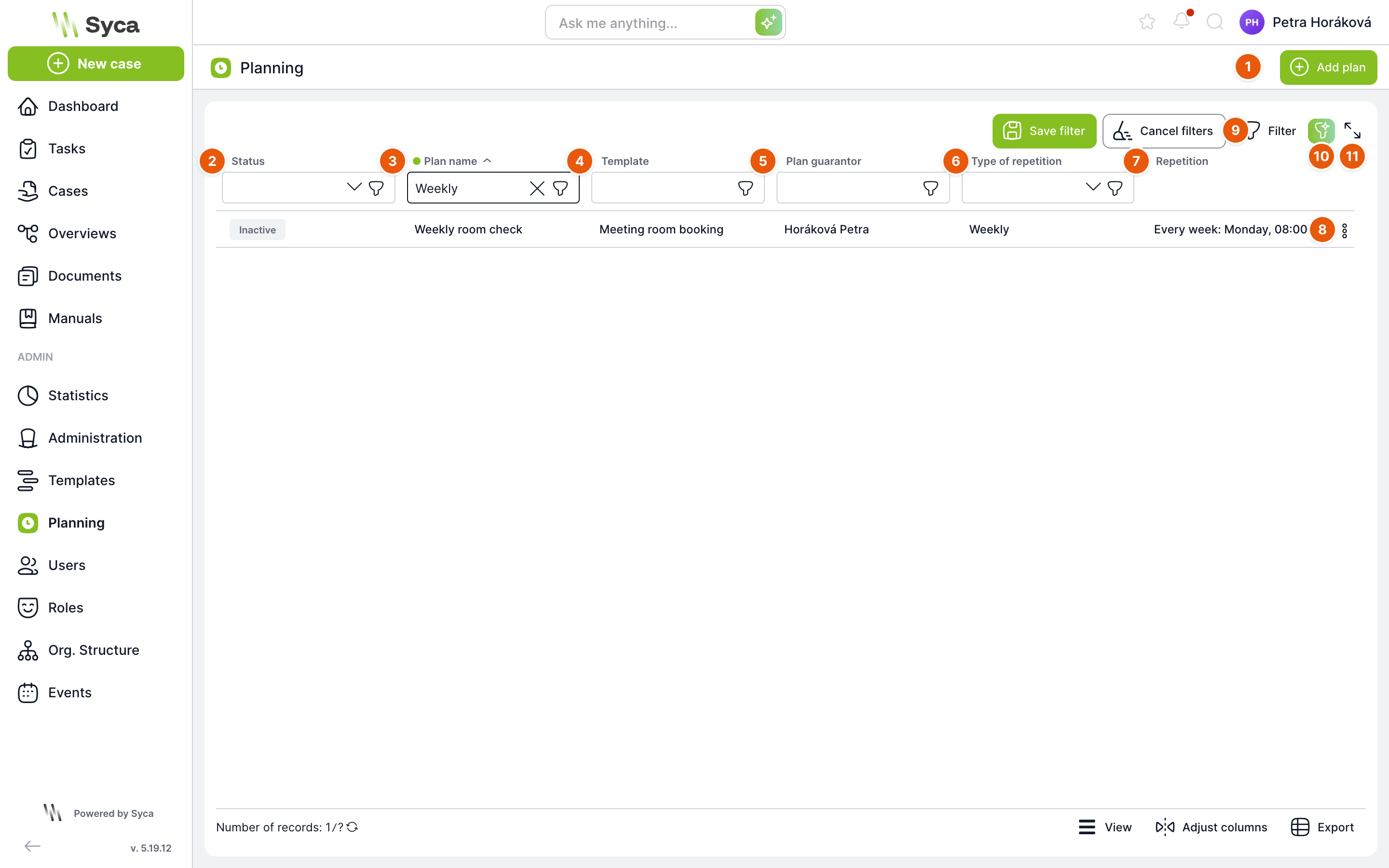
| No. | Element | Purpose |
|---|---|---|
| 1 | Add plan | Opens the New plan window. |
| 2 | Status | Plan status: Active, Inactive, Running, Not running or Finished (see Plan statuses). Can be filtered. |
| 3 | Plan name | Name of the plan. By default, the list is sorted by this column. In the screenshot, the list is filtered to the Weekly room check plan. |
| 4 | Template | Header of the template from which the plan creates cases. |
| 5 | Plan guarantor | User who owns the plan and from whom the initiators are derived. |
| 6 | Repeat type | Never, Daily, Weekly, Monthly, Yearly or Timed. |
| 7 | Repetition | Readable description of the schedule, for example Every week: Monday, 08:00. This column cannot be filtered or sorted. |
| 8 | Row actions | Edit opens the plan detail (double-clicking the row does the same), Status opens the Change status window, Delete removes the plan after confirmation. Pressing the Delete key on a selected row also offers deletion. |
| 9 | Filter | Advanced filter. When any filter is active, Save filter and Clear filters appear next to the button. |
| 10 | AI filter | Write the filter in your own words. Only in installations with AI enabled. |
| 11 | Full screen | Expands the table to full screen. |
As with other tables, the footer contains Record count, View, Customize columns and Export.
Change status
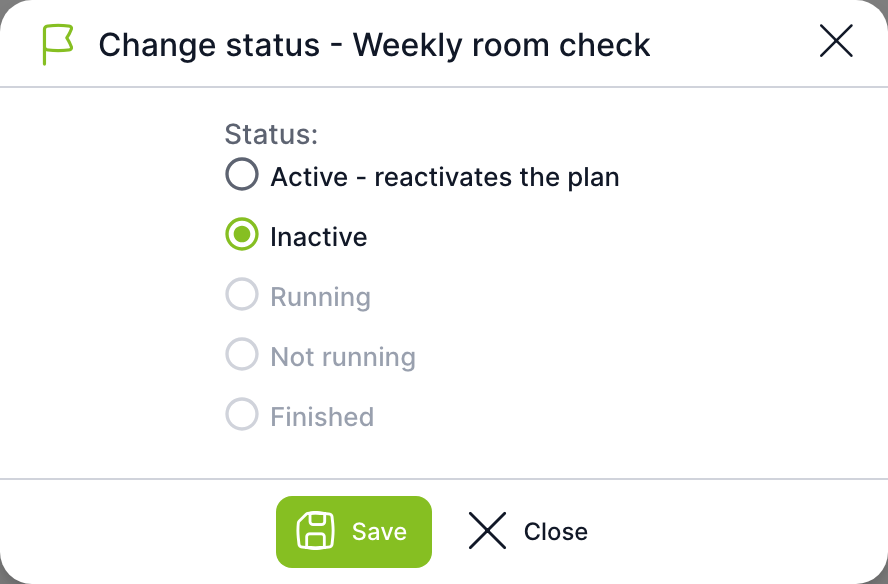
The window opened by the Status action offers only two options: Active – reactivates the plan and Inactive. Running, Not running and Finished are set by TAS itself and cannot be selected manually. Save saves the change immediately.
Plan statuses
| Status | Meaning |
|---|---|
| Active | The plan is waiting for its start time. Once it is reached, the plan starts the first case and switches to Running. The Active – reactivates the plan option also clears the time of the last run, so the plan starts again from the beginning. |
| Running | The plan has already run once and starts further cases according to the repetition. |
| Inactive | The plan starts nothing. Use it when you only want to prepare a plan or pause it temporarily. |
| Not running | Status set by the system; it cannot be selected manually. |
| Finished | The plan has ended: it does not repeat and has already run, the end date has passed or the set number of occurrences has run. |
Plans are evaluated every minute by the PlanCron cron (Administration → Crons). Cases are created only from a template in the Active status; a plan based on a template under development starts nothing.
New plan – Settings
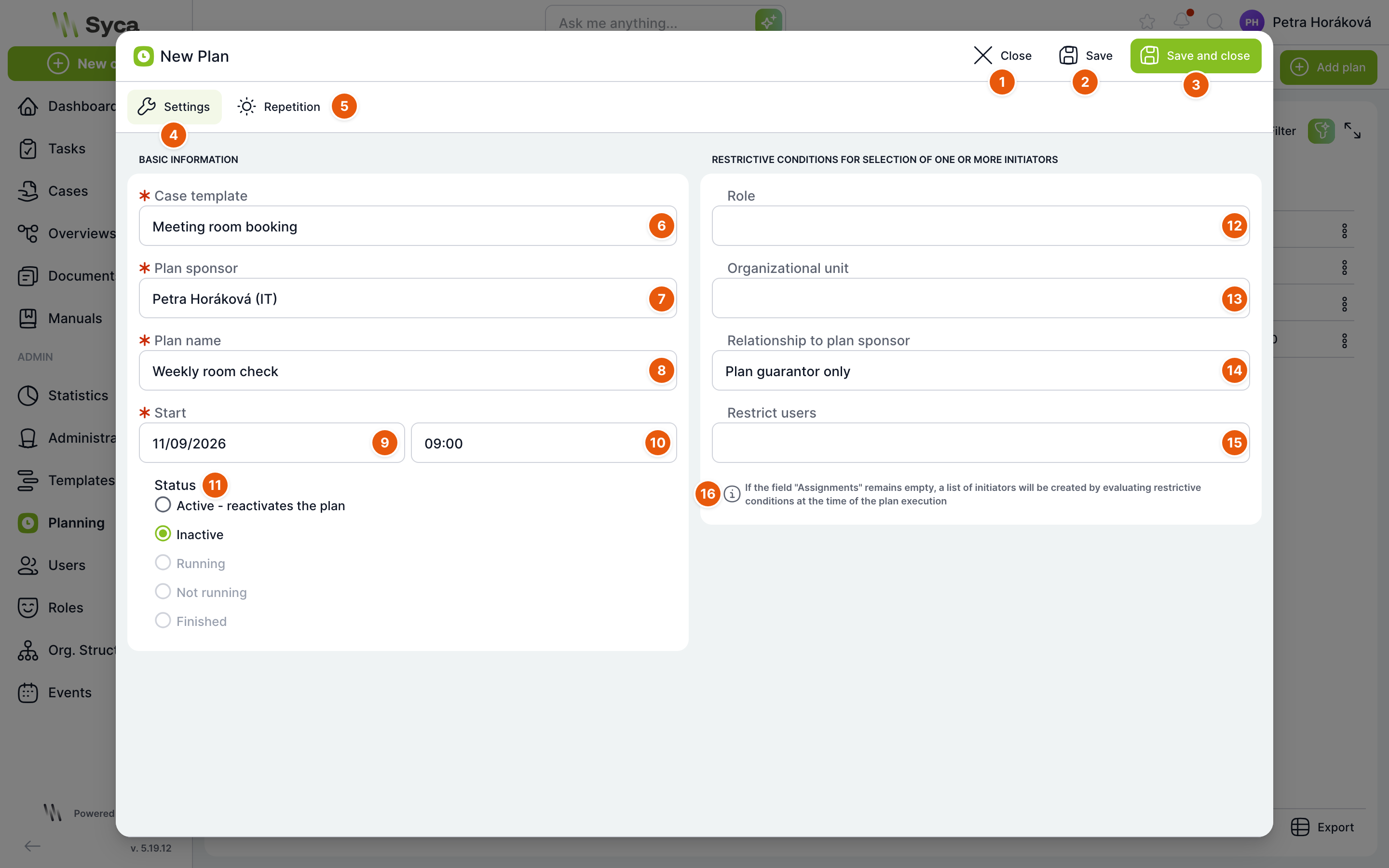
| No. | Element | Purpose |
|---|---|---|
| 1 | Close | Closes the window. TAS offers to save any unsaved changes. |
| 2 | Save | Saves the plan and keeps the window open. Enabled once you fill in the required fields. |
| 3 | Save and close | Saves the plan and closes the window. |
| 4 | Settings | Tab with basic details and initiator selection. |
| 5 | Repetition | Tab with the schedule. |
| 6 | Case template | Required. Header of the template from which cases will be created. |
| 7 | Plan guarantor | Required. User and their organizational unit. The guarantor determines who creates the cases. |
| 8 | Plan name | Required, at most 250 characters. |
| 9 | Start – date | Required. Day of the first run. |
| 10 | Start – time | Required. Time of the first run. |
| 11 | Status | Active – reactivates the plan (default) or Inactive. Other statuses are read-only. |
| 12 | Role | Only a user with this role can be an initiator. |
| 13 | Organizational unit | Only a member of this organizational unit can be an initiator. |
| 14 | Relation to plan guarantor | Whom from the guarantor's surroundings the plan selects: Plan guarantor only (default), Direct subordinates of the plan guarantor, All subordinates of the plan guarantor, Direct superior of the plan guarantor, All superiors of the plan guarantor, Colleagues of the plan guarantor or Unspecified. |
| 15 | Restrict users | Specific users selected from a list matching the conditions on the left. Changing the guarantor, role, unit or relation clears the selection. |
| 16 | Information | If you leave the Restrict users field empty, the list of initiators is evaluated from the conditions only when the plan runs. |
An initiator is the user on whose behalf the plan creates a case: they become its owner and the case is started in their name. With the Plan guarantor only relation, each run creates one case for the guarantor. With the other relations, one case is created for each user who meets the conditions. The case gets its name from the template's default case name.
If you select specific users in the Restrict users field, in version 5.19.12 the plan creates only one case per run, for the plan guarantor, not for the selected users. If you need a case for several people, leave the field empty and define them by role, organizational unit and relation to the guarantor.
New plan – Repetition
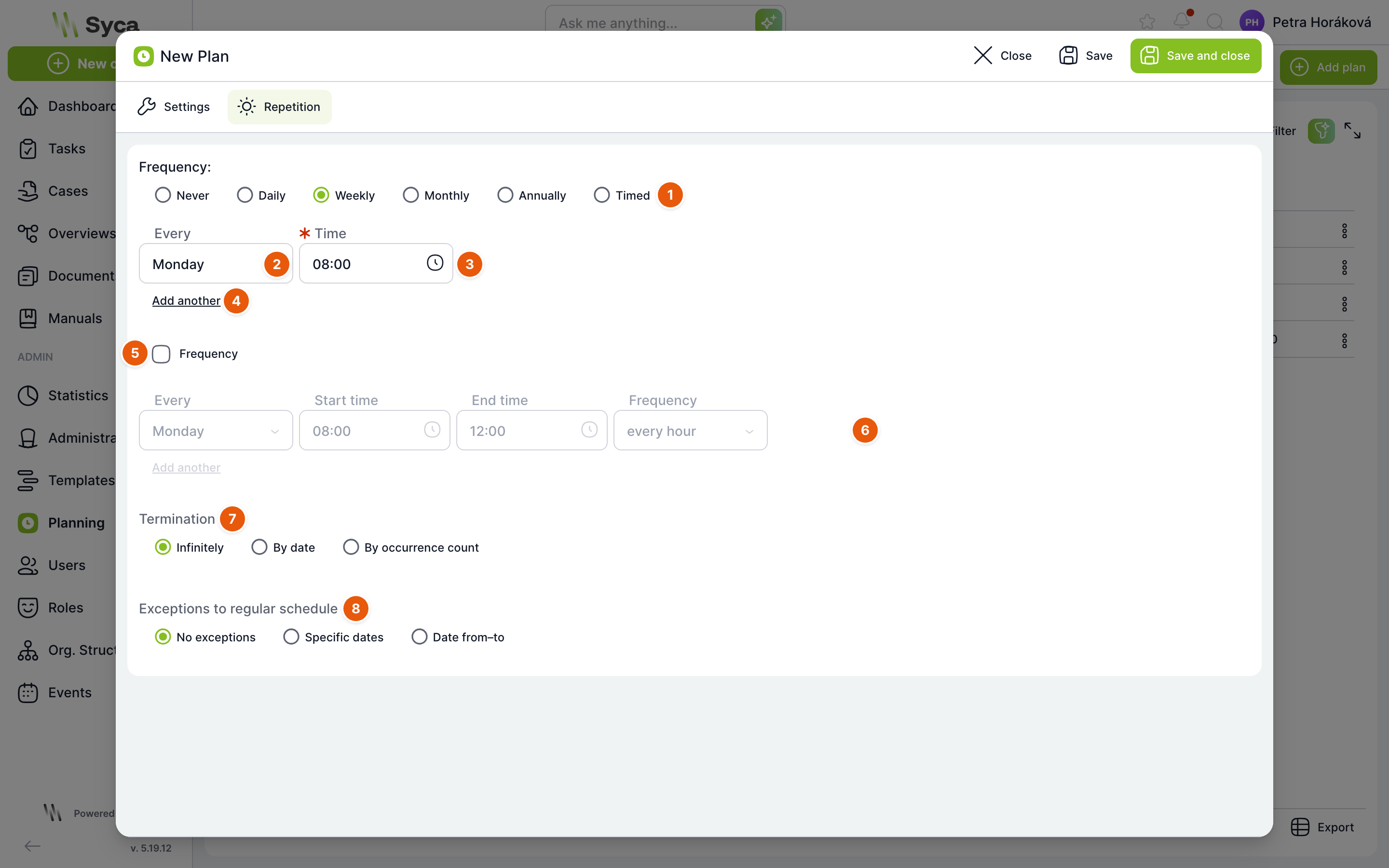
| No. | Element | Purpose |
|---|---|---|
| 1 | Frequency | How often the plan repeats: Never (default, a single run at the start time), Daily, Weekly, Monthly, Yearly or Timed. The fields below change depending on the choice. |
| 2 | Every | For weekly repetition, the day of the week. |
| 3 | Time | Required. Run time on the given day. |
| 4 | Add another | Adds another row, for example a second day of the week or a different time. Remove a row with the cross. |
| 5 | Frequency (checkbox) | Instead of a single time, the plan runs repeatedly within a time window on the given day. The upper rows are then locked and the lower ones unlocked. |
| 6 | Time window | Day, Start time, End time and Frequency every hour or every minute. |
| 7 | End | Unlimited (default), By date (End on field) or By number of occurrences (End after … occurrences field, at least 1). |
| 8 | Exceptions to the regular plan | No exceptions (default), Specific dates (Add date adds another day) or Date range (From and To fields; From must not be after To). The plan starts nothing on these days. |
Fields for each frequency
| Frequency | Fields |
|---|---|
| Daily | Time and Working days only. With frequency: Start time, End time, Frequency and Working days only. |
| Weekly | Every (day of the week) and Time. With frequency: day, Start time, End time and Frequency. |
| Monthly | By: Day of week (Every Nth and a day, for example 1st Monday), Day of month (Every Nth day of the month, 1 to 31), First day of month or Last day of month; plus Time, or a time window. |
| Yearly | By: Day of week (Every Nth day of the week, In month), Calendar day (Date), First day of year or Last day of year; plus Time, or a time window. |
| Timed | Every N units: seconds, minutes, hours, days, weeks, months or years, optionally Working days only. With frequency, also Start time and End time within which the interval applies. |
Plan detail
Open a saved plan with the Edit action. The detail has the same Settings and Repetition tabs as a new plan, plus History.
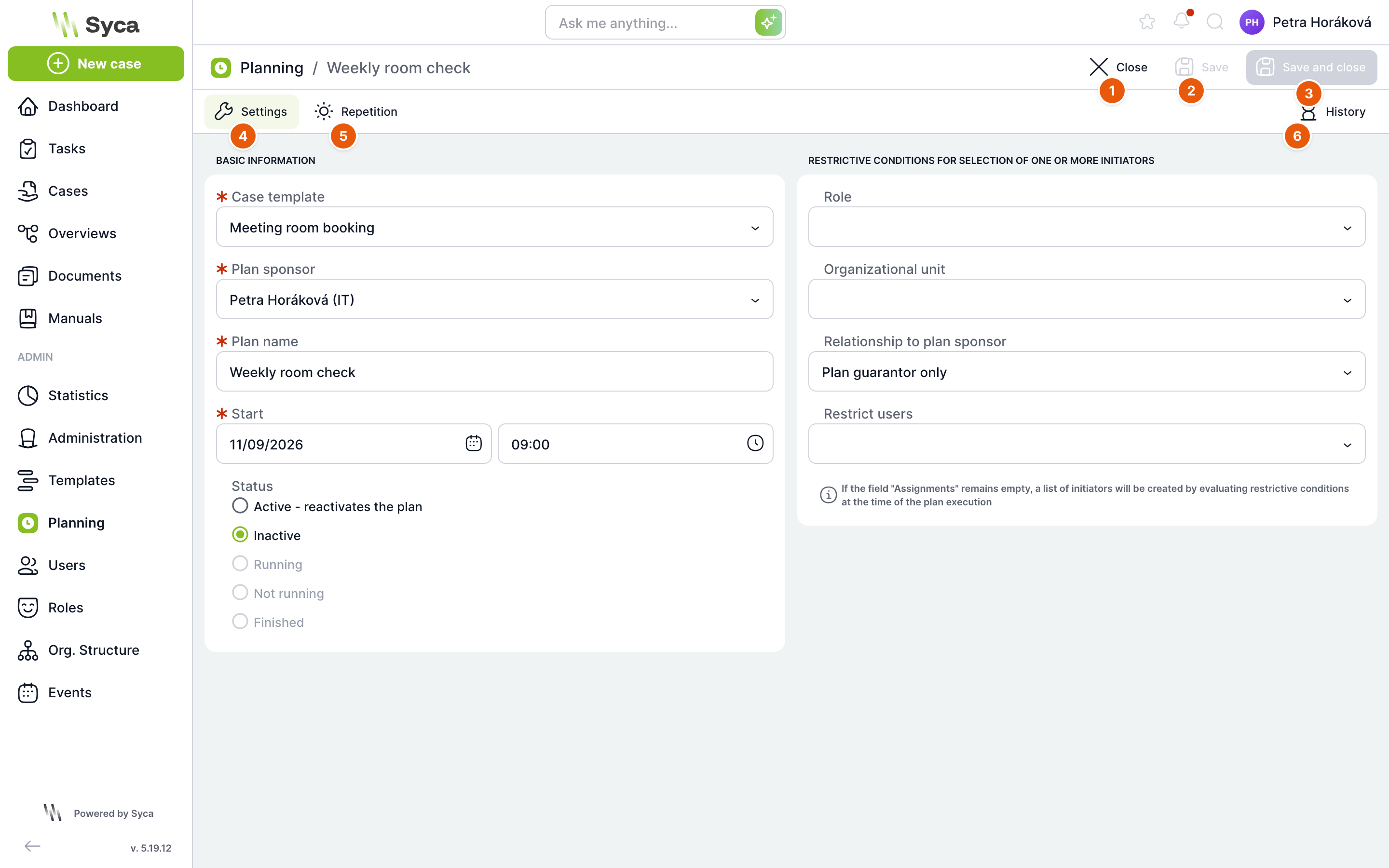
| No. | Element | Purpose |
|---|---|---|
| 1 | Close | Returns you to the plan list. |
| 2 | Save | Saves changes. Enabled once you change something. |
| 3 | Save and close | Saves and returns you to the list. |
| 4 | Settings | Same fields as for a new plan. |
| 5 | Repetition | Same fields as for a new plan. |
| 6 | History | List of plan runs. |
History
Table of all plan runs, newest first.
| Column | Meaning |
|---|---|
| Finished | When the plan created the case. |
| Status | OK, Error or User does not have permission to start the template. |
| Case name | Name of the created case. |
| Initiator | On whose behalf the case was created. |
| Case | Row action; opens the created case. |
How to schedule a case without starting it right away
Example: a weekly meeting room check in the Meeting room booking template.
- On the Planning page, click Add plan.
- In the Case template field, select Meeting room booking, in Plan guarantor select yourself and fill in the Plan name Weekly room check.
- Enter the Start, for example 9 Nov 2026 at 9:00.
- In Status, select Inactive so that the plan does not start anything yet.
- On the Repetition tab, select Weekly, day Monday and time 8:00.
- Click Save and close. The plan appears in the list with the Inactive status.
- Once the template is finished and active, turn the plan on with the Status → Active – reactivates the plan action.
You enter and see the start time and repetition times in your browser's time zone.
Related: Crons, Creating a case, Events and rules.