Crons
Crons are scheduled jobs that TAS runs automatically at a set time: they send e-mail notifications, start scheduled processes, publish news, delete old logs, synchronise users and so on. On the Crons page you monitor their status, browse the run history and edit their settings. The page is available to administrators; open it from the Administration menu using the Crons tile in the Application management and configuration group.
The page has three tabs: Cron monitor, History and Crons.
Cron monitor
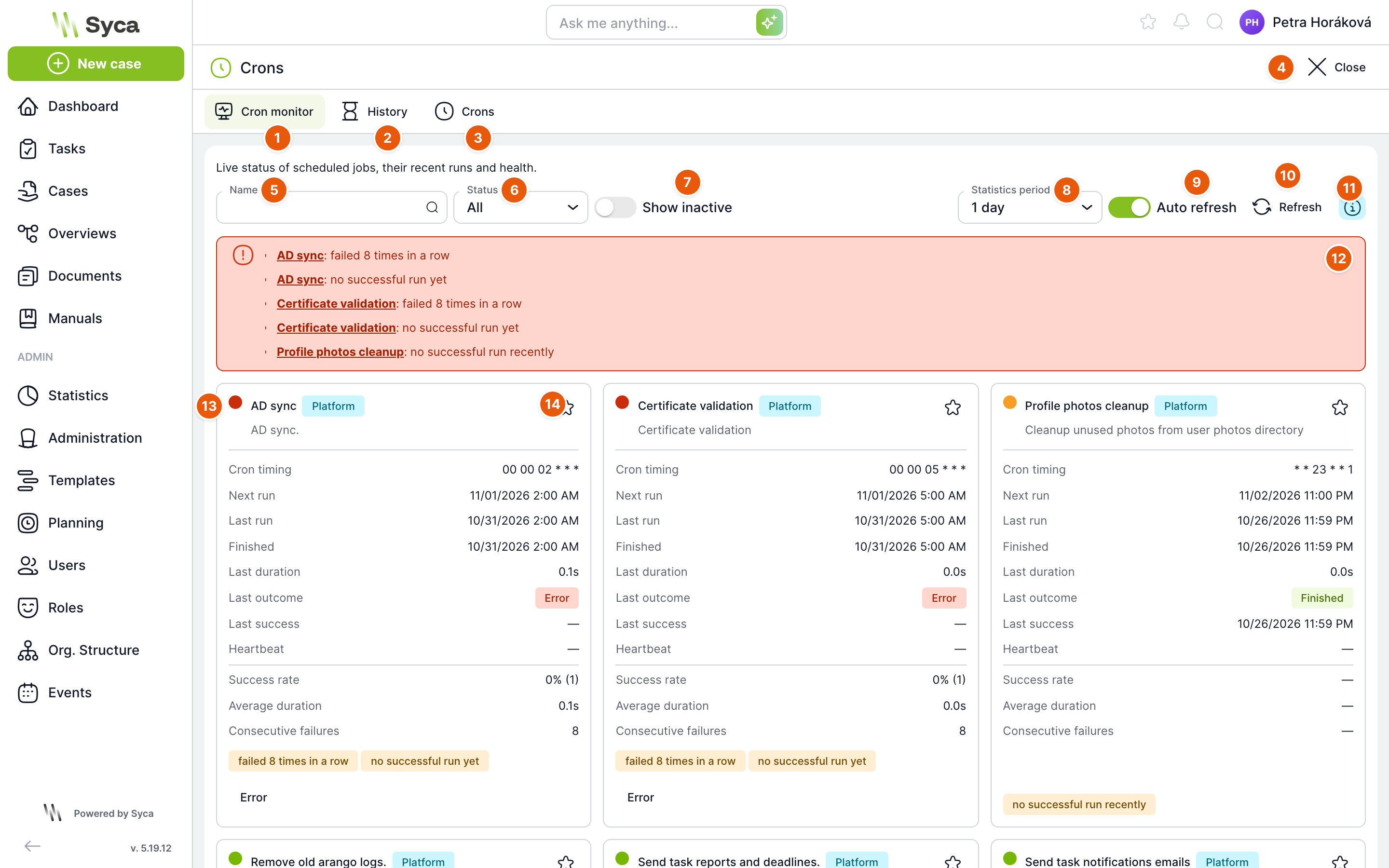
A live overview of all crons with their latest runs and status.
| No. | Element | Purpose |
|---|---|---|
| 1 | Cron monitor | Tab with the status overview. |
| 2 | History | Tab with a list of individual runs. |
| 3 | Crons | Tab with the list and settings of crons. |
| 4 | Close | Returns you to the Administration menu. |
| 5 | Name | Search for a cron by name. |
| 6 | Status | Shows only crons in the selected state: All, Error, Warning, OK. |
| 7 | Show inactive | Adds disabled crons to the overview as well. |
| 8 | Statistics period | The period over which the success rate and average duration are calculated: 1 hour, 8 hours, 1 day (default), 3 days, 1 week or All. |
| 9 | Auto refresh | The overview refreshes itself every 10 seconds. Enabled by default. |
| 10 | Refresh | Immediately loads the current status. |
| 11 | Indicator help | Explains when a cron is shown in red and when in orange. |
| 12 | Problem summary | A list of crons that have a problem, with the reason. Click a cron name to jump to its card. When everything is fine, a green confirmation is shown here. |
| 13 | Traffic light | Colour of the cron status: green OK, orange warning, red error. |
| 14 | Favourites | Use the star to mark a cron as a favourite. The mark applies only to you. |
Cron card
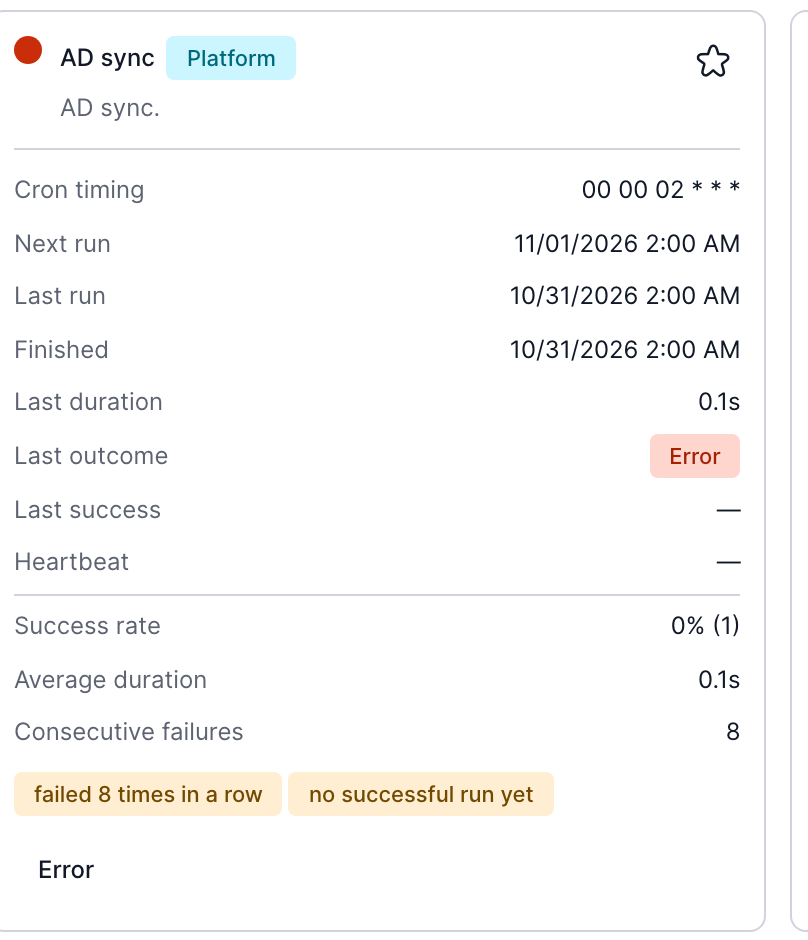
| Field | Meaning |
|---|---|
| Name and type | The cron name and its origin: Platform (part of TAS) or Plugin. The description is shown below the name. |
| Cron timing | When the cron runs, in the format seconds, minutes, hours, days, months, days of week. |
| Next run | When the cron will run next. |
| Last run, Finished | When the last run started and ended. |
| Last duration | How long the last run took. |
| Last result | Finished, Error or Running. |
| Last success | When the cron last completed without an error. |
| Heartbeat | When a running cron last reported in. |
| Success rate | The share of successful runs in the selected period, with the number of runs in brackets. |
| Average duration | The average run length in the selected period. |
| Consecutive failures | How many times in a row the cron ended with an error. |
| Labels | Reasons for the warning, for example failed 8 times in a row or no successful run yet. |
| Error | Click to display the text of the last error. |
A running cron also shows Running since, Running and Instance.
A cron is shown in red when it has failed repeatedly in a row (the default threshold is 5 failures; it is set in Configuration with the application.crons.consecutiveFailureThreshold item, which also determines when a failure e-mail is sent to the addresses in application.crons.sendErrorMailAddresses). It is shown in orange when the last run failed, the cron has never run successfully, it has not run successfully for longer than three of its intervals, it did not start at its scheduled time, or it is running significantly longer than usual.
History
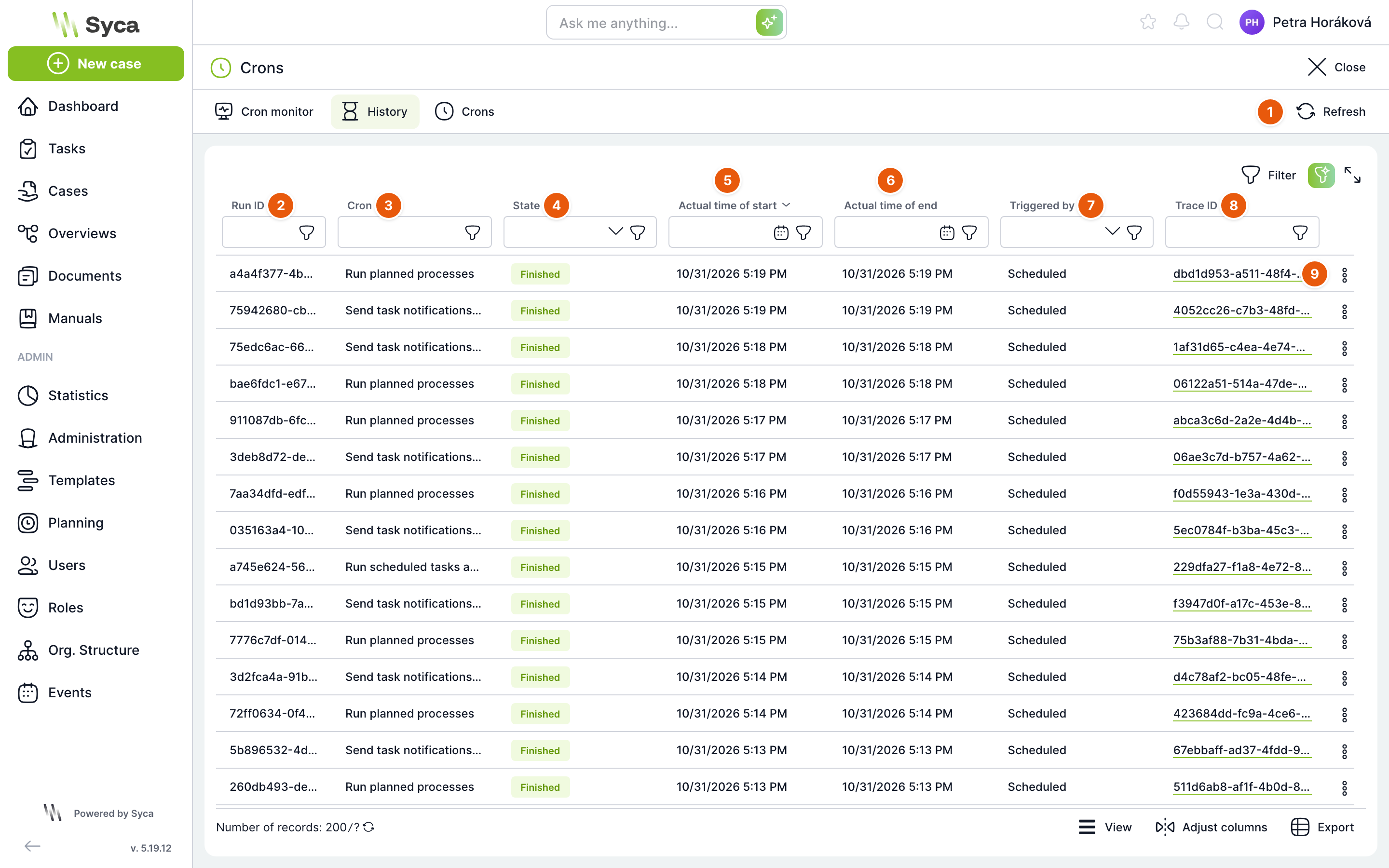
A list of individual runs of all crons, newest first.
| No. | Element | Purpose |
|---|---|---|
| 1 | Refresh | Reloads the list. |
| 2 | Run ID | Identifier of the run. |
| 3 | Cron | Name of the cron. |
| 4 | Status | Finished, Error, Running or Killed. |
| 5 | Actual start | When the run started. |
| 6 | Actual end | When the run ended. |
| 7 | Triggered | Scheduled (according to the timing) or Manually (started by an administrator). |
| 8 | Trace ID | Identifier you can use to find the run's records in Logs. |
| 9 | Row actions | Detail opens the run page. |
Run detail
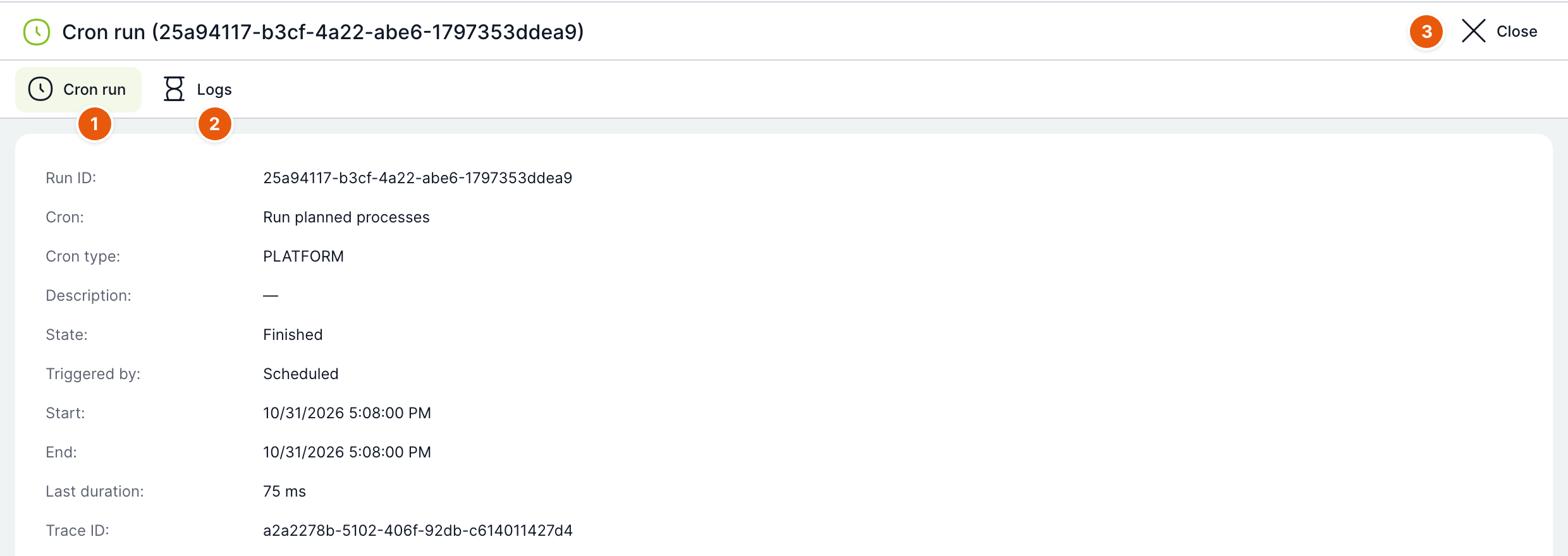
| No. | Element | Purpose |
|---|---|---|
| 1 | Cron run | Run details: Run ID, Cron, Cron type, Description, Status, Triggered, Start, End, Last duration, Trace ID and, for a failed run, Last error. |
| 2 | Logs | Log records of this run with the columns Date, Message, Category, Level and Trace ID. You can narrow the list with the Time range button. |
| 3 | Close | Closes the run detail. |
Crons
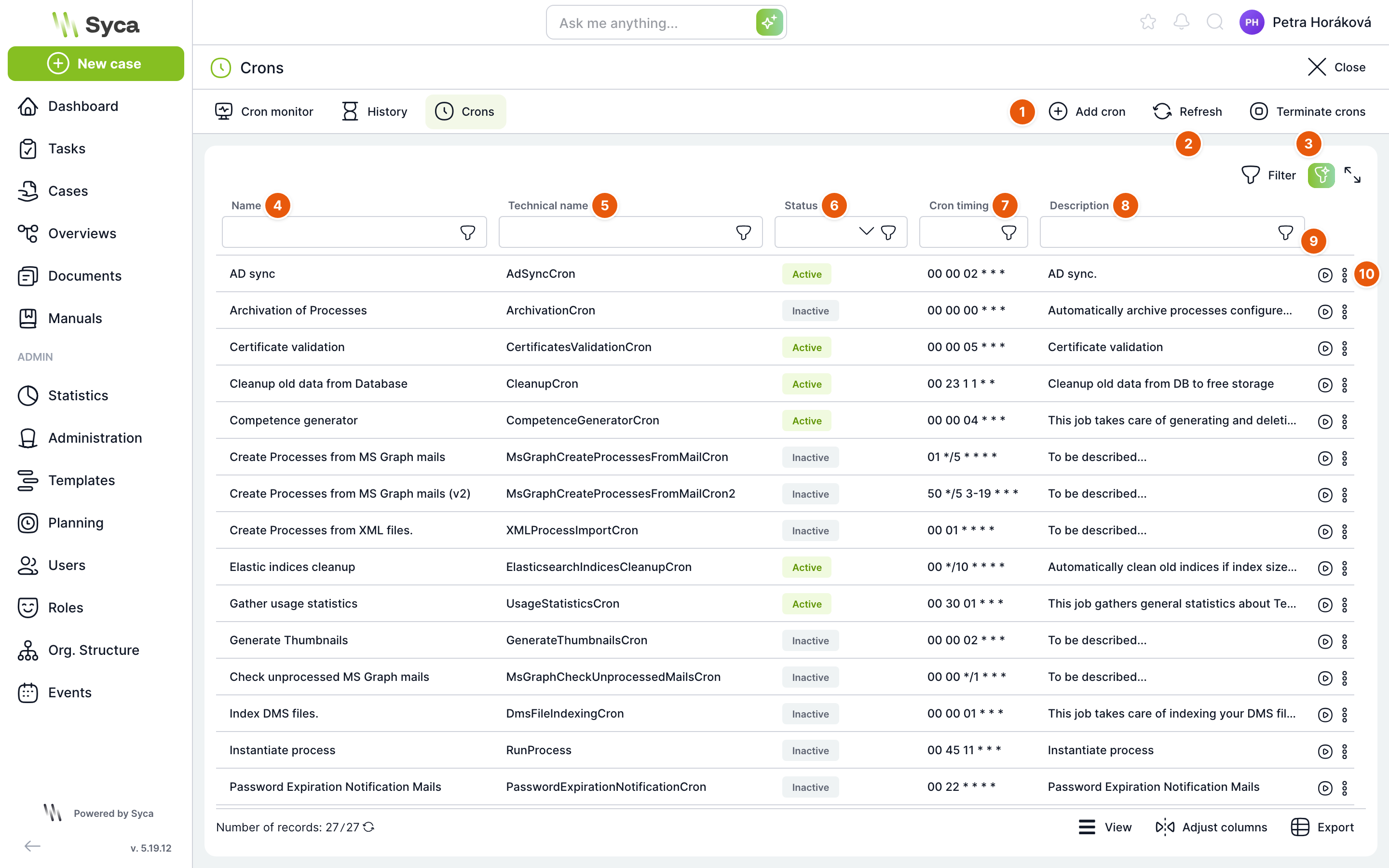
| No. | Element | Purpose |
|---|---|---|
| 1 | Add cron | Opens the window for adding a cron. |
| 2 | Refresh | Reloads the list. |
| 3 | Terminate crons | Restarts all services that execute crons. See the warning below. |
| 4 | Name | Name of the cron. |
| 5 | Technical name | Identifier of the job in the code. One technical name can have several crons with different names and parameters. |
| 6 | Status | Active or Inactive. An inactive cron does not run. |
| 7 | Cron timing | When the cron runs. |
| 8 | Description | What the cron does. |
| 9 | Run manually | After you confirm Do you really want to run the selected cron?, the cron runs once immediately, outside its schedule. |
| 10 | Row actions | Menu with Edit, Activate/Deactivate and Delete. |
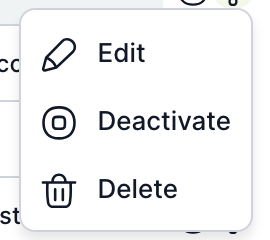
| Action | What happens |
|---|---|
| Edit | Opens the cron detail. |
| Activate / Deactivate | Turns regular execution on or off. |
| Delete | After you confirm Do you really want to delete the selected cron?, the cron is removed and its scheduling stops. |
The button asks Do you really want to terminate all crons? and then stops all services that execute crons. Running jobs are interrupted and the server environment restarts the services. Use it only when a cron is stuck and not responding. Use manual runs with care as well: for example, the e-mail sending cron sends notifications to real users.
Most important crons
| Technical name | What it does |
|---|---|
| MailTasksCron | Sends e-mail notifications about tasks (every 5 minutes by default). |
| MailReportsCron | Sends overviews of tasks and escalated tasks. |
| PlanCron | Starts scheduled processes from the Planning section (every minute). |
| PostponedTaskCron | Activates postponed tasks and scheduled events. |
| PublishPostsCron | Publishes scheduled news and ends news after their end date (at midnight). |
| DeleteLogs | Deletes old logs according to the retention periods in its parameters. |
| CleanupCron | Deletes old data from the database, for example performance logs, cron run history and the e-mail queue. |
| ArchivationCron | Archives cases according to template settings. |
| TemplateProcessShredding | Permanently shreds cases after the template's shredding period has expired. |
| AdSyncCron | Synchronises users and groups from Active Directory (LDAP). |
| CompetenceGeneratorCron | Creates and removes roles assigned based on competences. |
| GenerateThumbnailsCron, DmsFileIndexingCron | Create document thumbnails and index documents for search. |
| UsageStatisticsCron, MailUsageStatisticsCron | Collect usage statistics and send them by e-mail. |
| PasswordExpirationNotificationCron | Notifies users of upcoming password expiration. |
| B2bAndSecretStoreValidationCron | Monitors expiring secret keys, API tokens and OAuth clients. |
| MsGraphCreateProcessesFromMailCron, XMLProcessImportCron | Create cases from e-mails in Microsoft 365 or from XML files. |
Which crons are active and how often they run depends on the settings of your installation.
Add cron
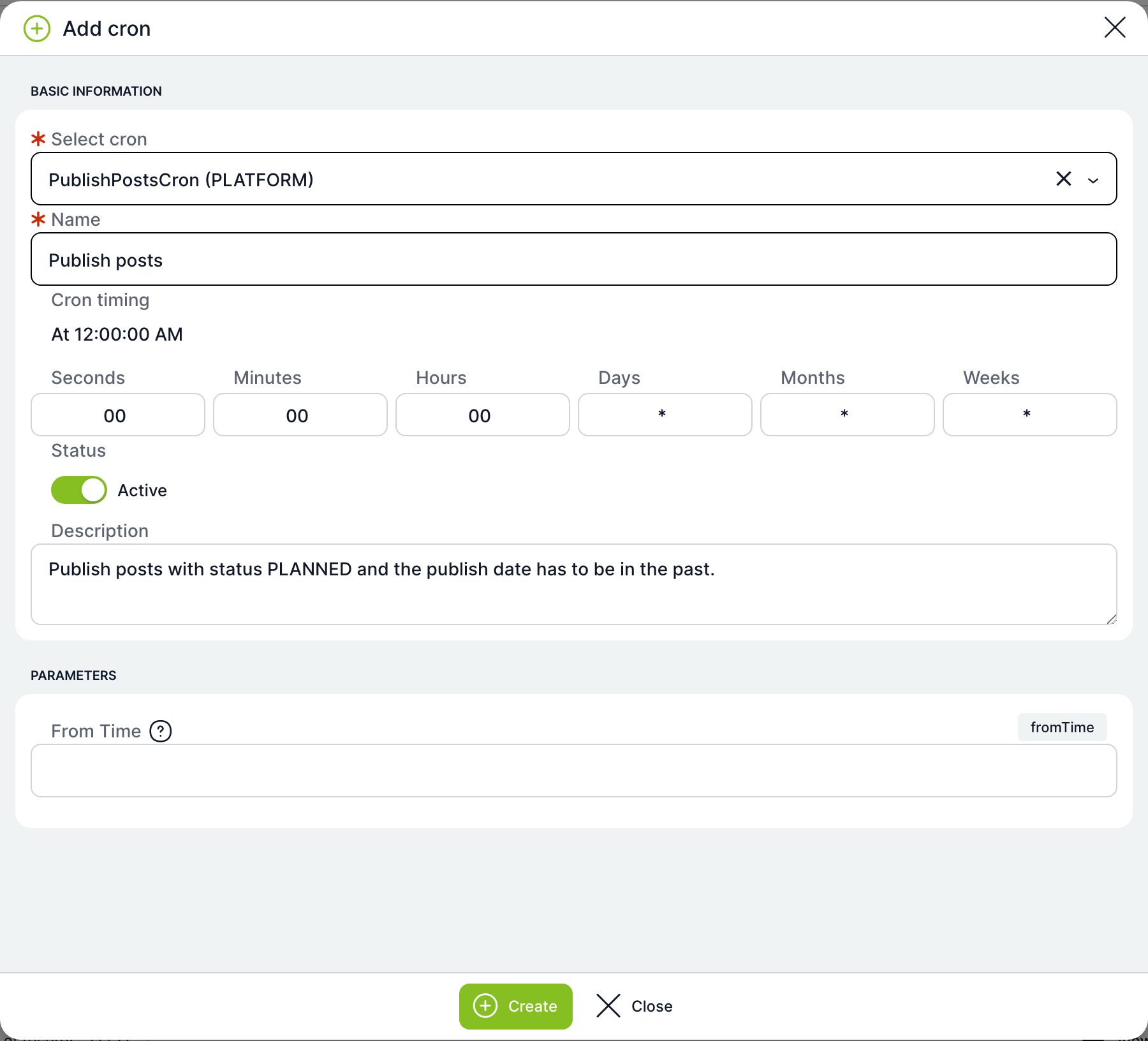
| Field | Purpose |
|---|---|
| Select cron | Required. The job you want to schedule. The list shows the technical name and origin (PLATFORM or PLUGIN). After you select it, the other fields are prefilled with the job's default values. |
| Name | Required and unique. Defaults to the job name. |
| Cron timing | Six fields: Seconds, Minutes, Hours, Days, Months, Weeks. A readable description is shown above the fields, for example At 12:00:00 AM. The value * means every. |
| Status | Active switch. |
| Description | Optional description. |
| Parameters | Job settings, if it has any. The form is validated before creation. |
| Create | Creates and schedules the cron. |
| Close | Closes the window. If you have filled anything in, the application asks Save changes?. |
You can add the same job several times under different names, for example with different timing or parameters.
Cron detail
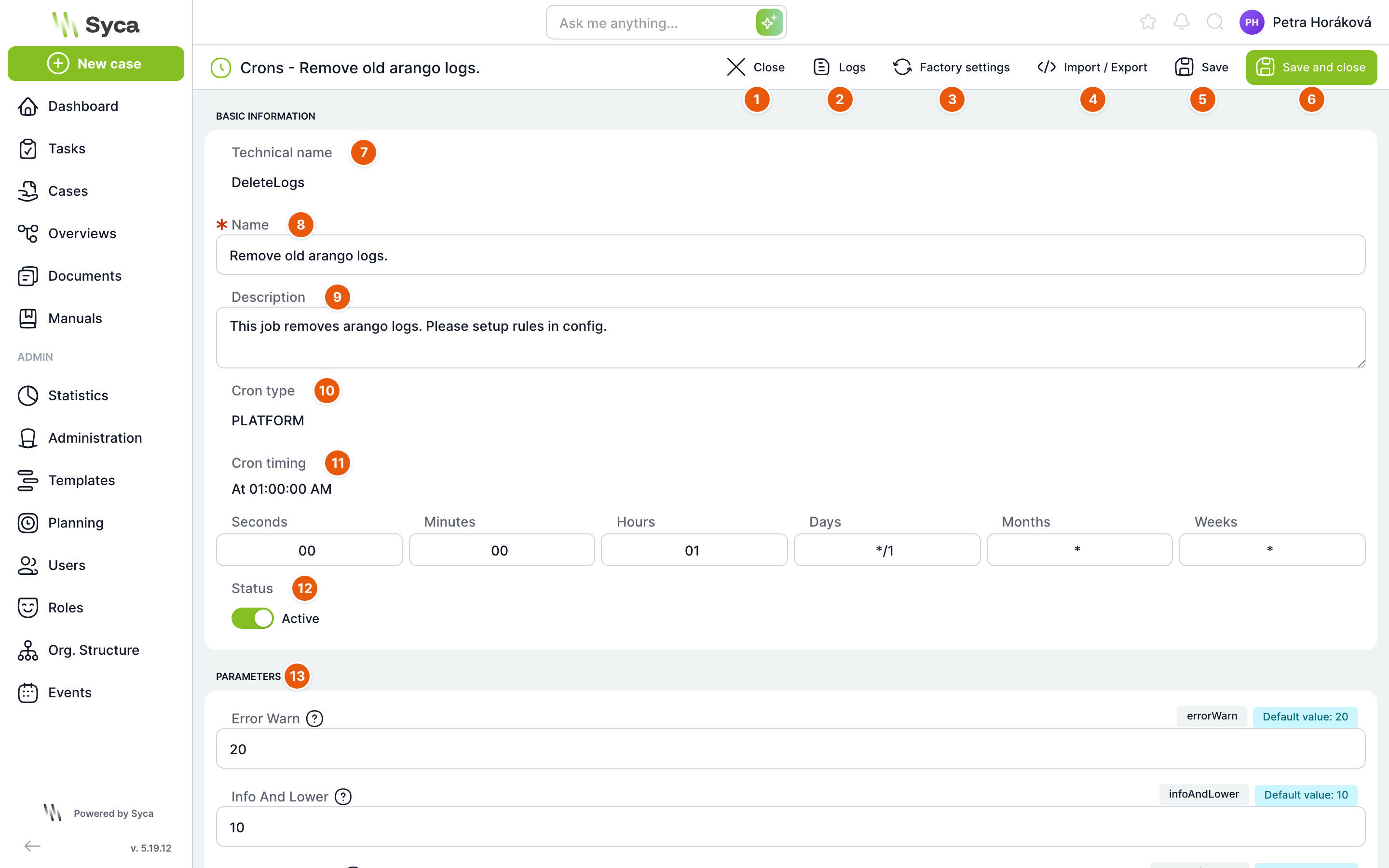
| No. | Element | Purpose |
|---|---|---|
| 1 | Close | Returns you to the list of crons. |
| 2 | Logs | Opens the log records of this cron. |
| 3 | Factory settings | After you confirm Do you really want to reset the cron to factory settings?, it resets the timing, description, parameters and status to the job's default values. The name is kept. |
| 4 | Import / Export | Window with the cron definition in JSON format. Copy the definition to another environment, or paste a definition of the same job here. |
| 5 | Save | Saves the changes. |
| 6 | Save and close | Saves the changes and returns you to the list. |
| 7 | Technical name | The job the cron runs. Read-only. |
| 8 | Name | Required cron name. |
| 9 | Description | Optional description. |
| 10 | Cron type | PLATFORM or PLUGIN. Read-only. |
| 11 | Cron timing | Six timing fields with a readable description. |
| 12 | Status | Active switch. A cron with invalid timing cannot be activated. |
| 13 | Parameters | Job settings. For each parameter you see help text, the technical name and the default value. Parameters of plugin crons are read-only. |
After you save a change to the timing, parameters or status, the cron is rescheduled immediately. Crons for importing e-mails from Microsoft 365 also have a Detect folders button, which loads the mailbox folders and helps you select the input and output folder.
Open the cron with the technical name DeleteLogs, increase Error Warn in Parameters to, for example, 60, and save. Errors and warnings in Logs will then be kept for 60 days.
Related: Logs, Configuration, Planning, News management.