Dashboard widgets
Widgets are the tiles a dashboard is made of. You add a new widget in dashboard edit mode: click the pencil icon in the top right, then Add, and choose a widget from the menu. The Dashboard article describes how to move and configure widgets.
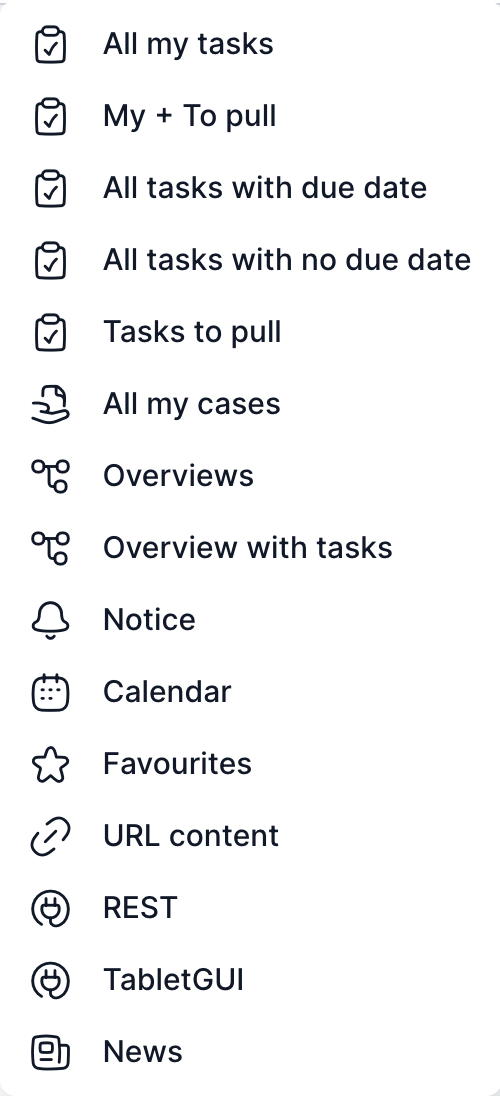
The menu contains the following widgets. The last two appear only under certain conditions.
| Widget | What it shows | Default width | Settings other than width |
|---|---|---|---|
| All my tasks | Tasks you are to handle, newest first. | 3 | Sorting, comment column, actions column (on). |
| Mine + To pull | Your tasks and tasks you can take over. The Type column shows whether a task is Mine or To pull. | 3 | Sorting, comment column, actions column (on). |
| All tasks with deadline | Your tasks that have a deadline, sorted by nearest deadline. | 3 | Sorting, comment column, actions column. |
| All tasks without deadline | Your tasks without a deadline. | 3 | Sorting, comment column, actions column. |
| Tasks to pull | Tasks you can take over. The row menu contains the Take over action. | 3 | Sorting, comment column. |
| All my cases | Cases you started or are working on. | 3 | None. |
| Overviews | A selected saved case overview. | 4 | Overview, title. |
| Overview with tasks | A selected overview in which each row corresponds to a task. The row opens the task. | 4 | Overview, title, actions column. |
| Notifications | Counts of pending tasks, overdue tasks, tasks to pull and unfinished cases, scheduled maintenance. | 1 | Show unfinished cases. |
| Calendar | A monthly calendar with the deadlines of your tasks. | 1 | None. |
| Favourites | Your favourite items. The widget can be on the dashboard only once. | 1 | None. |
| URL content | An embedded web page from an https address. | 2 | URL. |
| REST | A table with data from a TAS service that you specify by its address. | 2 | Title, URL, table columns. |
| TabletGUI | A simplified tablet interface: a list of your cases, their tasks, documents and detail. | 4 | None. |
| News | News sent to you by the administrator. | 1 | None. |
| NFC Reader | A button for reading an NFC chip and opening a case. Only when the administrator has enabled the NFC reader. | 1 | Instruction text. |
| System status | The overall status of TAS servers and components. Administrators only. | 2 | Components. |
NFC Reader appears in the menu only if the installation has the NFC reader enabled. System status is visible only to administrators. If such a widget is on the dashboard and the condition stops being met, the widget is not displayed.
Task and case widgets
Task and case tables work as shortened lists from the Tasks and Cases pages. Click a row to open the task or case; click with the mouse wheel to open it in a new tab. The Maximize icon in the header opens the full list.
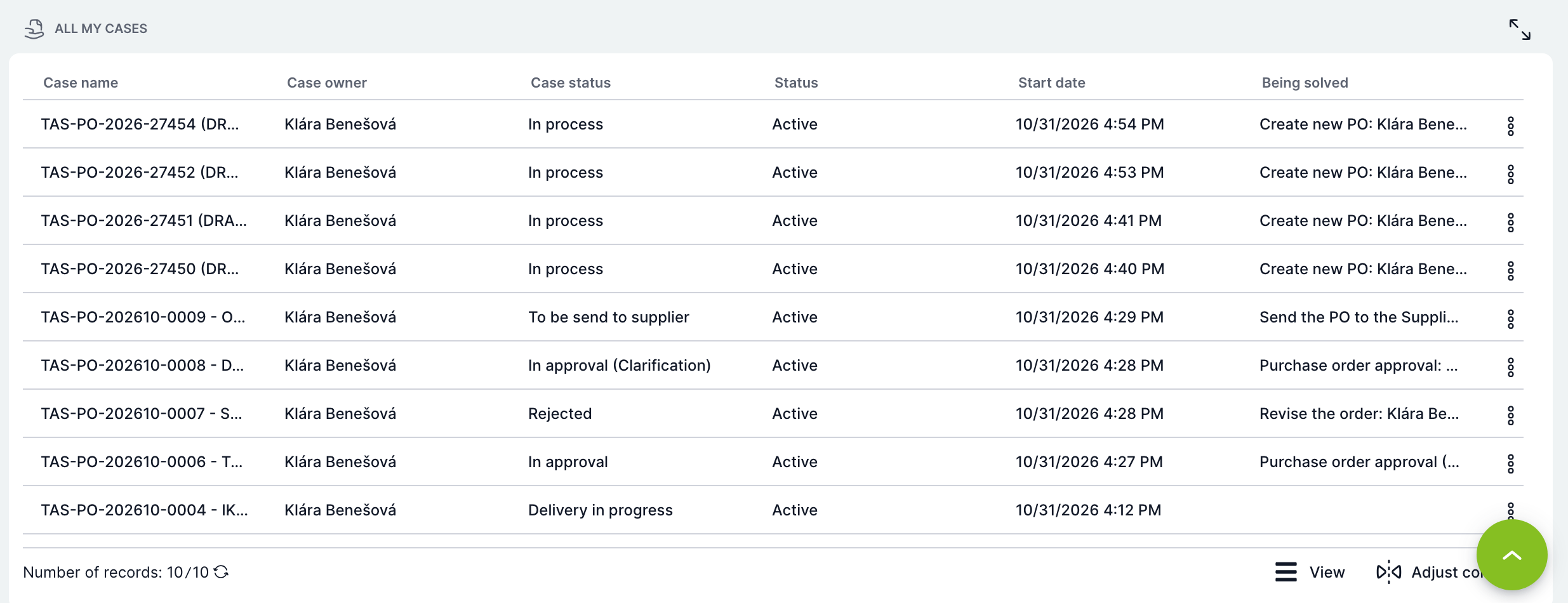
| Element | What it is for |
|---|---|
| Task columns | Name, Case name, Case owner, Assignment date and Deadline. An overdue deadline is shown in red. |
| Case columns | Case name, Case owner, Case state, Status (Active or Finished), Assignment date and In progress (current task). |
| Actions | Case event buttons. Click to trigger the event without opening the task. If the event creates another task, TAS opens it. |
| Task row menu | Detail (task preview), Solve (opens the task), Case (opens the case), Take over (for tasks to pull, after confirmation). |
| Case row menu | Detail (opens the case) and Event (triggers a case event). |
| Footer | Number of records, refresh, display settings and column editing. |
The Tasks to pull widget has neither an actions column nor the Solve action, because you must take over the task first.
Overviews and Overview with tasks
The widget displays a saved overview. You select the overview in the widget settings; the overviews you have access to are offered. The Maximize icon opens the overview on the Overviews page.
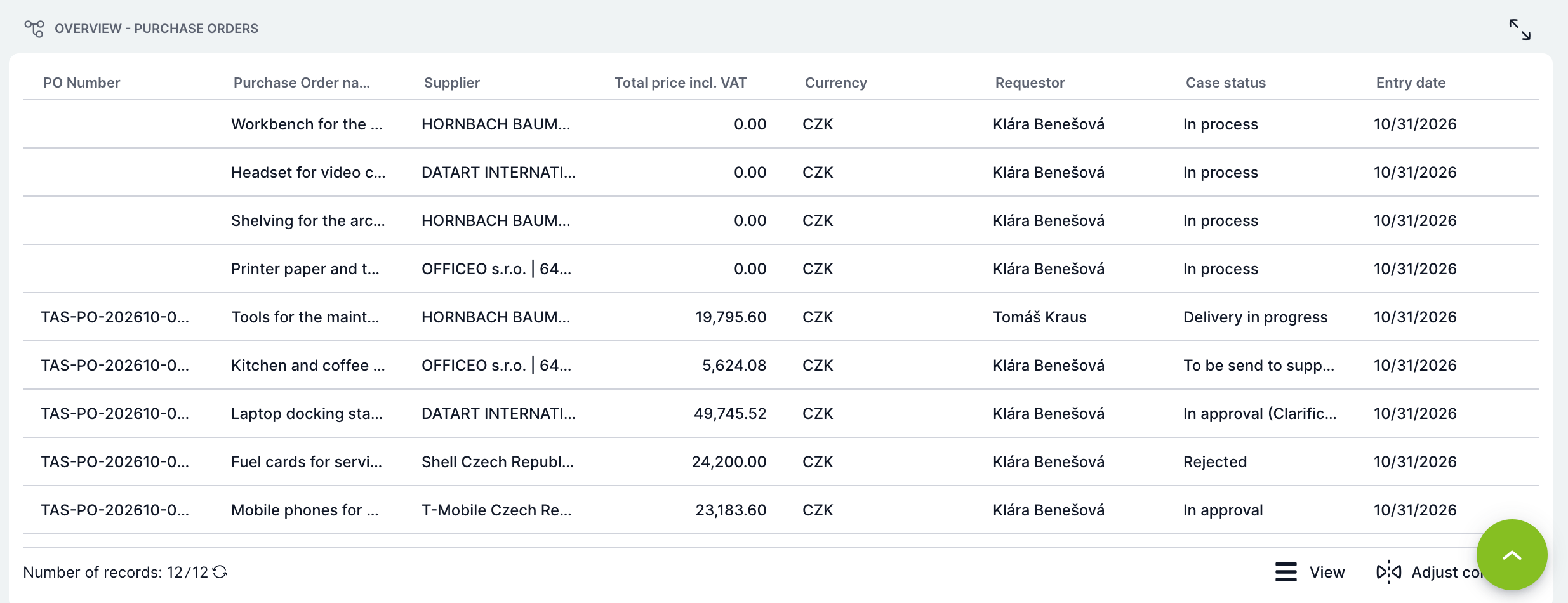
If no overview has been selected yet, the widget shows the text “No overview selected – choose one in the container settings”. If the administrator revokes your right to the overview, the widget shows “You do not have permission to view the overview, contact the administrator”.
In the Overview with tasks widget, each row corresponds to a task. The row opens the task, and the row menu contains the Detail, Solve and Case actions.
Notifications, Favourites, Calendar and News
These four widgets have a default width of 1 and fit side by side in the top row of the dashboard.
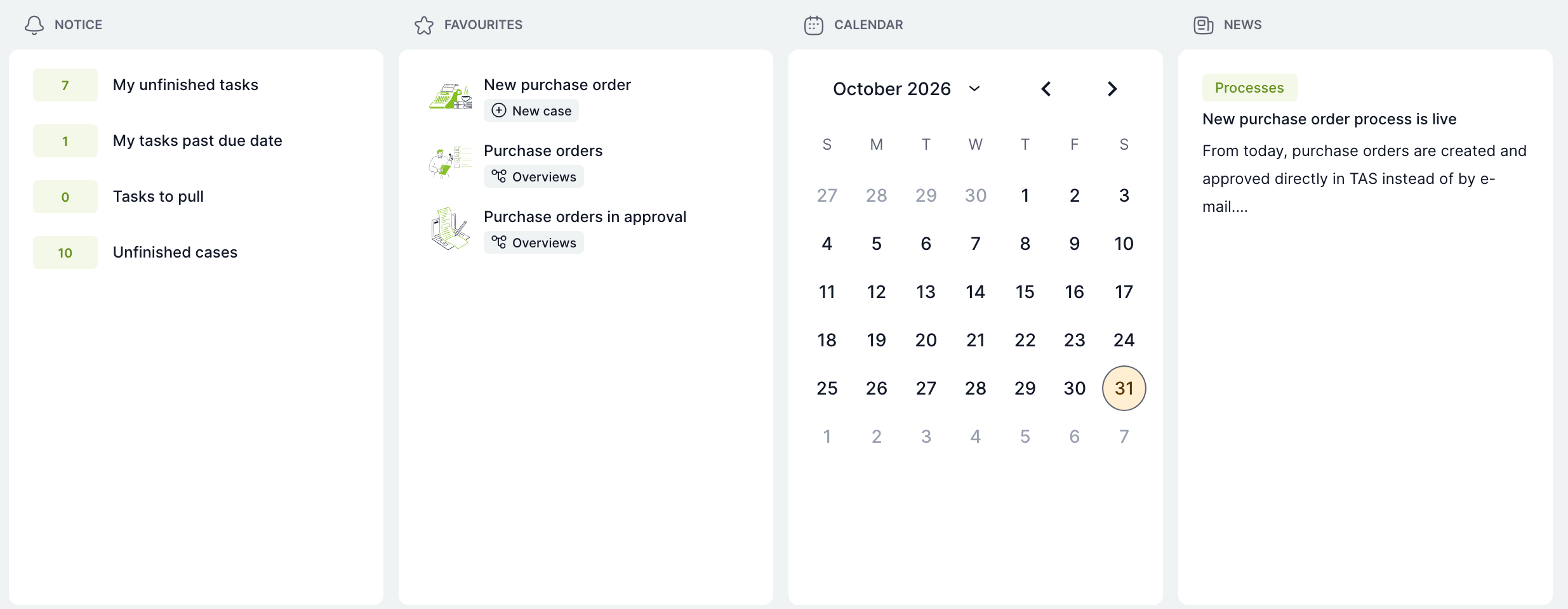
| Widget | How to use it |
|---|---|
| Notifications | Click My pending tasks to open your tasks, My overdue tasks for tasks past their deadline, Tasks to pull for tasks to take over, and Unfinished cases for your active cases. You can turn off the Unfinished cases row in the settings with the Show unfinished cases option. When the administrator schedules system maintenance, a Scheduled maintenance row with its date appears here. |
| Favourites | Click an item to open a saved screen or directly start a new case. Below the name is a label with the item type (for example New case or Overviews). The widget can be on the dashboard only once. If you remove it, your favourites stay saved and return when you add the widget again. Details in the Favourites article. |
| Calendar | Days on which any of your tasks has a deadline are highlighted in the calendar. A day shows the tasks due on that day; click a task to open it. Use the arrows to move between months; click the month name to select a year. |
| News | News sorted newest first, with labels and the beginning of the text. Click to open the full news item. More news loads as you scroll the widget down. Details in the News article. |
URL content
The widget embeds a web page in the dashboard, for example an internal portal or a canteen menu. Enter the address in the URL field in the settings. The address must start with https://, otherwise TAS shows the error “The URL is not in the correct format, it must start with https://”. Some websites prohibit embedding in other pages and are not displayed in the widget.
REST
The REST widget displays a table with data returned by one of the TAS services. It is suited to advanced users and administrators who know the service addresses.
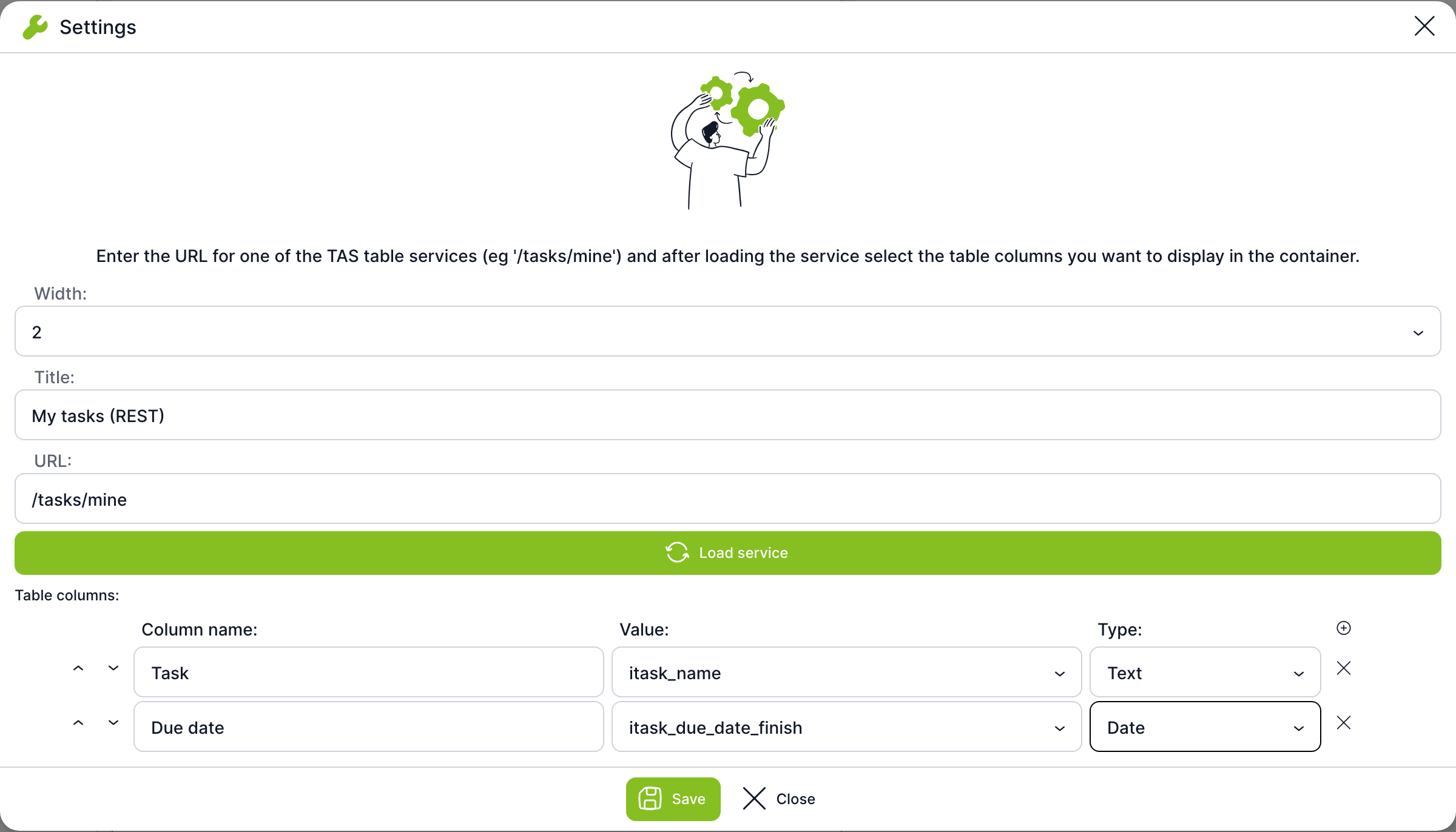
| Field | What it is for |
|---|---|
| Width | Widget width, default 2. |
| Title | Text in the widget header. The default is “New REST”. |
| URL | Address of the TAS service, for example /tasks/mine for your tasks. The address can contain a filter. |
| Load service | Loads one record from the service and offers its fields as values for the columns. After changing the URL, load the service again, otherwise the columns show “Outdated value selection – reload the service.” |
| Table columns | List of columns. Use the plus button to add a row, the arrows to change the order, and the cross to remove a row. |
| Column name | Column header in the widget. Required. |
| Value | The service field displayed in the column. Required. |
| Type | How the value is displayed: Text, Number, Date, Date and time, or Exact date and time. Required. |
Until the widget has any columns, it shows the text “No columns are set – choose them in the container settings”.
TabletGUI
The widget offers a simple interface for working on a tablet. On the left are three stacked panels: a list of your cases, the tasks of the selected case and its documents. On the right is the detail of the selected case (owner, deadline, template, description, state) and the Event button, which triggers a case event. The widget takes up the full height of the screen. More in the Tablet interface and NFC article.
NFC Reader
The widget is available only when the administrator has enabled the NFC reader. Click Scan NFC to start reading and hold the NFC chip to the device. If the chip contains a link to a case, TAS opens the case. In the widget settings you can change the Instruction text displayed during reading, as well as its language variants. More in the Tablet interface and NFC article.
System status (administrator only)
The widget shows the overall system status, the number of components by status, uptime and the number of running backends. In the Components field in the settings, you select the components whose detailed status the widget should display. Data refreshes every minute; the Refresh icon loads it immediately and the New window icon opens the System status page in administration.
Related: Dashboard, Favourites, News, Tablet interface and NFC.