NFC Integration
NFC (Near Field Communication) allows the TAS platform to read NFC cards or chips by placing a mobile device or tablet near them. The feature can be used in two ways: for user authentication via an NFC card or for opening specific cases at a workstation.
Prerequisites
- The
NFCenabledparameter must be activated in the environment configuration. - The device (phone or tablet) must support NFC and have it enabled in the operating system settings.
NFCenabled parameter in the configuration, NFC features cannot be used in the platform.Use Cases
1. Opening a Case via NFC Chip
Typical use in manufacturing or at workstations — an NFC chip (or card) is placed at each station. When a device is held near it, the assigned case opens automatically, for example a 5S form.
The NFC chip must contain data in JSON format:
{"caseId":415439}
caseId value corresponds to the ID of the case in the TAS platform that should be opened when the chip is scanned.2. User Login via NFC Card
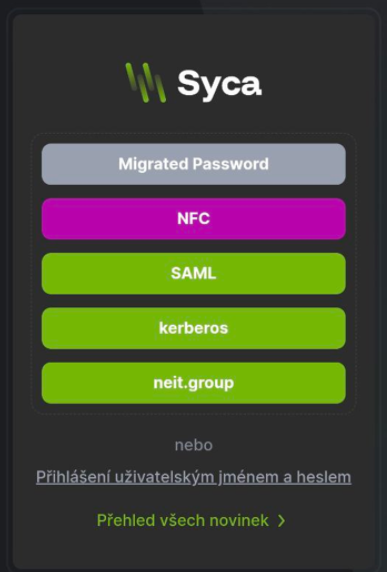
The NFC module can be activated on the login screen. When a card is held near the device, the system reads the identifier stored on the card, looks up the corresponding user (e.g. using a dynamic table) and performs the login.
Setting Up the NFC Reader in the Dashboard
- Go to the Dashboard editor.
- Add a new container named
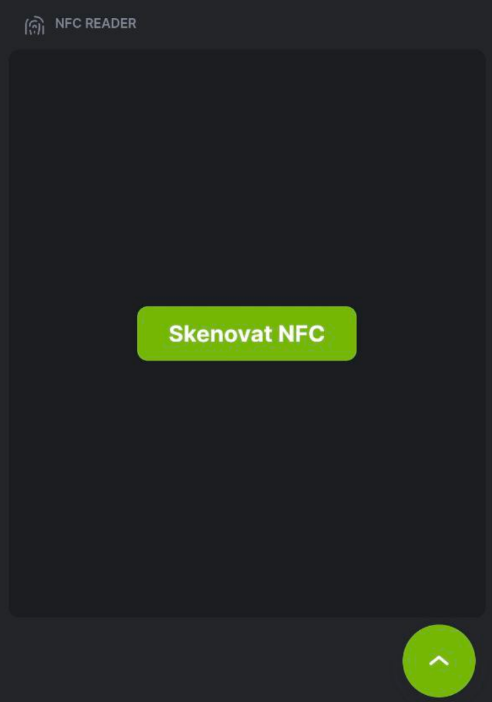
NFC Reader. - The container will display a button — pressing it activates NFC reading.
- Hold the device near the chip. The system reads the data and opens the corresponding case.
Setting Up NFC Authentication
- In the authentication settings, add a new authentication.
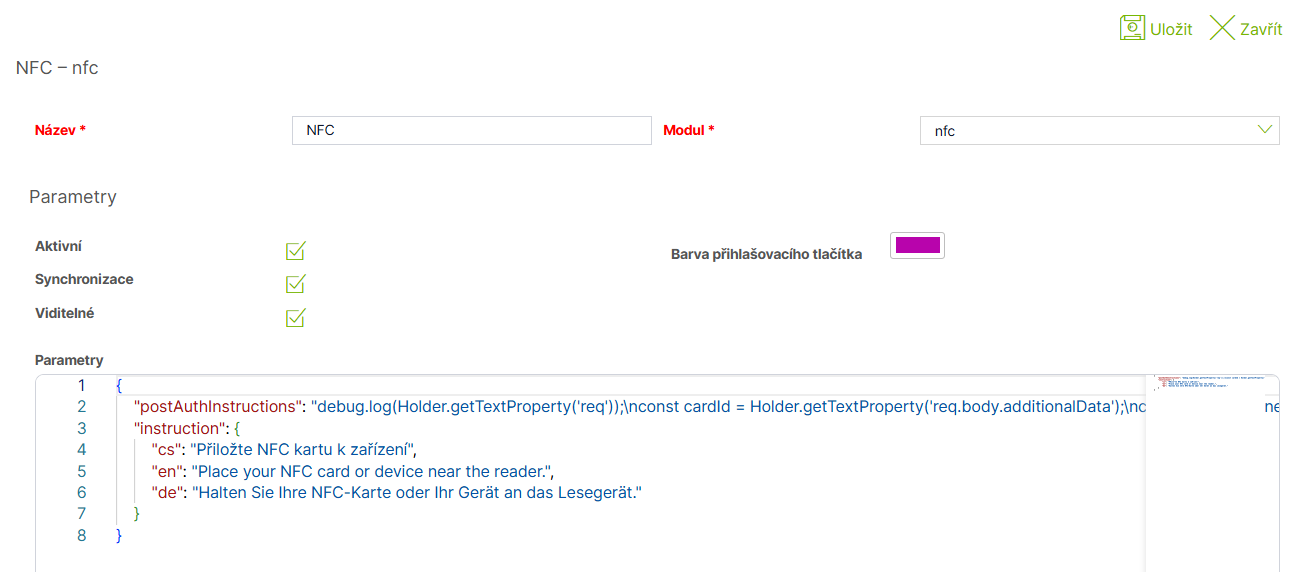
- Select NFC as the module.
- Insert the configuration in JSON format (see below).
Configuration Example — Looking Up a User in a Dynamic Table
This example reads the identifier from the NFC card, finds the corresponding record in the dynamic table NFCtest, and logs in the user from column COL_1.
{"postAuthInstructions":"debug.log(Holder.getTextProperty('req'));\nconst cardId = Holder.getTextProperty('req.body.additionalData');\nconst cardIdCleaned = cardId.replaceAll('\"', '');\ndebug.log(cardIdCleaned);\nconst userId = dt.from('NFCtest').whereIndex(cardIdCleaned,'=').getFirst().COL_1;\ndebug.log(userId)\nreturn identity.findUser(userId);","instruction":{"cs":"Přiložte NFC kartu k zařízení","en":"Place your NFC card or device near the reader.","de":"Halten Sie Ihre NFC-Karte oder Ihr Gerät an das Lesegerät."}}
Description of individual configuration parts:
|
Parameter |
Description |
|
|
Calculation executed after the NFC card is read. Reads the identifier, looks up the user in the dynamic table, and performs login using |
|
|
Text displayed to the user on the login screen in the respective language of the environment. |
|
|
Name of the dynamic table storing card identifier → username pairs. Update the name according to your configuration. |
|
|
Filter by dynamic table index — the card identifier must be set as the table index. |
|
|
Returns the value from the first column ( |
Result
After correct configuration:
- Pressing the button in the
NFC Readercontainer activates NFC reading and holding the chip near the device opens the corresponding case. - The login screen displays a prompt to hold the NFC card near the device. After scanning, the identified user is automatically logged in.