Variables: overview and common settings
Variables carry case data: names, dates, amounts, selections from code lists, documents and entire tables. You define them in a template, and each case then has its own copy with its own values. You manage variables in the template editor on the Variables tab (menu Templates › open a template › Variables). This article describes the list of variables and the part of the editor that all types share. Separate articles describe the settings of each type.
The examples in the articles about variables come from the sample template “Employee onboarding” with the task “Prepare onboarding”.
List of variables
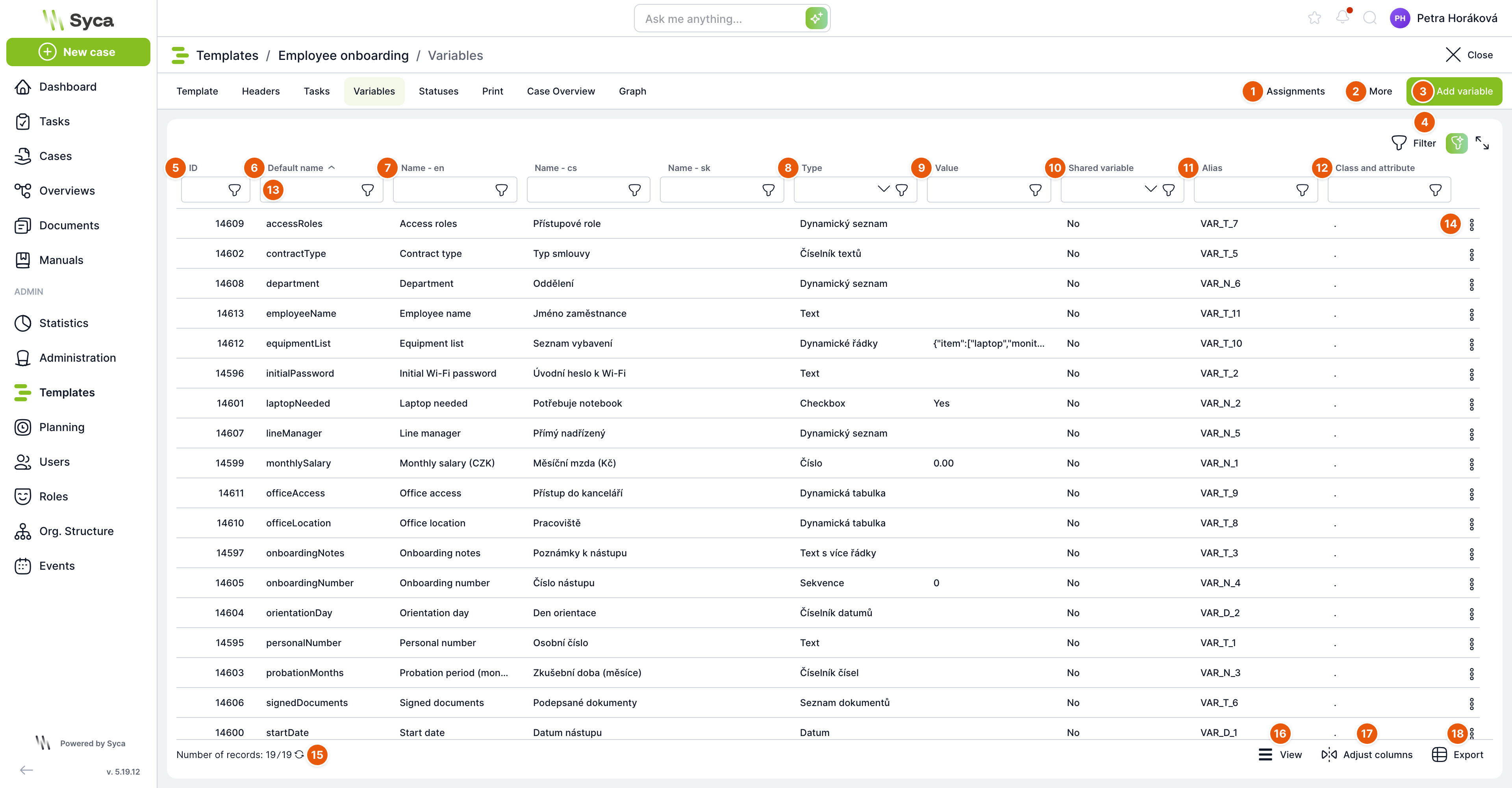
| No. | Element | Purpose |
|---|---|---|
| 1 | Assignment | Opens the visual assignment of variables to tasks: which variables appear in which task's form, where, and whether they are read-only, writable or required. |
| 2 | More | Menu of additional tools: Class diagram, Import variable assignment, Export variable assignment and (administrators only) Alias candidates. See the article Class diagram, state import and alias candidates. |
| 3 | Add variable | Opens an empty editor for a new variable. |
| 4 | Filter | Builds a filter from multiple conditions. Next to it are the AI filter (enter the filter as a sentence, only when AI is enabled) and the switch to full screen. |
| 5 | ID | Numeric identifier of the variable. |
| 6 | Default name | Technical name of the variable that calculations, dynamic conditions, prints and overviews use to refer to it. The list is sorted by this column by default. |
| 7 | Name – language | Label of the variable in each application language (one column per language). Users see the label in their own language in the form. |
| 8 | Type | Variable type. The column filter offers all types. |
| 9 | Value | Default value that the variable gets in a new case. |
| 10 | Shared variable | No, Read or Read and write, see Settings below. |
| 11 | Alias | Column in which the variable value is stored for overviews (for example VAR_T_3). Only administrators can see this column. |
| 12 | Class and attribute | Placement of the variable in the class diagram. |
| 13 | Column filter | Field under each column header for narrowing the list. |
| 14 | Row actions | Menu of actions for the variable, see below. Double-clicking a row opens the variable; the Delete key offers to delete it. |
| 15 | Record count | How many variables match the filter. Use the arrows icon to reload the list. |
| 16 | View | Switches the density and appearance of the list. |
| 17 | Customize columns | Selection and order of the displayed columns. |
| 18 | Export | Exports the list of variables to a file. |
Row actions
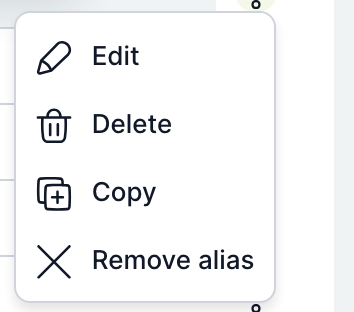
| Action | Purpose |
|---|---|
| Edit | Opens the variable editor. |
| Delete | Deletes the variable after confirmation. You can delete only a variable that is not yet in any case. As soon as the template has created a case, the variable is in it and deletion ends with an error. |
| Copy | Opens the editor with a copy of the variable. The name gets the prefix clone_. The copy is created only when you save it. |
| Assign alias | Administrators only, for a variable without an alias. Assigns a free column for overviews. Existing values in cases are not filled in retroactively; they appear in overviews only after the value is next saved in the case. |
| Take over alias from another variable | Administrators only, for a variable without an alias. Moves the alias from another variable of the same kind (text, number, date). The values in the source variable's overview column are deleted. |
| Remove alias | Administrators only, for a variable with an alias. Frees the column and deletes the values the variable had in it. Not possible if any overview uses the variable. |
For overviews, variable values are stored in a limited number of columns: separately for texts, numbers and dates, at most 229 columns of each kind per template. TAS assigns the alias automatically when the variable is saved. If free columns run out, a new variable gets no alias and cannot be used in overviews. The Alias candidates tool helps free them up.
Variable editor
Open the editor with the Add variable button, the Edit action or by double-clicking a row. The left part contains basic information and the value settings, which change depending on the type. The right part contains settings common to all types.
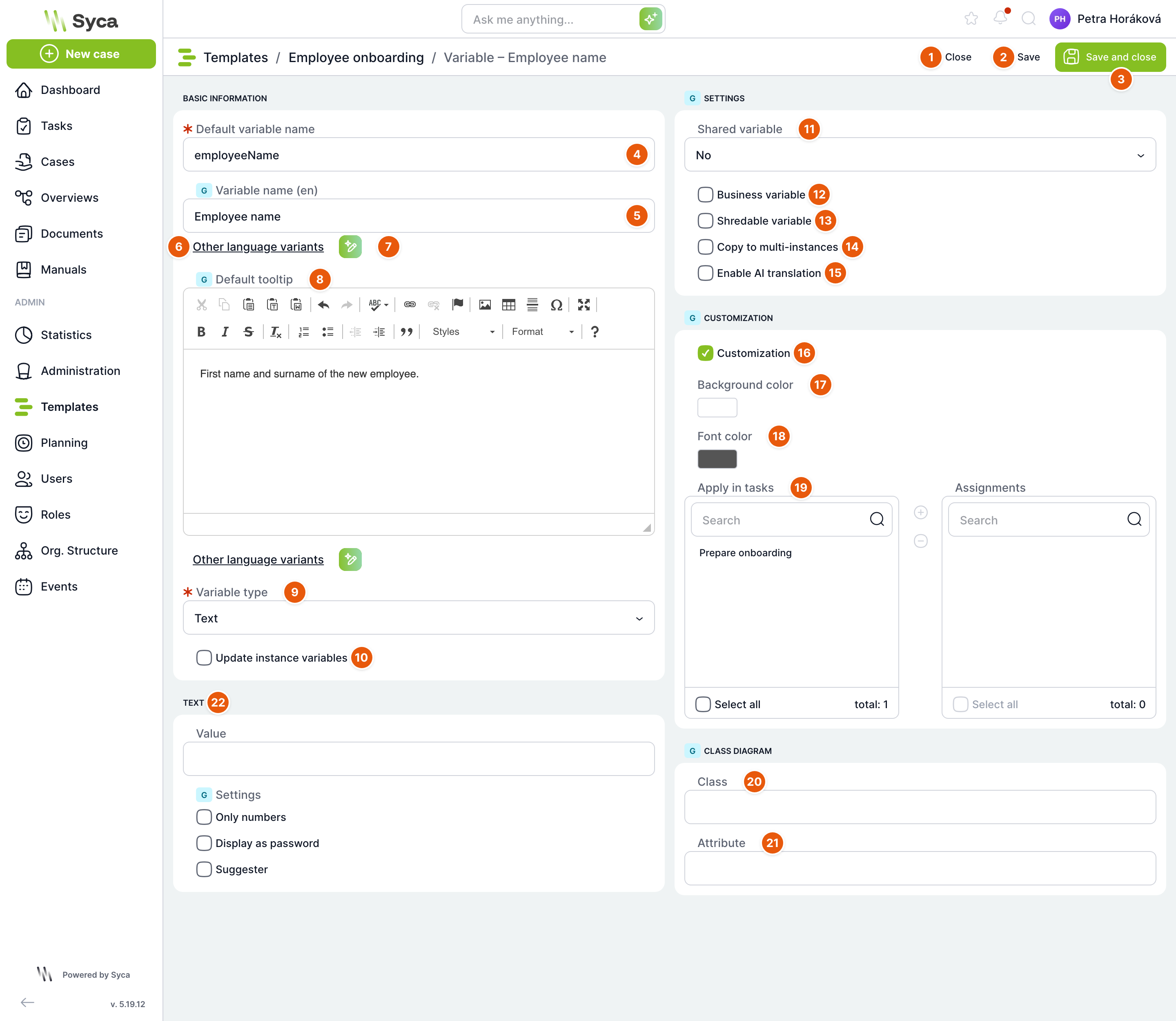
| No. | Element | Purpose |
|---|---|---|
| 1 | Close | Returns you to the list of variables. TAS offers to save unsaved changes. |
| 2 | Save | Saves the variable and keeps the editor open. A new variable gets its ID this way. |
| 3 | Save and close | Saves the variable and returns you to the list. |
| 4 | Default variable name | Required technical name. It must be unique within the template, otherwise saving ends with a message that a variable with this name already exists. We recommend a name without spaces and diacritics, for example employeeName. |
| 5 | Variable name (language) | Label that the user sees in the form. If left empty, the default name is displayed. |
| 6 | Other language variants | Expands the labels for the other application languages. The “...show less” link collapses them again. |
| 7 | AI translation | Fills in translations of the label into the other languages using AI. Displayed only when AI is enabled and active when there is something to translate. |
| 8 | Default help | Help text for the field. In the form, it appears when you hover over the question mark icon next to the label. Below the field are the other language variants of the help and their AI translation. |
| 9 | Variable type | Type of the variable, see the table of types below. The lower part of the editor changes depending on the type. |
| 10 | Include variable change in instance variables | Displayed only for an existing variable. After saving, it transfers the technical name, type, data source (dynamic list or table), column and the multiple-selection setting to cases that are already running. Values in cases do not change. |
| 11 | Shared variable | Whether other cases can read or change the variable, see below. |
| 12 | Business variable | Marks a user-type variable as business-relevant (requester, approver). Such variables work with the HR agenda. |
| 13 | Shreddable variable | When the case is shredded, the variable value is erased including its history. |
| 14 | Copy to multi-instances | Each instance of a multi-instance task gets its own copy of the value. |
| 15 | Enable AI translation | Only when AI is enabled and only for text, multi-line text and a dynamic table without multiple selection. |
| 16 | Customization | Enables custom colors of the field in the form. |
| 17 | Background color | Background color of the field. |
| 18 | Font color | Color of the label. |
| 19 | Use in tasks | Tasks in which the colors are used. Select a task in the left list and move it to the right one. If you select no task, the colors apply in all tasks. |
| 20 | Class | Class from the class diagram to which the variable belongs. |
| 21 | Attribute | Class attribute that the variable represents. |
| 22 | Type settings | Default value and settings of the specific type. They are described in the articles about the individual types. |
Labels in other languages
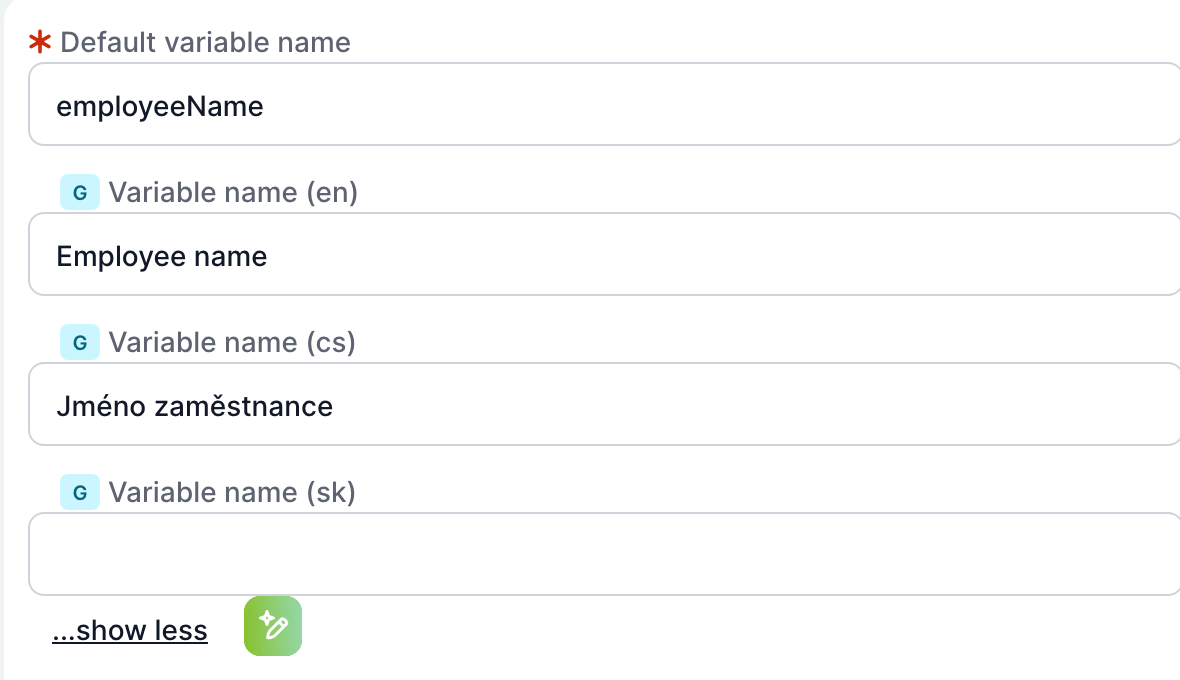
After you click Other language variants, fields for all application languages appear. An empty field means that users in that language see the default name. Help variants work the same way.
Variable types
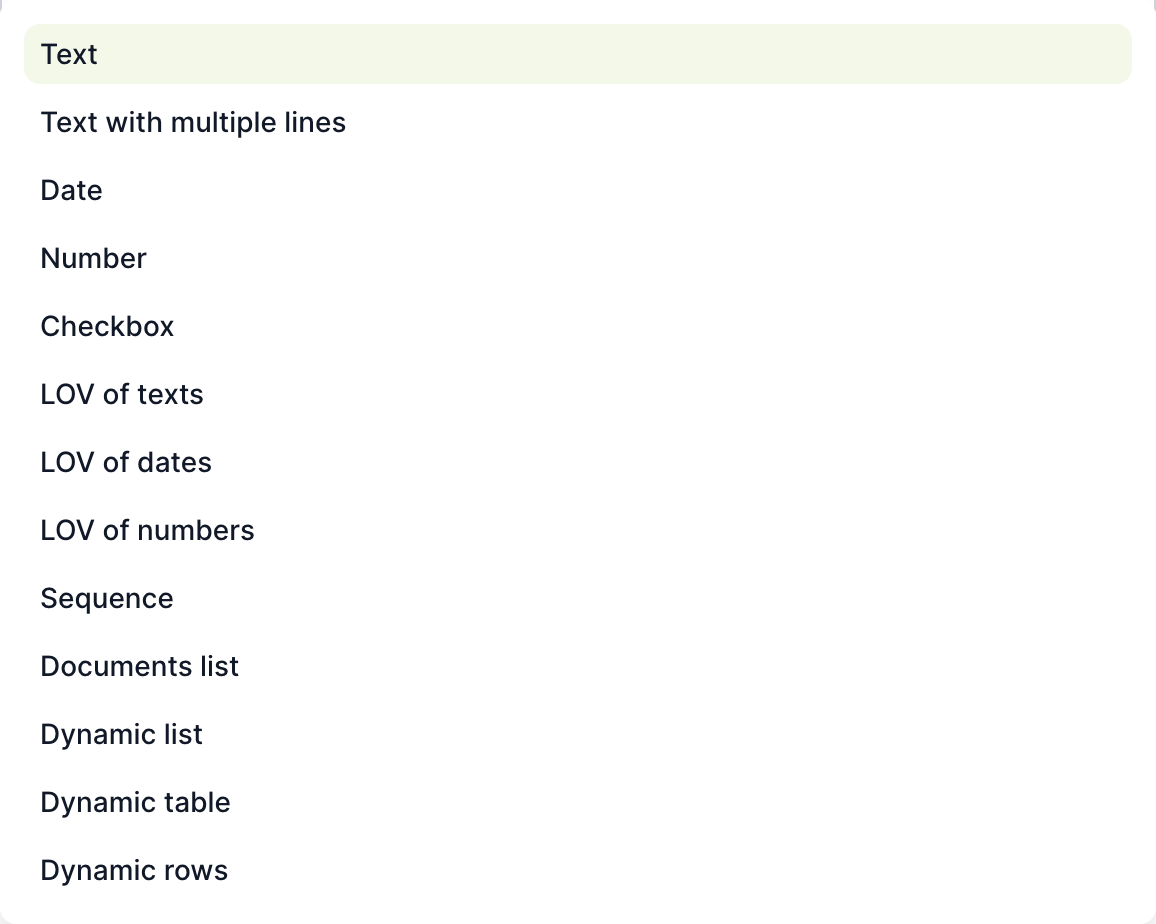
| Type | Purpose | Article |
|---|---|---|
| Text | Short single-line text, for example a name. | Text and multi-line text |
| Multi-line text | Longer text, optionally with formatting. | Text and multi-line text |
| Date | Date, optionally with time. | Date |
| Number | Number with a configurable number of decimal places. | Number |
| Checkbox | Yes/no checkbox. | Checkbox |
| Text code list, Date code list, Number code list | Selection from a fixed list of values that you enter in the editor. | Code lists |
| Sequence | Sequential number that the case gets when it is created. | Sequence |
| Document list | Uploading and selecting case documents. | Document list |
| Dynamic list | Selection of a user, organizational unit or role. | Dynamic list |
| Dynamic table | Selection of a row from a Dynamic Table. | Dynamic table |
| Dynamic rows | Table in the form to which the user adds rows. | Dynamic rows |
You can change the type even for a variable that is already in cases. However, values stored in cases are not converted, and running cases take over the new type only if the Include variable change in instance variables box is checked. For a variable in use, it is therefore better not to change the type and to create a new variable instead.
Settings
Shared variable
| Option | Meaning |
|---|---|
| No | Default. Only the variable's own case can see it. |
| Read | Calculations in other cases and services that read shared case variables can read the value. |
| Read and write | Other cases can both read and change the value. |
Business variable
A business variable is a user-type variable that the HR agenda looks up and in which it can replace a departing user with a new one. In the sample template, the direct manager is marked this way.
The Business variable checkbox is displayed in the editor for all types, but it can be saved only for a dynamic list with the User source. For other types, saving ends with the message “The variable could not be saved.” In that case, uncheck the box.
Shreddable variable
When a case is shredded and not deleted entirely, TAS erases the value of shreddable variables, the values in the copies for multi-instances and in the change history. Mark variables containing personal data this way, for example a personal identification number or a password. You set when cases are shredded on the Template tab in the Shredding section.
Copy to multi-instances
A multi-instance task splits into several instances in the case, for example one for each approver. Variables with this flag are copied during the split, so each instance works with its own value and the solvers do not overwrite each other's values. Variables that are in the form of a multi-instance task should have this flag enabled.
Enable AI translation
In a task form where the variable is read-only, a button appears next to the text value that lets the user have the value translated into their language. The button is not displayed for numbers. The option is available only for text, multi-line text and a dynamic table without multiple selection, and only when AI is enabled in the installation.
Customization

This is how the Monthly salary (CZK) field looks with a light yellow background color and brown font color. Use color sparingly, for example to highlight amounts or fields filled in by another department.
Class diagram and object state
The Class and Attribute fields link the variable to the class diagram, which you can import from a modeling tool. A dynamic table additionally has an Object state section with a State variable field. Both are described in the article Class diagram, state import and alias candidates.
How to add a variable
- On the Variables tab, click Add variable.
- Fill in the Default variable name and the labels in the languages.
- Select the Variable type and set the default value and behavior in the lower part.
- Click Save and close.
- Add the variable to task forms using the Assignment button or in the task editor.
After saving, TAS adds a new variable to all active cases of the template. In running tasks, it appears in the form as soon as you assign it to the task.
Related: Text and multi-line text, Number, Date, Checkbox, Code lists, Sequence, Document list, Dynamic list, Dynamic table, Dynamic rows, Class diagram, state import and alias candidates, HR agenda.