Dynamic conditions: builder
Dynamic conditions change the task form at runtime based on what the solver fills in: they hide fields, change whether fields are required, check entered values, calculate values or limit the options offered in lists. You set them up in the Conditions window, which you open with the Conditions button in the task editor toolbar. The window has two tabs: Builder for building conditions from blocks without programming, and Script for custom code. Automatic tasks do not have this button. For a new task, the window opens only after the task is saved.
The Conditions window and the Builder tab
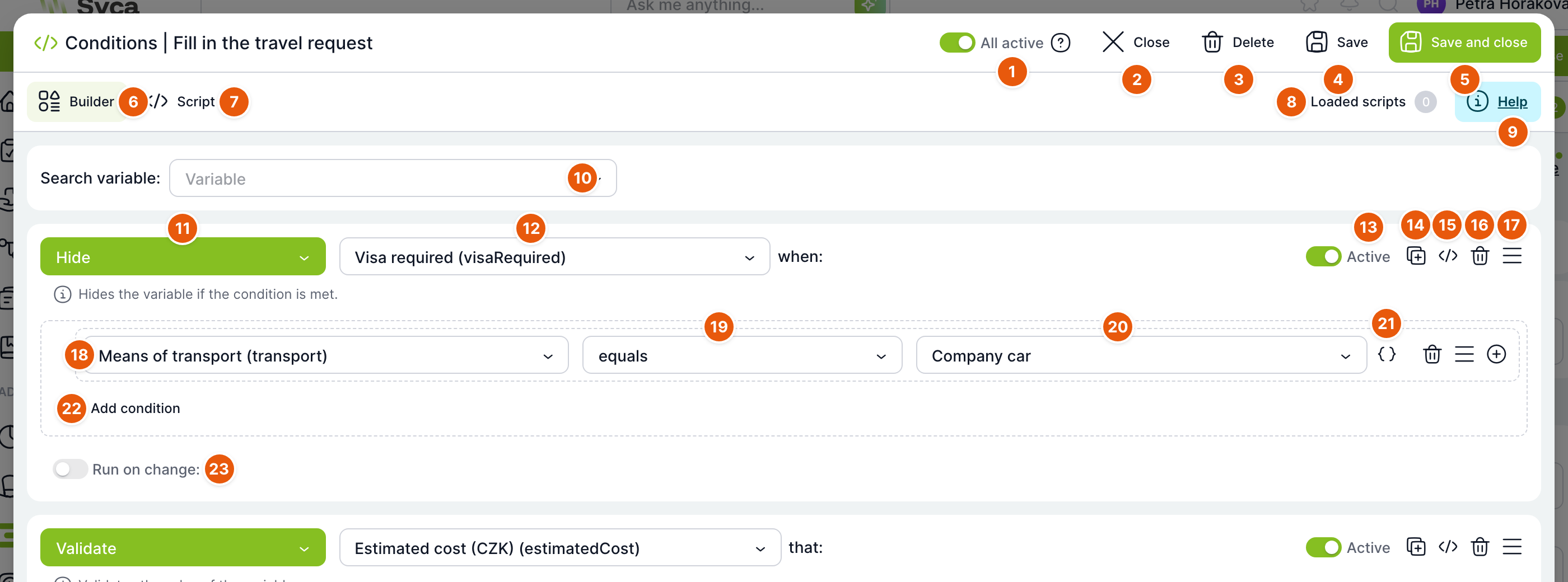
| No. | Element | Purpose |
|---|---|---|
| 1 | All active | Turns off all blocks at once. When you turn it back on, only the blocks that were active before are reactivated. Builder tab only. |
| 2 | Close | Closes the window. If there are unsaved changes, it asks Save changes?: Confirm saves them, No discards them. |
| 3 | Delete | After confirmation, deletes all blocks, the entire script and the loaded scripts. The change takes effect only after saving. |
| 4 | Save | Saves the conditions and leaves the window open. |
| 5 | Save and close | Saves the conditions and closes the window. |
| 6 | Builder | The tab with blocks. The window opens on this tab. |
| 7 | Script | The tab with the complete condition code. |
| 8 | Loaded scripts | Selection of scripts from administration that are loaded for this task. The number shows how many are selected. |
| 9 | Help | Opens help for the builder or the script, depending on the active tab. |
| 10 | Search variable | Shows only the blocks that change the selected variable. While searching, you cannot add or move blocks. |
| 11 | Function | What the block does; see the table of functions. |
| 12 | Variable | The variable the block acts on. |
| 13 | Active | Turns a single block on or off. A disabled block stays saved but is not executed. |
| 14 | Duplicate | Creates a copy of the block. |
| 15 | Convert to script | Converts the block to a Script block with generated code. |
| 16 | Delete block | Removes the block. |
| 17 | Move | Drag the icon to change the order of the block. |
| 18 | Condition variable | The variable whose value is compared in the condition. |
| 19 | Operator | The comparison method; see below. Active after a variable is selected. |
| 20 | Value | The value to compare with. Depending on the variable type, this is a field, a selection from a list or a date. |
| 21 | Compare with variable | Switches the Value field to selecting another variable, for example the return date must be greater than the departure date. Offers only variables of a suitable type. |
| 22 | Add condition | Inside a block, adds another group of conditions. At the bottom below the blocks, adds a new block with the Hide function. |
| 23 | Run on change | When you turn this option on and select variables, the block is evaluated only when these variables change. |
Each condition row also has icons for deleting the row, moving the row and adding another row after it. Rows within one group are joined by the selected operator AND or OR; between groups, you choose the same at block level. The editor highlights unfilled required block fields in red and does not save the conditions.
Block functions
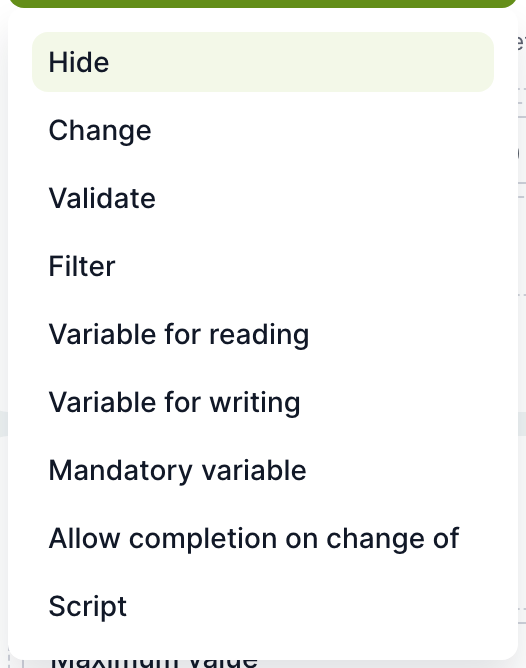
| Function | What it does in the form | Connector after the variable |
|---|---|---|
| Hide | Hides the variable when the condition is met. | when |
| Change | Sets a new value for the variable when the condition is met. For value types, see below. | to |
| Validate | Checks the value of the variable and shows a message on error. It has no condition part. | that |
| Filter | Limits the values offered in a list when the condition is met. Only for dynamic lists, dynamic tables and lists of texts, numbers and dates. | so that |
| Read-only variable | Switches the variable to read-only mode when the condition is met. | when |
| Writable variable | Switches the variable to write mode. | when |
| Required variable | Makes the variable required. | when |
| Allow completion on change | When the condition is met, the task completion buttons are active; otherwise they are inactive. | when |
| Script | Free-form code. Instead of fields, it has a code editor and the Add variable and Demo code icons. | – |
Condition operators
| Operator | For which variables |
|---|---|
| equals, does not equal | All except document lists, checkboxes and dynamic rows. |
| greater than, greater than or equal to, less than, less than or equal to | Numbers, dates, lists of numbers and dates. |
| contains, does not contain | Text and multi-value variables. |
| is empty, is not empty | All. For checkboxes, these are the only operators offered and mean unchecked and checked. |
For dates, the Value field offers Today, Yesterday, Tomorrow, Previous working day, Start of month, End of month, Start of year, End of year and Date for selecting a specific day. Relative dates are calculated at the moment of evaluation.
Validate

| No. | Field | Purpose |
|---|---|---|
| 1 | Validation | Type of check. The options depend on the variable type; see below. |
| 2 | Value | The limit or length to compare with. |
| 3 | Validation error message | The text the solver sees next to the field when the value fails the check. The field is for the first system language. The message is optional. |
| 4 | Other language variants | Opens the messages for other languages. The AI translation button fills them in if AI is enabled. |
| Variable type | Validations offered |
|---|---|
| All | Equality with another variable |
| Text, single-value text list | E-mail, Phone number, URL address, exact, minimum and maximum text length, Letters only, Letters and numbers, Date |
| Number, single-value number list | Minimum value, Maximum value |
| Number, date, lists of numbers and dates | Less than, Greater than, Less than or equal to, Greater than or equal to. For dates, you choose a quick date or a specific day as the limit. |
The message is stored in the condition code in single quotes. Do not use an apostrophe in it; it could break the condition code.
Change
The Change function sets the variable's value from one of these sources. The options depend on the type of the target variable:
| Source | Result |
|---|---|
| Constant | A fixed value. |
| Dynamic link | A link to a case, task or overview based on the number from the selected numeric variable. Text variables only. |
| Number operations | A calculation from two variables: what % of, by what % it differs from, what % remains, add, subtract, multiply, divide. |
| Dynamic date | A quick date, or a date from another variable plus or minus a specified number of days. |
| User, organizational unit or role parameter | Information about a user, unit or role based on the ID in another variable, for example e-mail, display name or unit manager. |
| Value from dynamic table | The value from the selected column of the first table row that matches the filter. The table can also be selected dynamically with an expression containing variables. |
| Variable value | A copy of another variable's value. |
Filter
A filter consists of rows with Parameter or Column, Operator and Value. For a dynamic list of users, units or roles, you filter by their properties; for a dynamic table, by columns; for lists of texts, numbers and dates, by value. The value can also be compared with another variable. The New filter button adds another group. If you change the target variable to a different kind of list, the filter is cleared.
The builder has no dedicated blocks for sections, buttons, dynamic row columns or URL calls. You write such behaviour in a Script block or on the Script tab. The builder itself loads data from dynamic tables and user parameters as part of the Change and Filter functions.
The Script tab
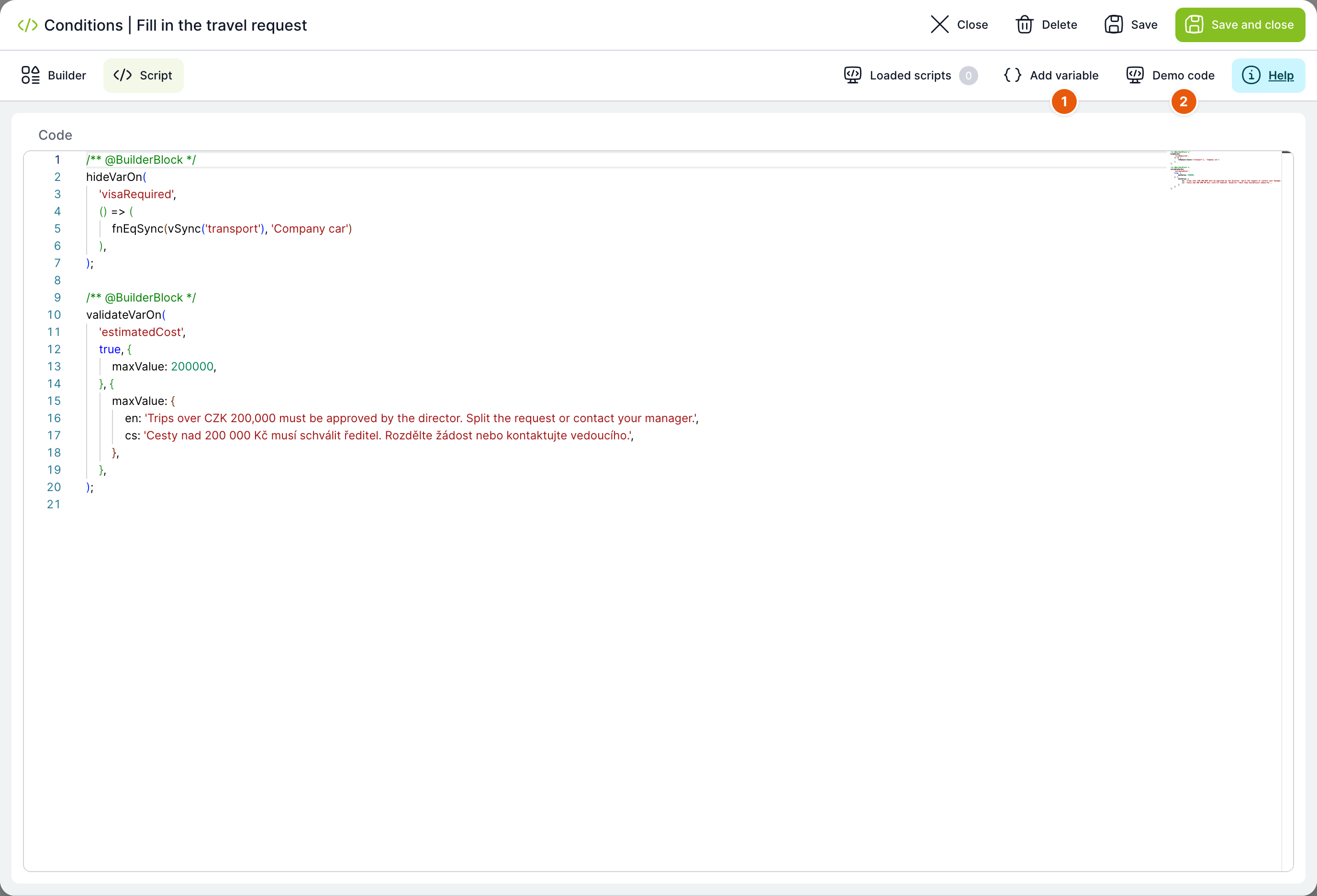
| No. | Element | Purpose |
|---|---|---|
| 1 | Add variable | Inserts the name of the selected variable into the code. |
| 2 | Demo code | Inserts sample calls of condition functions. |
The tab shows the complete condition code. The code editor suggests variable and function names.
How the builder and the script work together
The builder and the script store one shared piece of code. Each builder block is written to the code as one function call marked with the @BuilderBlock comment. A disabled block is written as commented-out code marked with @BuilderInactive.
- When you switch to the Script tab, the blocks are converted to code.
- When you switch back to Builder, the marked calls are converted back to blocks. Code between them that the builder does not recognise is shown as Script blocks.
- If you edit marked code so that the builder cannot understand it, the message Script to builder conversion failed is shown and you stay on the Script tab. The same happens when the window is opened.
- You convert a single block to a script with the Convert to script icon. You convert a Script block back with the Convert to structured block icon if it contains exactly one marked call.
On the Builder tab, required block fields are checked before saving. On the Script tab, the code is saved exactly as written.
Window for a single variable
On the Assignment tab, variables affected by a condition have a number next to their name. Clicking it opens the Conditions window with the Search variable field filled in: you see the blocks that change this variable, as well as Script blocks whose main call lists it first. Blocks in which the variable appears only in the condition part are not shown. The number on the Conditions button in the editor toolbar counts all condition function calls in the code; disabled blocks are not counted.
Example: converted forms of the purchase order template
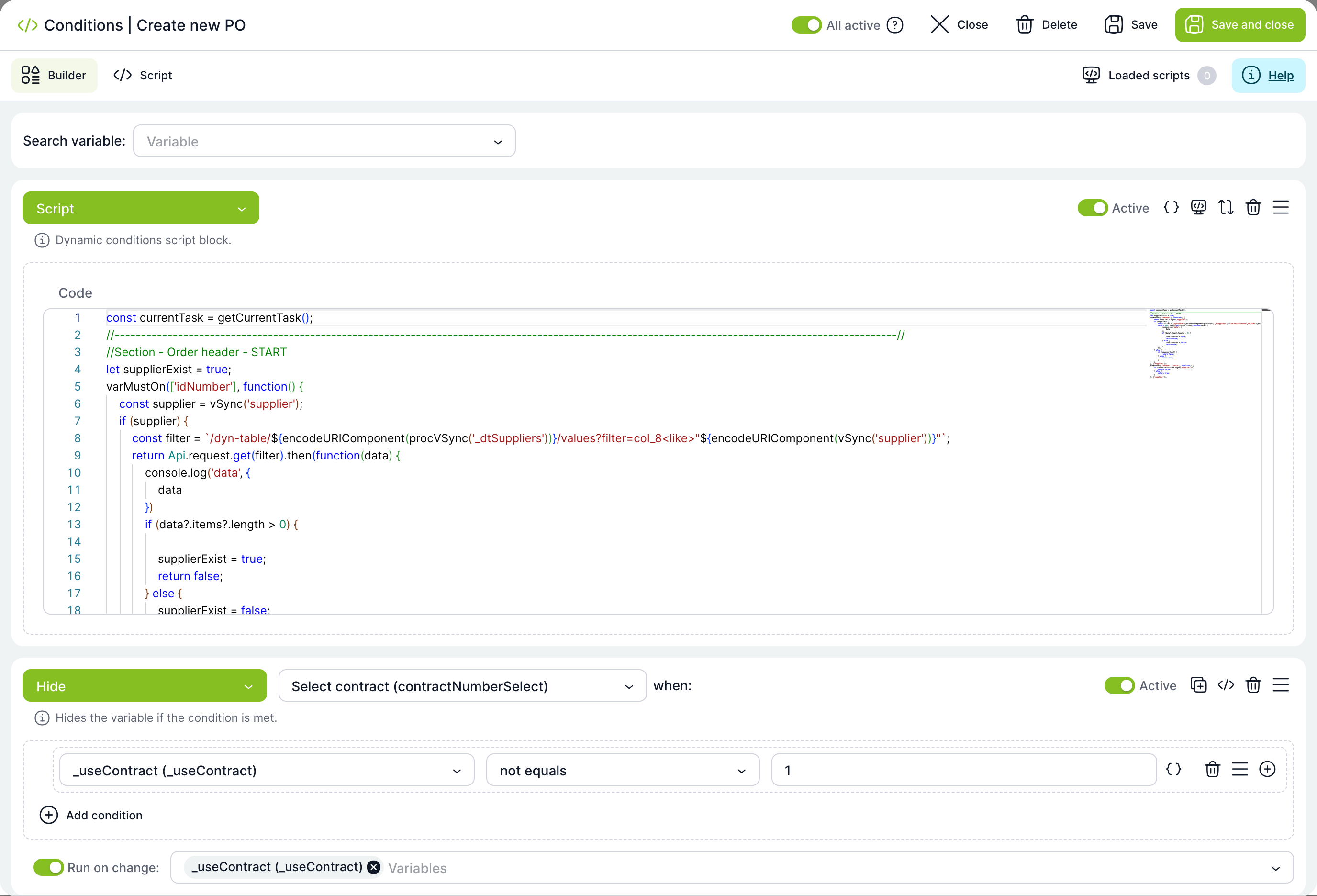
The forms of the sample template “TAS | Purchase Order 5.19” have been converted to the builder. The Create new PO task combines a Script block with custom code and structured Hide blocks that run when a variable changes.
Help
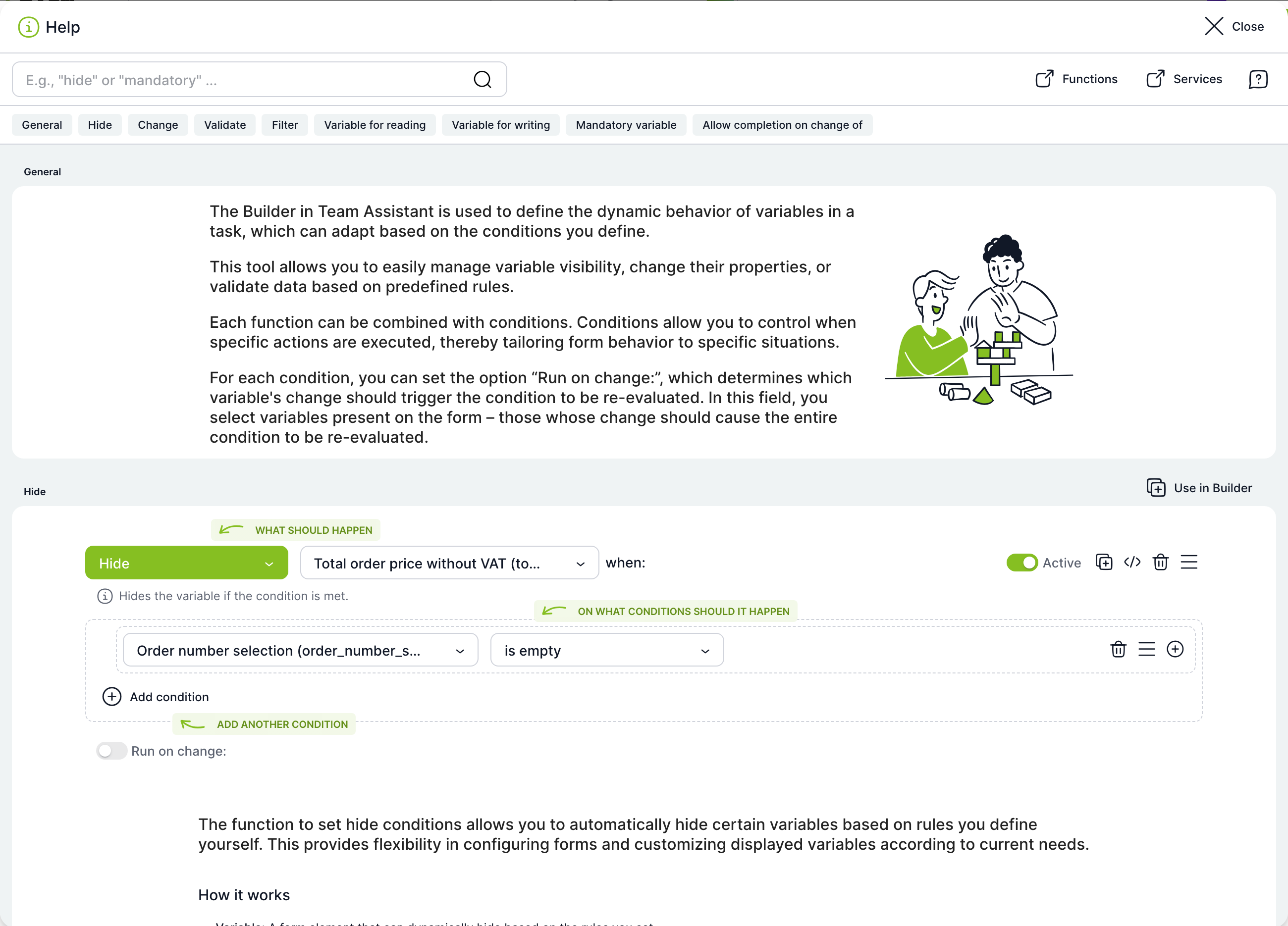
The builder help has a search and a chapter for each function with a sample block. The Use in builder button next to a sample adds a block with that function to the end of the builder. The Functions and Services links open a detailed overview of functions for the script.
How to add conditions in the builder
In the sample template “Travel request”, the Fill in the travel request task has two blocks: it hides the Visa required field when the means of transport is a company car, and it does not allow an estimated cost above CZK 200,000.
- Open the task and click Conditions.
- Click Add condition below the blocks. A block with the Hide function is added.
- Select the Visa required variable. In the condition row, select Means of transport, the equals operator and the value Company car.
- Click Add condition again, change the function to Validate and select Estimated cost.
- As the validation, select Maximum value, enter 200000 and write a message. Use the Other language variants link to add the message in other languages.
- Click Save and close.

The Loaded scripts window selects which active dynamic condition scripts from administration are loaded in the task. If you select none, all of them are loaded.
Related: Assigning variables and sections, Calculations on a task, Calculations and scripts section.