Configuration
Configuration contains the technical settings of the whole application: server behaviour, database connection, integrations, security, logging and feature flags. Only an administrator can see this page. To open it, go to the Administration menu and click the Configuration tile in the Application and configuration management group.
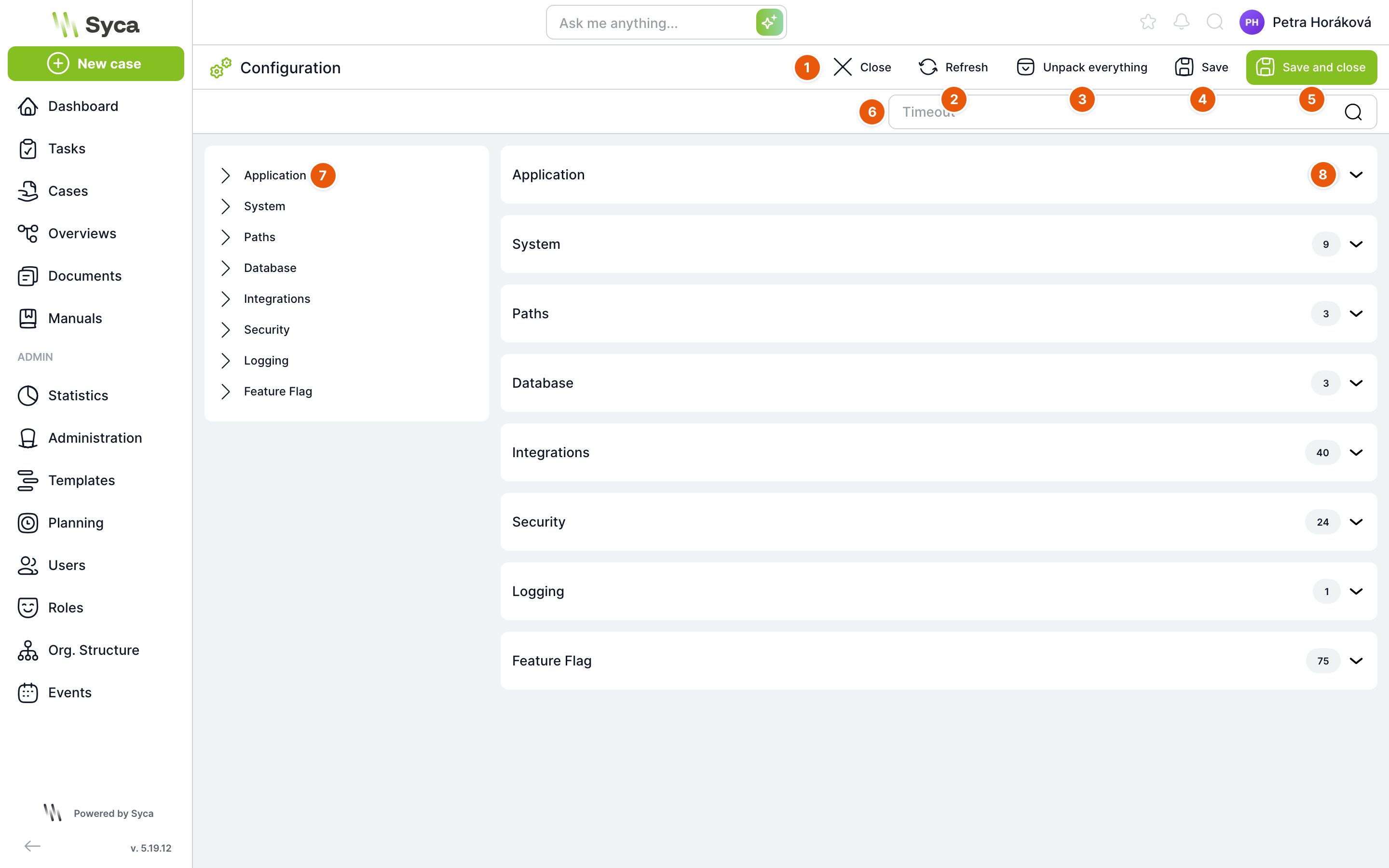
| No. | Element | Purpose |
|---|---|---|
| 1 | Close | Returns you to the Administration menu. If you have unsaved changes, you are first offered to save them. |
| 2 | Refresh | Reloads the configuration on all backend services and shows the current values. It does not reset the settings to factory defaults. Unsaved edits in the form are discarded without a prompt. |
| 3 | Expand all | Expands all sections and the tree on the left. Once everything is expanded, the button changes to Collapse all. |
| 4 | Save | Saves all changes and keeps the page open. |
| 5 | Save and close | Saves the changes and returns you to the Administration menu. |
| 6 | Search | Searches by item name, path and description, and by the text Requires restart. Matching sections expand automatically. Click the cross to clear the search. |
| 7 | Section tree | An overview of sections and subsections. Click an item to expand the matching section on the right and scroll the page to it. |
| 8 | Section | A collapsible section containing items. The number on the right shows how many items the section contains. |
The sections are Application, System, Paths, Database, Integrations, Security, Logging and Feature Flag. Section and item names are shown in English even in the Czech version of the application, because they come directly from the technical names of the settings. To see an item's description, open the help under the question mark next to its name.
Configuration item

| No. | Element | Purpose |
|---|---|---|
| 1 | Name and help | The item name. Hover over the question mark to see its description. |
| 2 | Path | The full technical name of the item, for example system.requestBodyLimit. You can also use it to find the item in the search. |
| 3 | Default value | The value the installation uses when no custom setting exists. Click the label to reset the item to its default value. For toggles, the label shows whether the feature is enabled by default. |
| 4 | Requires restart | A change to this item takes effect only after the backends are restarted. Without this label, the change takes effect as soon as you save. |
| 5 | Value | The field where you change the value. |
How you edit an item depends on the type of value:
| Value type | How to edit it |
|---|---|
| Yes/no | Toggle. |
| Number | Number field. |
| Text | Text field. Longer texts use a multi-line field, passwords use hidden text, and code uses a code editor. |
| Choice from options | Drop-down list with the placeholder Select an option. |
| List of values | Rows with a bin icon and an Add button. A list of fixed options is a multi-select. |
| List of objects | Collapsible items with icons for duplicating and deleting, and an Add button. |
| Key–value pairs | Editor with Key and Value columns. It checks for valid JSON format. |
Some fields appear only when it makes sense to fill them in. For example, the email sending settings change according to the selected connection type.
Some values cannot be changed on this screen. These are fixed items (for example the application version, paths or security headers) and items that the server administrator has set with an environment variable, for example the default language or enabling AI. Such a value takes precedence even when you save. Sensitive values set with an environment variable (passwords, tokens, keys) are shown hidden.
How to change a value
- Type part of the item name into the search, for example
hide search. - Change the value in the expanded section. An invalid value is highlighted immediately.
- Click Save or Save and close.
- The application checks the whole configuration before sending it. If any value is invalid, it expands the relevant section, takes you to the first invalid field and shows the warning Configuration validation failed.
- After a successful save, the message Configuration saved successfully appears. The change is distributed to all running instances of the application.
If you changed an item labelled Requires restart, an additional warning tells you that the change will take effect only after the backends are restarted. The restart is handled by the server administrator.
If you leave the page with unsaved changes, the application asks Save changes?. Confirm saves the changes, No discards them.
Configuration affects all users, and some items also affect the availability of the application (timeouts, database connection, email sending). Change only items whose meaning you understand, and note the original value before making a change.
Users usually see appearance changes only after refreshing the page in the browser or logging in again.
Items that change the application's appearance for users
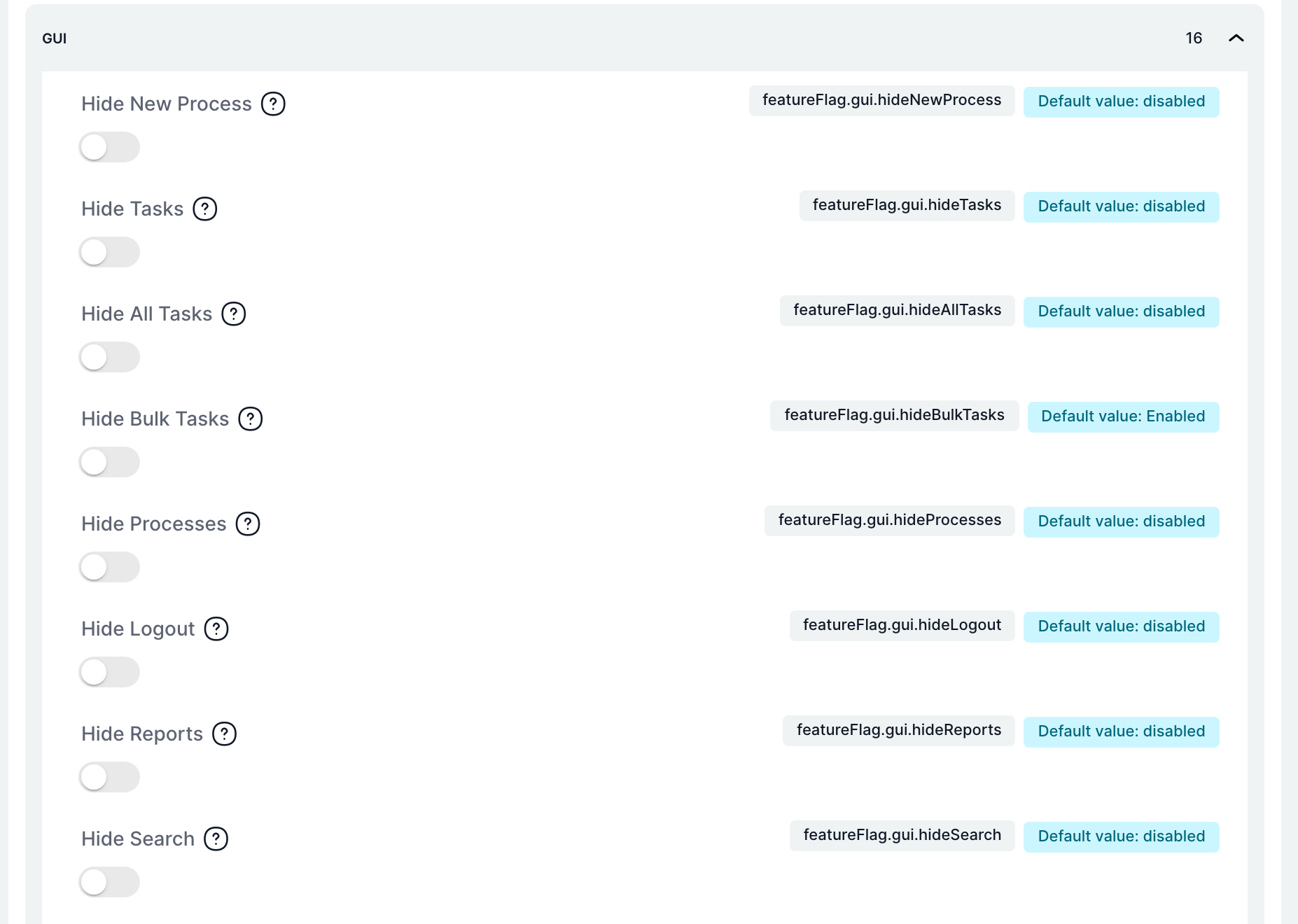
Most appearance toggles are in the Feature Flag section, Gui subsection. The table lists the items that directly change what users see in the application. The Item column contains the path you enter into the search. The legacy name is the name the item was known by in earlier versions; you may come across it in older guides.
| Item | Legacy name | Default value | What changes |
|---|---|---|---|
featureFlag.gui.hideSearch | tas.buttons.hideSearch | off | Hides the search icon in the top bar and makes the search page inaccessible. |
featureFlag.gui.hideLogout | tas.buttons.hideLogout | off | Hides logout in the account menu. Useful when users sign in with a corporate identity. |
featureFlag.gui.hidePasswordChange | tas.buttons.hidePasswordChange | off | Hides the Change password button in account settings. An administrator always sees it. |
featureFlag.gui.hideNewProcess | tas.buttons.hideNewProcess | off | Hides the New case button in the side menu. |
featureFlag.gui.hideBulkTasks | tas.hideBulkTasks | on | Hides bulk task completion in the Tasks section. |
featureFlag.gui.hideAllTasks | tas.hideAllTasks | off | Hides the All tab in the Tasks section. |
featureFlag.gui.hideTasks | tas.buttons.hideTasks | off | Removes Tasks from the default side menu. Does not apply if you have customised the menu in Visual Identity. |
featureFlag.gui.hideProcesses | tas.buttons.hideProcesses | off | The same for the Cases item. |
featureFlag.gui.hideReports | tas.buttons.hideReports | off | The same for the Reports item. |
featureFlag.gui.hidePoweredByTAS | tas.hidePoweredByTAS | off | Hides the Powered by link at the bottom of the side menu. |
application.headerWarning | tas.headerWarning | empty | Text shown in the top bar on larger screens. Used to distinguish environments, for example TEST. |
featureFlag.gui.taskVariableHighlighting | tas.taskVariableHighlighting | on | Read-only variables have a grey background in the task form. |
featureFlag.gui.taskContainerWidth | tas.taskContainerWidth | 1600 | Maximum width of the task content in pixels. A value of 0 means full width. |
featureFlag.gui.restrictTableSorting | tas.restrictTableSorting | off | Hides the sorting options in the table settings on the dashboard. |
featureFlag.gui.disableMobilePullToRefresh | tas.disableMobilePullToRefresh | off | Disables pull-to-refresh on mobile devices. |
featureFlag.gui.showNews | – | on | Shows news on the login page. |
featureFlag.gui.eventBackground | – | on | Holiday background on the login page. |
integrations.ai.enabled | AI.enabled | off | Enables the AI assistant in the top bar, AI translations for multilingual fields and the AI helper for table filters. If it is set with an environment variable, you cannot change it on the screen. |
featureFlag.archivationEnabled | archivation.enabled | on | Makes archived cases available in the Cases section, along with the Archive action and archiving in overviews. |
featureFlag.mobileApp.isActive | mobileApp.isActive | off | Shows the Mobile app section in account settings and in the user detail. |
featureFlag.emails.promptlyDelay | mail.promptlyDelay | 15 | Number of minutes after activation after which the new task email is sent, if the solver has not completed the task in the meantime. |
featureFlag.nfcReaderEnabled | tas.nfcReaderEnabled | off | Enables the NFC reader, the NFC reader widget on the dashboard and the NFC reader component in print templates. Cannot be turned off while an active NFC login exists. |
featureFlag.disableUserSettings | tas.disableUserSettings | off | Users cannot change the details in their account settings. |
featureFlag.profileAttributes | tas.profileAttributes | all details | Which details and sections are shown in account settings. |
featureFlag.sharingOverviews | tas.sharingOverviews | on | Users can share their overviews with others. |
featureFlag.disableAccentSensitivity | tas.disableAccentSensitivity | off | Search in selection fields ignores diacritics. |
featureFlag.maxCsvExportedRows | tas.maxCsvExportedRows | 100000 | Maximum number of rows in a table export to CSV. Before a larger export, the user receives a warning. |
featureFlag.maxExcelExportedRows | tas.maxExcelExportedRows | 50000 | The same for export to Excel. |
system.numberRowsForFetch | tas.numberRowsForFetch | 200 | How many table rows are loaded at once. |
application.authentication.notifyBeforeExpiration | tas.sessionExpiration.notifyBeforeExpiration | 600 | How many seconds before the login session expires the user is shown a warning. A value of −1 turns the warning off. |
featureFlag.documents.thumbnails.displayEnabled | dms.thumbnails.displayEnabled | on | Shows document thumbnails. The thumbnail dimensions are set by the width and height items (default 256 px). |
featureFlag.userRestrictions, orgUnitRestrictions, roleRestrictions | – | A (all) | Which users, organizational units and roles a user sees in selection lists. |
The default value in the table applies to an installation without custom settings. You can see the current state on your installation in the item's field. For example, bulk tasks are hidden by default, but the administrator may have enabled them on a particular installation.
Related: Settings, Visual Identity, Logs, Plugins.