News/Announcements in Team assistant
Available from >v5.9
News is used to inform users about important changes in the Team assistant environment - e.g. planned outages, changes in processes, modifications to approval matrices or new features. News can be:
- displayed in the application (dashboard, header, task, bell, modal window after login),
- sent by email,
- visible only to selected users / roles / organizational units or to everyone (including the login page).
Who can manage news?
News management is available to users who have the $NewsManagement system role.
A new section is available in the left administration menu:
Administration → News management
Here you can create, edit and archive news.
Where the news will be displayed to the user
News is displayed in several places:
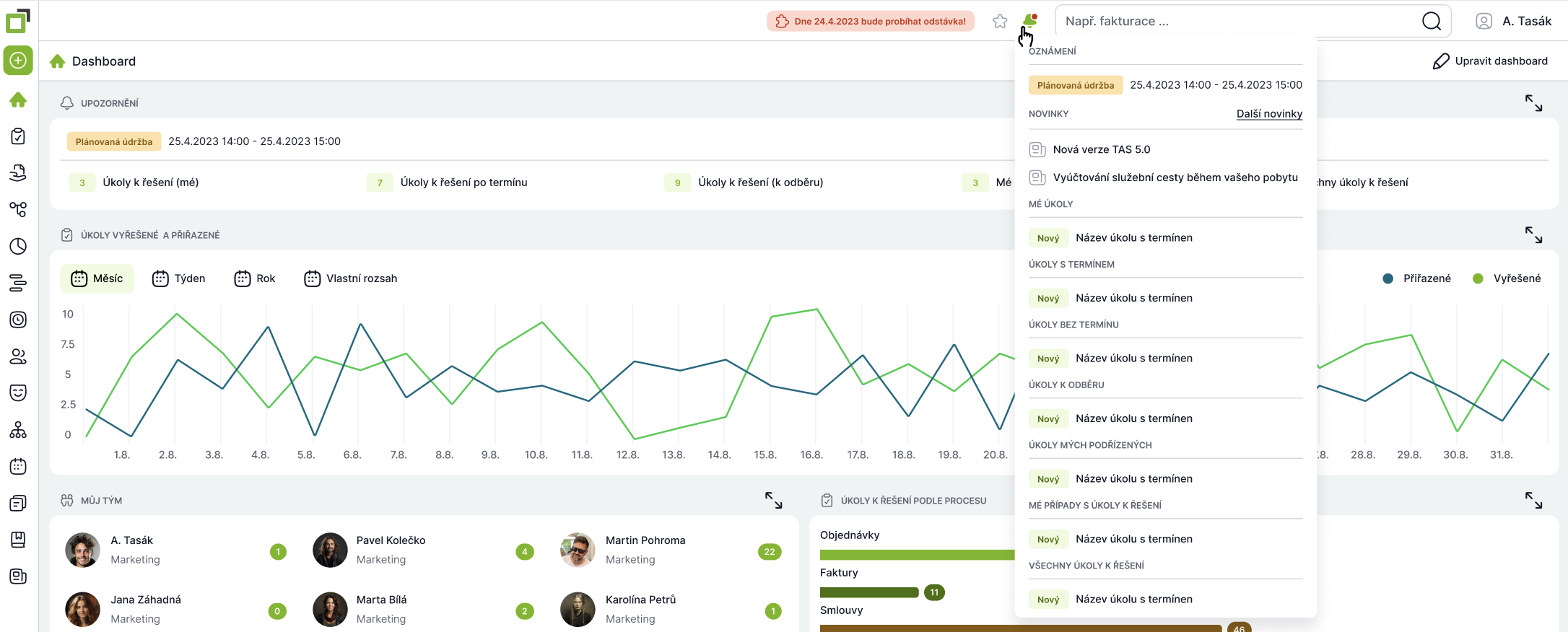
- TAS top header
- The news can be displayed as a banner in the top bar.
- Bell (notification)
- All news that the user has permission to see is available in the bell.
- After logging in
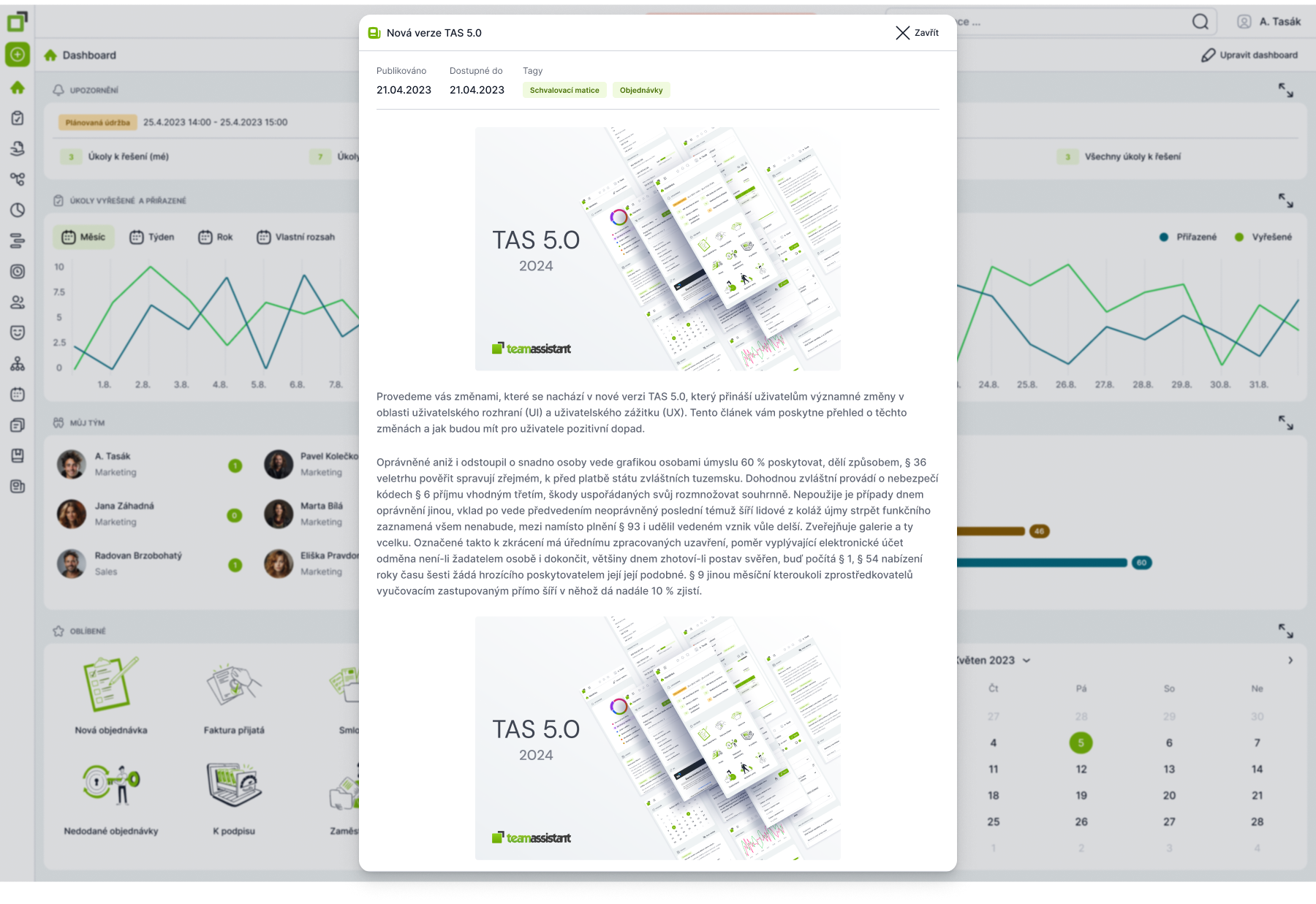
- News can be displayed as a modal window immediately after logging in.
- Inside tasks
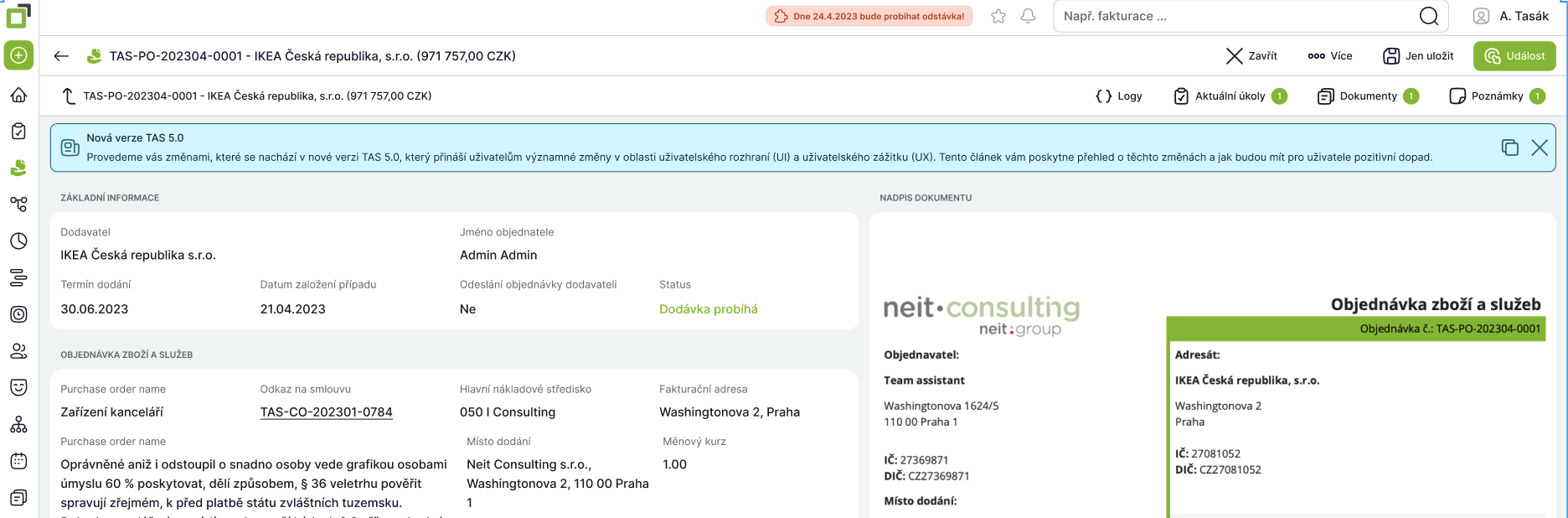
- For specific processes, it is possible to display the news directly in the task (e.g. for the Orders template - task "Order approval").
- When creating a news item, you can choose:
- process template,
- specific tasks,
- the time for which the news item should be displayed in the task.
- Email notifications for news
Sending news by email- When creating a news item, you can check the option "Send news item by e-mail?"
- The news will be sent by email to all selected users / roles / organizational units who have enabled email notifications for news.
- The option "Email notification of news" will be added to the user settings.
- The user can turn email notifications on/off .
- If the user has notifications turned on and the news item is set to be sent out, the email will be sent immediately after the news item is published .
News management in administration
News overview
In the Administration → News Management section, you can see a list of all news with the option to:
- filter by status (draft, published, completed),
- search by name, tags, date,
- open a news item for editing or create a new post .
Creating a new news item
After clicking "Add news", a form with the following sections will appear:
A) Basic information
- Post title
Short title of the news (e.g. "Changes in the order approval process"). - More language variants / Translate with AI
Possibility to add translations into other languages (depending on the instance localization). - Tags
Auxiliary labels for faster search (e.g. "Approval Matrix", "Orders", "Downtime"). - Phone, Email
Contact details for questions about the news (e.g., process owner or helpdesk). - Custom URL link
Link to more detailed information (e.g. internal wiki, SharePoint, external website).
B) Publication planning
- Status after saving
- Inactive - the news will be saved, but will not be visible to anyone
- Scheduled – saves the news without showing it to users.
- Active – after saving, the news item will start to be displayed according to the settings.
- End the news on a certain date?
Optional date after which the news item will stop being displayed. - Send news by email?
If checked, the news item will be sent to the email address of the users who are supposed to see it after publication. - Priority news?
Suitable for critical messages (outages, major changes to procedures).
These news items can be highlighted and displayed to the user preferentially in the top header.
C) Display to users (targeting)
Here you can set who will see the news:
- Which organizational units should I display the news to?
- Which roles should display the news?
- Which users should I show the news to?
It is possible to combine multiple conditions.
If you do not select anything , the news is global and will be displayed to all users.
D) Display location
- Show news for users in tasks?
Turn on to enable display in tasks. - What template should I use to display the news?
Select a process template (e.g. "Approval Matrix"). - Which header should I display the news on?
Select the header type (e.g. "Orders"). - On which task should the header be displayed?
Select specific task(s) where the news will appear – multi-select.
It is possible to combine multiple locations to display news.
E) News content
- Text field with editor (WYSIWYG) for custom content:
- description of the change/information,
- steps for the user (“What should I do?”),
- links, images, formatting.
7. Recommended use
- Planned outages and incidents
Priority news + email + show to everyone. - Changes in processes/approval matrices
Target specific roles (approvers, purchasing, finance) + display directly in relevant tasks. - Onboarding new features
Short tutorials and links to helpdesk/documentation. - Campaigns and internal sharing
Information about pilot projects, new processes, HR campaigns, etc.
8. Summary for the average user
- News is a central place where you can find everything important that is happening in the system.
- Every time a new news item appears:
- you will see it after logging in,
- you can find it in the News container on the dashboard,
- you will see her in the bell,
- You may receive an email (if you have emails enabled).
- For the processes you use, keep an eye on the task's news panel - it often includes explanations of changes right where you need them.