News Management
Use news to inform users about changes, outages or new processes. A news item is shown only to selected users, roles or organizational units, it can appear on specific tasks, and it can also be sent by e-mail. News Management is available to users with the News Management role; the administrator role alone is not enough. Open it from the Administration menu using the News Management tile in the Content and File Management group.
Posts
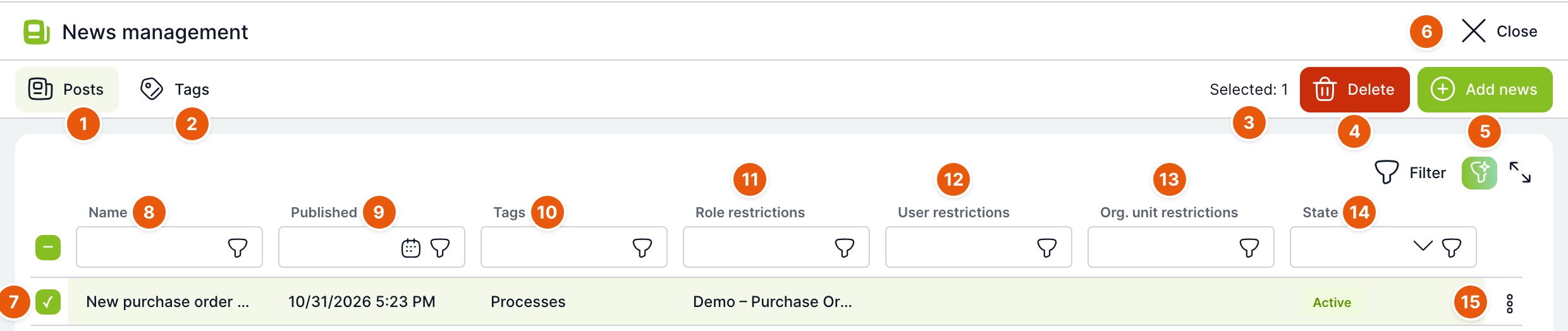
| No. | Element | Purpose |
|---|---|---|
| 1 | Posts | Tab with the list of news items. |
| 2 | Tags | Tab with labels for sorting news items. |
| 3 | Selected | Number of selected news items. |
| 4 | Delete | Deletes the selected news items. Active only when something is selected. Asks Do you really want to delete the selected posts?. |
| 5 | Add news | Opens the form for a new news item. |
| 6 | Close | Returns you to the Administration menu. |
| 7 | Row selection | Select the check box to mark a news item for bulk deletion. The check box in the header selects all. |
| 8 | Name | Name of the news item in your language. |
| 9 | Published | When the news item was published. |
| 10 | Tags | Tags of the news item. The filter supports contains and does not contain. |
| 11 | Restriction to roles | Roles the news item is shown to. |
| 12 | Restriction to users | Users the news item is shown to. |
| 13 | Restriction to organizational units | Organizational units the news item is shown to. |
| 14 | Status | Active (green), Scheduled (orange) or Inactive (grey). |
| 15 | Row actions | Edit opens the news item detail, Delete deletes it after confirmation. |
The list contains all news items in all statuses, newest first. You can also open the detail by double-clicking a row.
Tags

Tags are labels that users use to sort and search news items, for example IT, HR or Processes.
| No. | Element | Purpose |
|---|---|---|
| 1 | Add tag | Opens the window for a new tag. |
| 2 | Tag name | Default name, used when a translation is missing. |
| 3–5 | Tag name (EN), (CS), (SK) | Name in each language. There are as many columns as languages enabled in the installation. |
| 6 | Row actions | Edit and Delete. Deletion asks Do you really want to delete the tag?. |
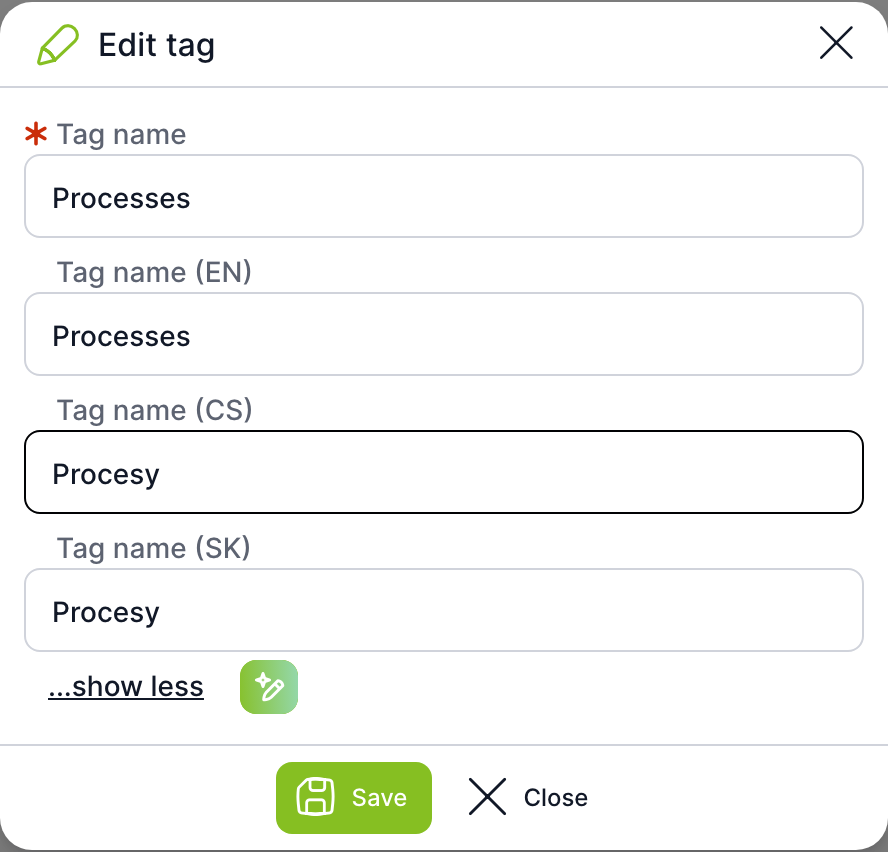
| Field | Purpose |
|---|---|
| Tag name | Required default name. |
| Other language variants | Expands a Tag name field for each language. The …show less link hides them again. |
| AI translation | The icon next to the link translates the default name into all languages. Shown only when AI is enabled. |
| Add / Save | Saves the tag. |
| Close | Closes the window without saving. |
News item detail
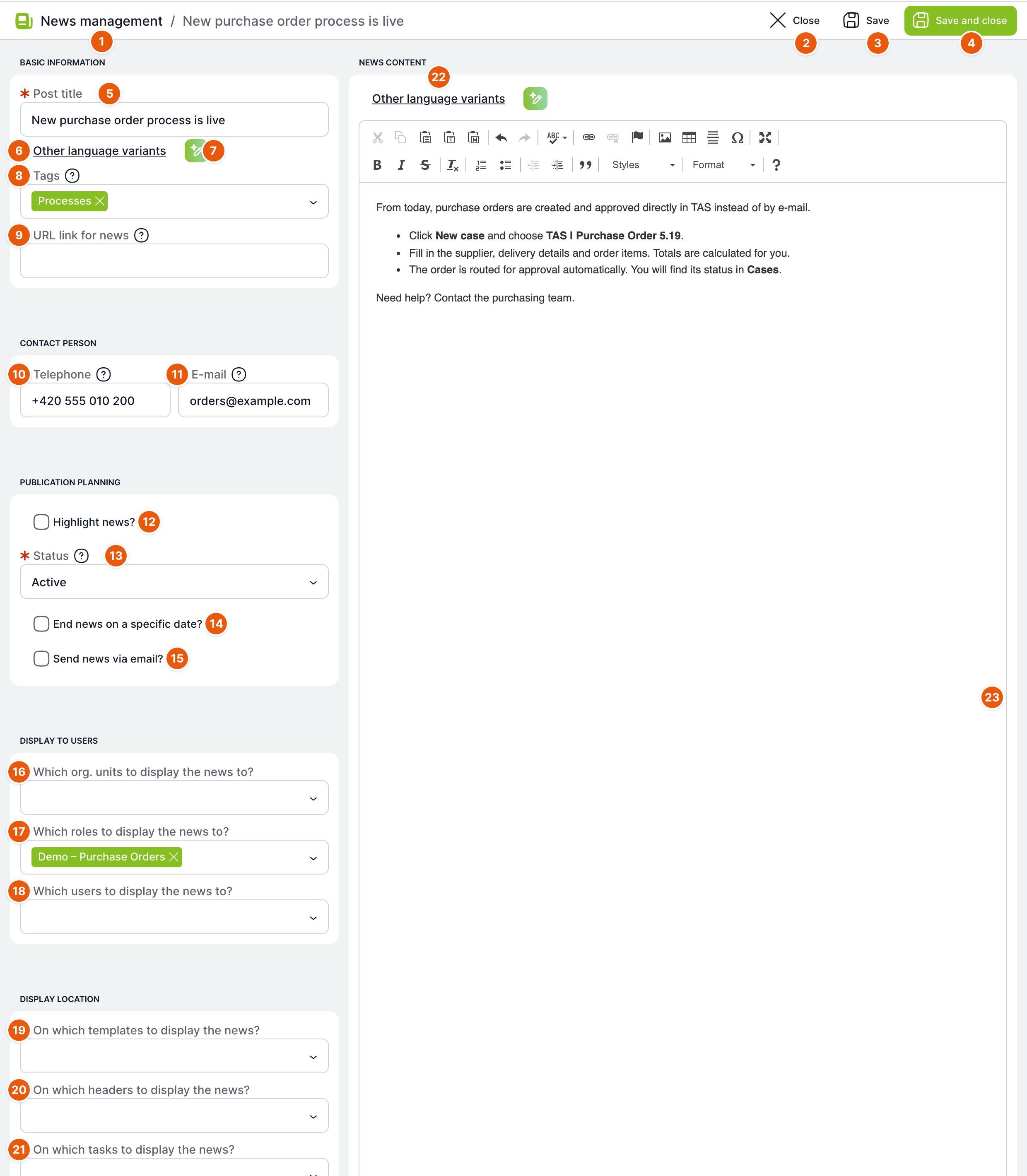
| No. | Element | Purpose |
|---|---|---|
| 1 | News Management | Returns to the news list. Next to it is the name of the news item, or New post for a new one. |
| 2 | Close | Returns you to the list. You are offered to save unsaved changes. |
| 3 | Save | Saves the news item and keeps the detail open. |
| 4 | Save and close | Saves the news item and returns you to the list. |
| 5 | Post name | Required. Default name of the news item. |
| 6 | Other language variants | Expands a Post name field for each language. |
| 7 | AI translation | Translates the default name into all languages. Only when AI is enabled. |
| 8 | Tags | Tags of the news item. If you type a name that does not exist, Create "…" is offered and the new tag is created and added immediately. |
| 9 | News URL link | Link to more details, for example an intranet page. Users see it below the text as More details. |
| 10 | Phone | Phone number of the contact person. Users can call it directly. |
| 11 | E-mail of the contact person. Users can write to them directly. | |
| 12 | Highlight news? | An active news item is shown in the top bar of the application with a red label. Useful for important announcements, such as an outage. |
| 13 | Status | Required. Active, Scheduled or Inactive, see below. |
| 14 | End news on a specific date? | Shows the News end date field. After this date the news item is no longer shown. |
| 15 | Send news by email? | When an active news item is saved, sends an e-mail to everyone the news item is intended for, see below. |
| 16 | Which org. units to show the news to? | Members of the selected organizational units will see the news item. Superior and subordinate units are not included. |
| 17 | Which roles to show the news to? | Users with the selected roles will see the news item. For a new news item, the role for all users is prefilled. |
| 18 | Which users to show the news to? | The selected users will see the news item. |
| 19 | On which templates to show the news? | The news item is shown above all tasks of cases of the selected templates. |
| 20 | On which headers to show the news? | The news item is shown on tasks of the template the header belongs to. |
| 21 | On which tasks to show the news? | The news item is shown only above the selected tasks. |
| 22 | Other language variants | Switches between language variants of the content, see below. |
| 23 | News content | Text editor with formatting, links, images and tables. Content is not required. |
The Display to users section determines who sees the news item. Meeting one of the conditions is enough: the user has a selected role, or belongs to a selected unit, or is among the selected users. If you fill in nothing, nobody sees the news item. The Display location section determines on which tasks the news item additionally appears.
A news item selected for a template, header or task is shown above the task to everyone who opens the task, regardless of the roles, units and users in the Display to users section. Selecting a header also shows the news item on all tasks of the entire template.
Content in other languages
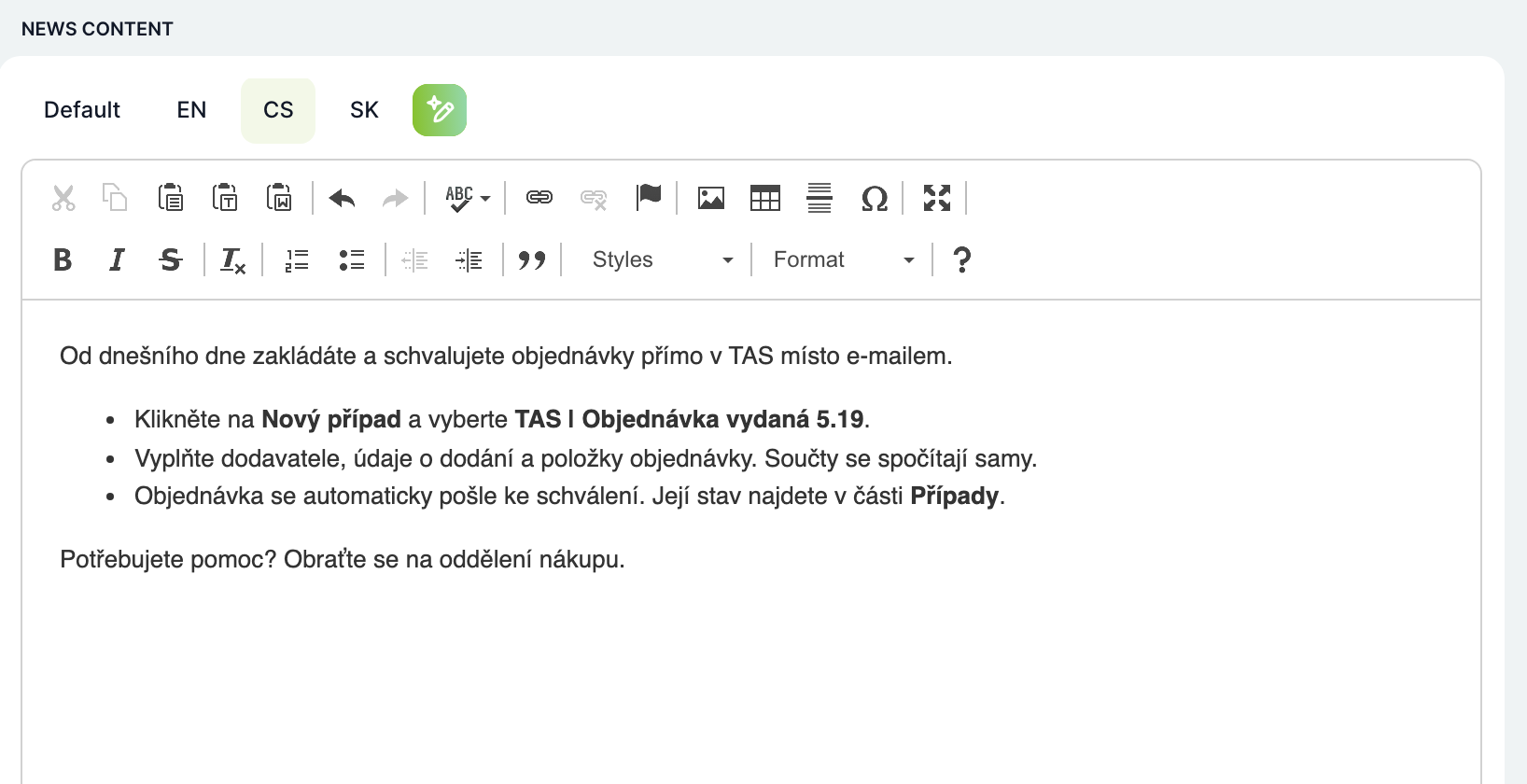
After clicking Other language variants above the editor, the buttons Default, EN, CS, SK appear (depending on the installation languages). The highlighted button shows which variant you are currently editing. Use the AI icon to translate the default content into all languages. Users see the variant in their language; if it is missing, the default name and content are shown.
Status and scheduling
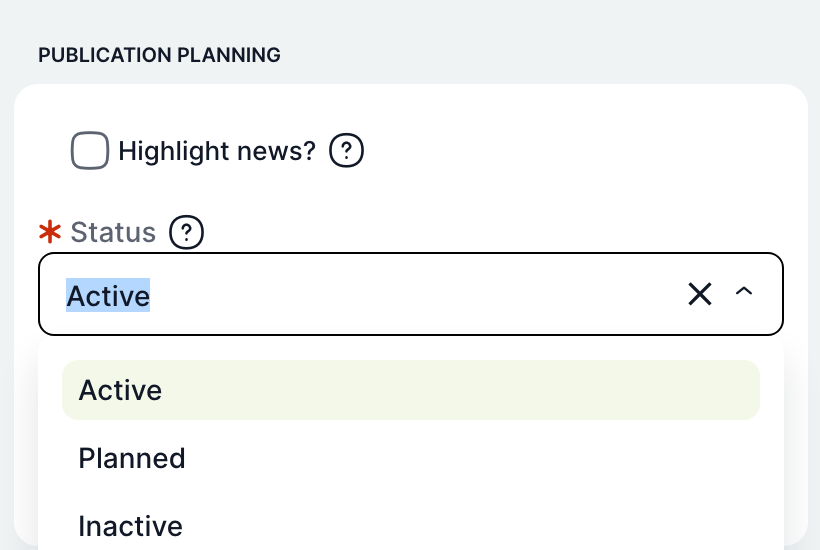
| Status | Meaning |
|---|---|
| Active | The news item is shown immediately after saving. The moment you first activated it is saved as the publication date. |
| Scheduled | The news item is shown from the specified date. Until then, users do not see it. |
| Inactive | The news item is not shown. Useful for drafts and for withdrawing a news item. |
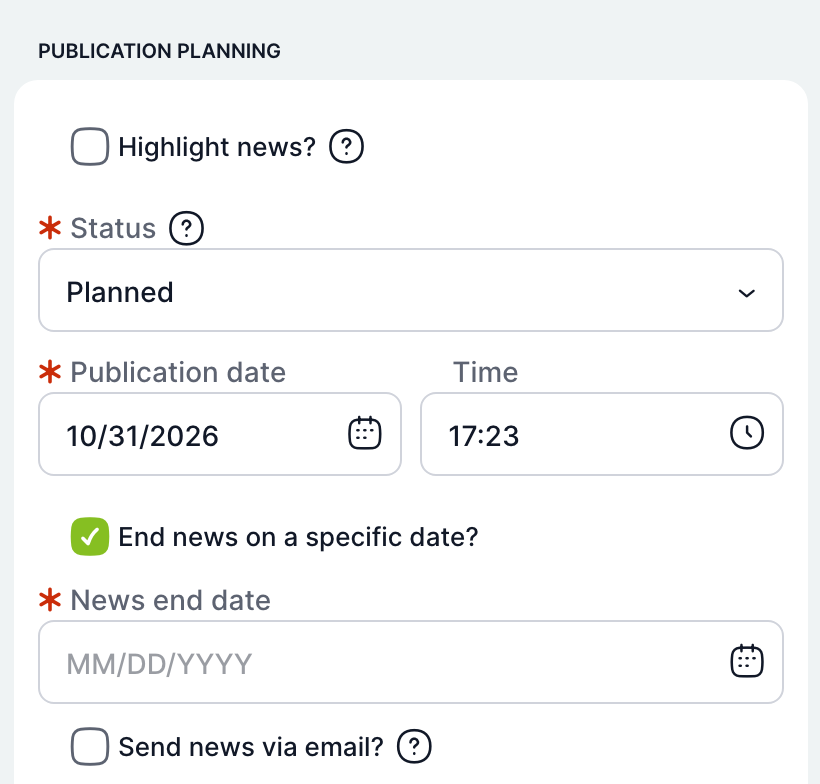
For the Scheduled status, fill in the Publication date (required) and Time. After selecting End news on a specific date?, fill in the News end date. The publication date must be before the end date, otherwise the message The publication date must be before the news end date is shown.
Scheduled news items are published and expired news items are ended by the Publish posts cron once a day at midnight. A news item scheduled for today at 14:00 is therefore shown only after the next midnight. If you need to publish it immediately, set the status to Active.
Sending by e-mail
When Send news by email? is selected and the status is Active, the application asks on saving: Saving the post will send an email to all users the post is intended for. Do you really want to save the post?. After confirmation, an e-mail is sent to all users from the Display to users section who have an e-mail address filled in. The e-mail contains the name, publication and end dates, tags, text and contacts, and is in the recipient's language. For a scheduled news item, the e-mail is sent when the cron publishes it.
As long as the check box is selected and the news item is active, every subsequent save sends the e-mail again. After sending, clear the check box before editing the news item further.
How to create a news item
- On the Posts tab, click Add news.
- Fill in the Post name and, if needed, its language variants.
- Add Tags, a contact and a link if you need them.
- Write the News content. Use Other language variants to add the content in other languages.
- In the Display to users section, select roles, units or users. Remove the prefilled role for all users if the news item is only for some people.
- Choose the Status: Active for immediate publication, or Scheduled with a publication date.
- Click Save and close.
How users see news
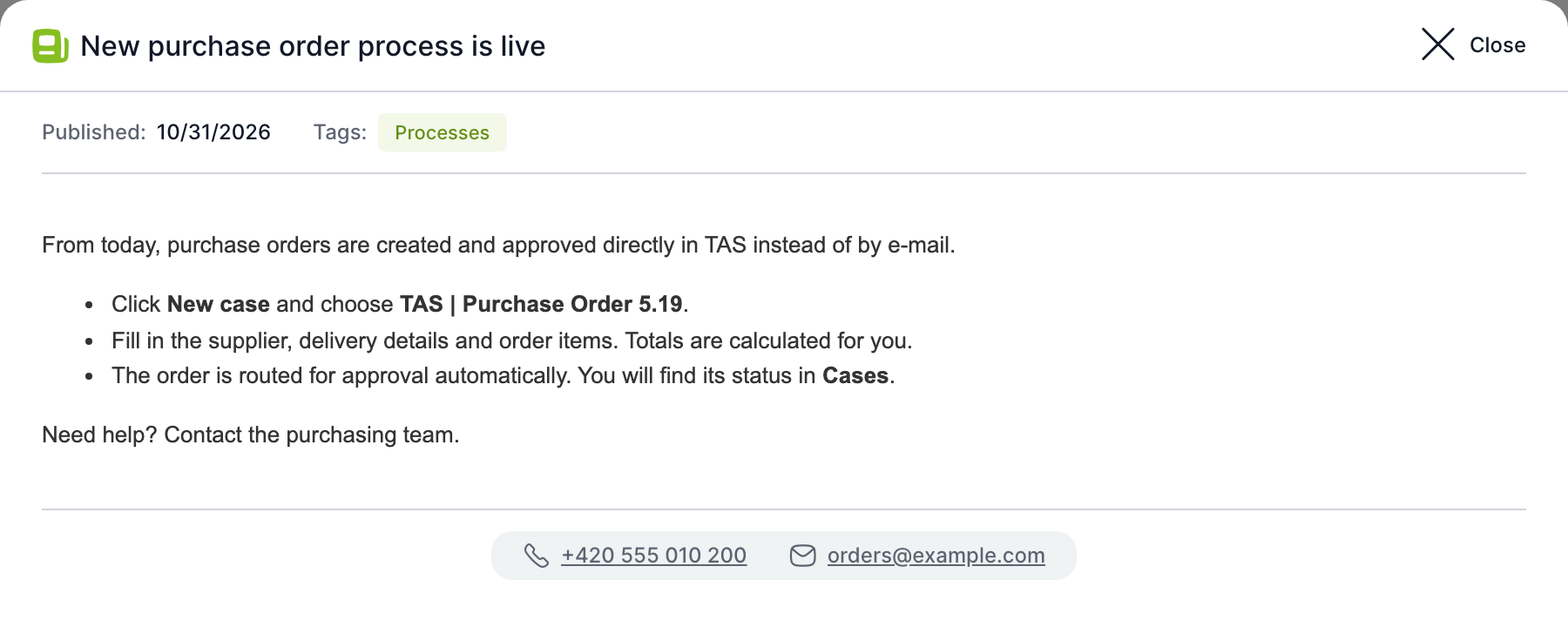
| Where | What the user sees |
|---|---|
| Window after login | News published since their last visit. Shown after the application loads. |
| Bell in the top bar | The five newest news items with the number of unread ones and the All news link. |
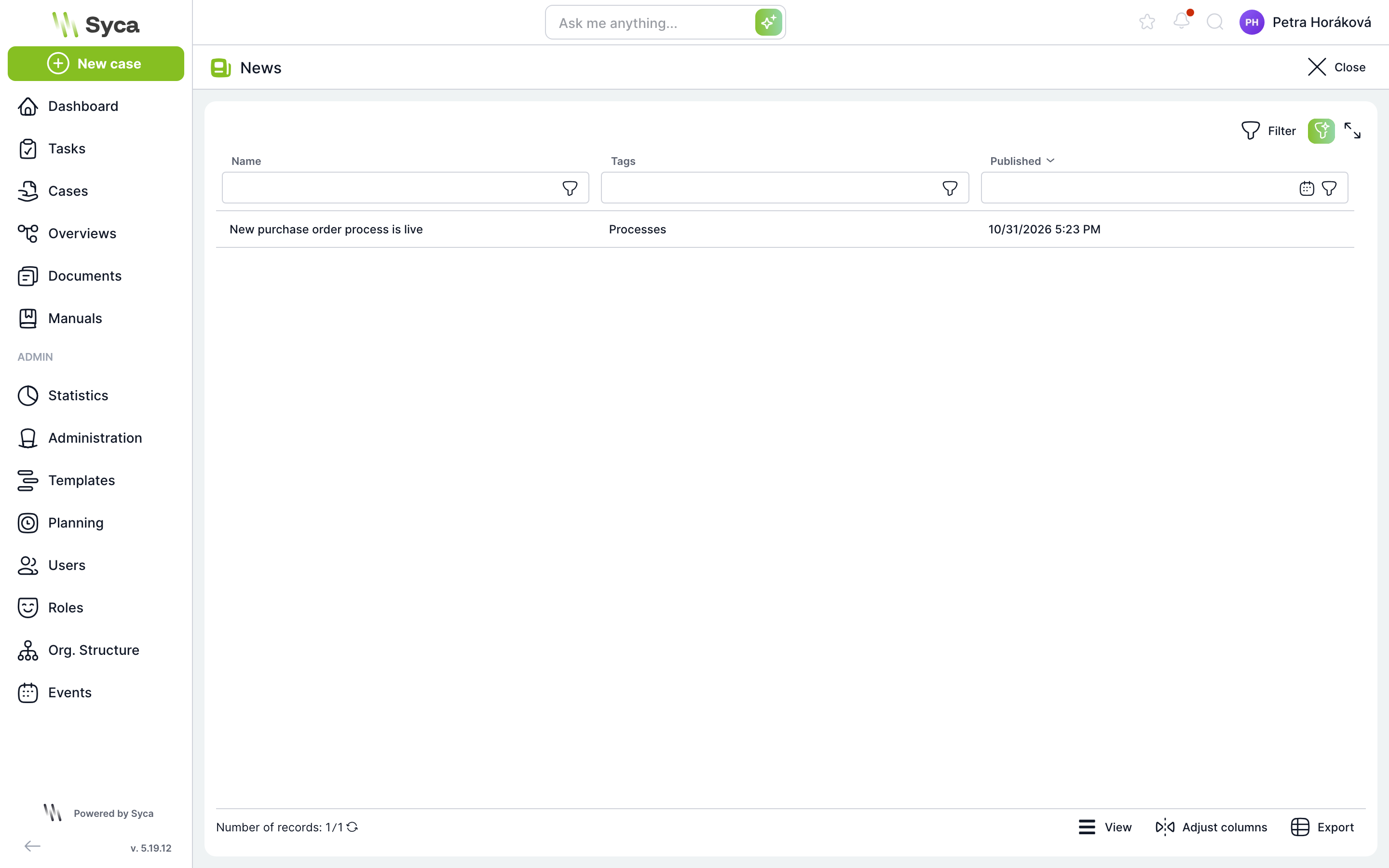
| News page | List of all active news items with name, tags and publication date. Double-clicking a row opens the news item. |
| Dashboard | News widget with news cards. |
| Top bar | Highlighted news items with a red label; on larger screens. |
| Task detail | News items for the template, header or task as a blue bar above the task. The user can hide it for the task with the cross. |
The news window shows the publication date, the Available until date, tags, content and contacts: the More details link, phone and e-mail.
The News page shows the user only active news items intended for them:
Related: Crons, Roles, Organizational Structure, Dashboard.