API Access
The API Access screen controls who can connect to TAS from outside and how: static API tokens for server-to-server integrations, OAuth clients for applications, and the grants that users have given to these applications. Open it in Administration › API Access.
The tile appears in the Administration menu for administrators. However, only a user with the $ApiTokenAdmin role can create and manage API tokens and OAuth clients. An administrator without this role can open the page, but the list of tokens and clients does not load and actions fail with an insufficient permissions error.

| No. | Element | Purpose |
|---|---|---|
| 1 | API Tokens | Tab with static tokens. |
| 2 | OAuth Clients | Tab with applications that are allowed to connect to TAS via OAuth. |
| 3 | OAuth Grants | Tab with the access that users have granted to OAuth applications. |
| 4 | Tab description | A short explanation of what the open tab is for. |
| 5 | Generate token | Opens the dialog for a new API token. On the OAuth Clients tab, the Create client button appears instead. |
| 6 | Close | Returns you to the Administration menu. |
| 7 | Description | The token description entered when the token was created. |
| 8 | Assigned user | The system user the token acts as in TAS. |
| 9 | Created by | Who generated the token. |
| 10 | Created | Date the token was generated. |
| 11 | Valid until | Date the token stops being valid. |
| 12 | Revoked | Date the token was manually revoked. Empty for valid tokens. |
All tables on the screen have a filter under each column name, a Filter button, an AI filter, a full-screen view and an export option in the bottom bar.
API tokens
An API token is a long-lived static key for server-to-server integration. Each token acts as one system user and has that user's permissions. The integration sends it in the Authorization: Bearer <token> header.
The list shows only the tokens you generated. A superadministrator sees all of them. For a valid token that you created, the row menu contains the Revoke action.
Generating a token
- Click Generate token.
- Select a system user and optionally enter an expiration and a description.
- Click Generate token.
- Copy the token immediately and store it in a safe place.
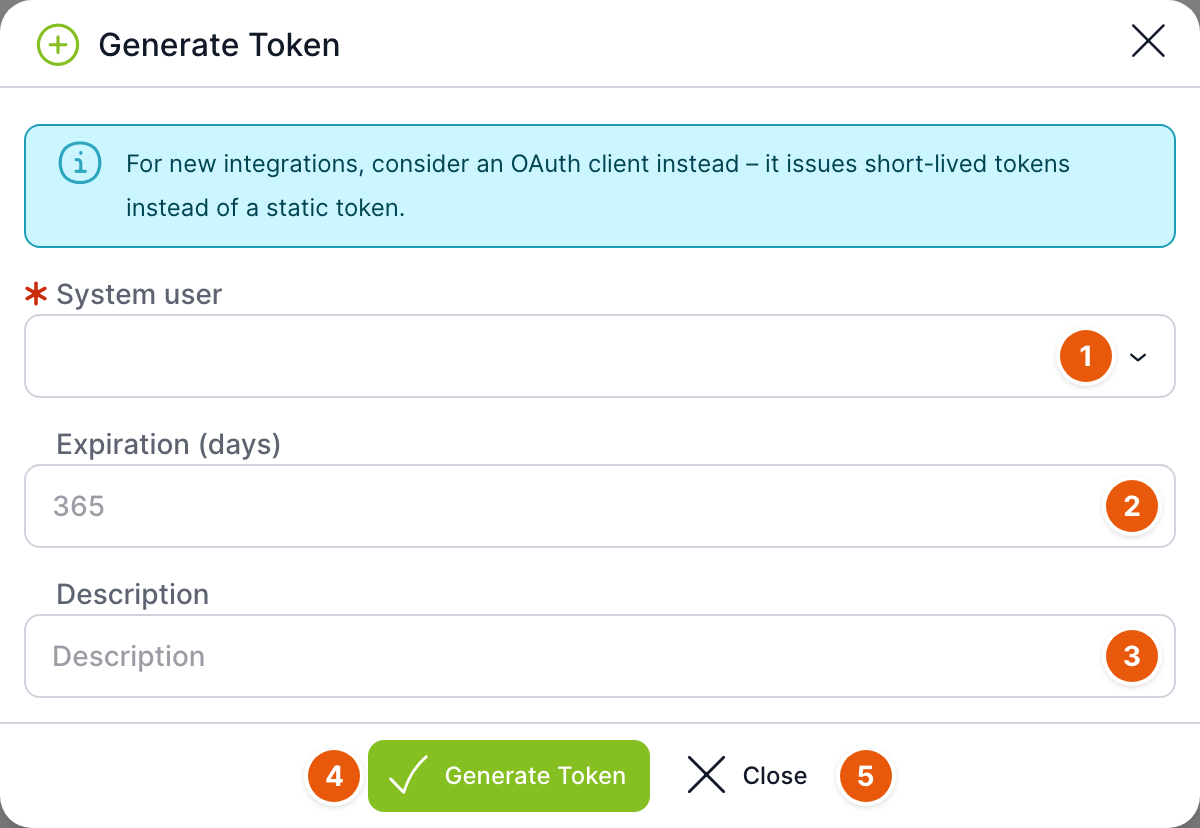
| No. | Field | Purpose |
|---|---|---|
| 1 | System user | Required. The user the integration will work as in TAS. Only system users are offered. The user must be active and must not have the superadministrator role or the $ApiTokenAdmin role. |
| 2 | Expiration (days) | The number of days after which the token stops being valid. If you leave the field empty, the token is valid for 365 days. The maximum is 730 days. |
| 3 | Description | What the token is for, for example the name of the integration. Maximum 500 characters. You can use the description to find the token in the list later. |
| 4 | Generate token | Creates the token. |
| 5 | Close | Closes the dialog without creating a token. |
Above the fields is a notice that an OAuth client is better suited for new integrations. Instead of a static token, it issues short-lived tokens.
After generation, the Token generated successfully dialog opens with the Token field. The value is hidden; you can show it with the eye icon and copy it with the button next to the field.
After you close the dialog, you cannot view the token anywhere. If you lose it, revoke it and generate a new one.
Revoking a token
Select Revoke in the row menu and confirm the question “Do you really want to revoke the token…” with the Revoke button. The token stops working immediately and a date appears in the Revoked column. Revocation cannot be undone; the integration needs a new token.
OAuth clients
An OAuth client is an application that is allowed to connect to TAS via the OAuth protocol. The list is visible to and managed by all users with the $ApiTokenAdmin role, regardless of who created the client.
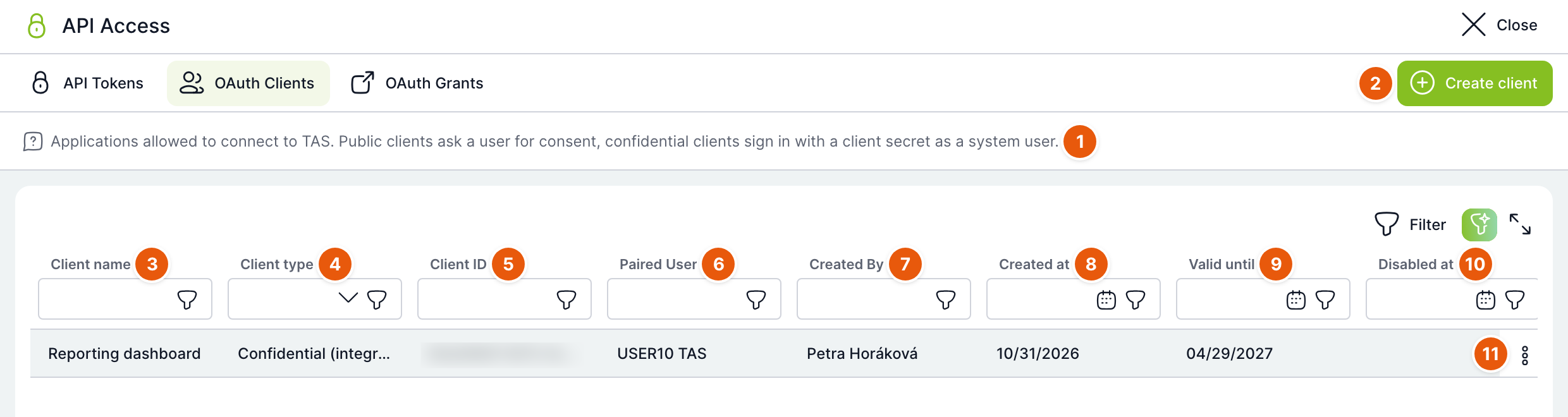
| No. | Element | Purpose |
|---|---|---|
| 1 | Tab description | Summarises the difference between a public and a confidential client. |
| 2 | Create client | Opens the dialog for a new client. |
| 3 | Client name | Name of the application. Users see it when granting consent. |
| 4 | Client type | Confidential (integration) or Public (connected app). |
| 5 | Client ID | Public identifier of the client. It is entered in the application settings. |
| 6 | Assigned user | For a confidential client, the system user the client acts as. Empty for a public client. |
| 7 | Created by | Who created the client. |
| 8 | Created | Date of creation. |
| 9 | Valid until | Until when the Client secret of a confidential client is valid. A public client has no secret and does not expire. |
| 10 | Deactivated | Date of deactivation. Empty for active clients. |
| 11 | Row actions | Action menu, see below. You can also open the detail by double-clicking the row. |
Client types
| Type | When to use it |
|---|---|
| Confidential (integration) | A server integration without user involvement. It signs in using the Client ID and Client secret and works as the selected system user. |
| Public (connected app) | An application that users connect themselves, for example an AI assistant. It has no Client secret. Each user approves its access separately, and the application then works with that user's permissions. |
Creating a client
- Click Create client.
- Enter a name and choose the client type.
- For a confidential client, select a system user; for a public client, enter the Redirect URI.
- Click Create client.
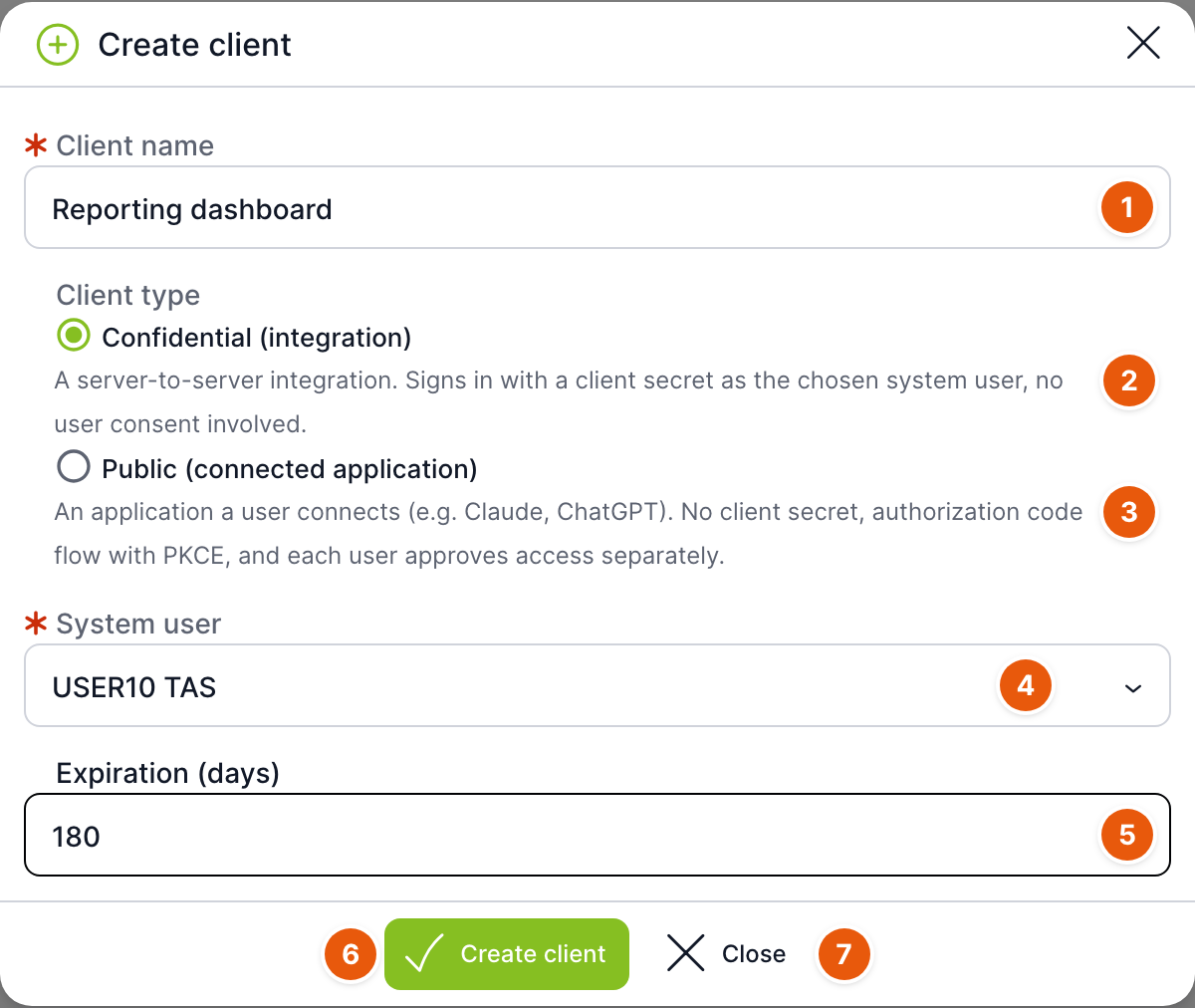
| No. | Field | Purpose |
|---|---|---|
| 1 | Client name | Required, maximum 255 characters. |
| 2 | Confidential (integration) | Default type. A brief description of the type is shown below the option. |
| 3 | Public (connected app) | Switches the dialog to the fields for a public client. |
| 4 | System user | Confidential client only, required. The user the client works as in TAS. Only system users are offered. |
| 5 | Expiration (days) | Confidential client only. The number of days after which the Client secret expires. If you leave the field empty, it is valid for 365 days. The maximum is 730 days. |
| 6 | Create client | Creates the client. |
| 7 | Close | Closes the dialog without creating a client. |
For a public client, the Redirect URI field appears instead of the system user and expiration:
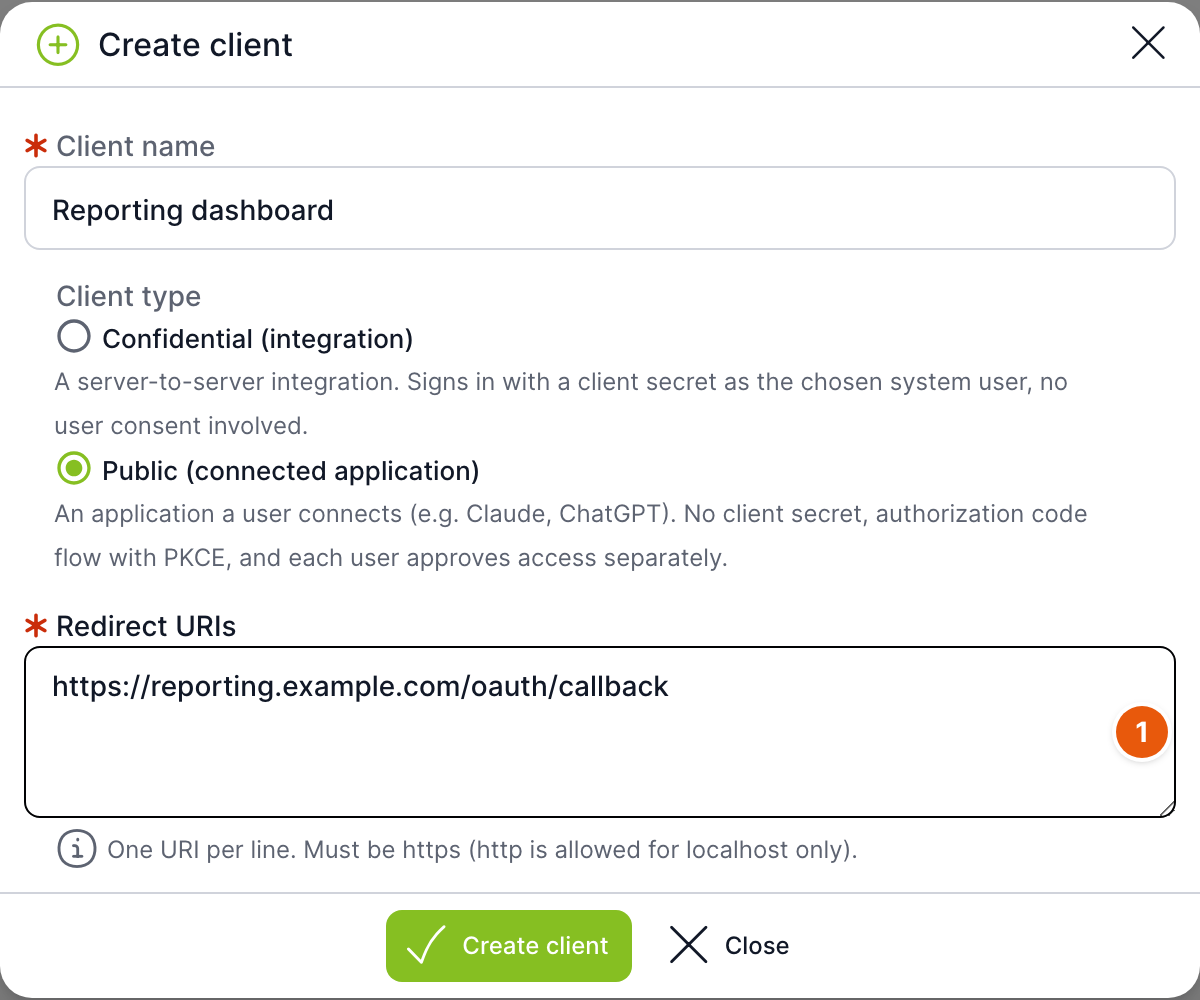
| No. | Field | Purpose |
|---|---|---|
| 1 | Redirect URI | Required. The addresses to which TAS returns the user to the application after access is approved. Enter each address on a separate line, maximum 10 addresses. The address must be complete and start with https://. An http:// address is allowed only for localhost (localhost, 127.0.0.1, [::1]). The address must not contain a part after the # character. TAS compares it exactly. |
After creation, the OAuth client created successfully dialog opens with the Client ID field and, for a confidential client, also the Client secret field. You can copy both values with the button next to the field.
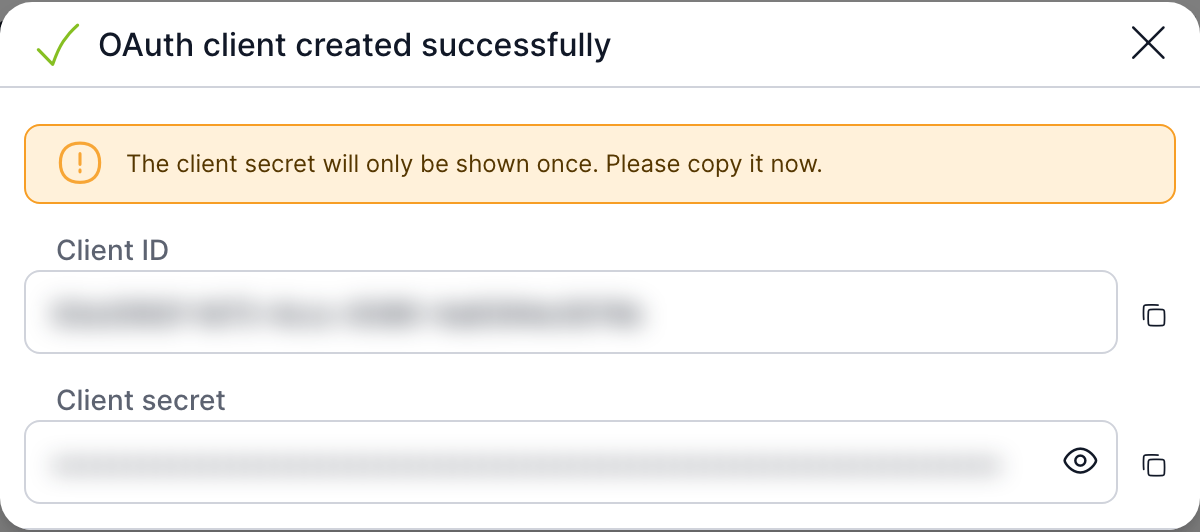
After you close the dialog, you cannot view the Client secret anywhere. If you lose it, generate a new one.
Client actions
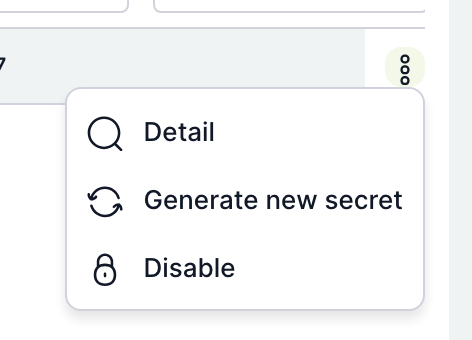
| Action | Purpose |
|---|---|
| Detail | Opens the client detail. Always available. |
| Generate new Client secret | Active confidential client only. Issues a new secret and invalidates the old one. |
| Deactivate | Active client only. The client can no longer connect. |
| Delete permanently | Superadministrator only. Removes the client together with all its grants. |
The Generate new Client secret and Deactivate actions are offered for clients that you created and for clients that registered themselves, without an author. A superadministrator has them for all clients.
Client detail
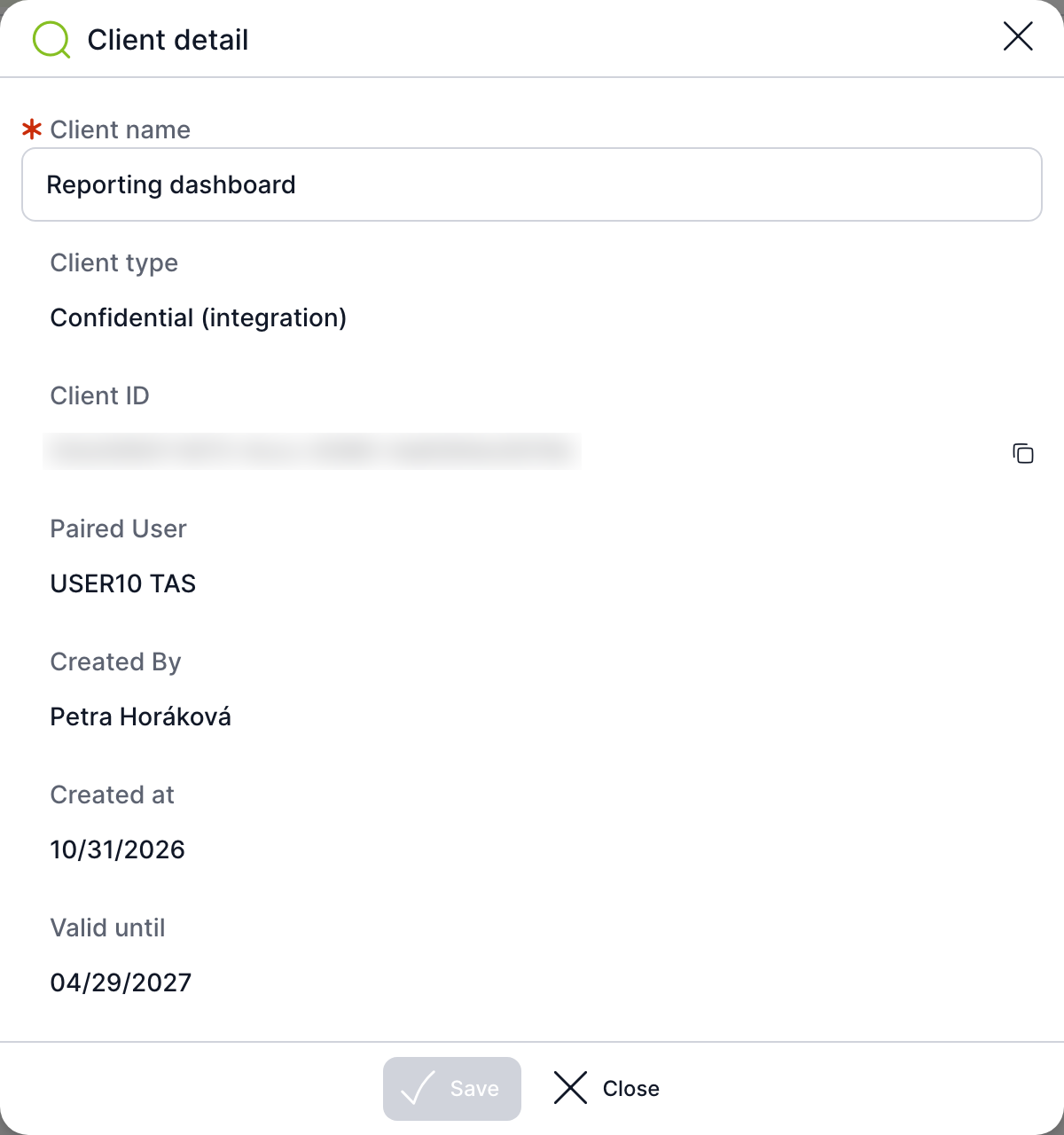
| Field | Purpose |
|---|---|
| Client name | You can change it for an active client that you are allowed to manage. Otherwise it is read-only. |
| Client type | Read-only. The type cannot be changed after creation. |
| Client ID | Read-only, with a copy button. |
| Redirect URI | Public client only. You can edit them for an active client; the same rules apply as during creation. |
| Assigned user, Created by, Created, Valid until, Deactivated | Information about the client. Empty values are not displayed. |
| Save | Saves the changes. It becomes active only after you change the name or Redirect URI. |
| Close | Closes the detail without saving. |
A deactivated client can no longer be edited.
New Client secret
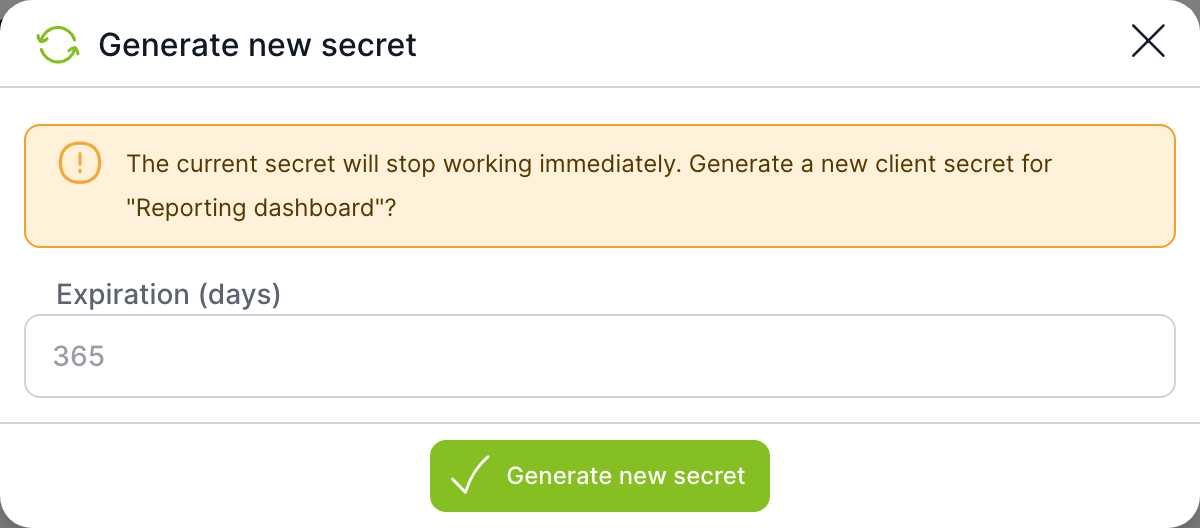
The Generate new Client secret dialog warns that the current secret will stop working immediately. In the Expiration (days) field, you can enter the validity of the new secret; an empty field means 365 days, the maximum is 730 days. After confirmation, the same dialog opens as after creating a client, with the new Client secret. Enter the new secret in the integration right away; the old one no longer works. If you change your mind, close the dialog with the cross.
Deactivation and deletion
After you select Deactivate, TAS displays the confirmation “Do you really want to deactivate the client…”. The Deactivate button switches the client off; the No button cancels the action.
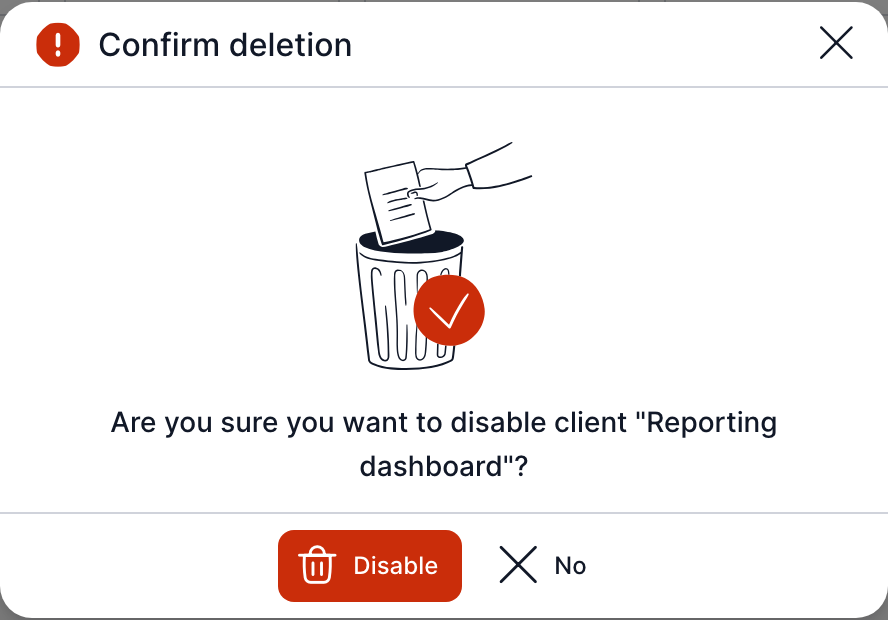
Deactivation also revokes all valid grants that users have given to the client. A deactivated client cannot be reactivated. If you need the application again, create a new client.
A superadministrator can remove a client completely, including all its grants, using the Delete permanently action. Only a client that is already deactivated can be deleted. Deleting an active client fails with an error, so deactivate it first. Deletion cannot be undone.
OAuth grants
When a user connects a public OAuth client, for example an AI assistant, they approve its access to their account. Each such approval is one grant. A user with the $ApiTokenAdmin role and a superadministrator see the grants of all users here; others see only their own.

| No. | Element | Purpose |
|---|---|---|
| 1 | Tab description | A reminder that revoking a grant disconnects the application. |
| 2 | Client name | The application to which the user granted access. |
| 3 | User | Who granted access. The application works with this user's permissions. |
| 4 | Created | When the user granted access. |
| 5 | Last used | When the application last used the grant. |
| 6 | Valid until | Until when the application can obtain new tokens with this grant. |
| 7 | Revoked | When access was revoked. Empty for valid grants. |
For a valid grant, the row menu contains the Revoke access action. After you confirm the question “Do you really want to revoke access for…” with the Revoke access button, the grant is invalidated and the application can no longer obtain new tokens with it. If the user wants to keep using the application, they must grant it access again.
Revoke access when a user leaves, when an application is no longer trustworthy, or when a user reports the loss of a device with a connected application. To disconnect an application for all users at once, deactivate its client.
In the screenshots, no one has connected an application yet, so the list of grants is empty.
Related: Vault, Authentication, Users, Account Settings.