User guide
Quick Start Guide
Case notes
Table component
FAQ
Search
Dashboard
Deleted Documents and Access Log
Solving a task
AI Assistant
Manuals
Substitution and Vacation
Suspending, resuming, archiving and deleting a case
Case variables, history and graph
Basic Terms
Uploading Documents, Folders and Revisions
News
Favorites
Navigating the interface
Dashboard widgets
Case Detail
News/Announcements in Team assistant
Case list
Logging In and Out
Account Settings
Task List
Mobile app settings
Reports and Charts
Searching and Listing Documents
Handing Over, Taking Over and Tasks to Pull
Bulk Tasks
Printing a Case
Creating and Editing an Overview
What Is TAS
Form Fields
Tablet Interface and NFC
Overviews
Creating a New Case
Case Events
Case Permissions
Subscribing to an overview by email
Administrator Guide
Platform guide
Administration
Crons
Authentication and Synchronization
SMTP OAuth authentication
LDAP, SAML, Entra ID and NFC: Settings
Configuring authentication modules
Authentication
Vault
DMS attributes
Service Operations
Mobile App Setup for Your Environment
Scheme
XML Process Import
HR agenda and agenda handover
Logs
Archiving
Scripts
Sequences
System Status
News Management
Migrations
Configuration
Plugins
Email Queue
Service Console
AI monitoring
Shared Files
Settings
CSP Headers
CSV Files
Scheduled Tasks
Processing Queues
Maintenance
Administration Menu
Licenses
Dynamic Tables
Usage Statistics
Access Token Settings & Session Expiration
Visual Identity
Template
Prints
Tasks
Task calculations
Automatic task completion and cancellation
Email Task and Notifications
Task types
Smart Event task
Instructions, Sections and Testing a Task
General task settings and solver
Multi-instance
Planning: start, branching and due date
Dynamic conditions: builder
Variable assignment and sections
Variables
Class diagram, object state import and alias candidates
Document list
Text and Multiline text
Checkbox
Number
Variables: overview and common settings
Lists (texts, numbers, dates)
Dynamic Rows
Date
Dynamic list
Sequence
Dynamic Table
Shredding Process
Template graph
Template Tab
Template List
Importing, Exporting and Copying a Template
Template Headers
Case statuses
Roles
Connecting to a different database
Diagnosing services
Hyper-V: Isolated NAT Network with Port Forwarding
Users
Translations
NFC Integration
Events and Rules
AXIOS API
Plans
Axios with Vault
Users
Axios with SSL Certificate
User Detail
Calculations & Functions
Form condition
Other dynamic conditions
Optimization of API calls on dynamic conditions
Filtering in a dynamic sheet using dynamic conditions
Dynamic Conditions: Script
Dynamic Rows: Script
Calculations
Dynamic Tables
Printing and File Generation
Documents in Calculations — Complete Guide
Printing and File Generation in Calculations
DOCX document creation
Other Calculations
How and when calculations run
Calculations API reference: the lib library
Calculations API reference: variables and case
Global Scripts and React Scripts
Integrations
MS Graph
MS Graph - cron configuration
MS Graph v2 (from v5.7.102)
MS Graph - preparing the mailbox
MS Graph (email)
ISDOC.PDF
DocuSign
TAS call module - TAS 2 TAS (process creation via API)
DB View
DocuSign and electronic signatures
ERP and other integrations
Smart Events for Integrations
TAS Forms
TAS Forms
Activating the module on the environment
TAS Forms - secret creation guide for Docker Swarm
Advanced Features & Tips
Filtering in a dynamic sheet using a URL parameter (static)
Optimizing Overviews with a Large Number of Cases
API Documentation
Product
Technical Changelog
Business Changelog
Version Upgrade Guide
Upgrade to v5.19
Upgrade to TAS 5.19 - Key Changes and Removed Features
Upgrading TAS 5.17 to 5.19 – Technical Part (DevOps)
Upgrate to v5.17
Upgrade to TAS 5.17 - Key Changes and Removed Features
Asset Migration from FE to Backend (5.17 Upgrade) — DevOps
Upgrading to v5.7
Lodash upgrade v4.17.x (>v5.5)
Main changes and deprecated features (v5.3 > v5.7)
Highlighting variables in Read-only status (>v5.7.58)
Upgrading to 5.3
Dynamic conditions migration
PDF printing adjustment
Editing Task Description vs Task Instructions
Transpiling forEach to a for loop
Rendering HTML on Caseoverview
Differences between TAS4 and TAS5 - a complete overview
Best Practices for Upgrading from v4 to v5
Using validation functions
Technical details
Server prerequisites
Security and Data Protection
Security
TAS Operations Runbook
Technological architecture
News / Important information
Microsoft Disabling Basic Auth for SMTP
End of EWS support and transition to Microsoft Graph
Adjustment in EWS after MS Exchange update (29.04.2025)
Security notices
Getting Started
- All Categories /
- Administrator Guide
- Platform guide
- Administration /
- Licenses
Licenses
On the Licenses page you upload TAS license keys and check how long they are valid. A valid license unlocks template editing and XML process import. Only administrators can see this page. Open it via Administration → Security → Licenses.
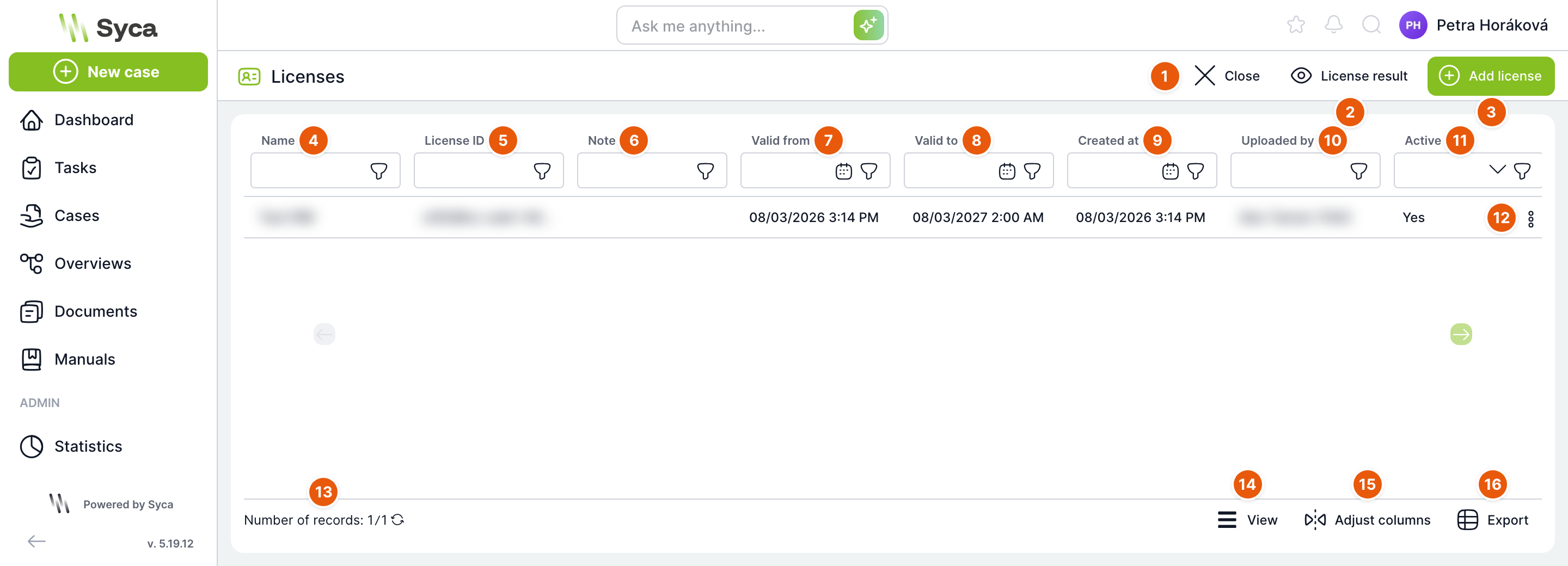
| No. | Element | Purpose |
|---|---|---|
| 1 | Close | Returns you to the Administration menu. |
| 2 | License result | Shows which features are licensed and until when. |
| 3 | Add license | Opens a dialog for entering a license key. |
| 4 | Name | License name. If the key does not contain one, TAS builds it from the validity dates, for example “License 2026-08-03 – 2027-08-03”. A license without a name is shown in the list as Untitled. |
| 5 | License ID | Unique identifier assigned to the license by the issuer. Useful when communicating with the TAS supplier. |
| 6 | Note | Your note entered when uploading the license. |
| 7 | Valid from | When the license was issued. |
| 8 | Valid to | Until when the license is valid. |
| 9 | Created | When the license was uploaded to TAS. |
| 10 | Inserted by | Who uploaded the license. |
| 11 | Active | Yes until the Valid to date has passed. No after expiry. |
| 12 | Row menu | Contains the Delete action. |
| 13 | Record count | Number of licenses in the list. Use the arrow to reload the list. |
| 14 | View | Selects the list layout. |
| 15 | Columns | Selects which columns are shown in the list. |
| 16 | Export | Downloads the list of licenses as a spreadsheet. |
Below each column name there is a filter field. Filter the Active column by choosing Yes / No, and dates using the calendar.
Adding a license
You receive the license key from the TAS supplier. The key is issued for a specific address (hostname) of your server.
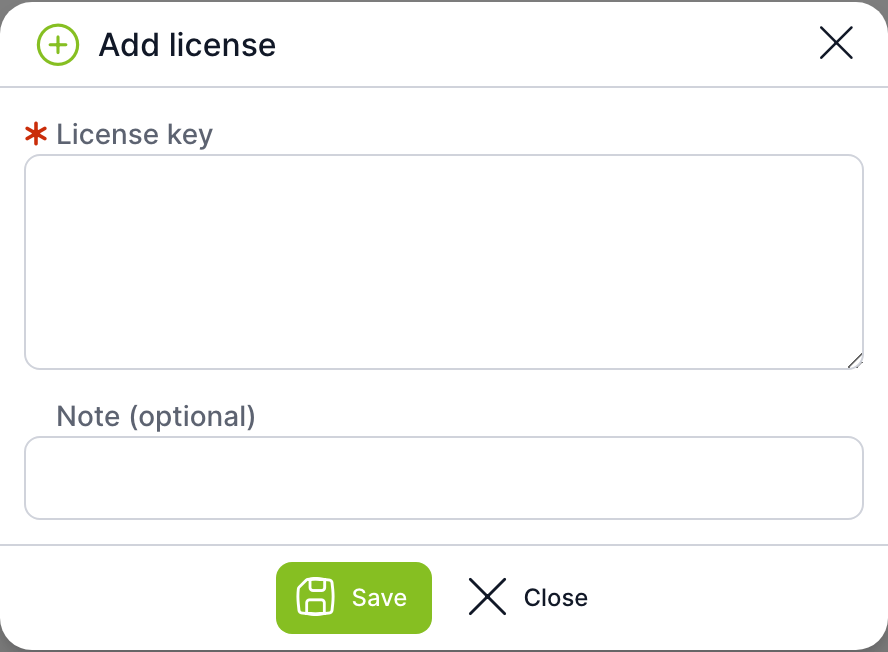
| Field | Purpose |
|---|---|
| License key | Required. The complete license key exactly as you received it. |
| Note (optional) | Your own note on the license, up to 250 characters. It is shown in the Note column. |
Save verifies and saves the key. Close closes the dialog without saving.
TAS verifies the key when saving. It rejects the key and shows an error if:
- the key is invalid or not signed by the TAS issuer,
- the key is issued for a different server address. The error then states which addresses the license is valid for and what address your server has.
After a successful save, the application reloads itself shortly so that the new license takes effect immediately.
How to upload a new license
- Click Add license.
- Paste the complete key into the License key field.
- Optionally fill in the Note, for example the contract number.
- Click Save.
- After the page reloads, open License result and check the validity date.
You do not need to delete the old license. If several licenses are uploaded, each feature is governed by the one with the latest Valid to date.
License result
The dialog shows what actually applies to this server from the uploaded licenses: for each licensed feature, the date until which it is unlocked. The template feature means template editing. Only licenses with a valid signature and the correct server address are counted.
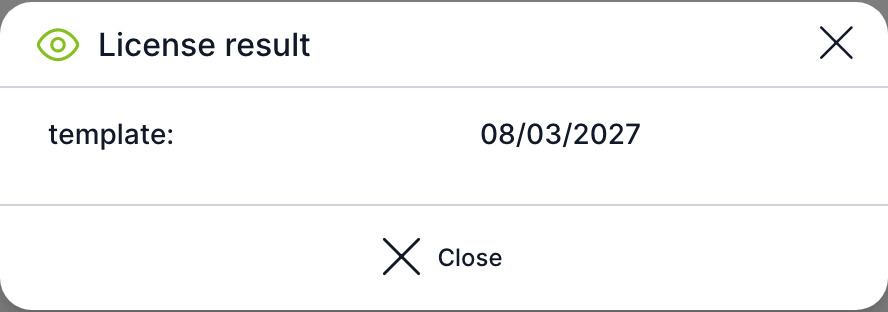
If there is no valid license, the dialog shows No data found.
What is locked without a valid license
When the license is missing or expires:
- Opening the Templates section displays the License key missing dialog. After you close the dialog, you return to the previous page.
- You cannot create or delete templates and their headers, copy headers or change template components (variables, tasks, task links, prints, sections, case overviews, shredding).
- You cannot import or export templates or variable usage.
- XML Process Import does not work.
Regular work with cases and tasks continues to work.
Request a new license in advance. After expiry, template editing stops working until a new key is uploaded.
Deleting a license
To delete a license, open the row menu (three dots), choose Delete and confirm the prompt Do you really want to delete the license.
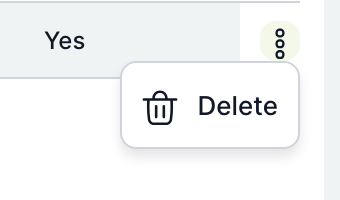
A license can only be deleted by the user who uploaded it or by a superadministrator. TAS refuses deletion for anyone else. After deletion, the application reloads itself. If the deleted license was the only valid one, template editing is locked immediately.
Related: Authentication, Vault, Templates, XML Process Import