Importing, Exporting and Copying a Template
You can save a template to a .tpl file (export), load it from a file into another TAS installation (import), or create a copy of it in the same installation. Import and copying use the same wizard, in which you decide for each object referenced by the template whether to use an existing object in the target installation or create a new one. The wizard can be opened by users with the $Administrator or $Poweruser role.
Export
You start the export from the Templates list:
- a single template: row menu → Export; after you confirm, the file
<template name>.tplis downloaded, - multiple templates: More → Export all; the file
templates.tplis downloaded, containing all templates that match the list filter.
The file contains the complete template definition: headers with roles and organizational units, variables including list values, tasks with calculations, e-mails and variable assignments, links, the graph, statuses, prints and the Case Overview. It also contains the objects referenced by the template: events, roles, users, organizational units, dynamic tables (with columns and rows) and scripts.
Templates used by the exported template are added to the file automatically: subprocess templates, templates started by events and templates waiting for events of this template – at any depth. An export of the Purchase Order template therefore also contains the New supplier approval template, which the order starts as a subprocess.
Import and copy wizard
- Import: in the template list, More → Import, then select or drag and drop a
.tplfile. The wizard opens with the title Template import. - Copying: in the template list, row menu → Copy. TAS exports the template in the background and opens the wizard Template copy – <name>.

| No. | Element | Purpose |
|---|---|---|
| 1 | Save and close | Performs the import according to the settings on all tabs. Until the required fields are filled in, TAS reports “Please fill in the required items.” |
| 2 | Close | Closes the wizard without importing. If you have changed anything, TAS asks whether to save the changes (i.e. perform the import). Choose No. |
| 3 | Template | Templates contained in the file, see Template tab. |
| 4 | Events | Named events, see Events. |
| 5 | Roles | Roles referenced by the template. |
| 6 | Dynamic tables | Dynamic tables used by the template. |
| 7 | Scripts | Global calculation scripts. |
| 8 | Object name | Name of the template (or other object) as it appears in the file. |
| 9 | Action | What happens to the object during the import. |
| 10 | Action field | Depending on the selected action, the name of the new object or a selection of an existing object. A required field has a red label. |
| 11 | Next object | Objects are displayed in two columns. Here, the second template from the file, a subprocess template. |
Tabs are displayed only if the file contains objects of the given kind. In the image, the Purchase Order template has the Template, Events, Roles, Dynamic tables and Scripts tabs; a simpler template may have only Template, Users and Org. structure.
Use compatible or add new
For each object you choose an action:
| Action | What happens |
|---|---|
| Use compatible … | No new object is created. References in the imported template are redirected to the existing object you select in the field below the option. TAS pre-fills it based on a matching name. |
| Add new … | A new object with the name you enter is created in the target installation. |
| Overwrite existing template | Templates only. The selected existing template is overwritten with the definition from the file. |
The default option is Use compatible if an object with the same name already exists in the installation, otherwise Add new. For users, roles and organizational units, the default is always Use compatible.
When copying, a template with the same name always exists in the installation (it is the source template), so Use compatible template is preselected on the Template tab. With this option, no copy is created. To actually create a copy, switch to Add new template and enter a new name. Leave the other templates in the file (for example subprocesses) on Use compatible if you do not want to copy them.
Template tab
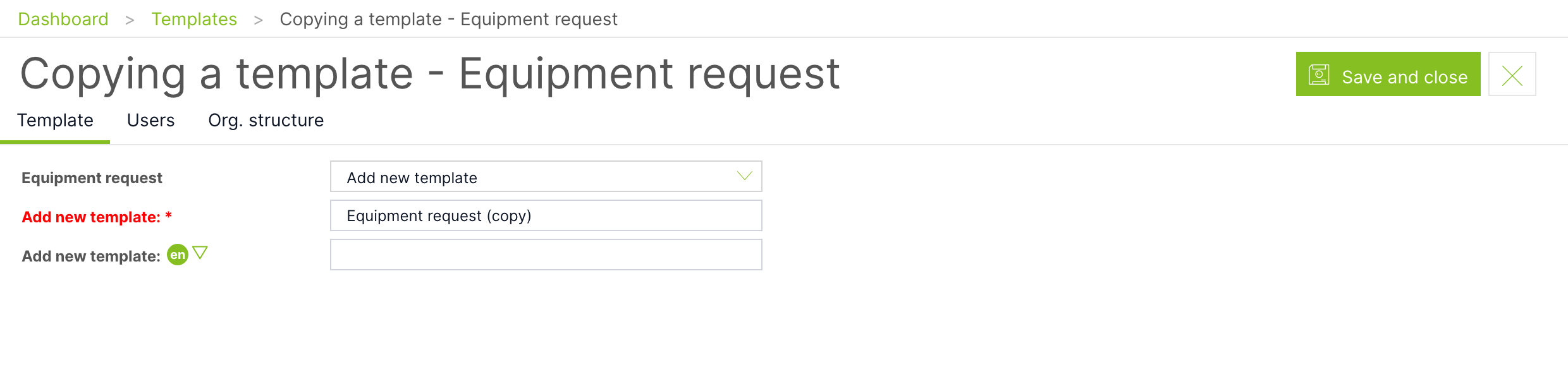
| Field | Purpose |
|---|---|
| Action | Add new template, Use compatible template, Overwrite existing template. |
| Add new template | Name of the new template (required). It must be unique. Below it are fields for translations of the name into the application languages. |
| Use compatible template / Overwrite existing template | Selection of an existing template. |
| Skip | Displayed only when importing a file with multiple templates (Export all). Skips the current template and moves to the next one in the file. |
A newly created template always has the status In development, regardless of the status in the file.
With the Use compatible template option, tasks from the file are matched to tasks of the selected template by name (likewise variables and sections). If the selected template does not have a task or variable with the same name, the import ends with an error that names the missing task or variable.
Events
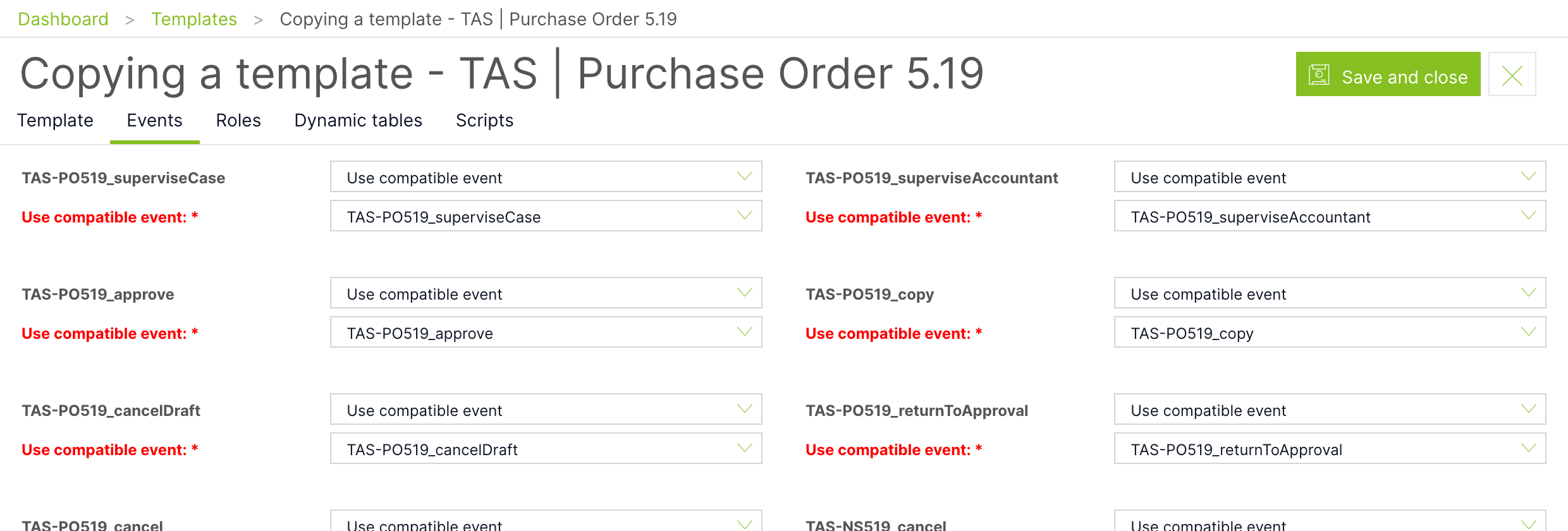
A list of named events that the template triggers or waits for. Use compatible event connects the template to an existing event (its rules are not changed), Add new event creates a new event with the rules from the file.
Subprocess events
Each task of the Controlled by subprocess type has two technical events named $SUBP_<ID úkolu> (passing variables to the subprocess) and $SUBR_<ID úkolu> (returning variables from the subprocess). The wizard does not display these events and you cannot decide about them – TAS always processes them the same way: it recalculates the task ID in the name to the task with which the task from the file was matched, deletes the existing event with this name together with its rules and recreates it according to the file.
The consequence depends on the option on the Template tab:
| Option for a template with a subprocess | What happens to subprocess events |
|---|---|
| Add new template | Tasks get new IDs and new events are created for the new template. The source template is not affected. |
| Use compatible template or Overwrite existing template | Tasks are matched to tasks of the existing template. Its $SUBP_/$SUBR_ events are deleted and recreated with the variable mapping from the file. |
When copying within the same installation, this means: for every template in the file that stays on the Use compatible option and contains a subprocess task (typically the source template itself, if you forget to switch it to Add new), the subprocess variable mapping is overwritten with the state from the file. The content is the same as at the time of export, but the events get new IDs and any mapping change made between opening the wizard and the import is lost. When importing into another installation, you overwrite the subprocess mapping in the compatible template of the target installation in the same way.
Users
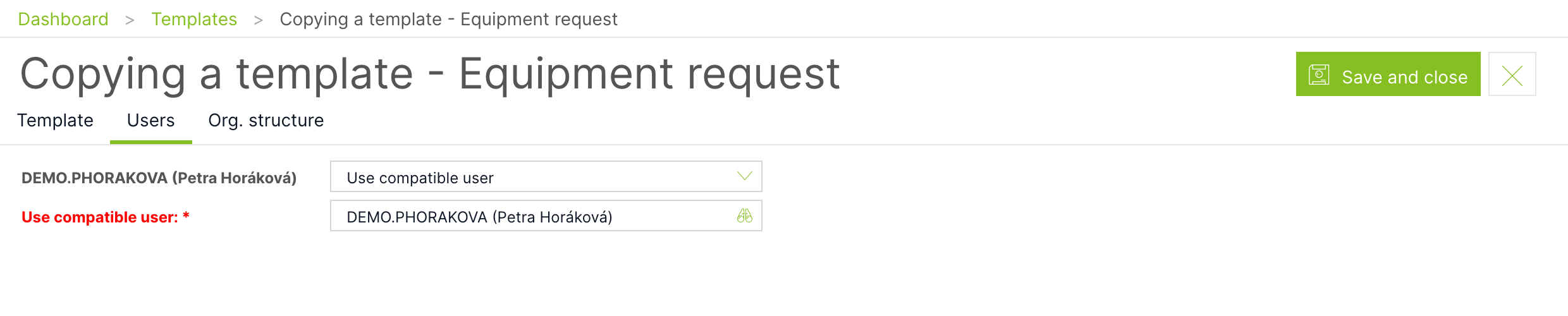
Users referenced by the template (for example a fixed task solver or the template owner). Use compatible user – select an existing user (the field with the magnifying glass searches by name). Add new user – creates a new user with the entered user name and the $AllUsers role. In another installation, you usually choose a compatible user.
Roles
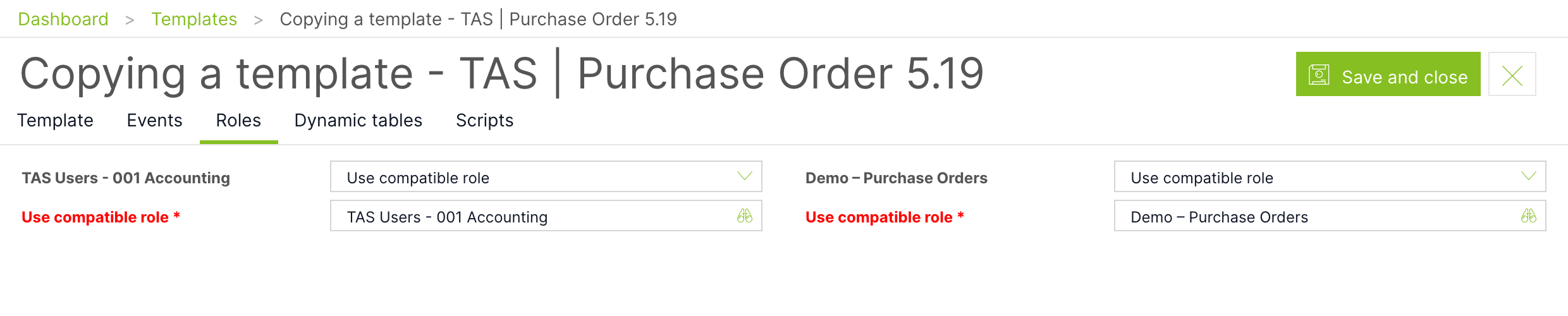
Roles used in template visibility, in headers and in task solvers. Use compatible role connects the template to an existing role, Add new role creates a new role with the entered name (without members).
Org. structure
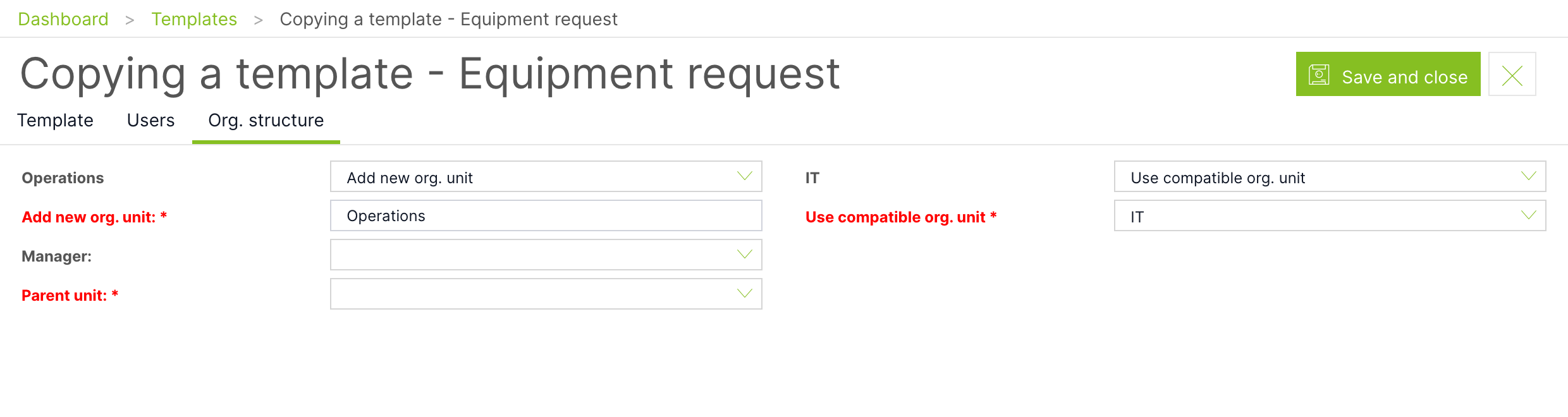
Organizational units used in the template. With the Add new org. unit option, you enter the name, the Manager and, as a required field, the Parent unit under which the unit is created in the structure. With the Use compatible org. unit option, you select an existing unit.
Dynamic tables
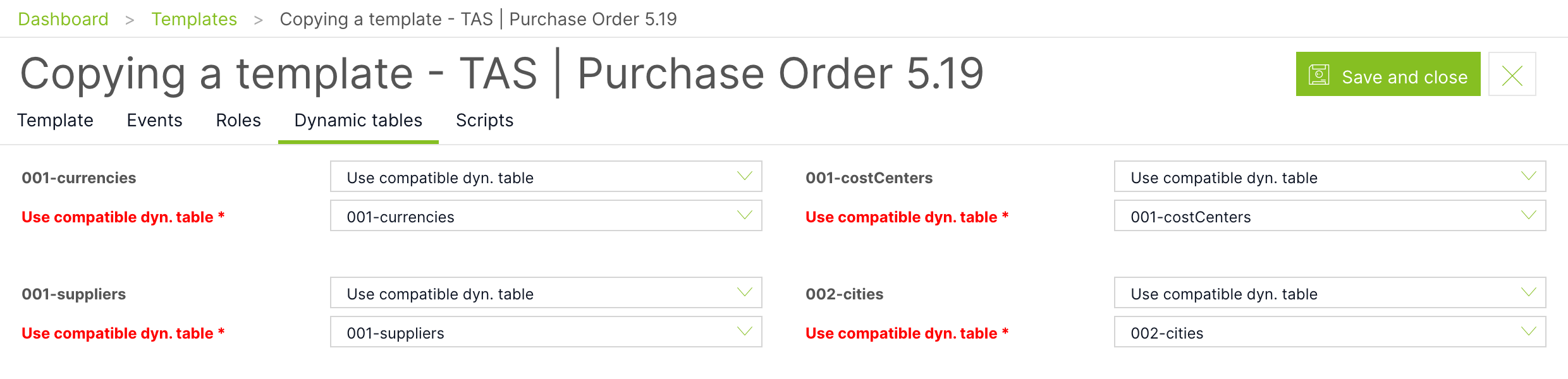
Use compatible dyn. table connects the template to an existing table; its content is not changed. Add new dyn. table creates a table with the entered name, with the columns and all rows from the file.
Scripts
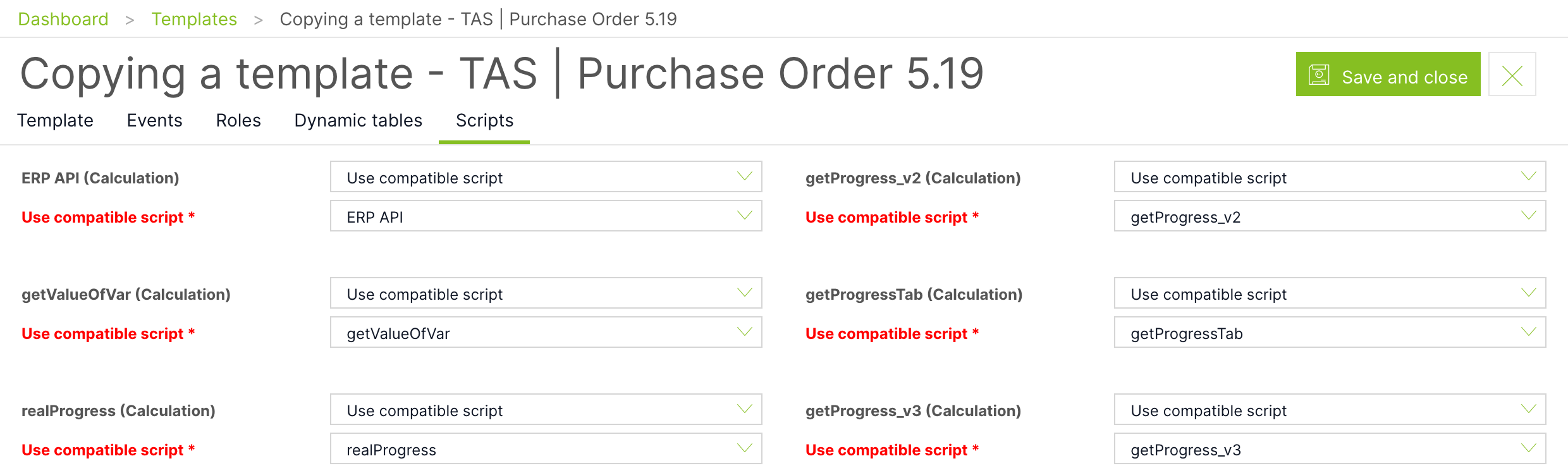
Global scripts called by the template calculations. The script type is shown in parentheses next to the name. Use compatible script uses an existing script of the same type, Add new script creates a script with the entered name and the content from the file.
How to copy a template
- In the Templates list, open the row menu of the template and choose Copy.
- On the Template tab, switch the action for the copied template to Add new template and enter a new name and, optionally, translations.
- Leave the other templates in the list (subprocesses) on Use compatible template unless you want to copy them as well.
- Go through the other tabs. For a copy within the same installation, leave Use compatible everywhere.
- Click Save and close. The copy is created with the status In development.
- Open the copy, check the headers (the copy has its own headers with the same names as the original) and only then put it into operation.
How to transfer a template to another installation
- Export the template in the source installation.
- In the target installation, open Templates → More → Import and upload the file.
- On the Template tab, choose Add new template (first transfer) or Overwrite existing template (update of a previously transferred template).
- On the Users, Roles and Org. structure tabs, assign objects of the target installation.
- For dynamic tables and scripts, choose whether to use existing ones or create new ones.
- Click Save and close. If the import fails, TAS displays “Template import failed.” with a description of the error, and nothing in the installation changes.
Besides the template itself, an import can overwrite existing templates (the Overwrite option), regenerate subprocess events of compatible templates and create new users, roles, units, tables and scripts. Import to a production installation only after testing on a test installation.
Related: Template list; Template tab; Template headers.