Template Tab
The Template tab is the first tab of every template. On it you set the name, status, description and default case name, who can see the template's cases, where their documents are displayed, shredding, archiving and notes for administrators. It opens when you click Add template or when you open an existing template from the Templates list.
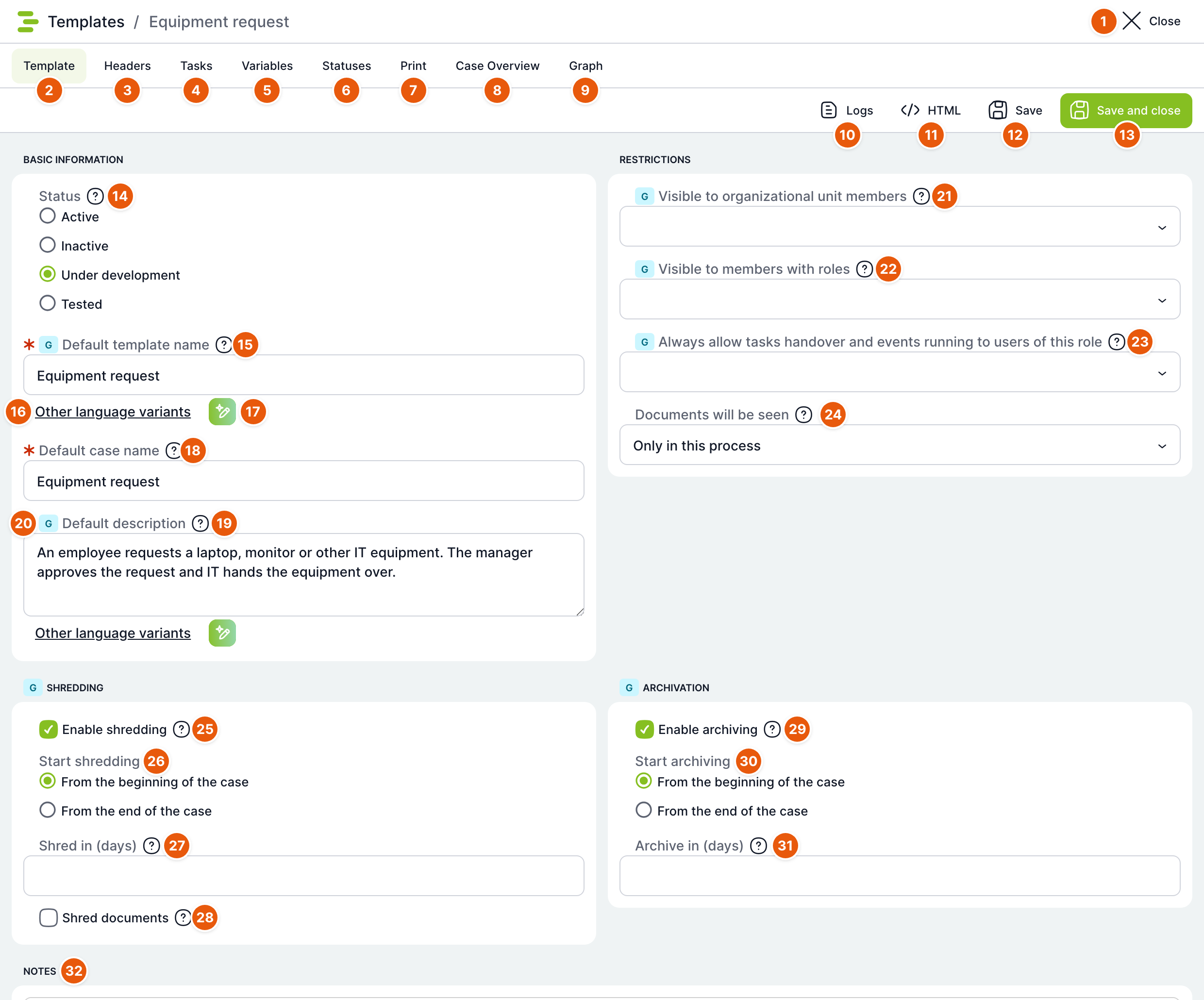
| No. | Element | Purpose |
|---|---|---|
| 1 | Close | Returns you to where you opened the template from (usually the template list). If there are unsaved changes, TAS asks whether to save them. |
| 2 | Template | This tab. |
| 3 | Headers | Template headers – under which name and to whom the template is offered when creating a case. See the article Template Headers. |
| 4 | Tasks | List of the template's tasks and the Links button with the list of links between tasks. |
| 5 | Variables | Template variables. |
| 6 | Statuses | Case statuses, see the article Case Statuses. |
| 7 | Print templates. | |
| 8 | Case Overview | Case Overview designer. |
| 9 | Graph | Graphical process editor, see the article Template Graph. |
| 10 | Logs | Template change logs, see Logs. The button is displayed only for a saved template. |
| 11 | HTML | Downloads the template documentation as the file <název šablony>.htm, see HTML documentation. |
| 12 | Save | Saves the tab and keeps the template open. A new template gets an ID when it is saved for the first time. |
| 13 | Save and close | Saves the tab and closes the template. |
| 14 | Status | Template status, see Template status. A new template has the status In development. |
| 15 | Default template name | Required. The name under which you find the template in the list. It must be unique among non-deleted templates, otherwise saving fails with an error. |
| 16 | Other language variants | Expands fields for translating the name into other application languages. Users see the name in their language if it is filled in, otherwise the default one. The ...show less link collapses the fields again. |
| 17 | AI translation | Fills in translations from the default value using AI. It is displayed only when AI.enabled is turned on in Configuration, and it is active only when the default field is filled in. |
| 18 | Default case name | Required, maximum 70 characters. The name pre-filled for new cases created from this template. |
| 19 | Default description | Description of the template's purpose for administrators. It also has language variants and AI translation. It is displayed in the Description column of the template list. |
| 20 | G label | Marks a setting whose change also applies to already created cases. Without the label, a change affects only new cases. |
| 21 | Visible to members of org. unit | Members of the selected organizational unit see all cases of this template. |
| 22 | Visible to users with role | Users with the selected role see all cases of this template. |
| 23 | Always allow users with this role to hand over tasks and trigger events | Users with the selected role see the tasks of this template's cases, can always take over and hand over them, and can trigger case events. Useful for agenda administrators. |
| 24 | Documents will be visible | Where DMS documents attached to cases of this template will be visible, see Document visibility. |
| 25 | Allow shredding | Turns on shredding of cases, see Shredding. When checked, further fields are displayed. |
| 26 | Shredding start | The point from which the shredding period is counted: From case start or From case end. |
| 27 | Shred after (days) | Number of days from the selected point after which the case is shredded. |
| 28 | Shred documents | During shredding, the case documents in the DMS are deleted as well. |
| 29 | Allow archiving | Turns on automatic archiving of cases, see Archiving. Only an administrator sees this section. |
| 30 | Archiving start | From case start or From case end. |
| 31 | Archive after (days) | Number of days from the selected point after which the case is archived. |
| 32 | Notes | Free text with formatting (an editor like in e-mail). Intended for template administrators, for example for the change history or contacts to process owners. It is not displayed to users. |
When a new template is saved for the first time, a header with the same name is created as well. The header is what the user sees when creating a case. Renaming the template later does not change the header name – you edit that on the Headers tab.
Template status
| Status | Meaning |
|---|---|
| Active | The template is in operation. Cases can be created only from an active template (and only through its active headers). |
| Paused | The template is not offered for creating a case. Running cases continue normally. Use it when a process ends temporarily or permanently. |
| In development | The template is being prepared and is not offered for creating a case. Every new, imported and restored template has this status. |
| Tested | The template is in the testing phase and is not offered for creating a case. The status serves mainly as information for other administrators. |
You can change the status here or, more quickly, in the template list using the Status action.
Document visibility
| Option | Purpose |
|---|---|
| Only in this process | Case documents are visible only in this case. Default option. |
| Also in parent processes | Documents are also visible in the parent case if the case runs as a subprocess. |
| Also in child processes | Documents are also visible in the subprocesses of this case. |
| Also in parent and child processes | A combination of both previous options. |
Shredding
Shredding erases case data after a period has elapsed, typically for personal data protection. The values of variables that have Shreddable variable checked in their settings are erased, including their history. Other variables, tasks and the case itself remain. If Shred documents is checked, all case documents are also deleted from the DMS – physically, not moved to the recycle bin.
The period is counted from the actual start of the case or from its completion. With the From case start option, cases that are still running are shredded as well.
Shredding is run by the TemplateProcessShredding cron (once a day at night). It is disabled by default – until an administrator enables it in Administration › Crons, the template setting has no effect. Shredding is irreversible.
Archiving
Archiving moves cases to archive tables. They then no longer burden regular lists and calculations, but you can still display and filter them in overviews. Only an administrator can see and save this section.
The period is counted the same way as for shredding. With the From case start option, cases that are still running are archived as well.
Archiving is run by the ArchivationCron cron (once a day at midnight), disabled by default. An archived case can be restored manually by unarchiving, see the article Suspending, Archiving and Deleting a Case.
HTML documentation
The HTML button downloads a file with a technical description of the template in the language of the logged-in user. It contains the data from the Template tab, headers with roles and organizational units, tasks including assignees and calculations, variables including list values, links between tasks and the mapping of variables to subprocesses. It is useful as an attachment to process documentation or for comparing two versions of a template.
Logs
The Logs button displays the application log entries related to this template: who saved tasks, variables, links and other parts of the template, and when. Only an administrator sees the data in the table.
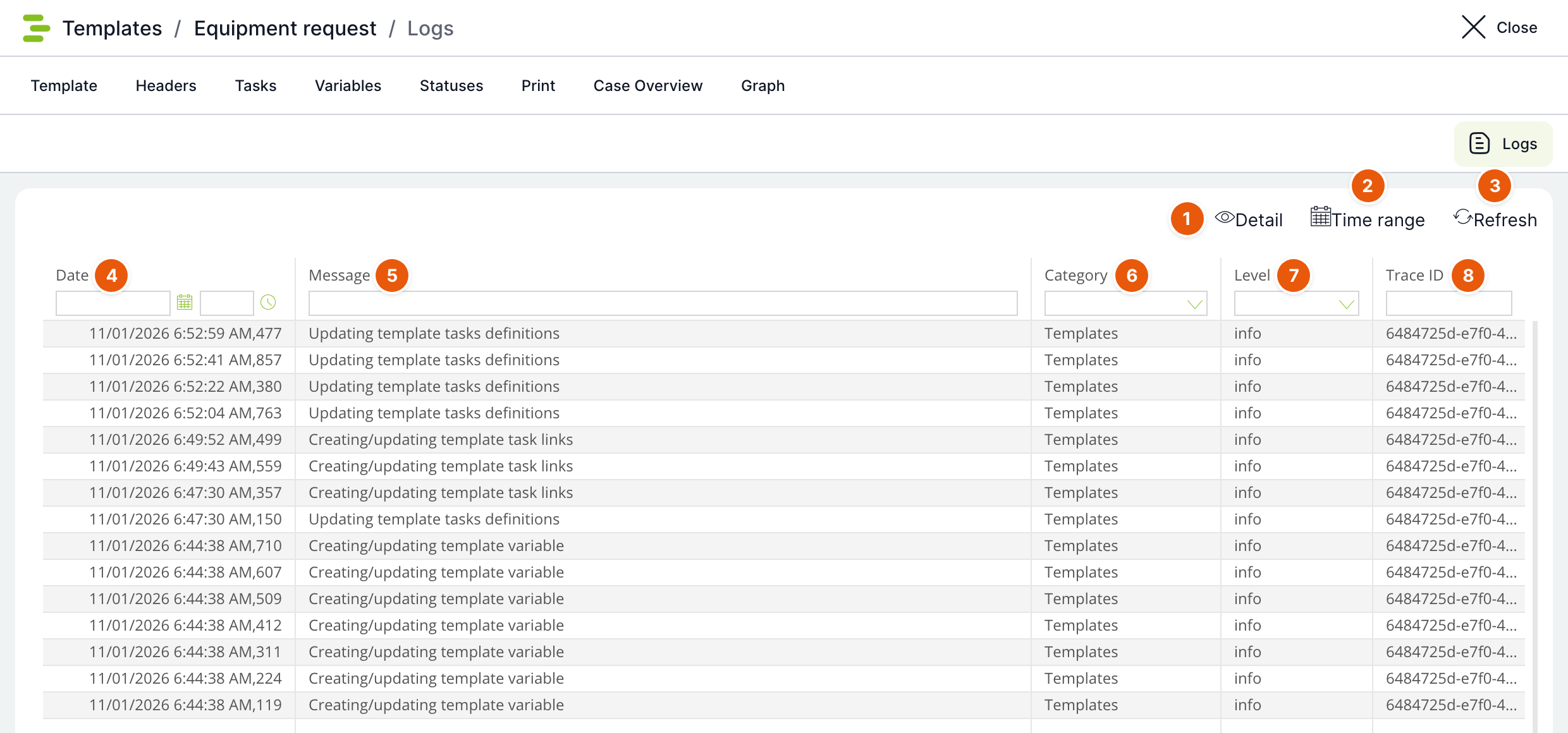
| No. | Element | Purpose |
|---|---|---|
| 1 | Detail | Opens the detail of the selected entry. Double-clicking a row does the same. |
| 2 | Time range | Limits the entries to a from–to period. When a range is set, the button is highlighted. |
| 3 | Refresh | Reloads the entries. |
| 4 | Date | Time of the entry. Below the header there is a date and time filter. |
| 5 | Message | Text of the entry. The filter searches the text; confirm it with the Enter key. |
| 6 | Category | Entry category; for template changes it is Templates. |
| 7 | Level | Severity: error, warn, info, debug, trace. |
| 8 | Trace ID | Request identifier. All entries from a single save have the same Trace ID. |
How to create a new template
- In the Templates list, click Add template.
- Fill in Default template name and Default case name, and optionally a description.
- Leave the status as In development until you finish the template.
- Click Save. The template gets an ID and a default header is created for it.
- Continue on the Variables, Tasks (or Graph), Statuses and Headers tabs.
- Once the template is tested, switch the status to Active and save.
Related: Template List; Template Headers; Case Statuses; Template Graph; Importing, Exporting and Copying a Template.