v5.21
AI that writes calculations and builds whole templates, Dynamic Items as the new foundation for tables in forms, a case overview with tabs and charts, connections to ChatGPT and Claude, and much faster overviews on large databases.
Release: 11 November 2026
💼 For users: faster, clearer everyday work
Pick up queued tasks in bulk
On the Tasks to pick up screen you can now tick several tasks at once and take them over with a single click. Handy for teams working from a shared queue – an accounts team approving invoices, for example. If a colleague grabs one of the tasks in the meantime, nothing is taken over and the selected tasks stay in the queue, so you never end up half done.
Smoother loading of case and task details
Case and task details no longer load as a blank screen – while the data is being fetched, an outline of the content appears, so it is clear right away where everything will be, and the data then fills in smoothly. Overall, the app simply feels nicer to work with.
Easier navigation in long AI chat conversations
Once a conversation with the AI chat goes past five messages, a rail listing your questions appears on the right. Click any of them and the conversation jumps straight to that point, so even in a long thread you can quickly find what was said earlier.
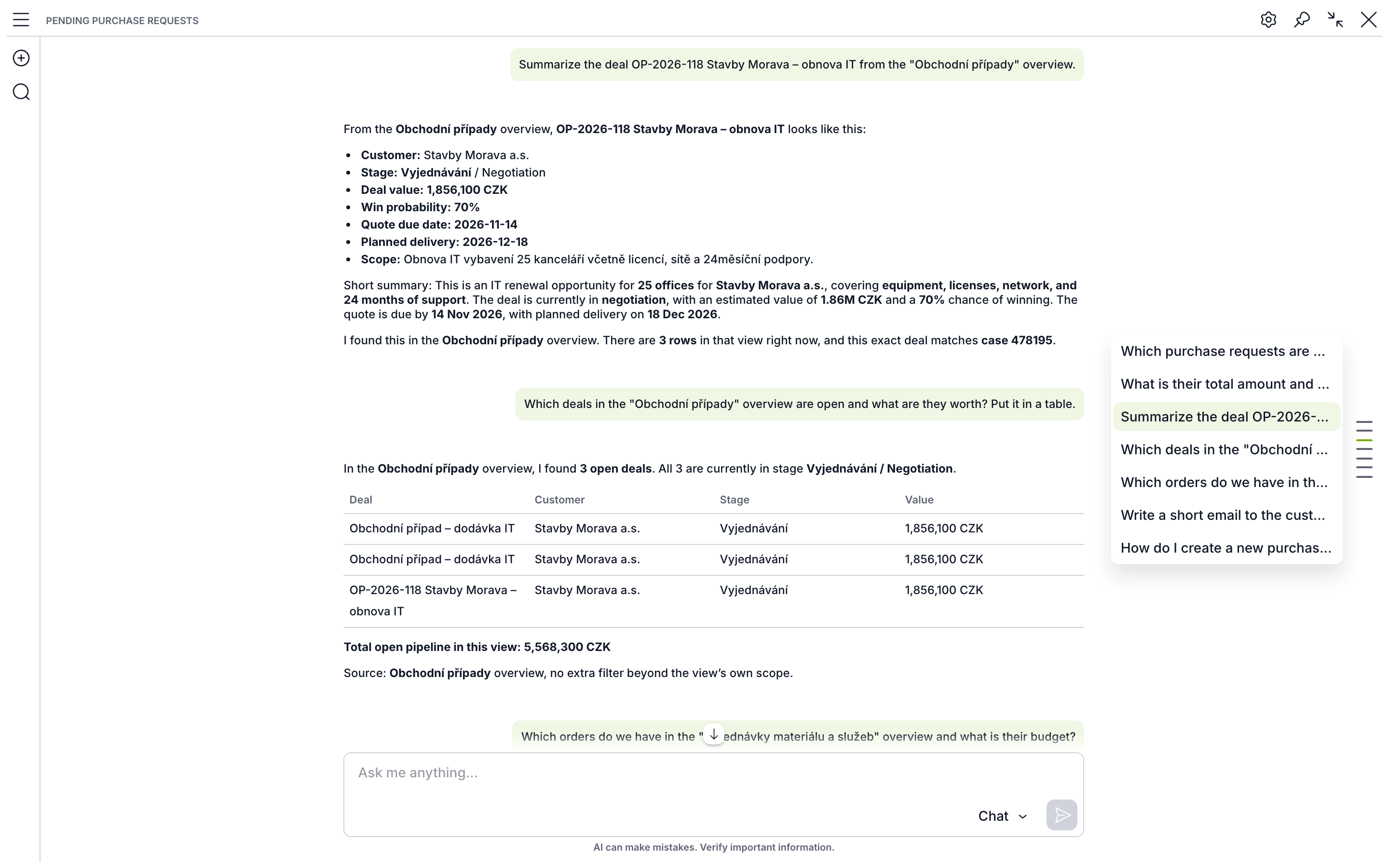
The rail on the right lists every question in the conversation – click one to jump straight to it.
Case overview with tabs
You can now add tabs to the case overview and place a chart, table, dynamic rows, documents or any other component in each. The key facts stay at the top and users open the details with one click instead of scrolling through a long page.
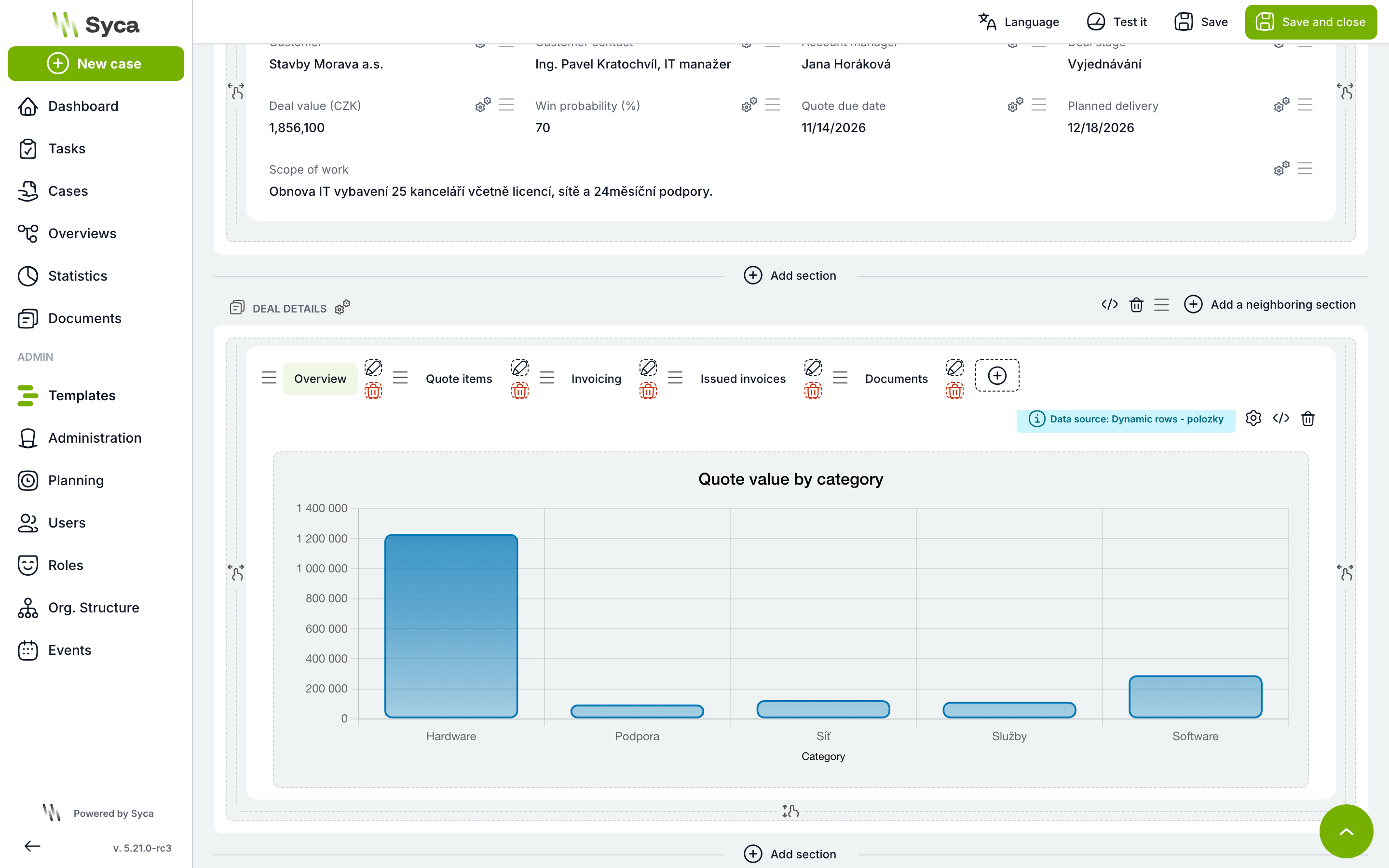
In the overview builder you add, rename and reorder tabs; each tab holds one component.
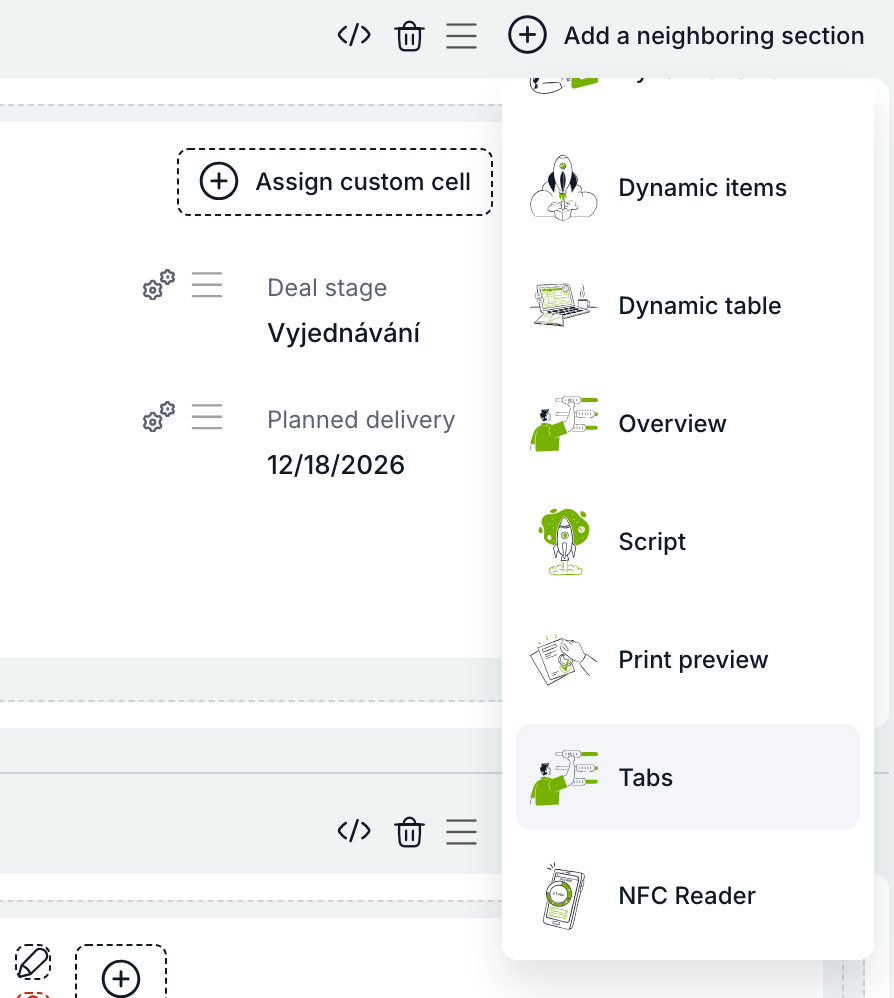
You’ll find tabs in the builder’s component menu as “Tabs”.
Charts from dynamic rows in the case overview
A chart in the case overview no longer has to draw only on overviews. It can now plot data from dynamic rows right in the case – quote items by category or invoicing by month, for example – and recalculates itself from whatever is filled in. In the chart wizard just choose the Dynamic rows source and pick the variable.
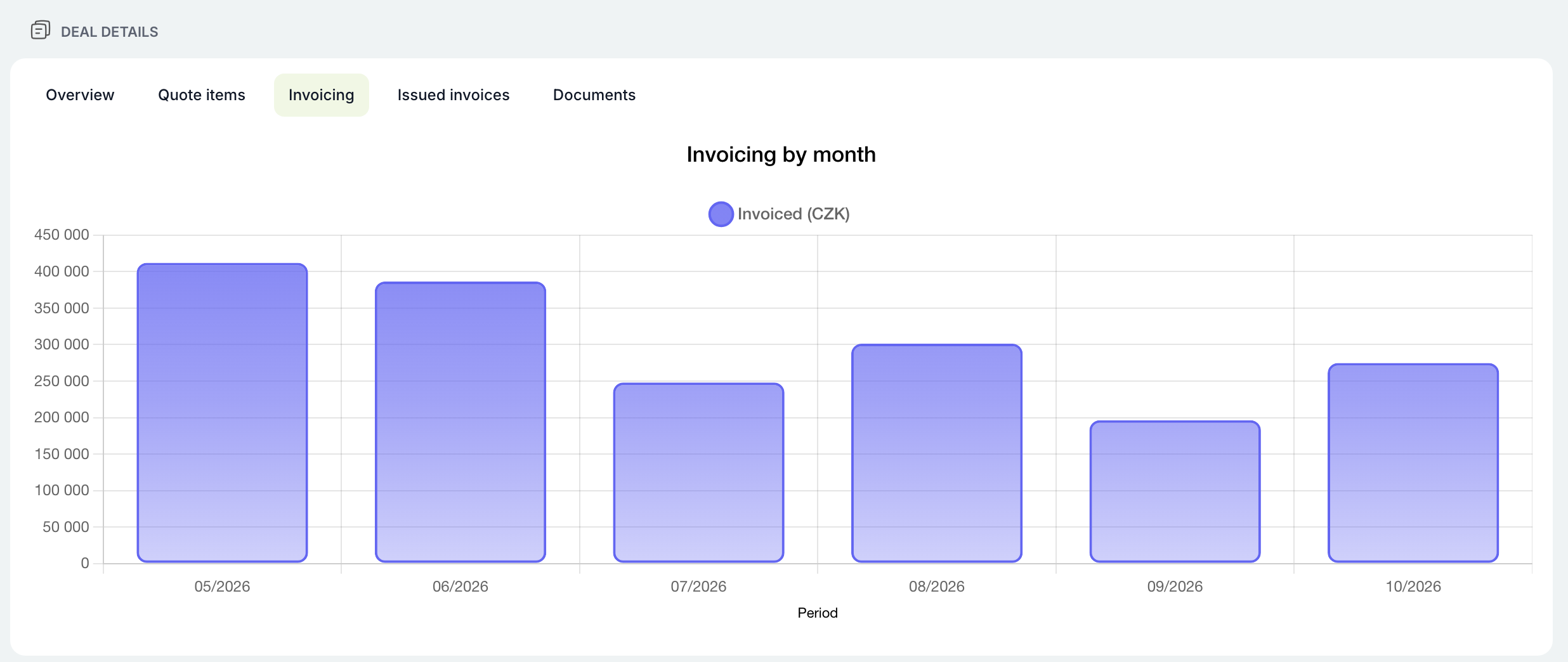
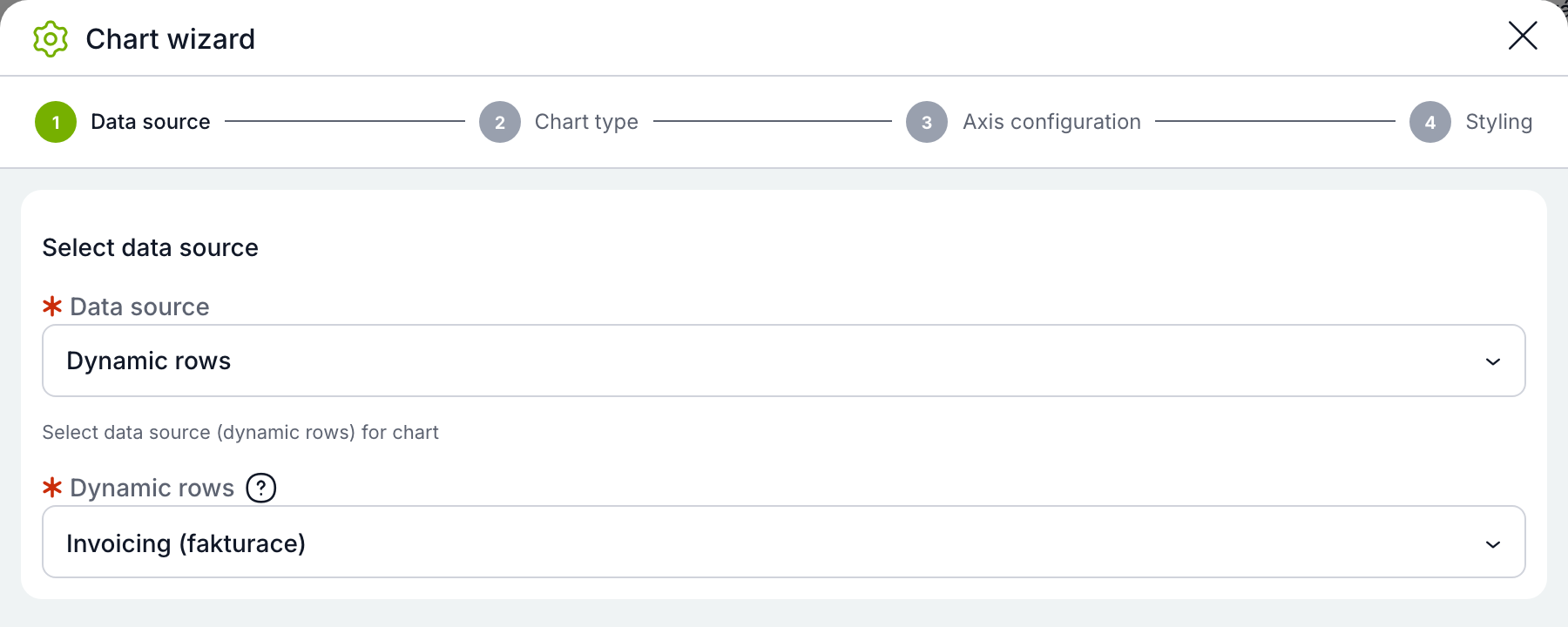
The “Dynamic rows” data source in the chart wizard.
Clearer case diagram
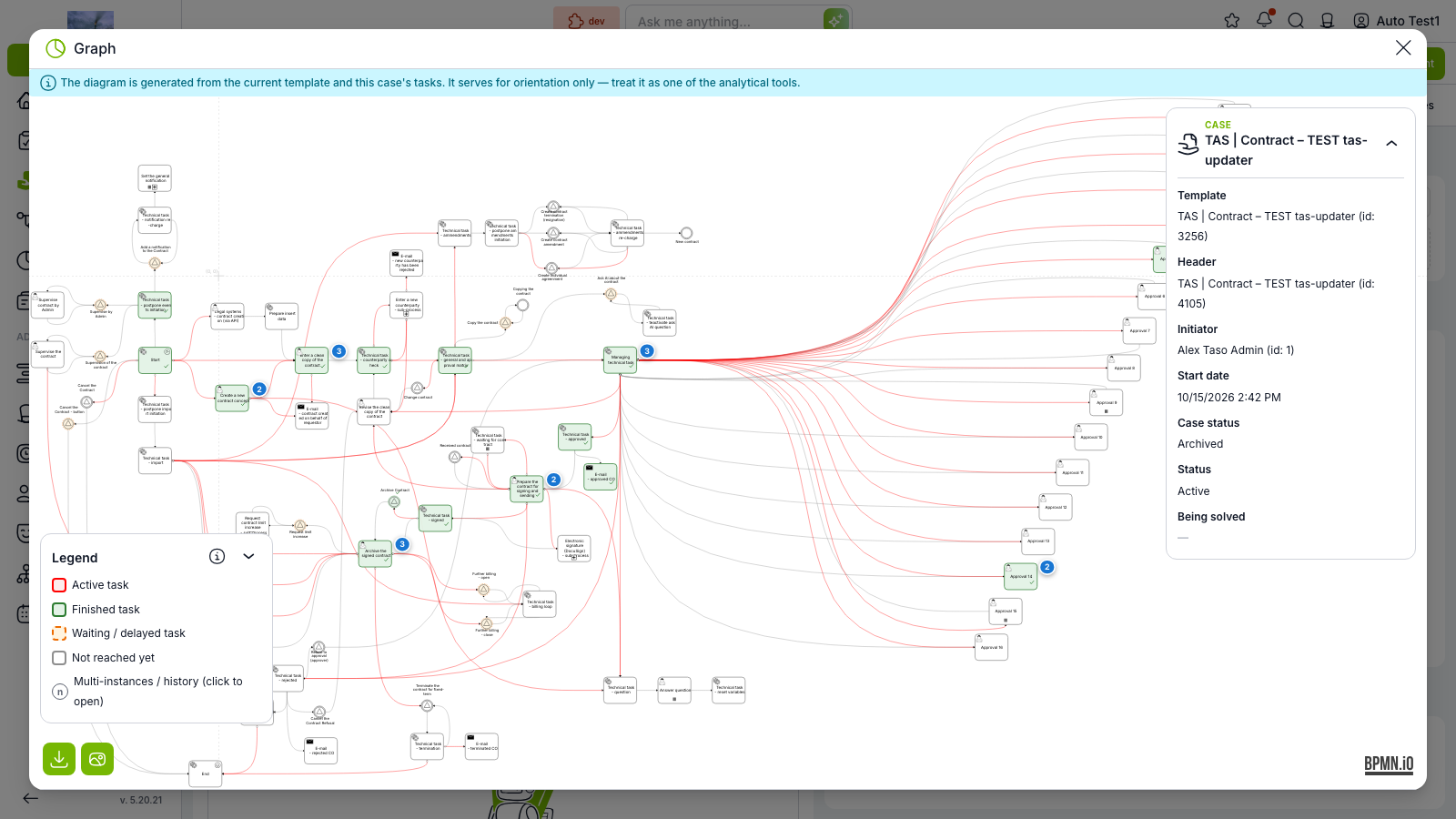
The case flow diagram shows how many times each step has run, and clicking a step opens the history of its runs.
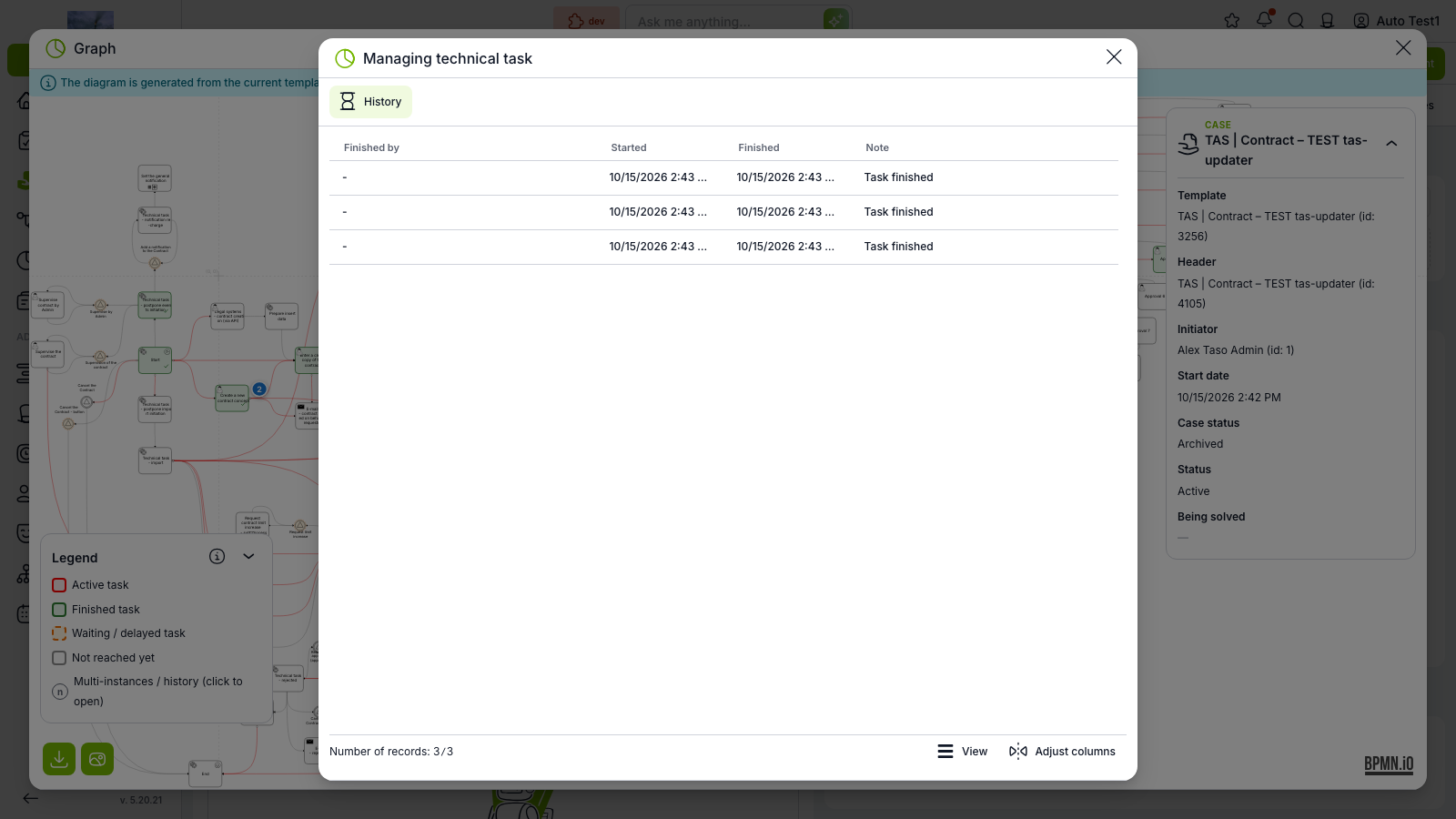
History of individual runs with start, end and note.
Coloured and icon values for list variables (traffic lights)
List variable values can have their own colour and icon – on the form and in overviews you can tell priority or status at a glance, without reading the text.
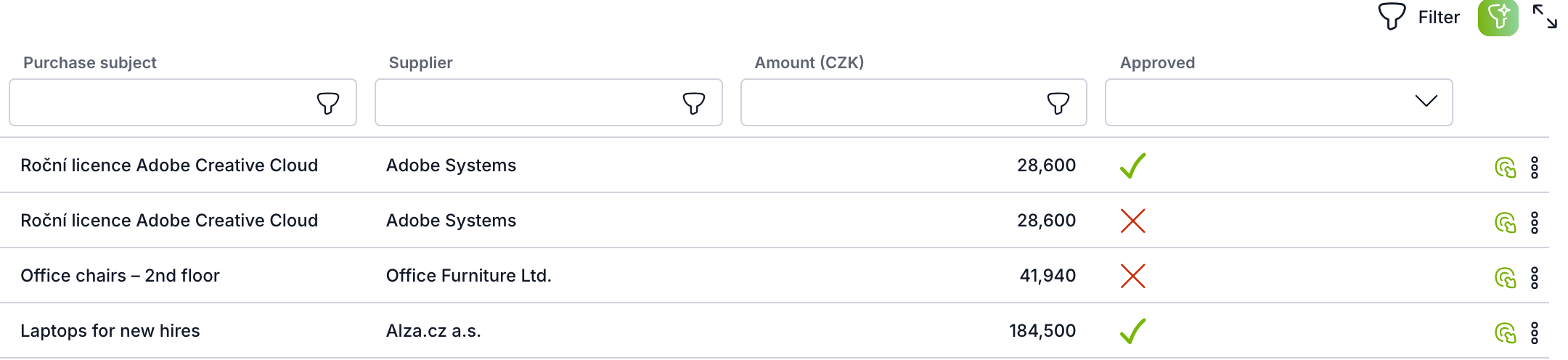
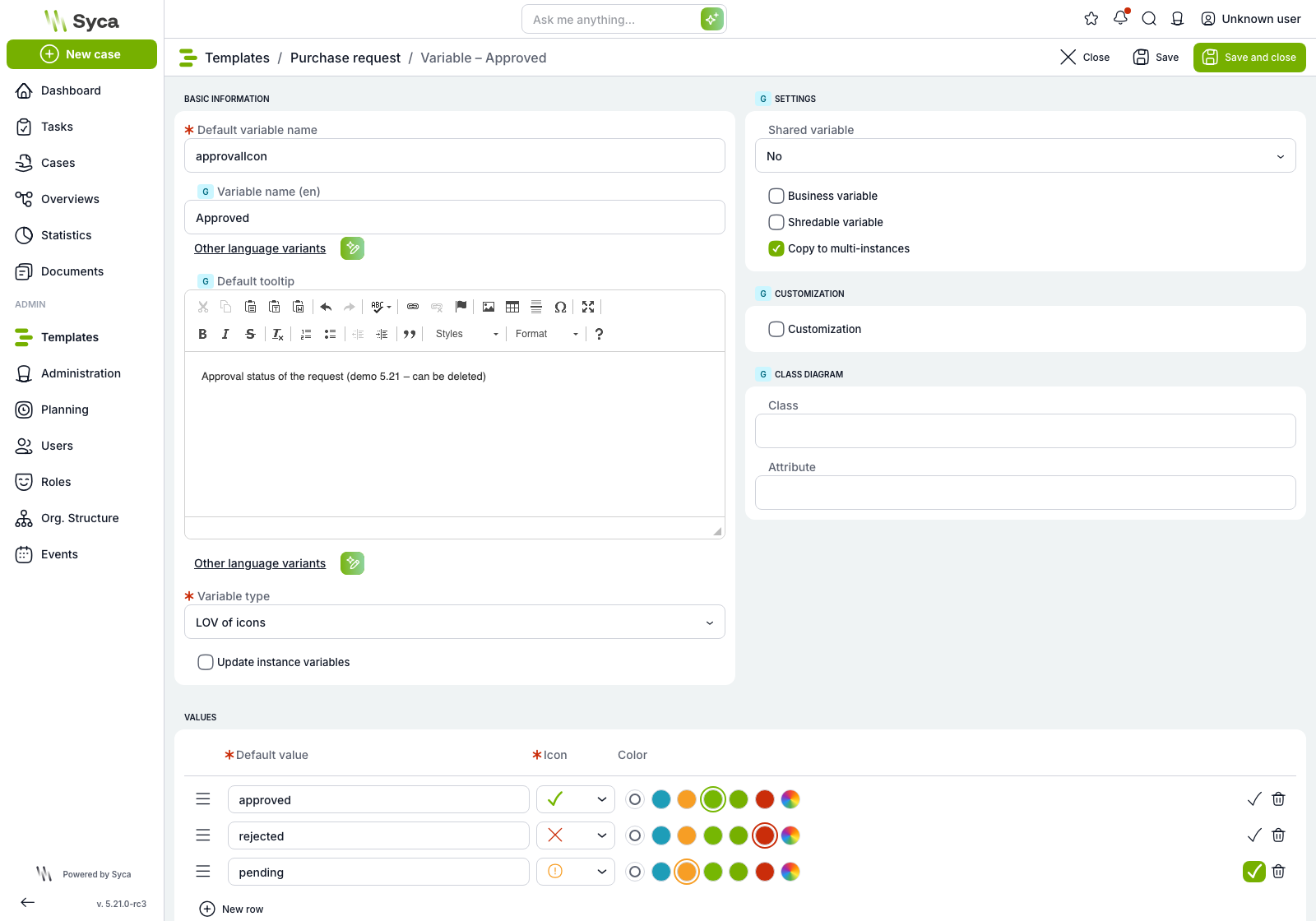
Each option can have its own icon and colour.
Default option for list fields
You can mark one value of a list variable as the default. Every new case has it preselected – users fill in less and don’t have to look for the most common choice each time.
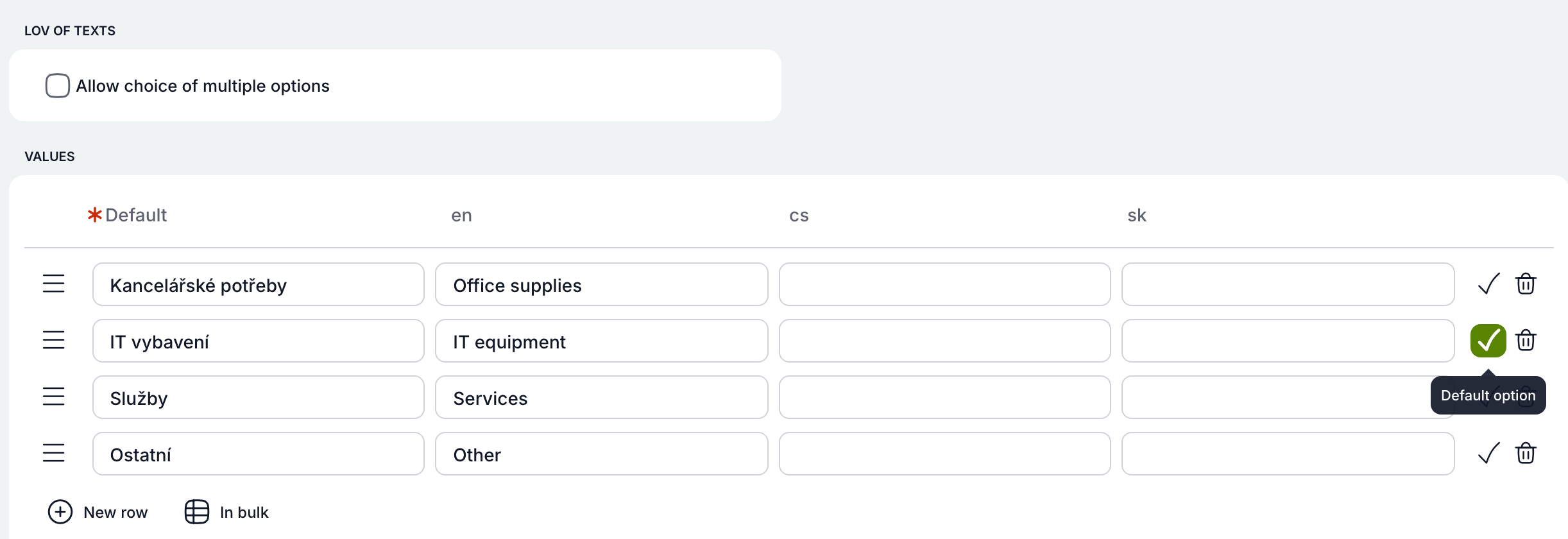
The value “IT equipment” marked as default.
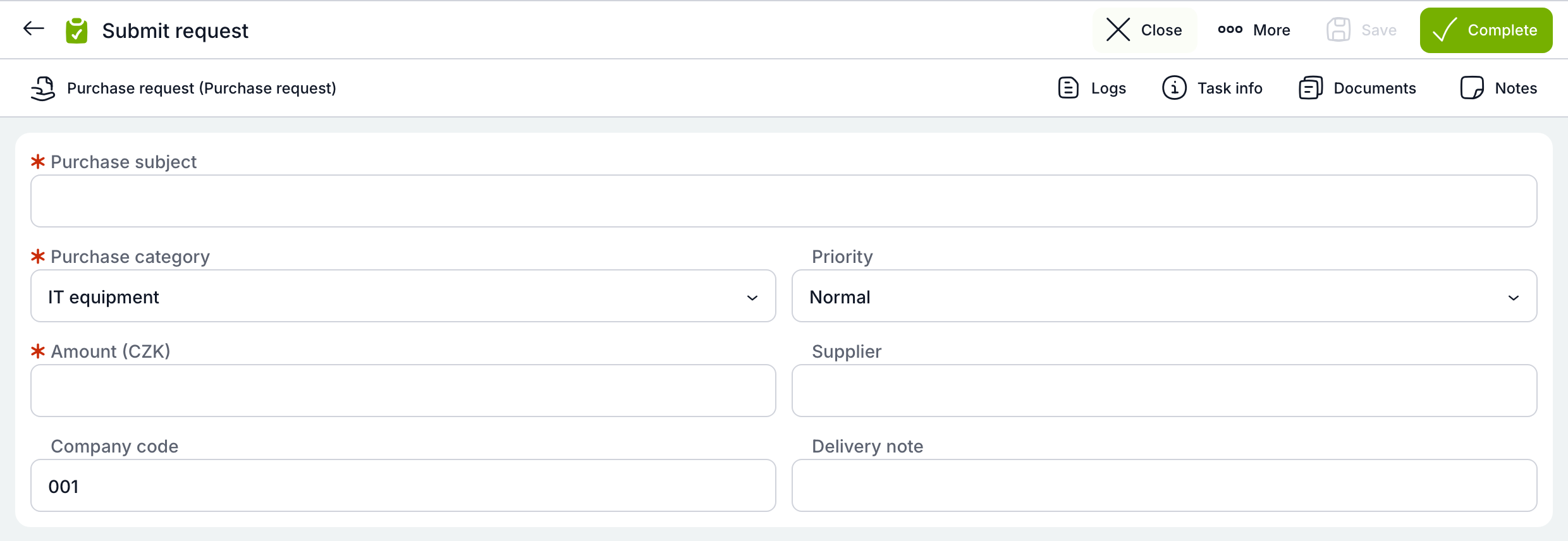
A new case has both category and priority already filled in.
Variable labels next to the field
Variable labels can now sit next to the field, not just above it. Forms with many short fields become more compact and easier to scan.
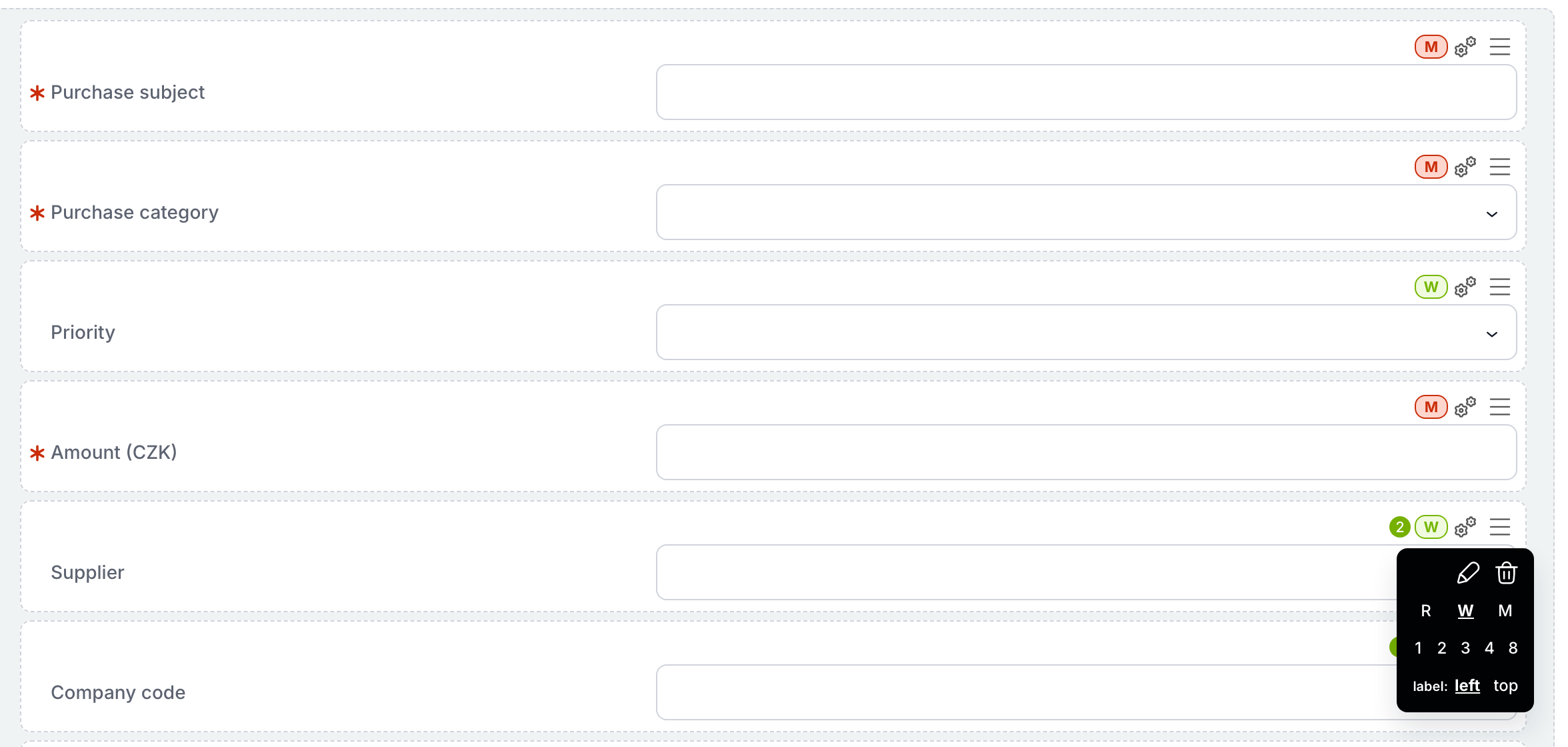
In the form editor you choose a label on the left or on top for each field.
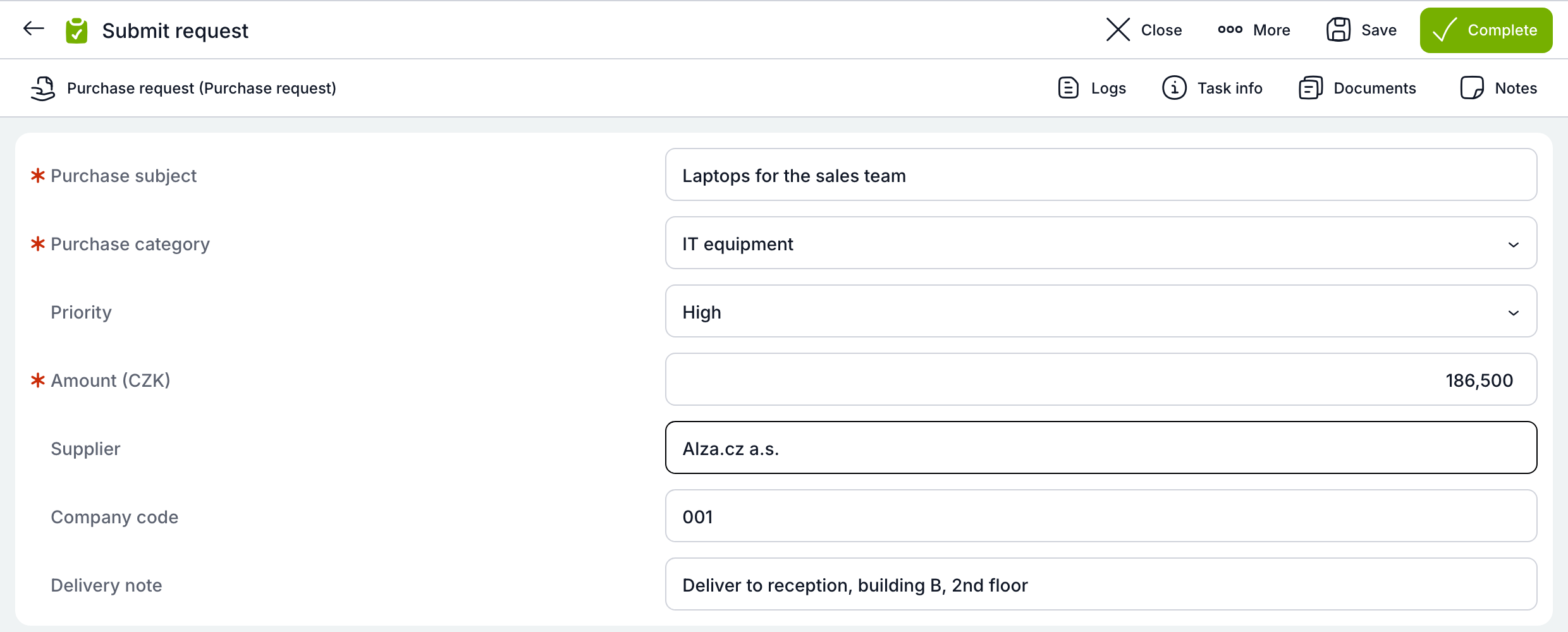
The resulting form with labels on the left.
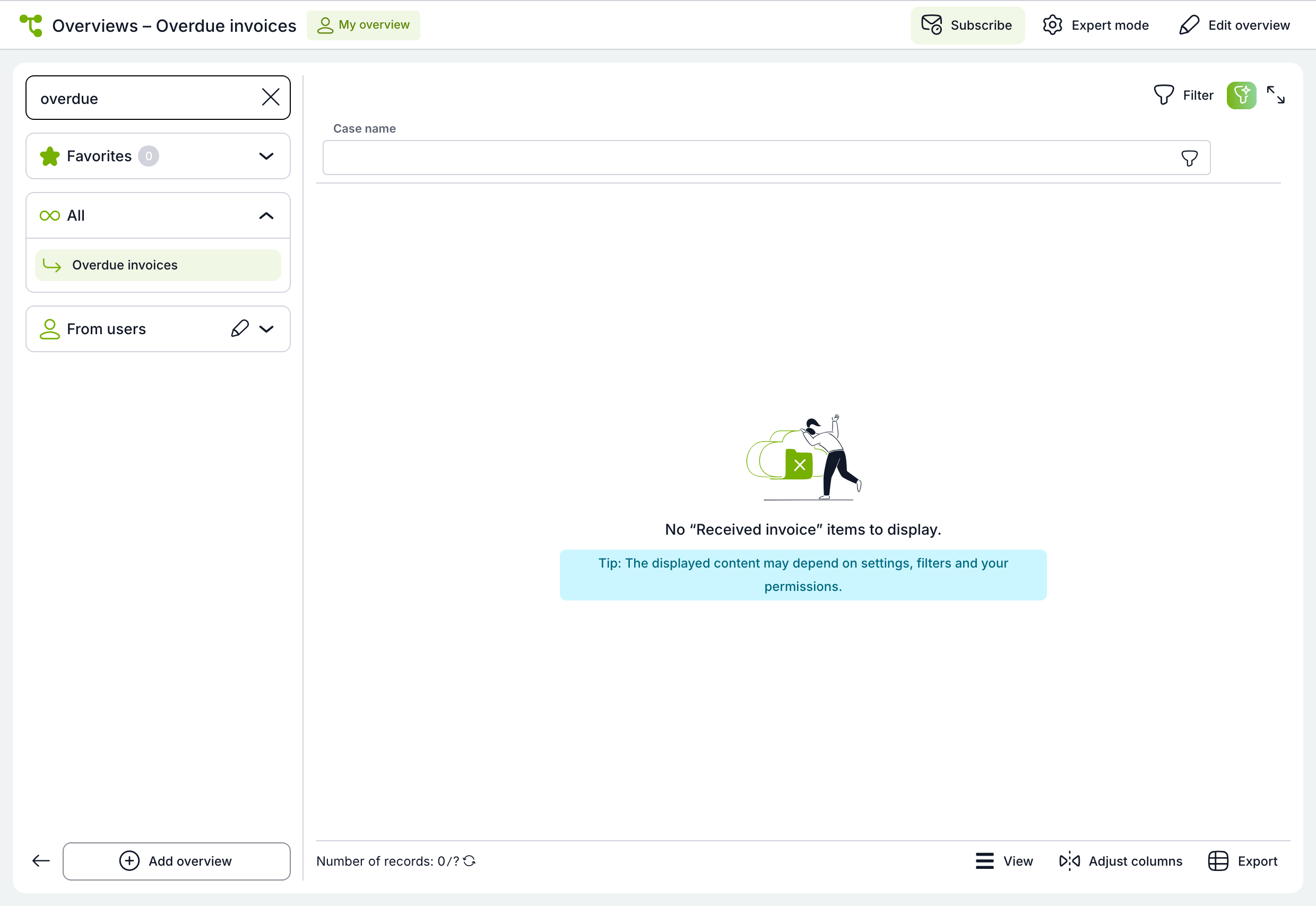
An empty overview tells you which one it is
An empty overview now shows its name instead of a generic message, so it is immediately clear which overview has nothing to display.
Smaller improvements
- Deleting a deputy in the HR agenda now asks for confirmation.
🧩 Dynamic Items: Dynamic rows 2.0
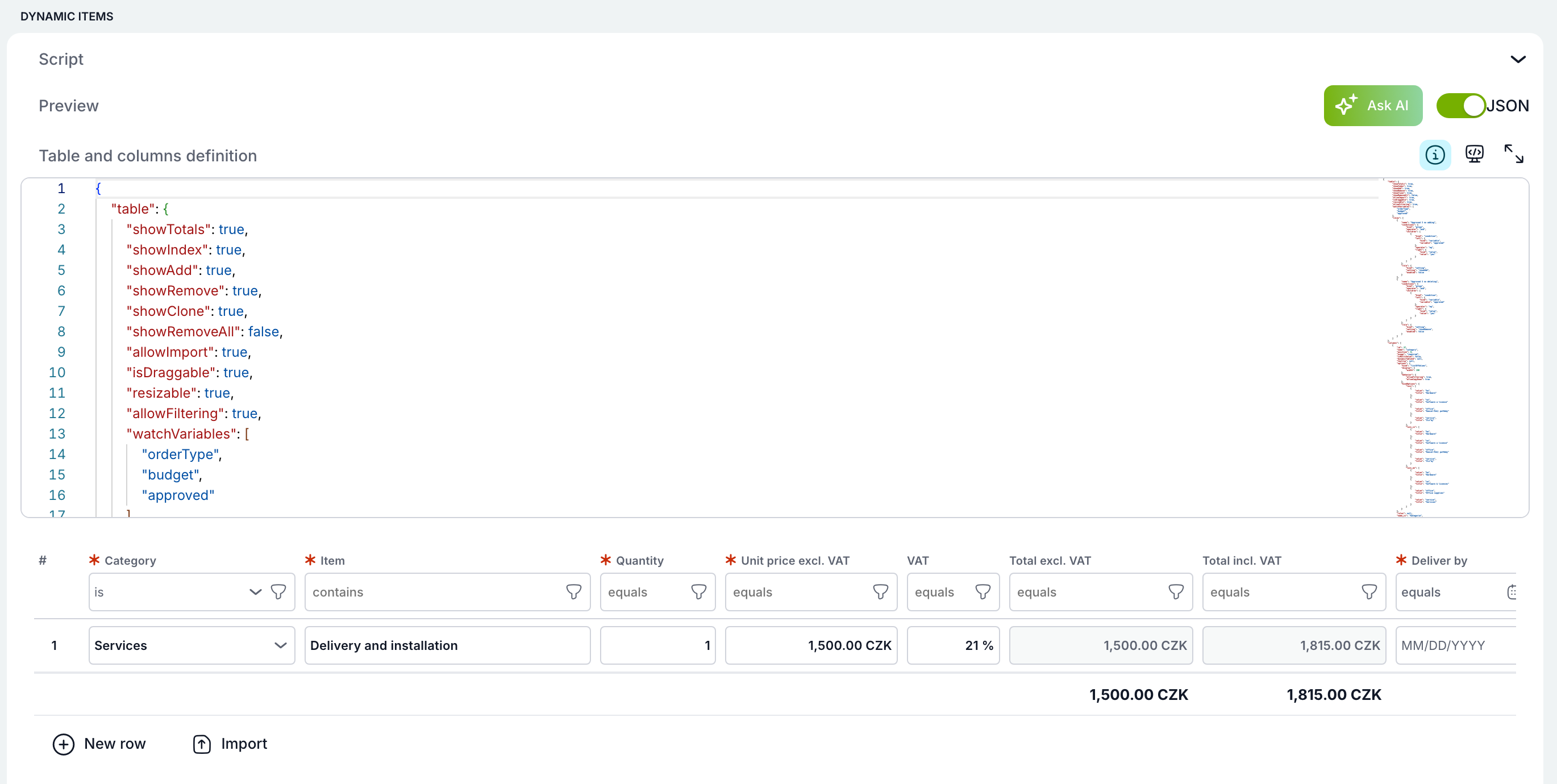
A table in a form – order items, a trip plan, a timesheet – is built column by column in a clear editor, without writing scripts. Existing templates with dynamic rows keep working unchanged.
Design a table like a form, not a script
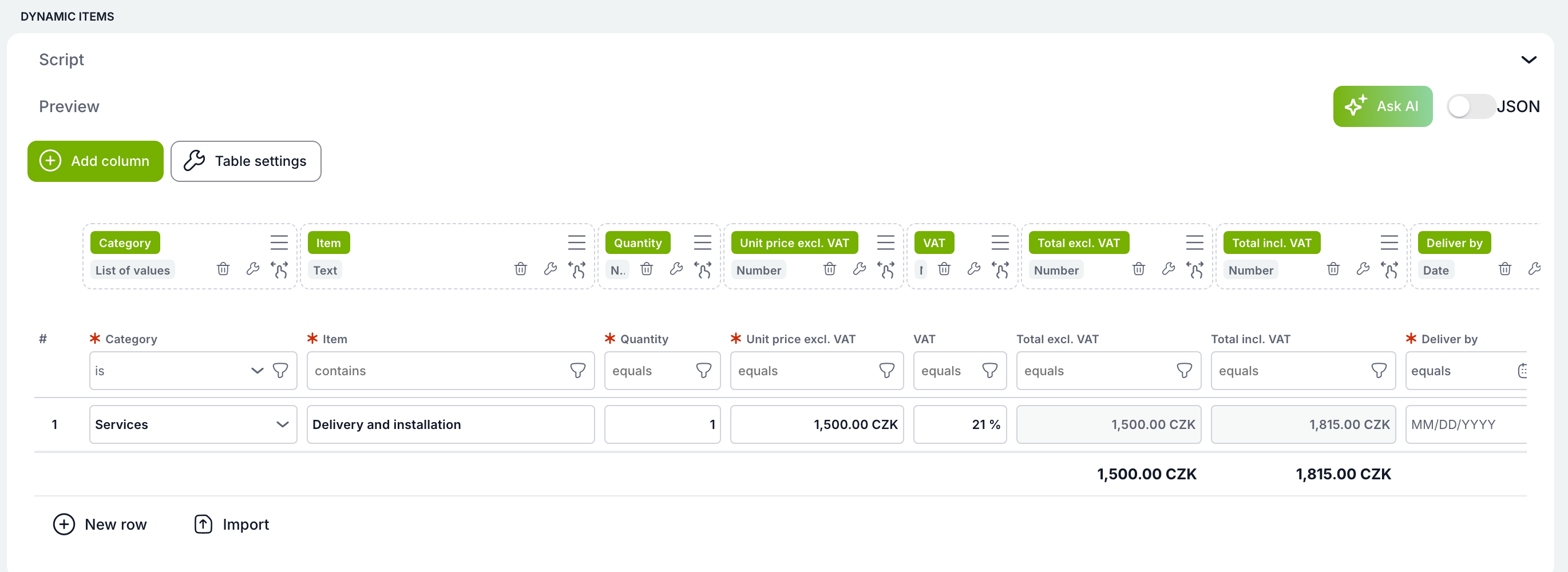
Columns are added, reordered by drag and drop and configured in a clear dialog. The preview below the editor shows the table exactly as users will see it, including the starter rows every new case begins with.
Template tables on a new foundation
Each column has its own type plus a default value, calculation, formatting, validation and rules for when it is required or read-only. Data is stored row by row and cell by cell – so tables handle thousands of rows and can be filtered.
Column types: text · number, currency, percent · date · yes/no · list of values · user · role · org. unit · dynamic table · file
A table that does the maths for you
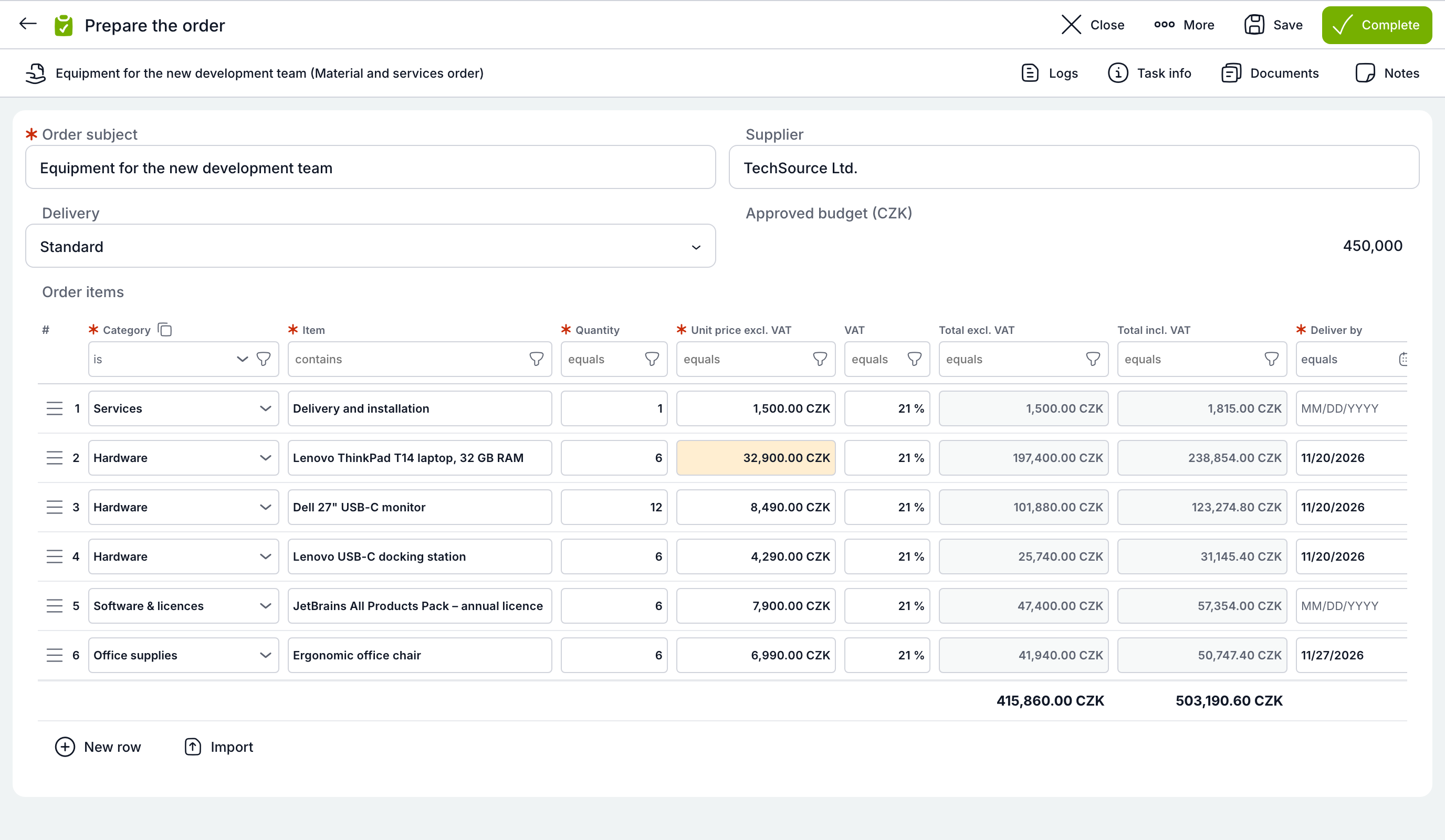
The “Total excl. VAT” and “Total incl. VAT” columns are calculated from price, quantity and rate, and the totals row recalculates on every change. The formula is put together in the editor with a few clicks. Rows can be dragged with the mouse.
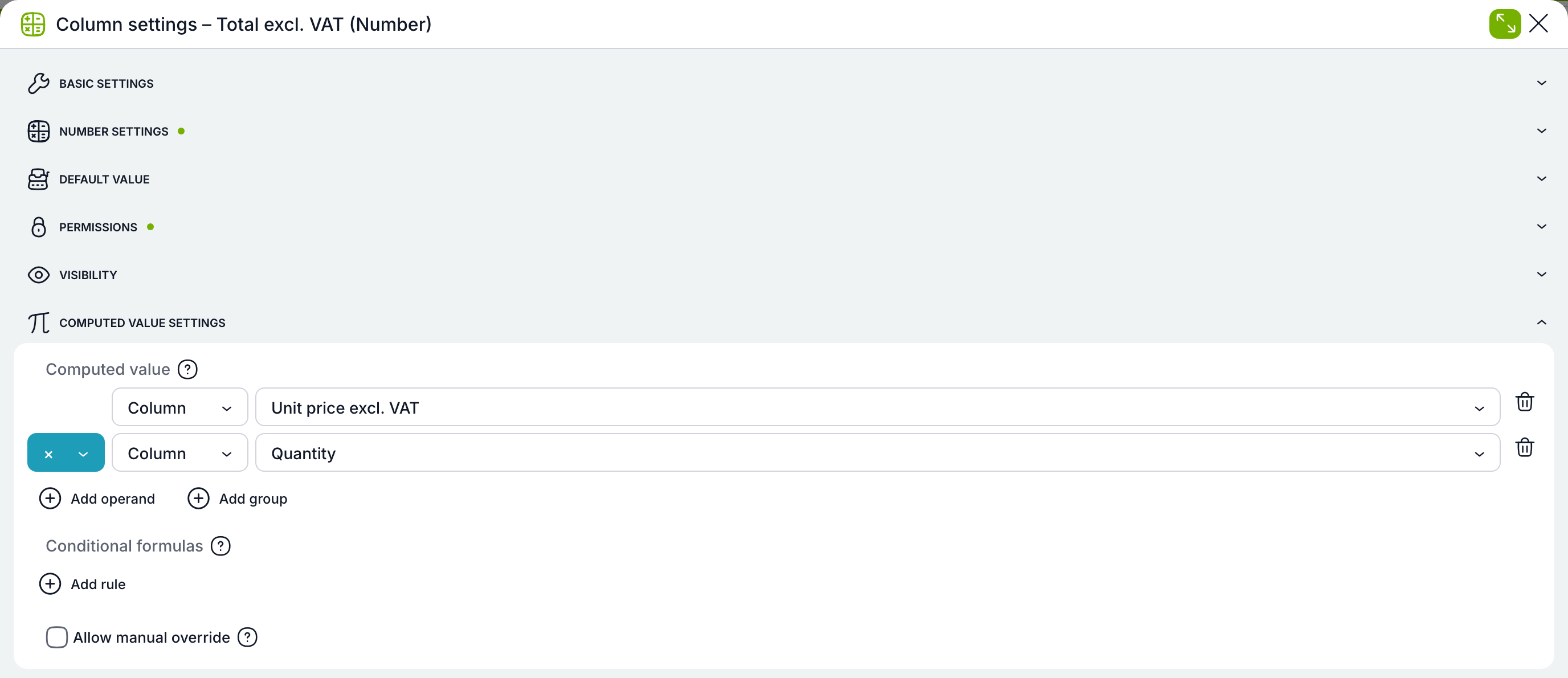
The “Unit price × Quantity” calculation built from menus, no programming.
No-code rules: required, format and value by condition
A column can be required, read-only, hidden or coloured differently based on a value in the same row, another form variable or the table total. Rules are built in the condition editor.
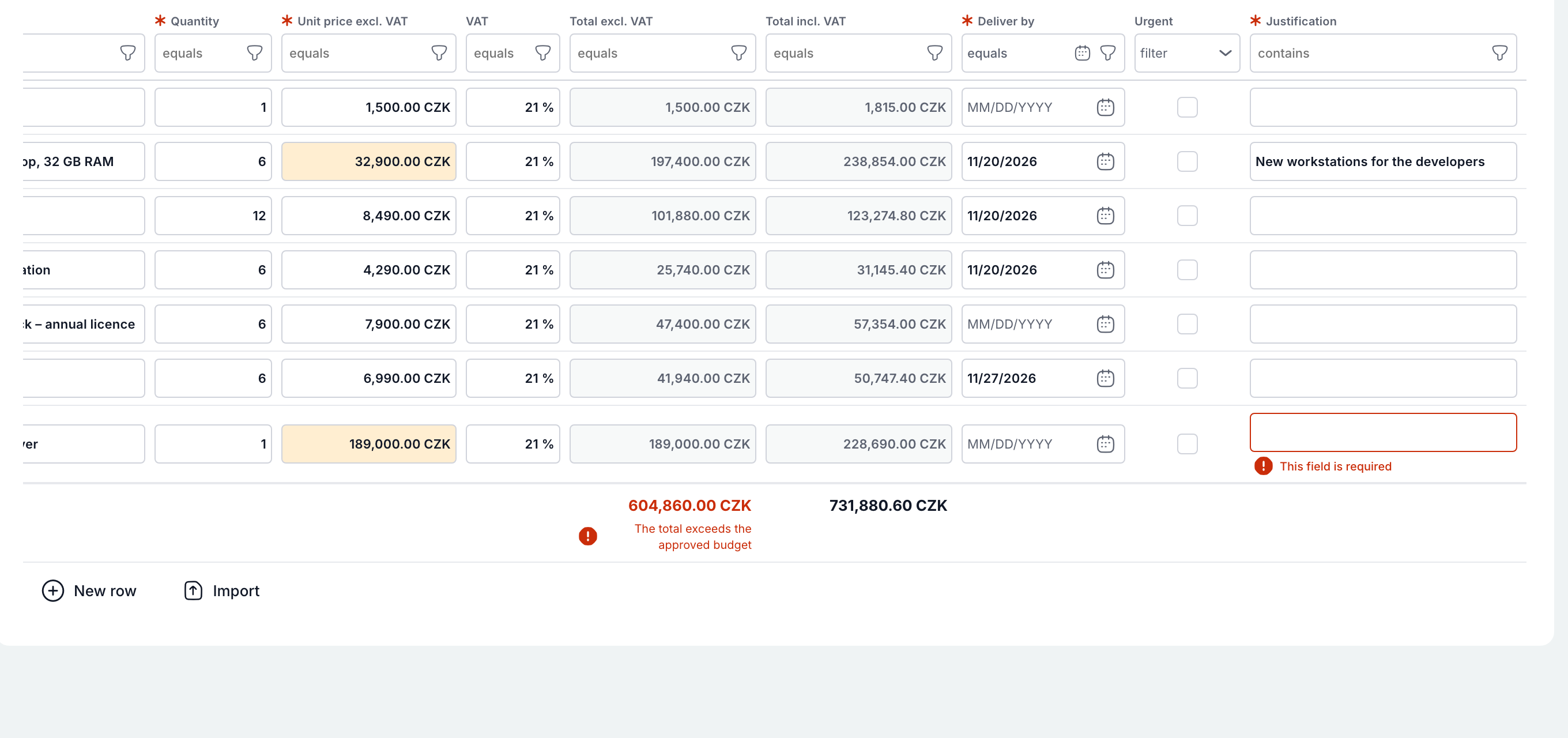
An item over CZK 20,000 needs a justification; the task cannot be completed until it is filled in.
With “Express” delivery, every new row has “Urgent” ticked automatically.
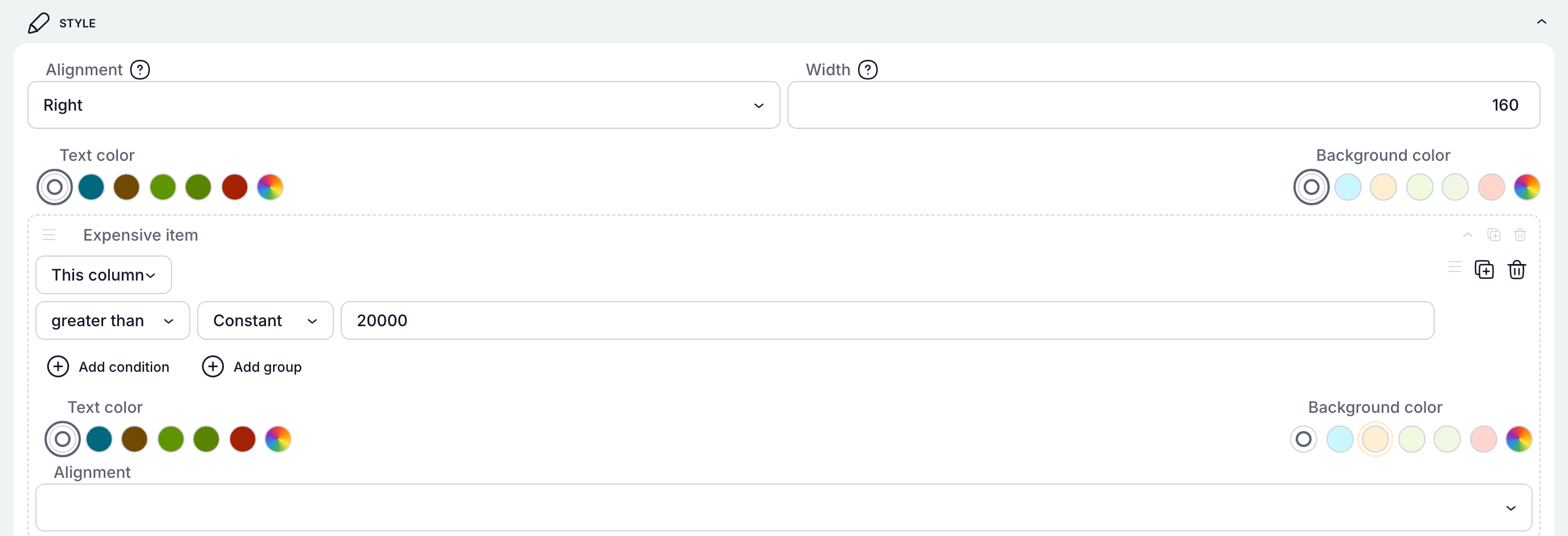
Price over 20,000 → the cell turns orange.
Checks on single cells and on the whole table
You can validate a single value as well as a column total against a form variable, such as the approved budget. Error messages can be translated.
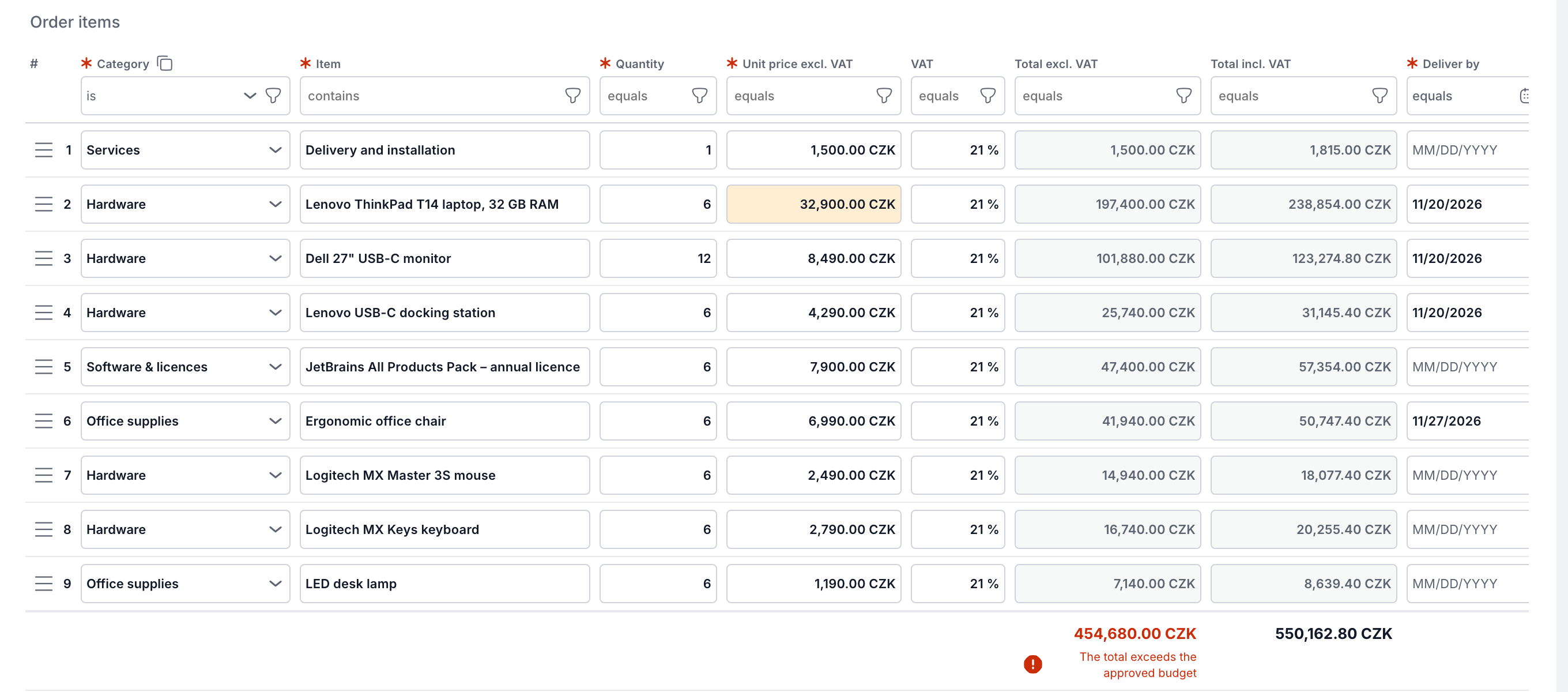
When the items exceed the approved budget, the table flags it right below the total.
Every column knows what it holds
Dates with a calendar, user, role or org. unit pickers, values from a dynamic table and files attached directly to a row. Format – currency, percent, multi-line text, link – is a column setting.
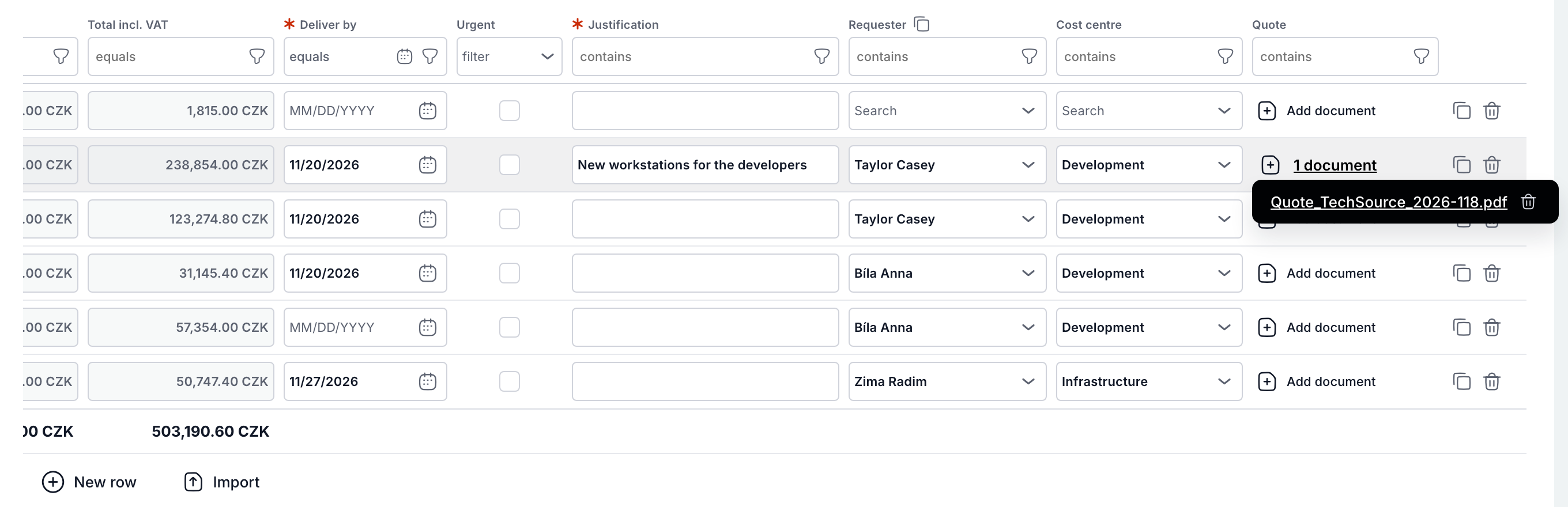
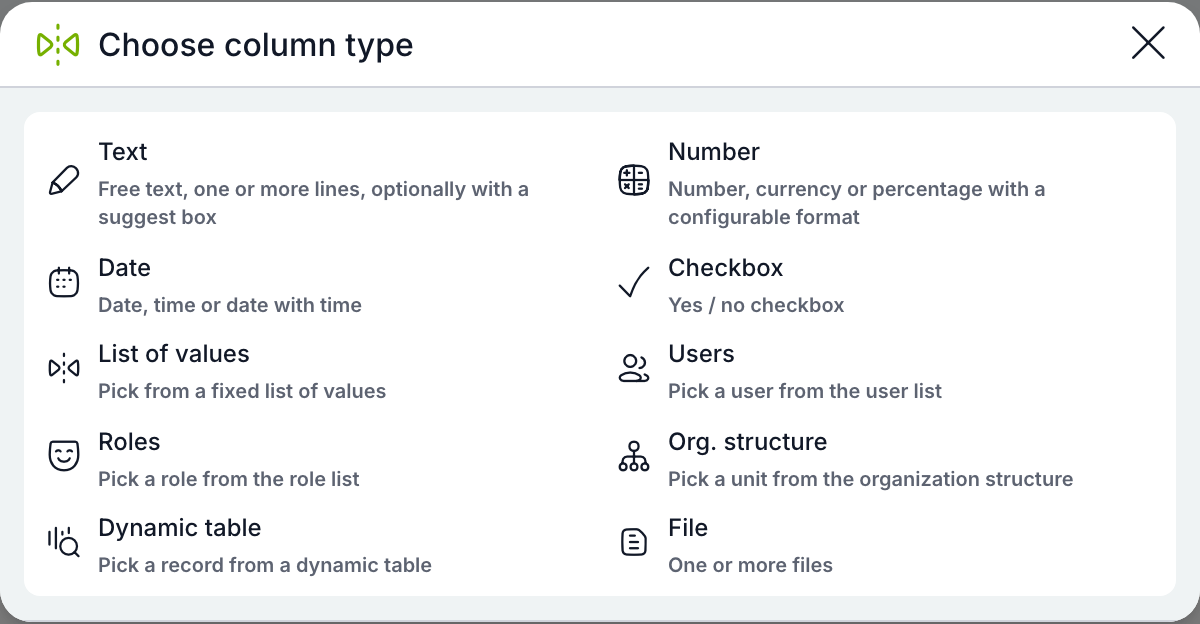
Choosing the type of a new column in the editor.
Tell the AI what the table should do
The Ask AI button in the table editor proposes new columns, formulas, validations and visibility rules. It shows the changes next to the original definition and applies them only after you confirm.
Upload a price list or item list in one click
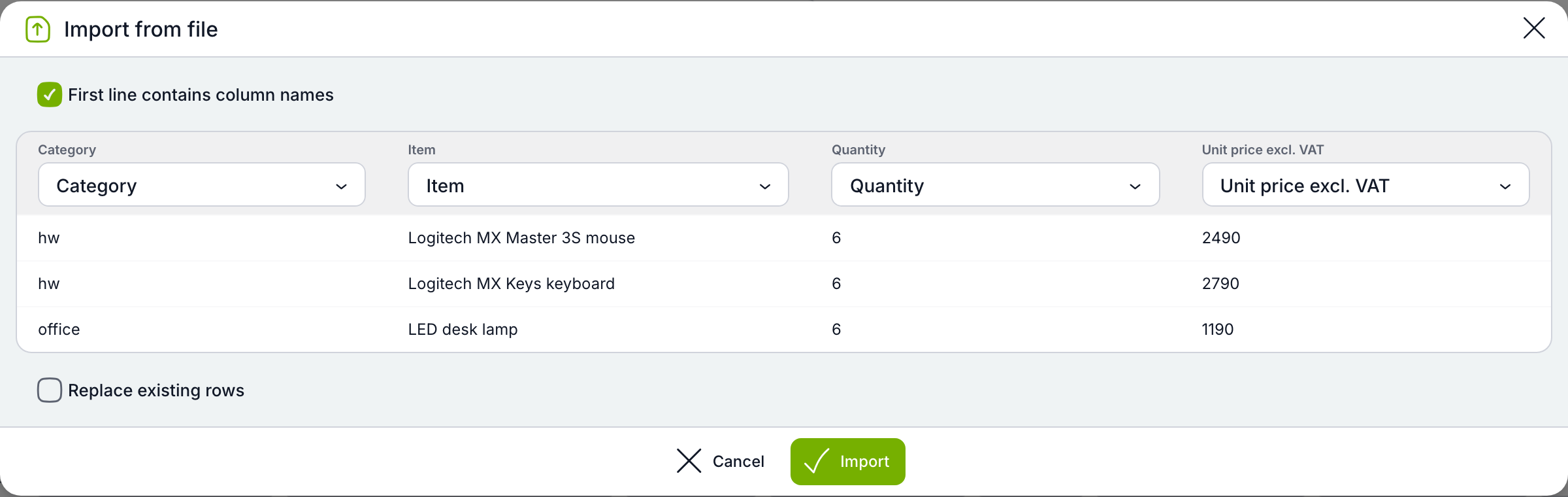
Rows from CSV or Excel are added to the table – file columns are matched by name automatically, and you choose whether to append or replace rows. Calculations and validations apply just as they do to rows entered by hand.
Find your way even in large tables
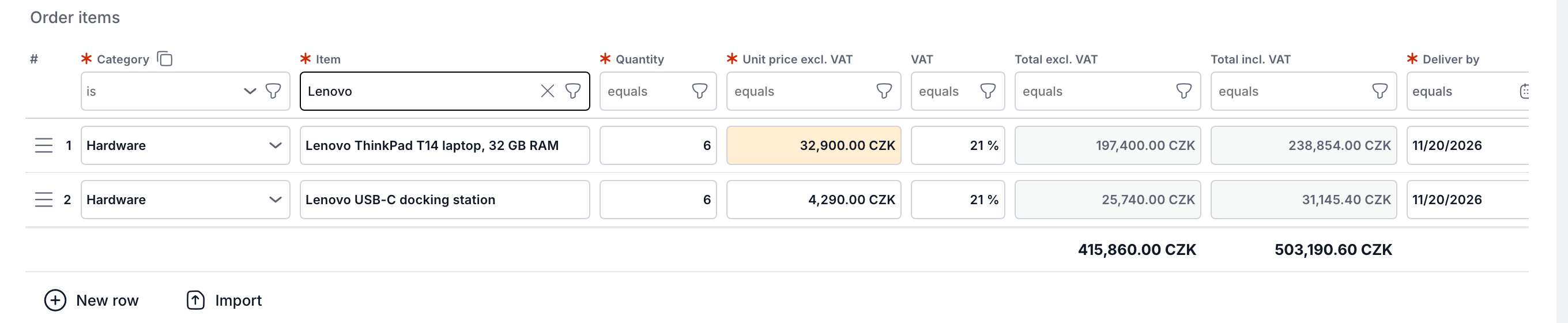
Column header filters, row drag-and-drop and duplication, copying a value down the whole column, and resizable columns.
In the case overview too, in every language
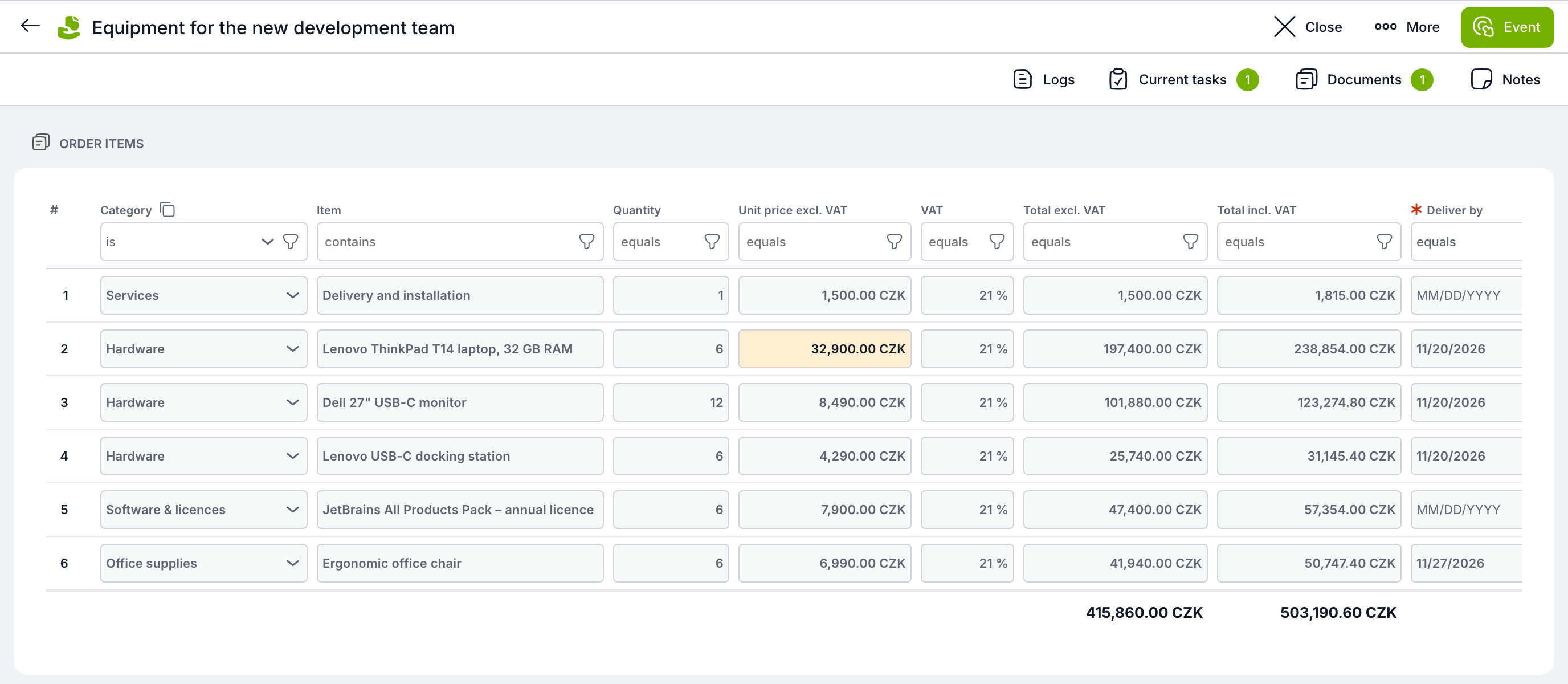
Just connect the “Dynamic Items” component in the case overview designer to a variable – the table is shown read-only, including formatting and calculations. Column names, list items and messages are translatable, and numbers, currencies and dates follow the user’s language.
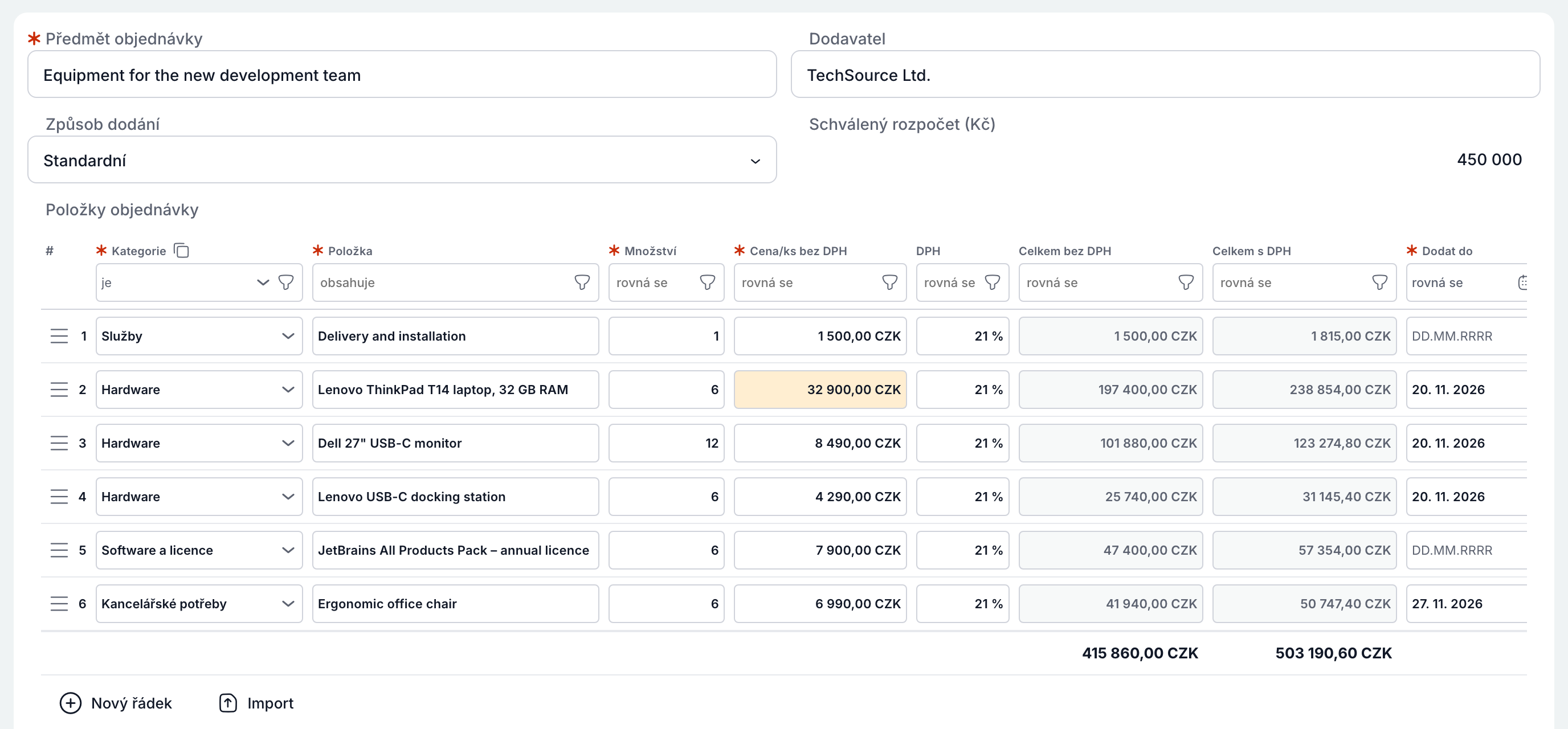
The same table in the Czech UI.
Full control for consultants
The whole definition can be edited as schema-validated JSON, the table has its own script, and calculations get a new di API for working with rows. Dynamic Items travel with template export/import and the AI Builder.
🛠️ For administrators and consultants: AI in template building and better administration
AI writes your calculations – right in the editor
In the calculation editor, click Ask AI and describe in plain language what the calculation should do. The AI knows the template variables, verifies the code itself and offers it as a comparison with the existing code; it reaches the editor only after you confirm. It also works the other way round: inherit someone else’s complex calculation and let the AI explain it. Calculations are now written in TypeScript, so the editor gives precise suggestions and flags errors before anything runs.
A complex 77-line calculation – on request, the AI explains clearly what it does, step by step.
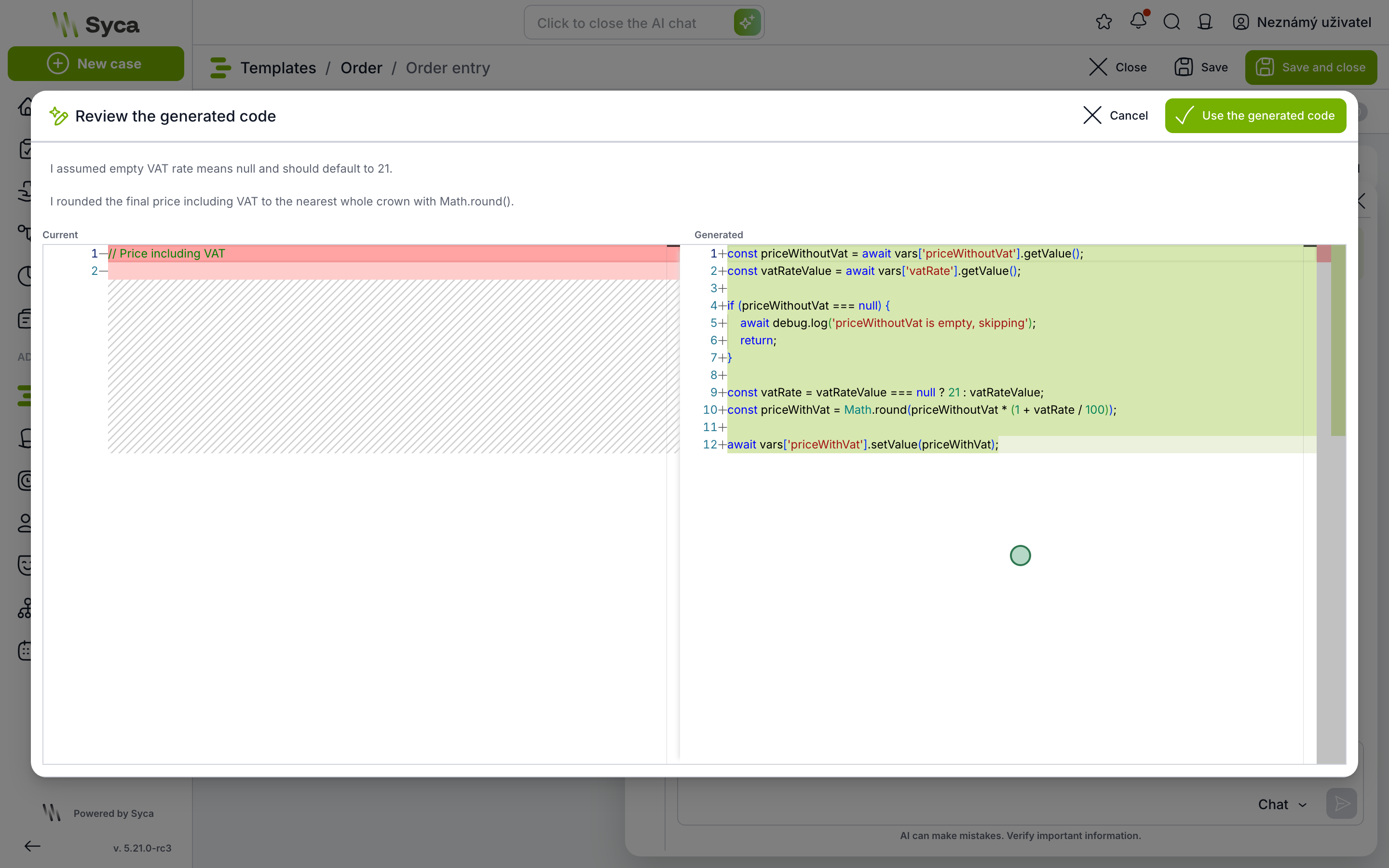
The AI’s proposal is never applied directly: you see a comparison and an explanation of what it changed and why.
AI Builder creates a new template from a single prompt
When creating a template you choose whether to build it by hand, let the AI Builder design it, or import it. Describe the process in two sentences and the AI prepares a complete template: tasks and how they connect, variables, forms, statuses and the case overview. The draft is shown for review and is created only after you approve it.
Create a template straight from a process diagram
Have your process drawn in BPMN or Mermaid? Paste it when creating a template, check it in the live preview, and turn it into a template with real tasks and links in one click. Anything that can’t be carried over one-to-one is listed clearly.
Connect ChatGPT or Claude securely via OAuth
TAS now acts as an OAuth 2.1 authorization server. AI assistants such as ChatGPT or Claude and other integrations connect without manually issued tokens and can use TAS tools. Users approve the connection once by signing in and can revoke it any time under Settings → Connected apps. Administrators manage OAuth clients and see every granted permission.
Email processing in one place, now with IMAP and POP3
A new screen brings together every mailbox TAS creates cases from, along with its history. Besides Microsoft Graph, a regular mailbox now works over IMAP or POP3, with the password kept in the vault. Test a connection with one click and see each email’s processing status, number of attempts and the case it created.
Set the case status without coding
The case status – “Awaiting approval”, “Approved”, “Rejected” and so on – is set directly on the task: pick the status, choose whether it applies when the task starts or ends, and optionally add a condition based on the approver’s decision.
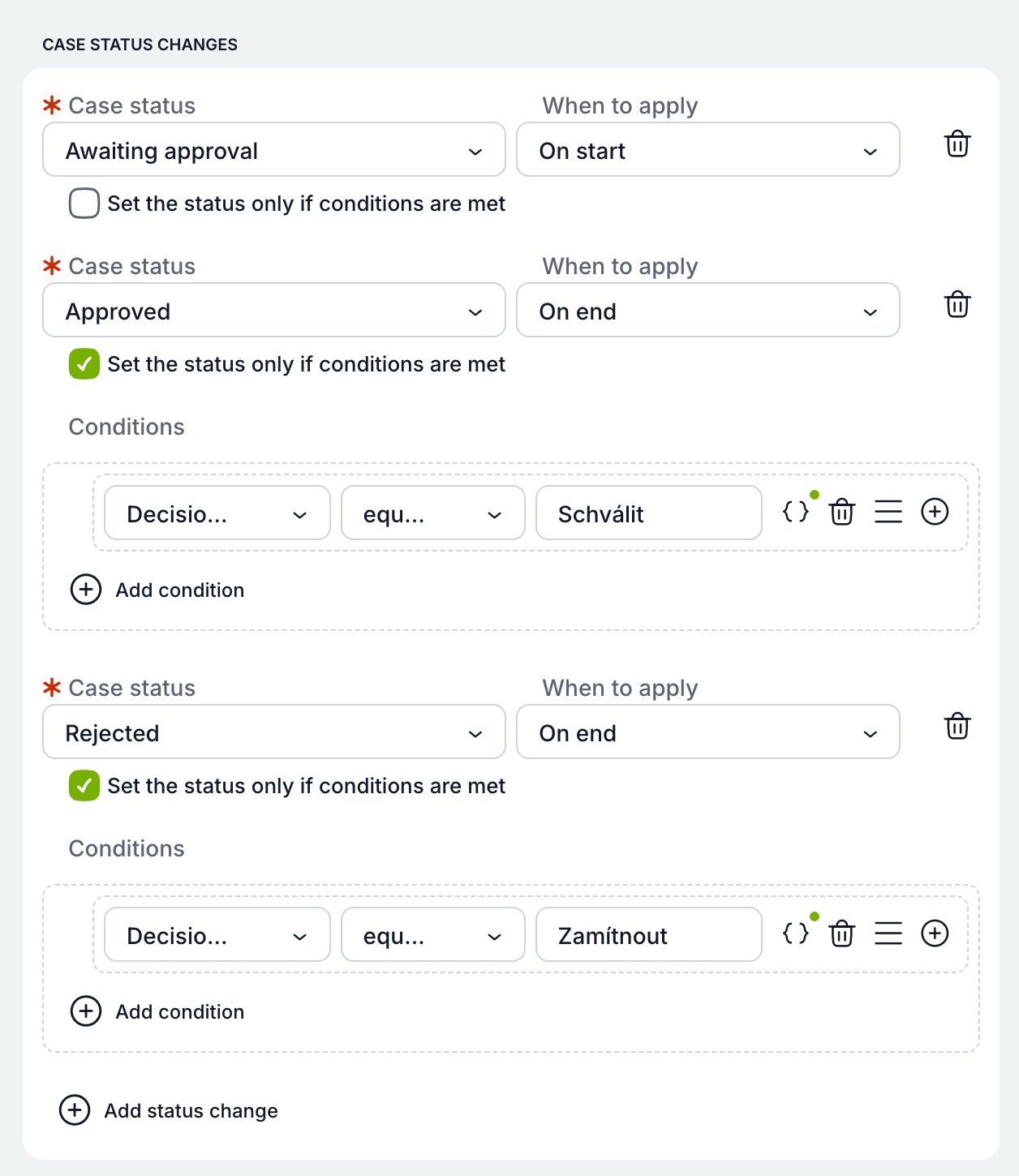
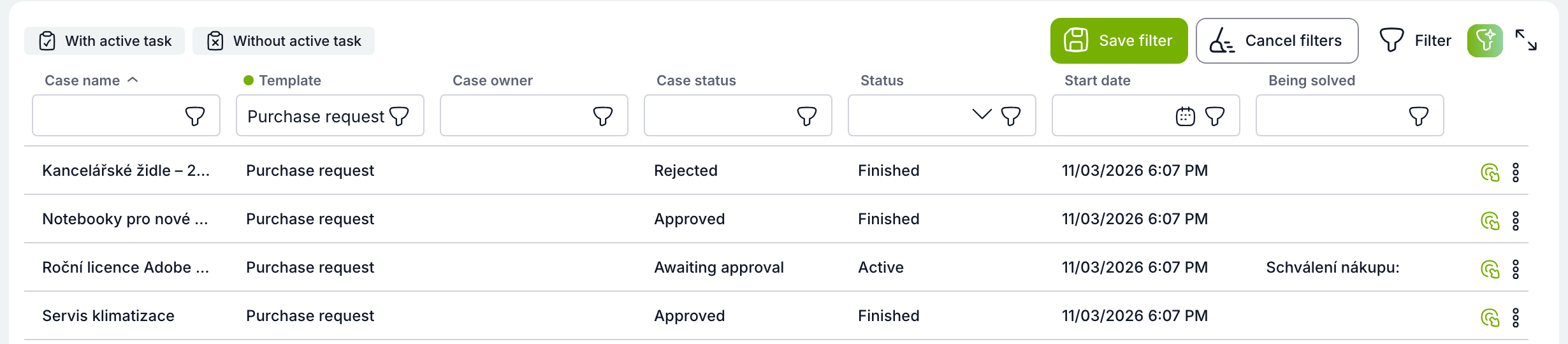
Each request’s status was set automatically from the flow and the approver’s decision.
One condition, several fields at once
The Hide, Read, Write and Required blocks in the dynamic conditions builder can now target several variables at once. One condition replaces several identical ones.

One “Hide” block for three fields at once.
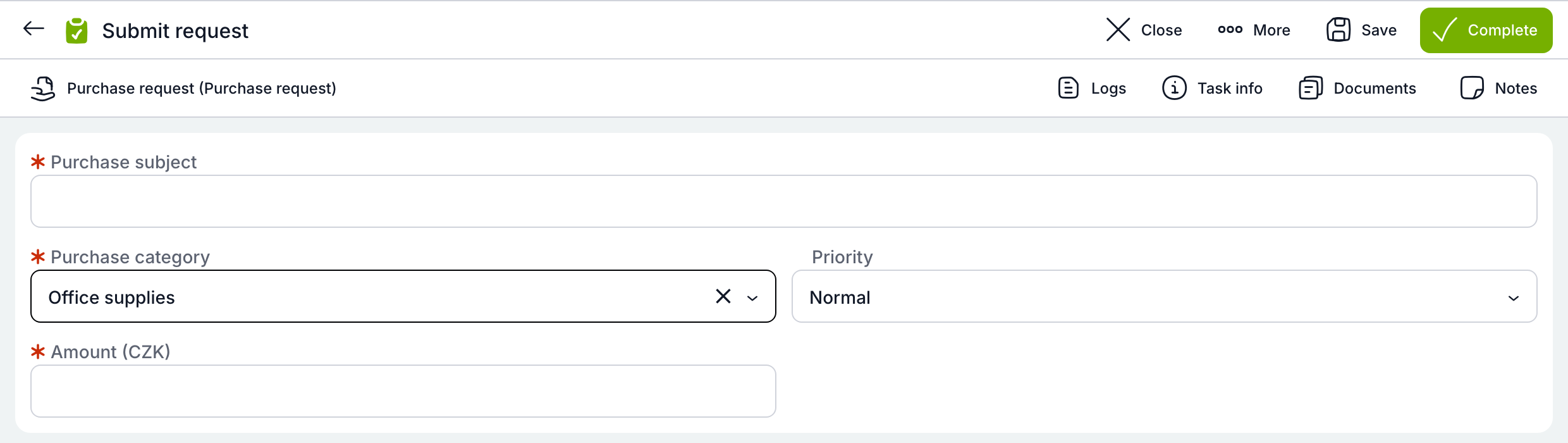
After choosing “Office supplies”, all three fields disappear.
One condition for every company
In the dynamic conditions builder, a dynamic table name can be composed from text and variables, e.g. {companyCode}-suppliers. A template shared by several companies reads from “its own” table with a single condition – and keeps working unchanged after moving from test to production.
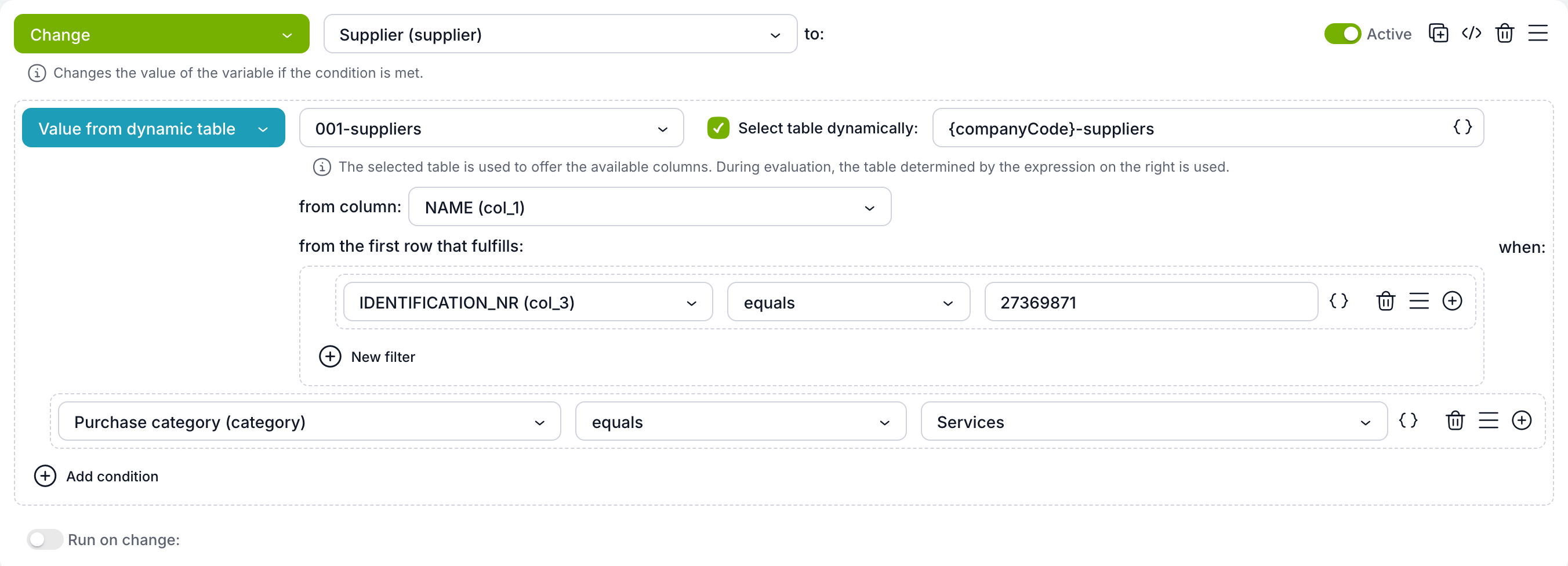
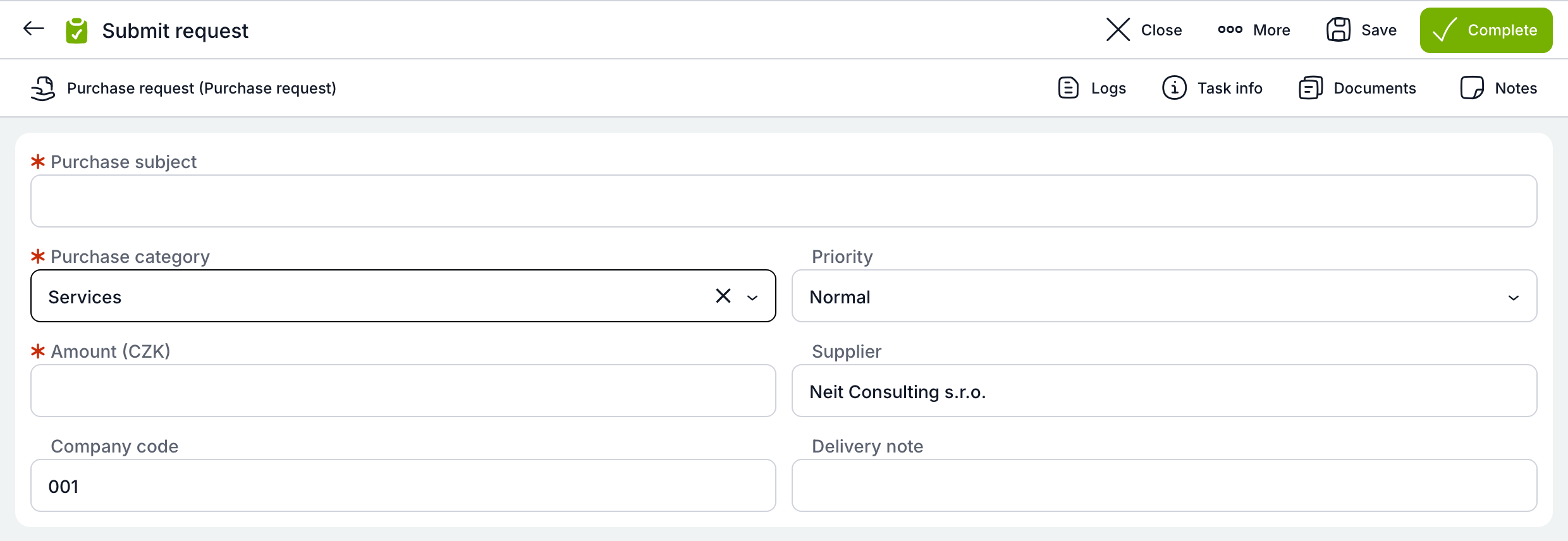
The supplier was filled in from the table chosen by the company code.
Template contents at a glance
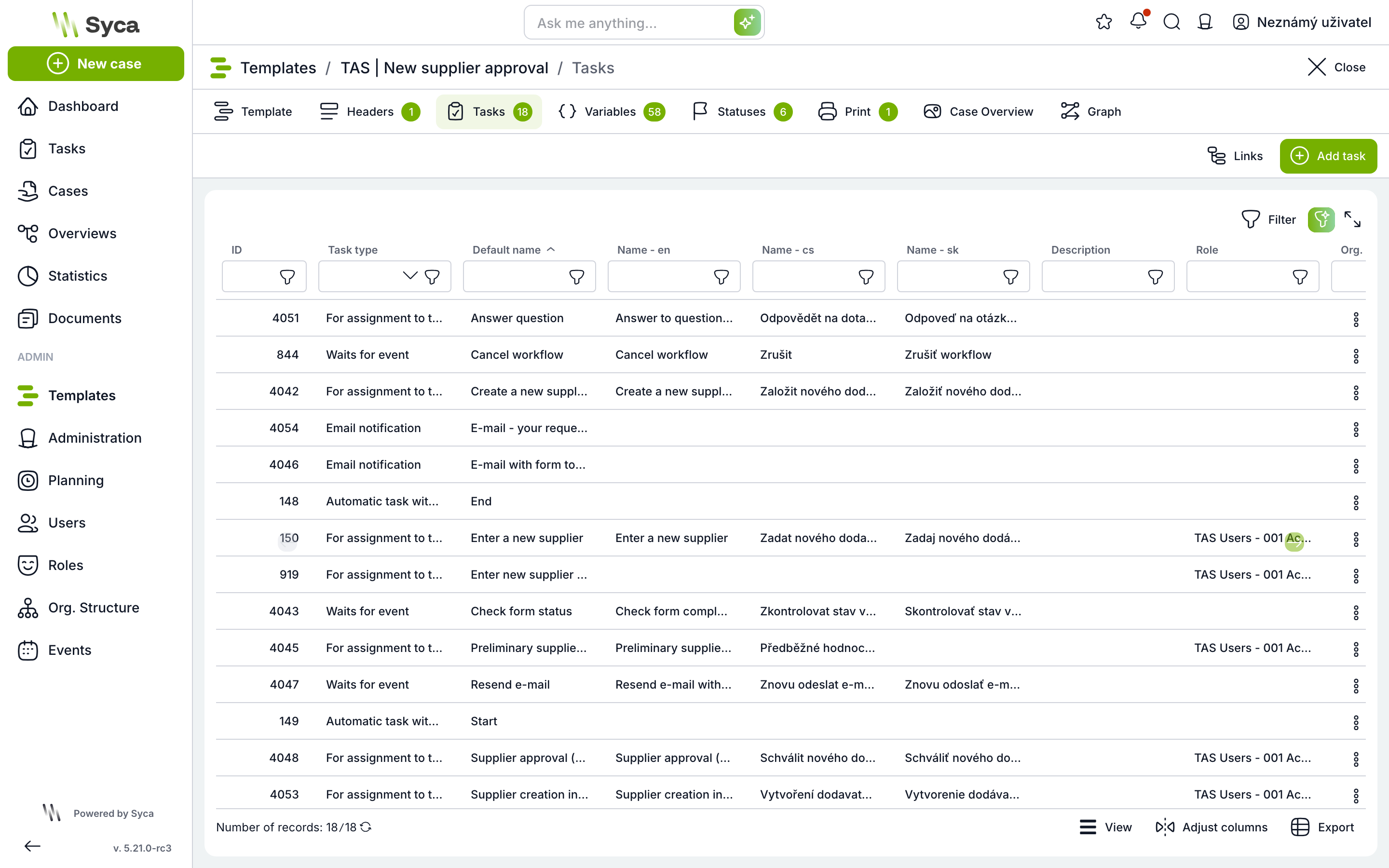
Template editor tabs show how many items they contain – you spot an empty tab or the size of a template right away.
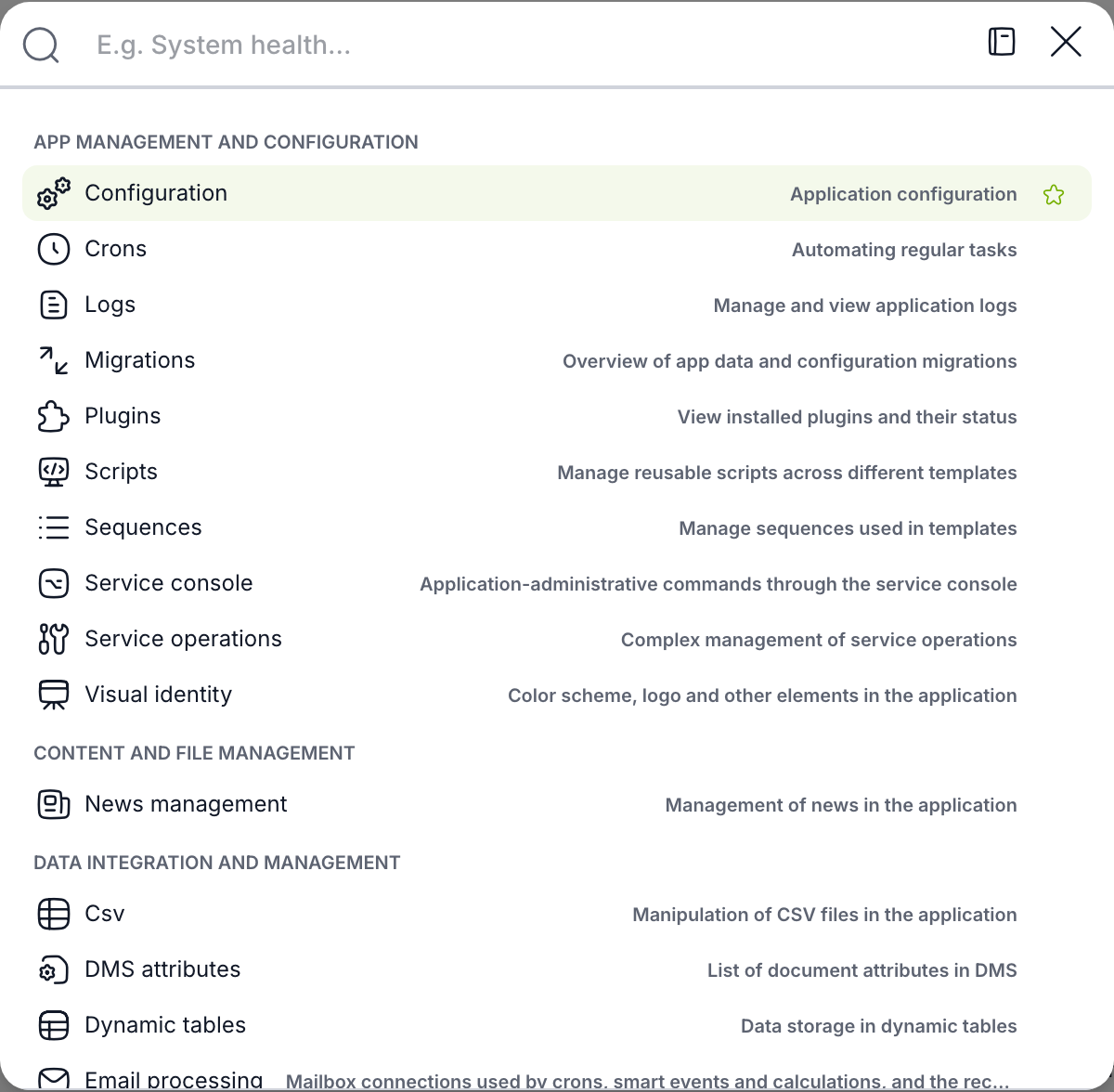
Administration at your fingertips: Ctrl+K
Administration is now reachable from a window opened with Ctrl+K (Cmd+K on a Mac). The cursor is already in the search box – type part of what you are looking for, press Enter and that part of administration opens.
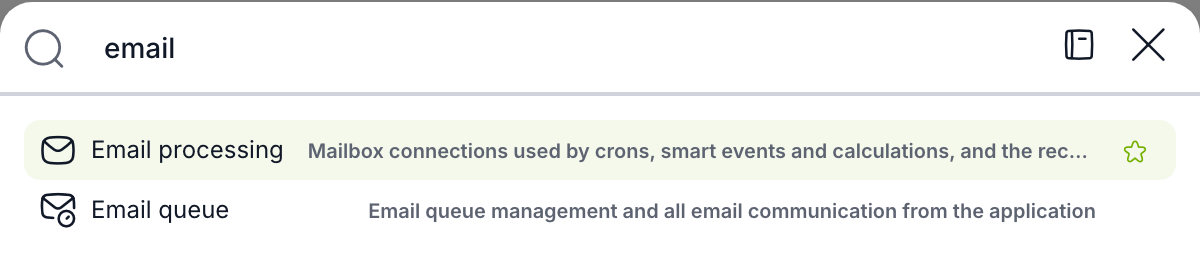
After typing “email”, only the matching sections remain.
See at once what takes effect only after a restart
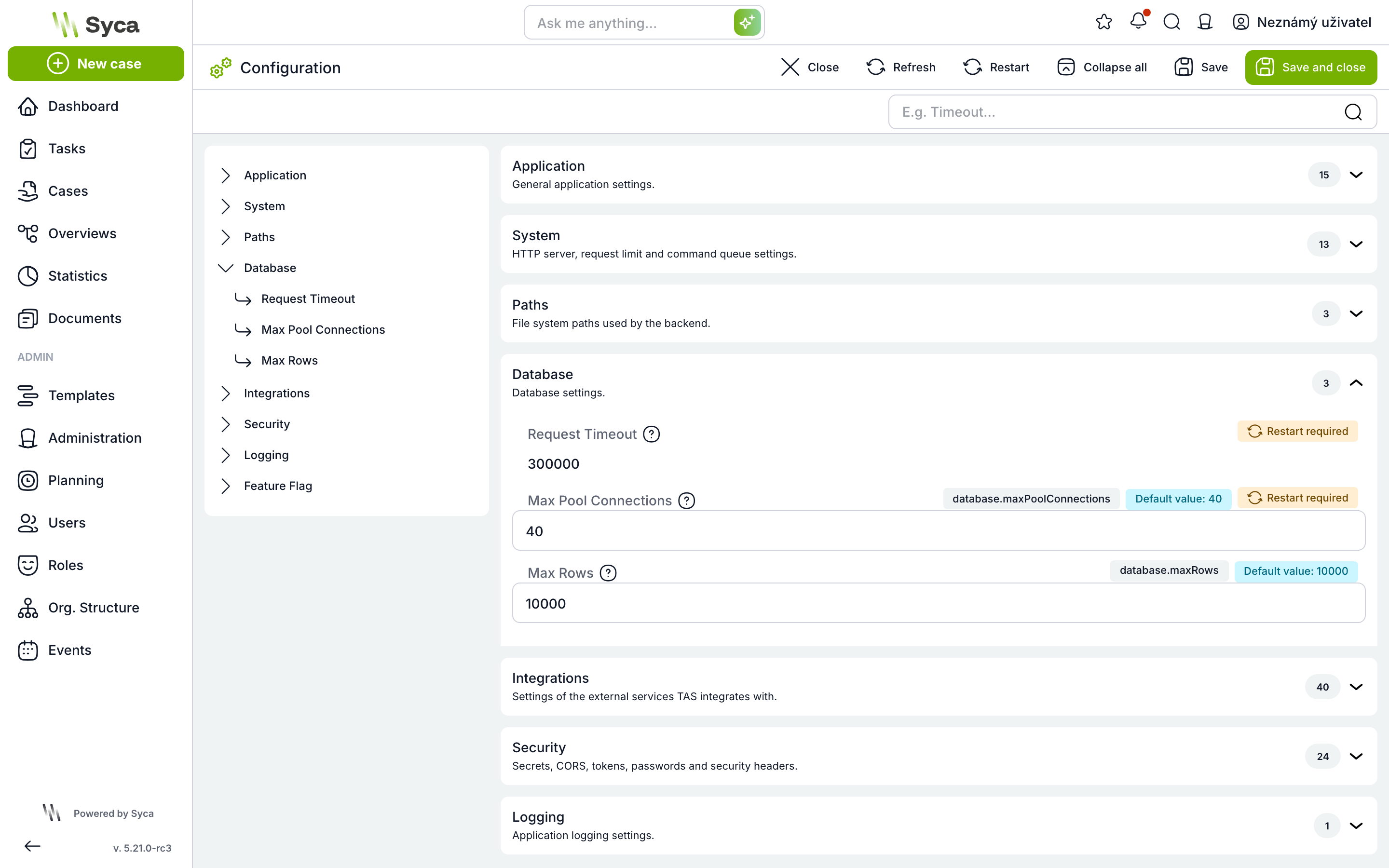
Configuration items that are read only when the application starts (email/SMTP, database connection, request limits) carry a “Requires restart” badge. TAS warns you after you save such a change.
Why doesn’t a user have a role? Diagnostics will tell you
The competence detail has a new Diagnostics button. As a dry run, without touching any data, it shows the whole chain AD group → rule → competence → role → user and compares the roles a user should have with the roles they actually have.
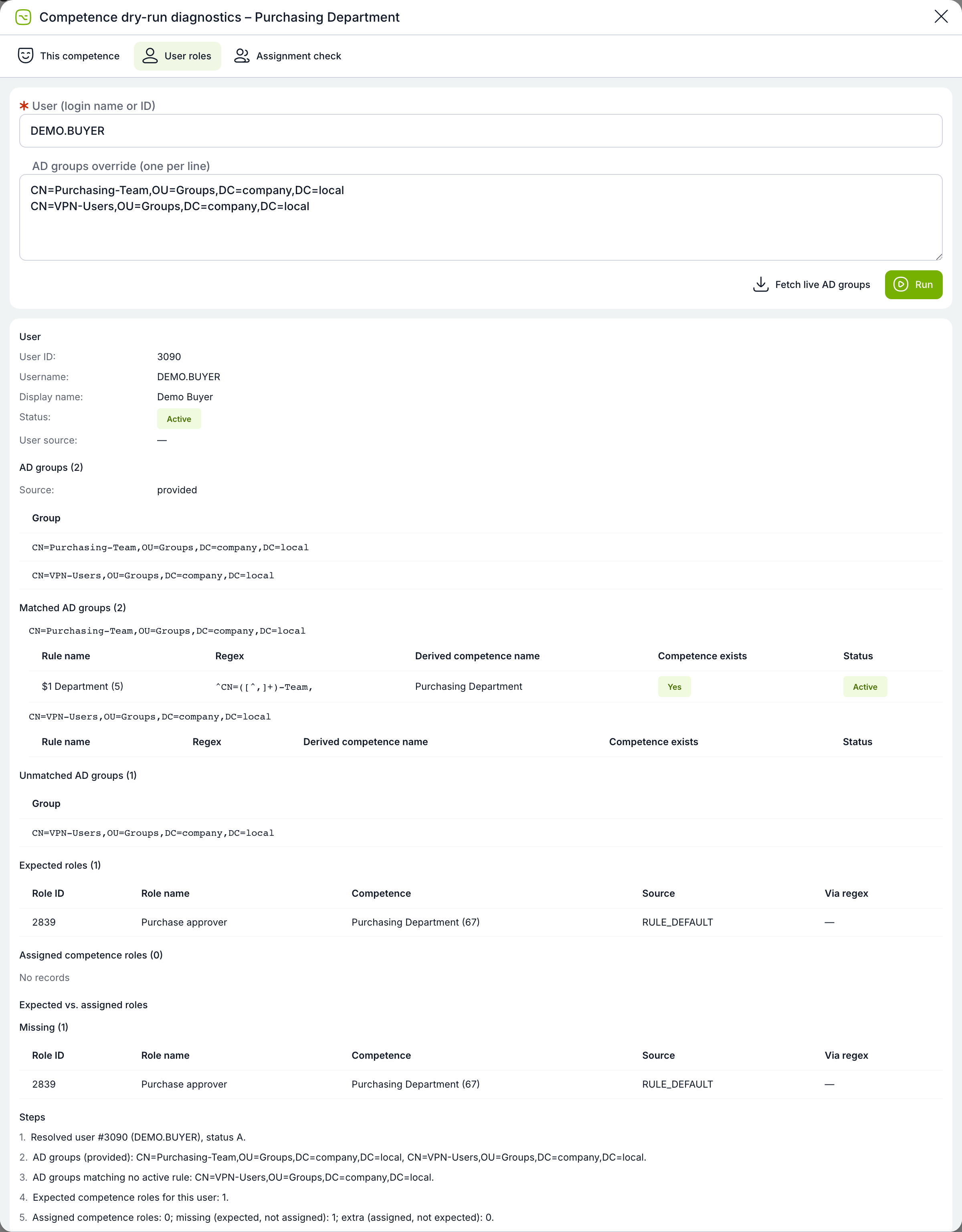
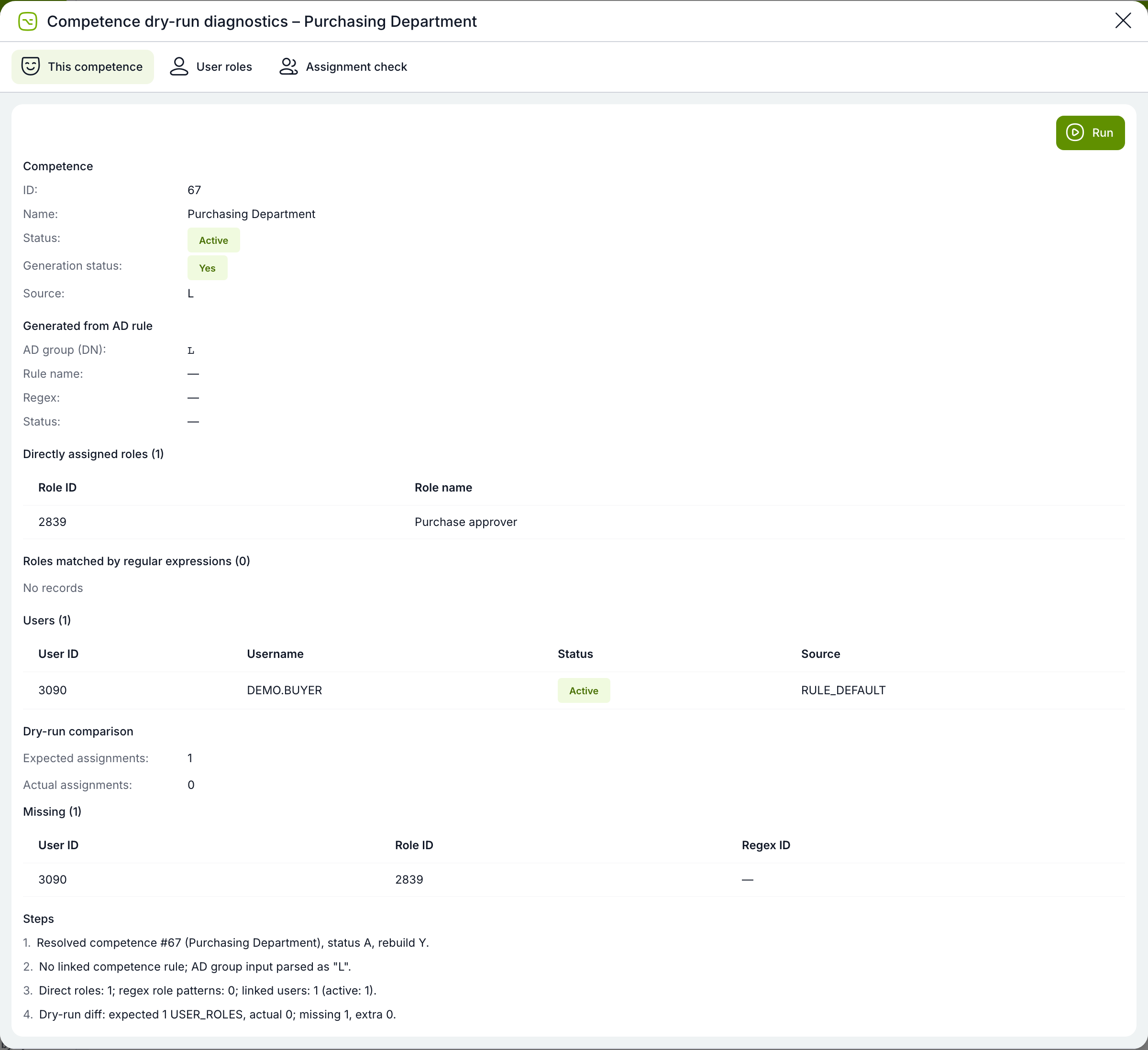
Competence dry run: expected vs. actual assignments.
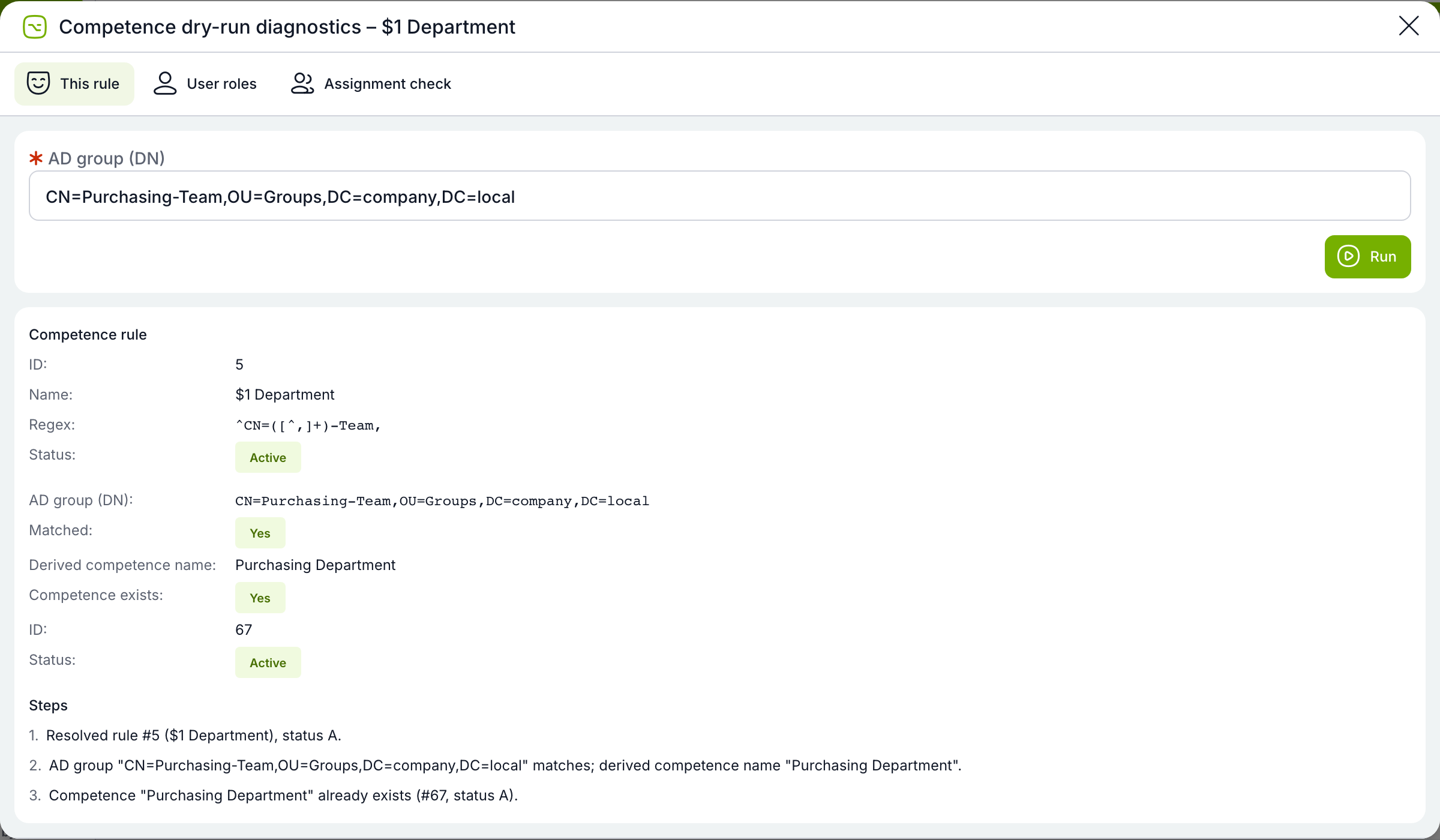
Testing a rule against a specific AD group.
Users from Microsoft Entra ID are created in TAS automatically
TAS supports the SCIM 2.0 standard, so Microsoft Entra ID (Azure AD) or another identity provider manages user accounts automatically – no LDAP sync and no manual setup. A new employee gets an account on their own, name and email changes flow through, and the account is locked when they leave; if they return, the same account is unlocked. Protected accounts (such as ADMIN) are never changed or locked by SCIM.
How to enable:
- In TAS, generate an API token for a system user with the Administrator role (Administration → API access).
- In Entra ID, turn on Provisioning for the enterprise application: Tenant URL
https://<TAS address>/api/scim, Secret token = the generated token. - In attribute mapping, keep first name, last name, display name, work email,
userName,externalIdandactive.
CNB and ECB exchange rates with one smart event
A new smart event fetches the current rate from the Czech National Bank or the European Central Bank and stores the rate – or the converted amount – in a variable. Useful wherever foreign currencies come into play: orders from abroad, travel expenses, invoices.
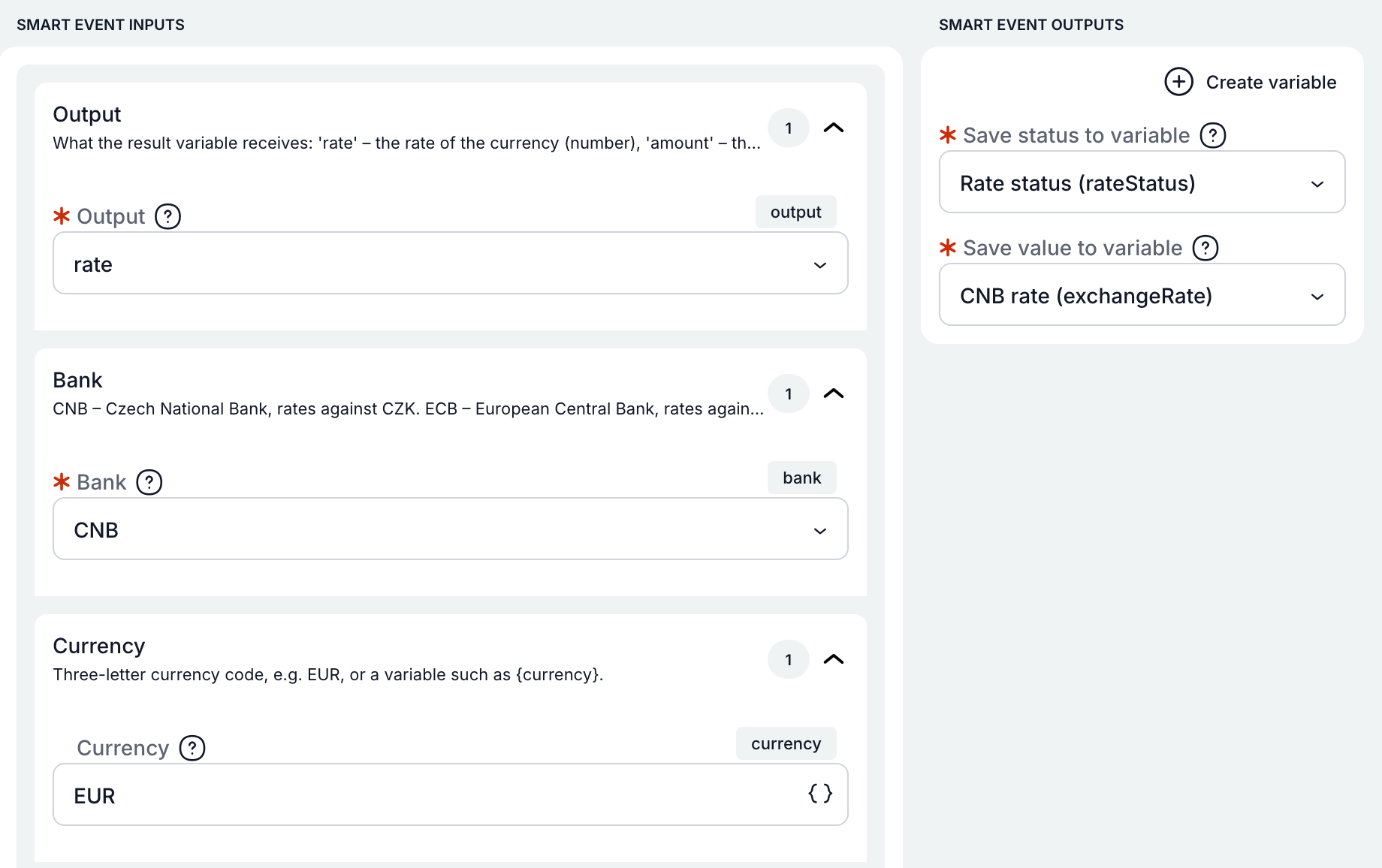
Settings: output rate, bank CNB, currency EUR.
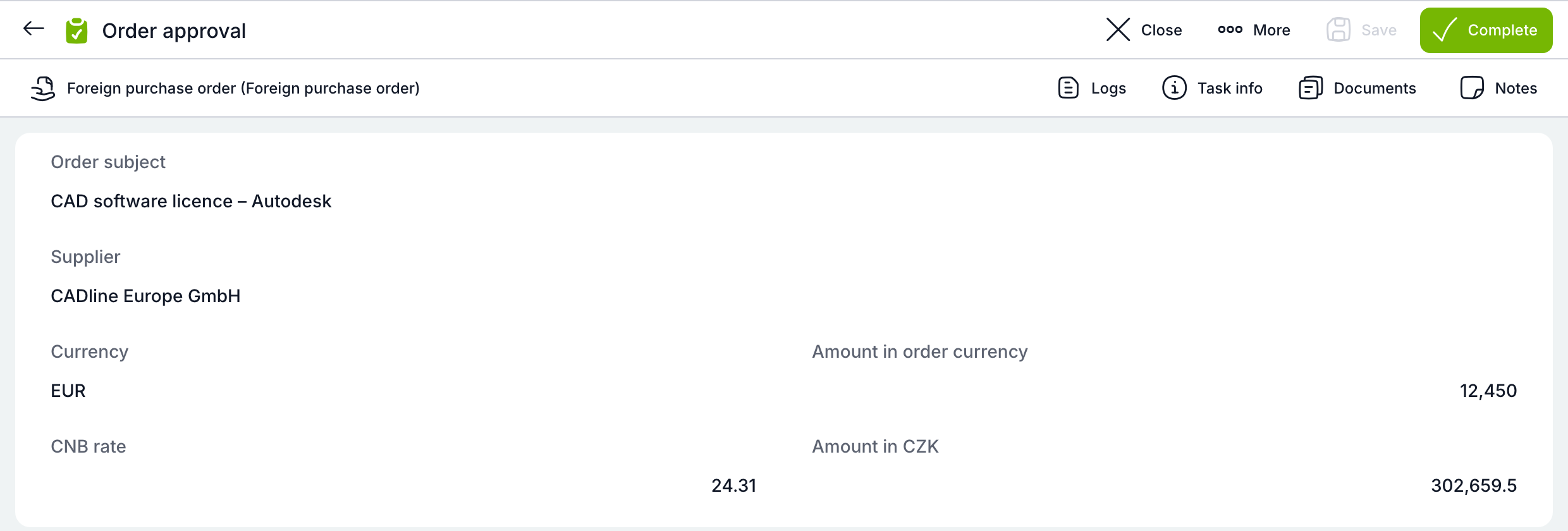
The form shows the current rate and the amount converted to CZK.
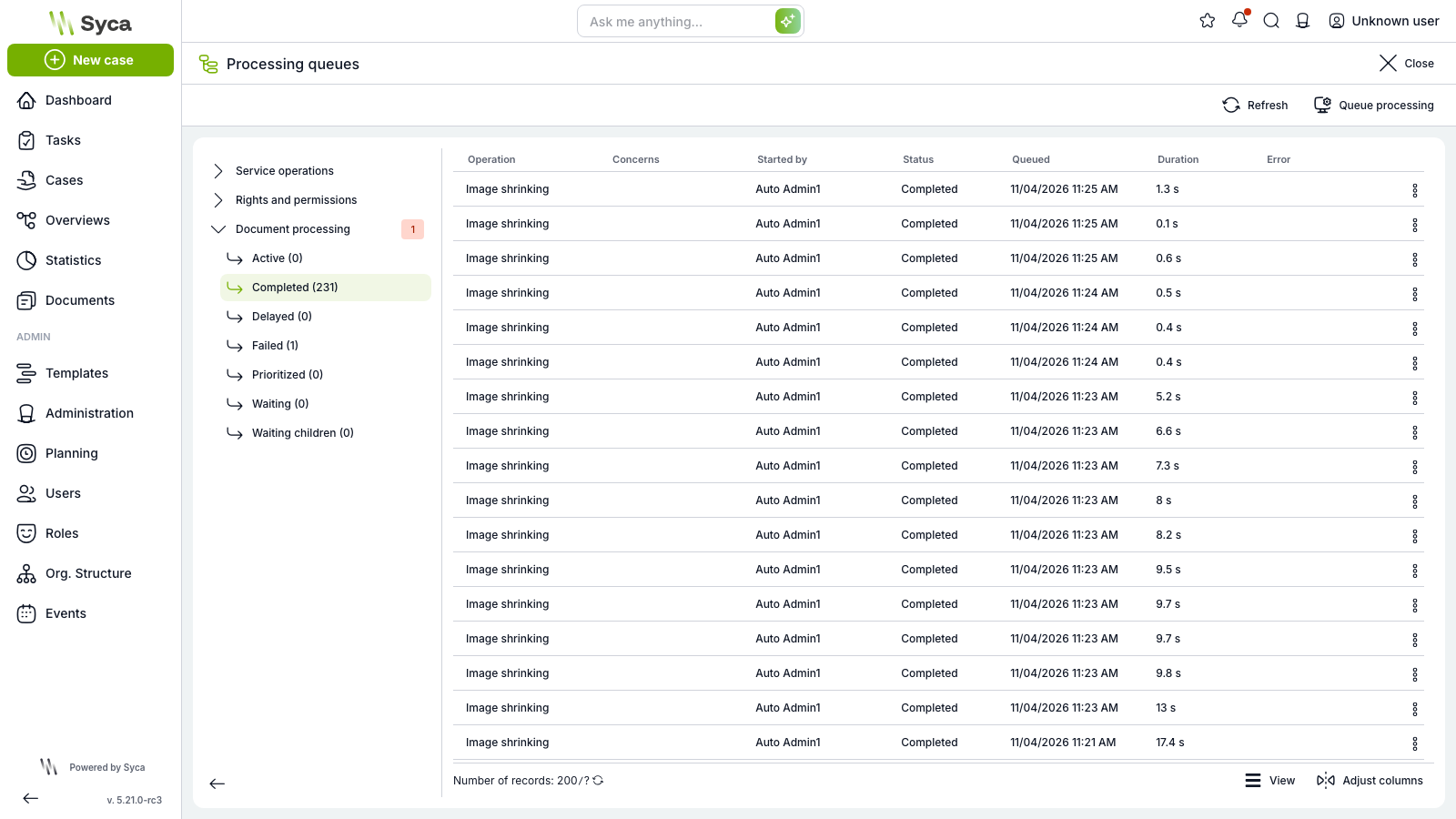
Processing queues and My operations
The new Processing queues screen gives an overview of heavy background jobs, complemented by a My operations view. It currently covers permission recalculations and service operations and will gradually expand to other heavy operations.
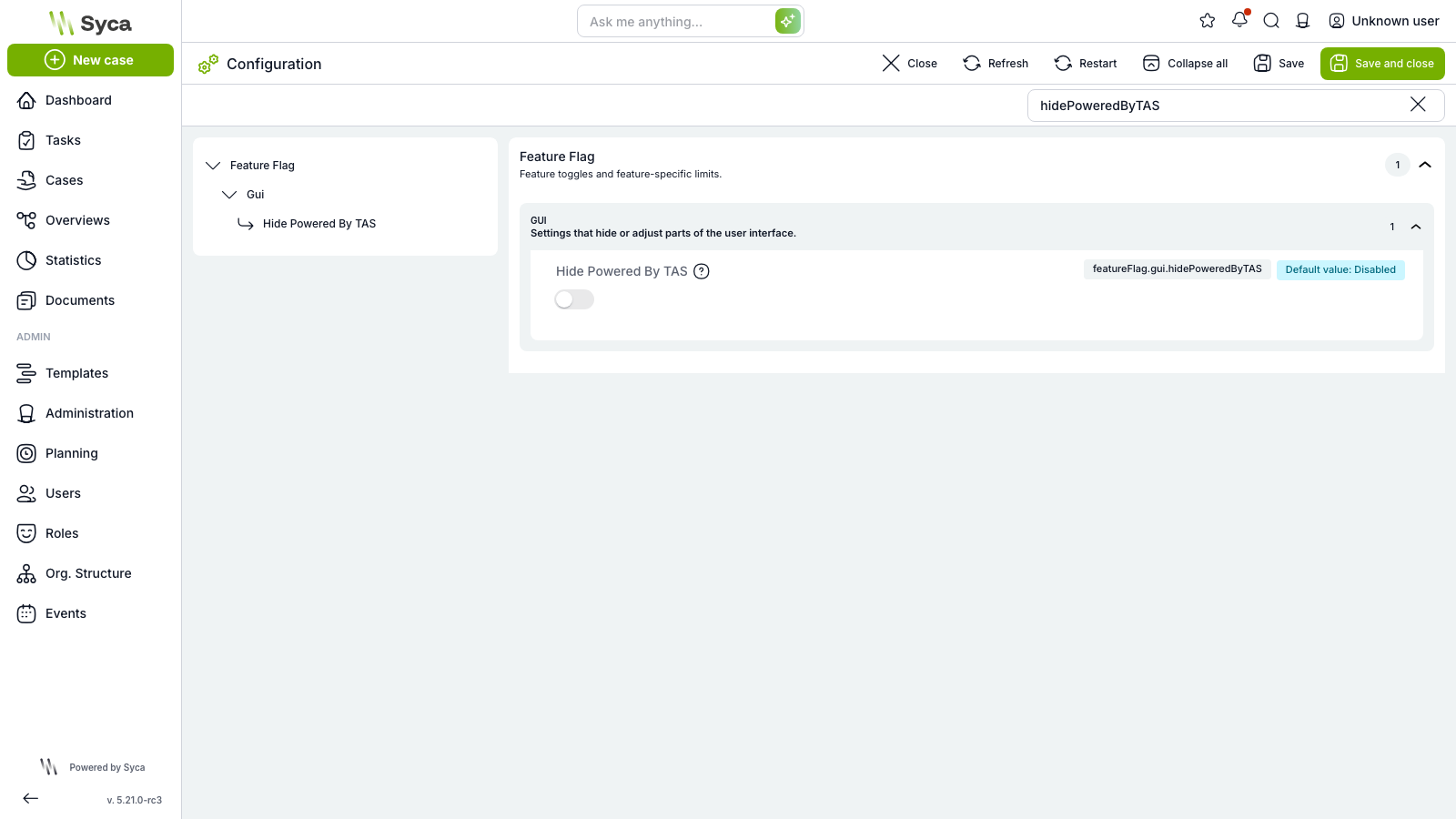
Custom branding
TAS can run under the client’s brand: TAS/Syca branding can be hidden and the application can have its own name.
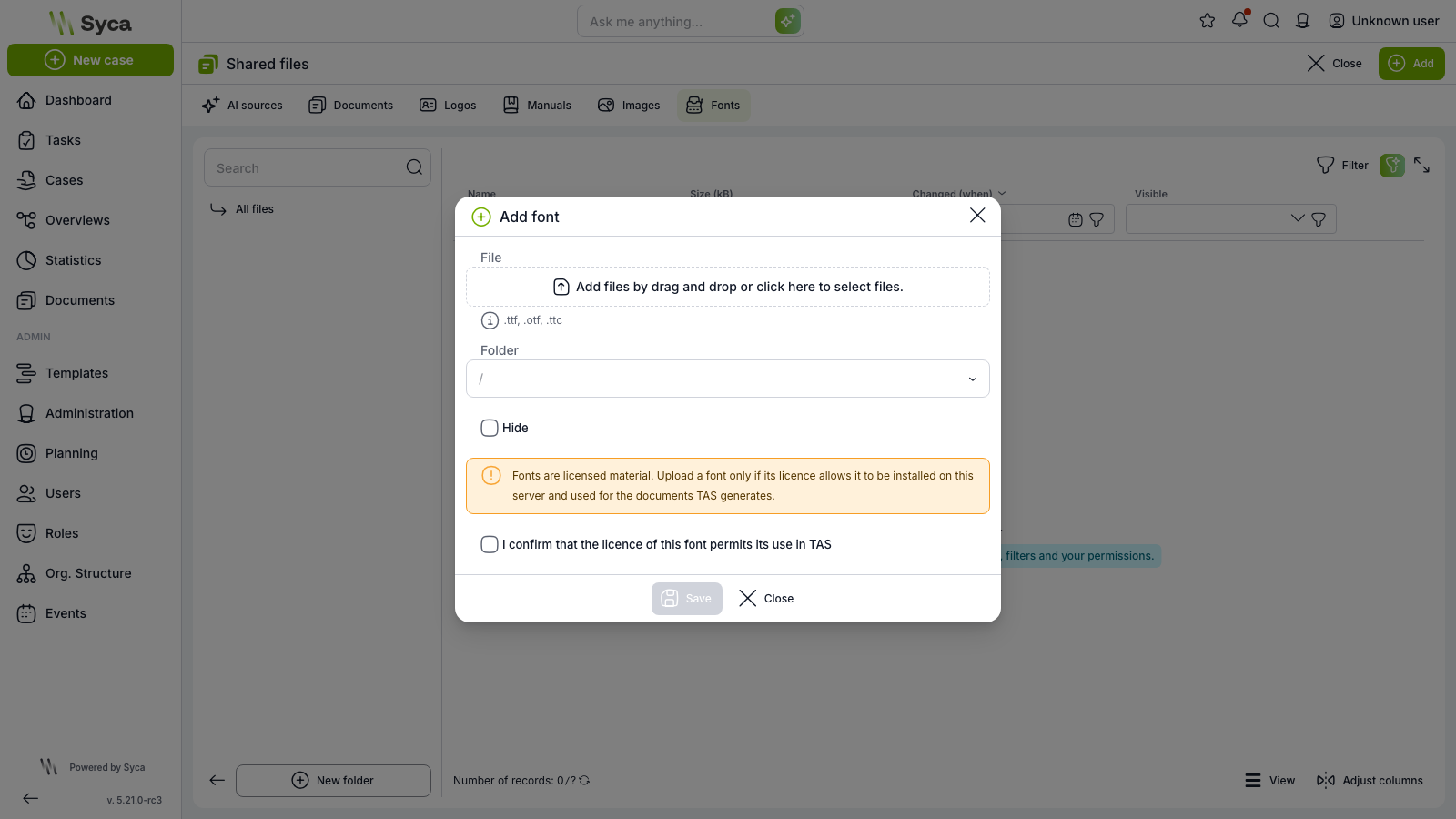
Custom fonts for generated documents
Custom fonts can be uploaded in administration and used when generating documents – typically when a client’s corporate identity relies on a specific typeface.
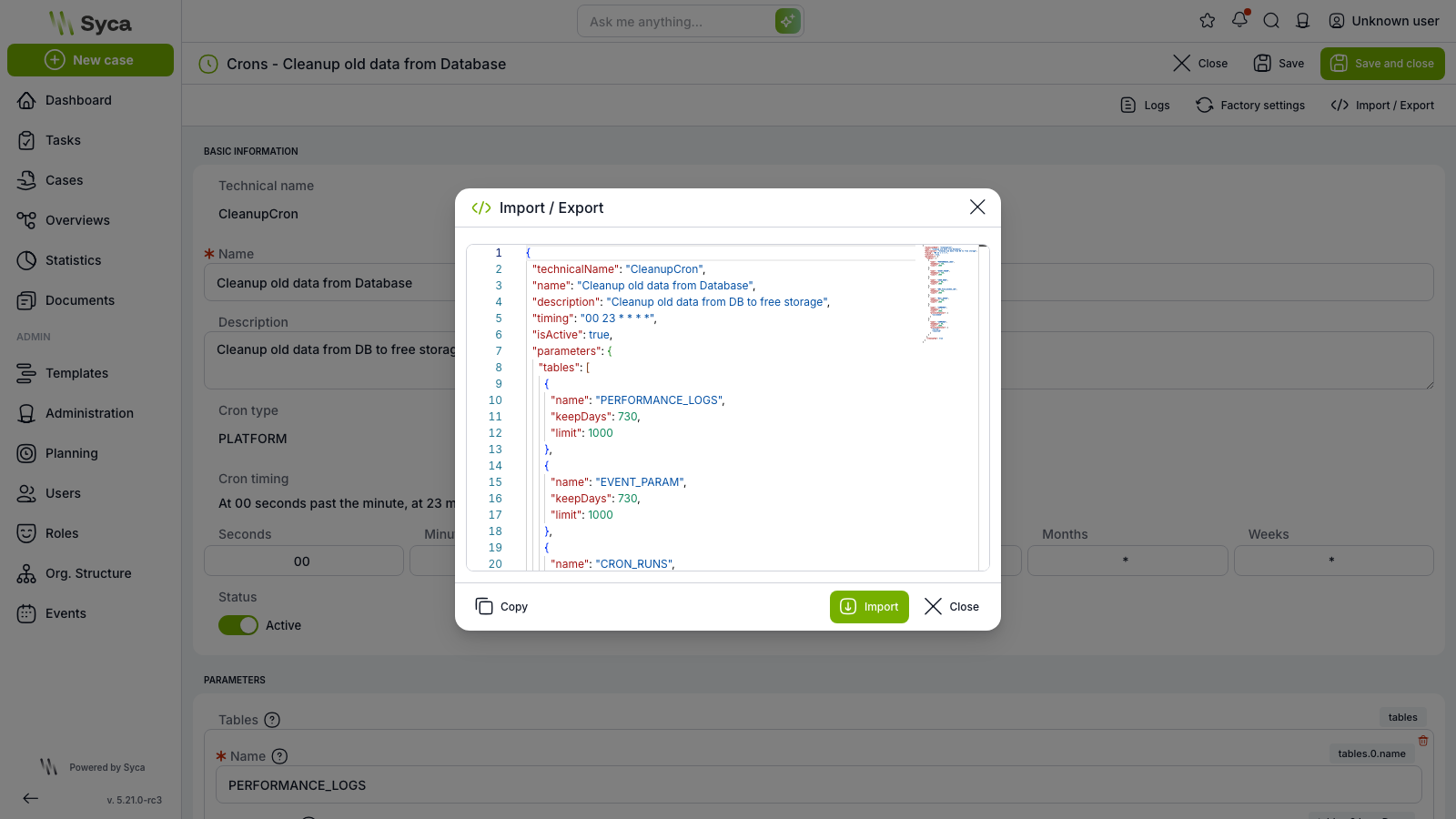
Export and import cron settings
Cron settings can be exported and imported back as JSON, making it easier to move configuration between environments.
Smaller improvements
- System health shows the database server version, monitors Elasticsearch and backend disk space, and adds Error log and Database deadlocks/timeouts cards.
- The cron list shows each cron’s technical name and can activate/deactivate it right from the row.
- Variable assignments (and optionally dynamic conditions) can be imported from another task in the template.
- Dynamic conditions support the Filter function and comparing two date variables.
- The dynamic conditions builder can validate one variable against another.
- Login methods show their ID with a copy button.
- The org. unit tree offers editing right on hover.
- Template linking enforces basic consistency rules – self-loop, pairing, start task.
⚡ Under the hood: performance and storage savings
Much faster overviews
Operation | Before | TAS 5.21 | Speed-up |
Opening an overview | 0.88 s | 0.35 s | 2.5× |
Sorting by name | 9.6 s | 0.4 s | 23× |
Sorting by variable | 35 s | 2.5 s | 14× |
“Contains” filter | 2.2 s | 0.35 s | 6× |
Measured on a database with 358,000 cases.
Photos in documents no longer waste space
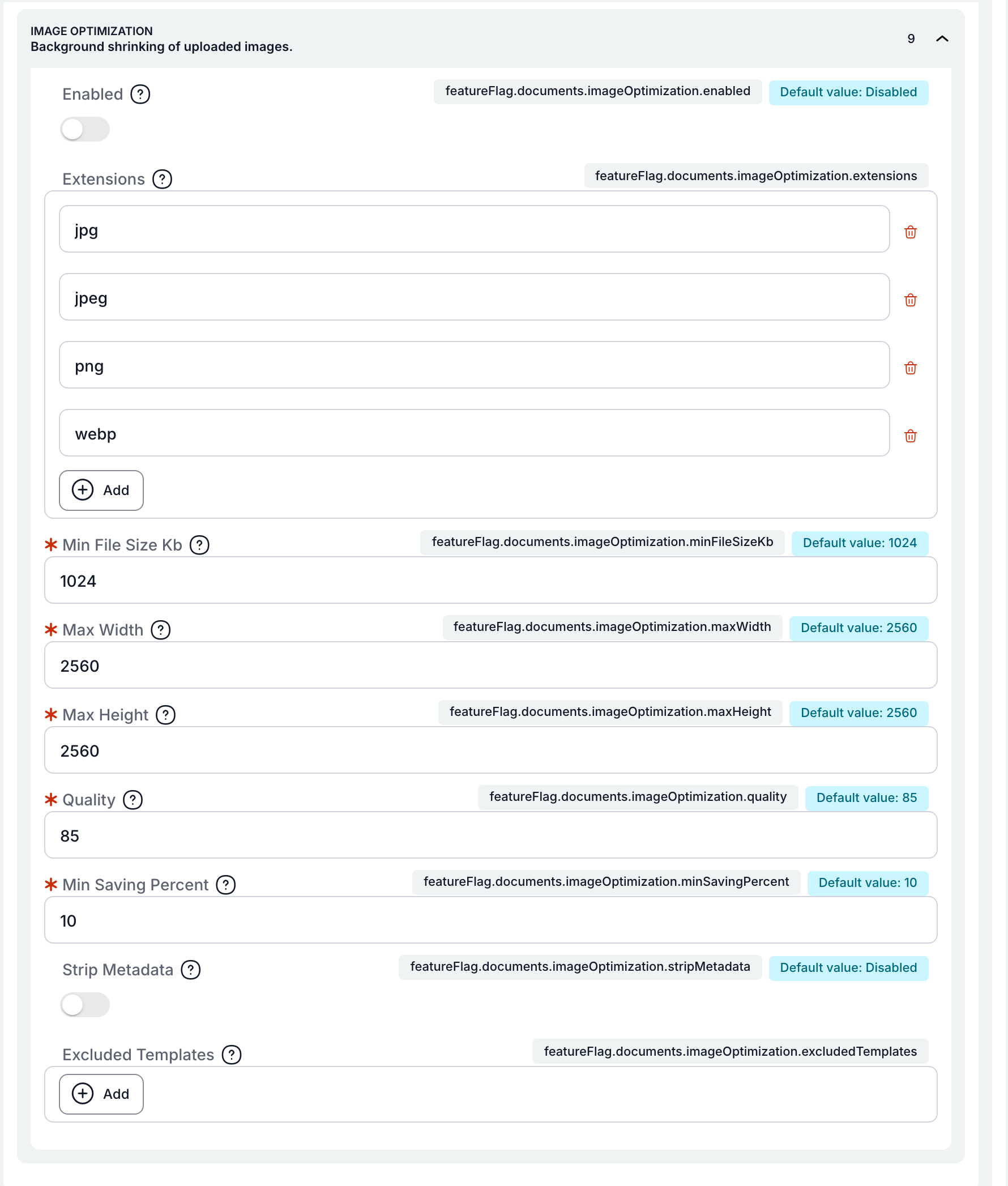
TAS can automatically shrink uploaded photos and images: after upload it scales them to a sensible resolution in the background and recompresses them, so a 10 MB phone photo ends up a fraction of its original size. Users don’t wait for anything and the document keeps its name and preview. Administrators enable the feature in configuration and set the maximum size, quality and templates to exclude.
Example: a 6000 × 4000 px photo of 9.5 MB → 30 kB, stored in 0.5 s (limit set to 500 px).
Security
- Uploading files to documents is better protected against invalid or temporary files.