Task List
The Tasks page shows all tasks assigned to you, tasks you can pull, and tasks from cases you have access to. To open it, click Tasks in the side menu. Every logged-in user can see this page.
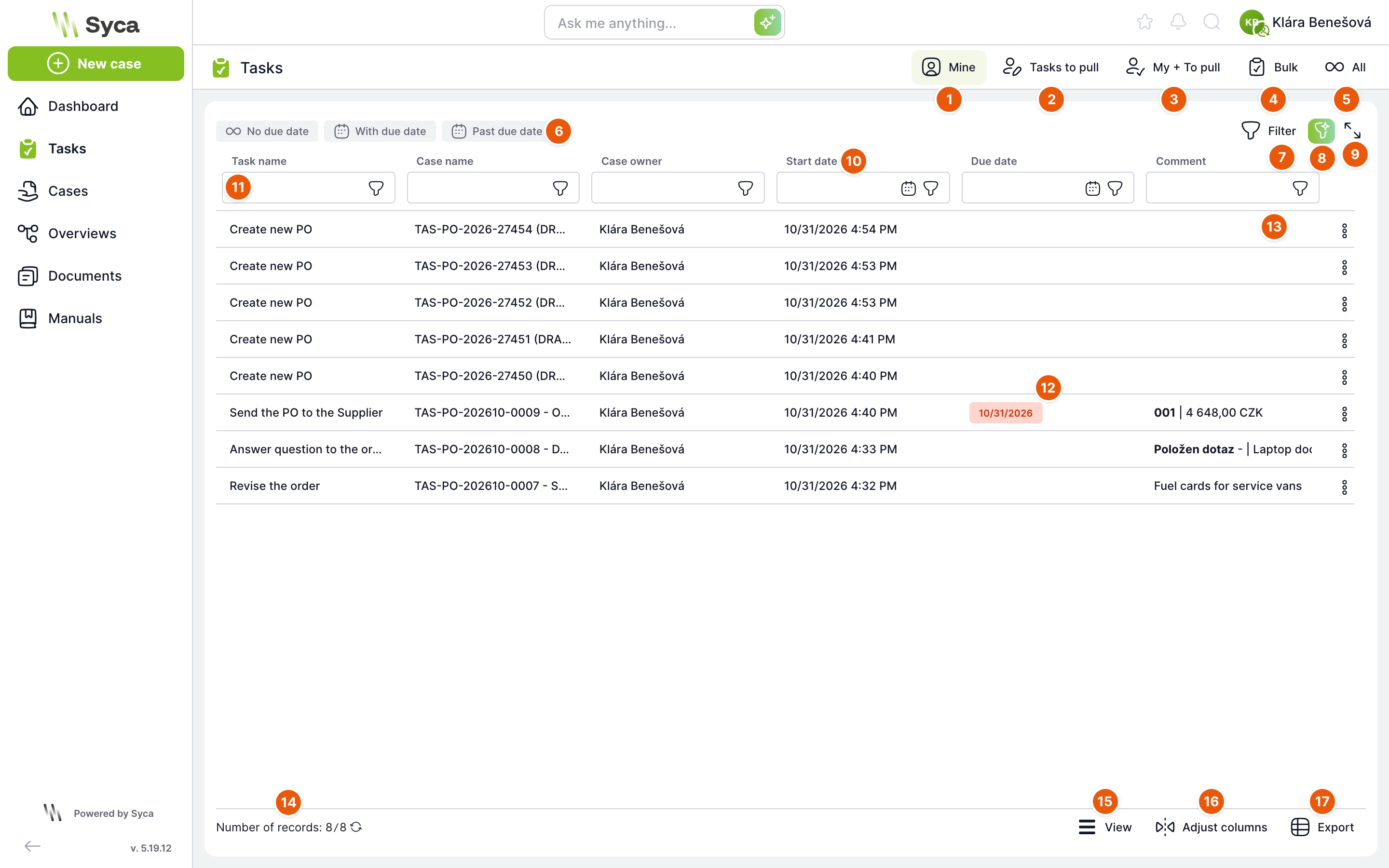
| No. | Element | Purpose |
|---|---|---|
| 1 | Mine | Active tasks assigned to you. This tab opens first. |
| 2 | To pull | Tasks waiting for someone from the group of solvers to pull them. See the article Handing Over, Pulling and Tasks to Pull. |
| 3 | Mine + To pull | Both previous tabs in one list, with an additional Type column. |
| 4 | Bulk | Your tasks that can be completed in bulk. See the article Bulk Tasks. |
| 5 | All | Active and completed tasks in cases you have access to, regardless of who is solving them. |
| 6 | Quick filters | Without deadline, With deadline and Overdue. Click a filter to turn it on, click again to turn it off. |
| 7 | Filter | Opens a window for a more complex filter that you can name and save. |
| 8 | AI filter | A filter entered as a plain sentence. Appears only in installations with AI enabled. |
| 9 | Full screen | Expands the table to fill the whole screen. To return, click the same button or press Esc. The Ctrl+Shift+F shortcut toggles the same view. |
| 10 | Column header | Click a column name to sort by that column. Click again to reverse the order. The arrow shows which column the list is currently sorted by. |
| 11 | Column filter | The field below the column name. Type a value and press Enter. Use the funnel icon to choose a condition. |
| 12 | Overdue deadline | A deadline that has already passed is highlighted in red. |
| 13 | Row actions | A menu of actions for the task in the row. |
| 14 | Record count | How many rows are loaded and how many there are in total. A question mark may appear instead of the total. Click the arrows icon to calculate the total. |
| 15 | View | Row density: Compact, Standard or Comfortable. |
| 16 | Fit columns | Resets column widths you changed by dragging to their defaults. |
| 17 | Export | Downloads the list as a CSV or Excel file. |
The system administrator can hide the All tab (key
tas.hideAllTasks) and the Bulk tab (key tas.hideBulkTasks) in the configuration. If you cannot see one of these tabs, it is disabled in your installation.Tabs
All tabs work the same way. They differ in which tasks they show and in some columns.
| Tab | What it shows | Columns |
|---|---|---|
| Mine | Your active tasks. | Task name, Case name, Case owner, Assigned date, Deadline, Comment |
| To pull | Tasks you can pull. | Same as Mine |
| Mine + To pull | Your tasks and tasks to pull together. | Same as Mine, plus Type (Mine or To pull) |
| Bulk | Your tasks that the template allows to be completed in bulk. Rows have checkboxes. | Same as Mine |
| All | Active and completed tasks in cases you have access to. | Task name, Case name, Solver, Case owner, Status, Assigned date, Deadline, Actual end, Comment |
On all tabs, the list is sorted by assigned date, newest first. More rows load automatically when you scroll to the end of the table.
Mine + To pull
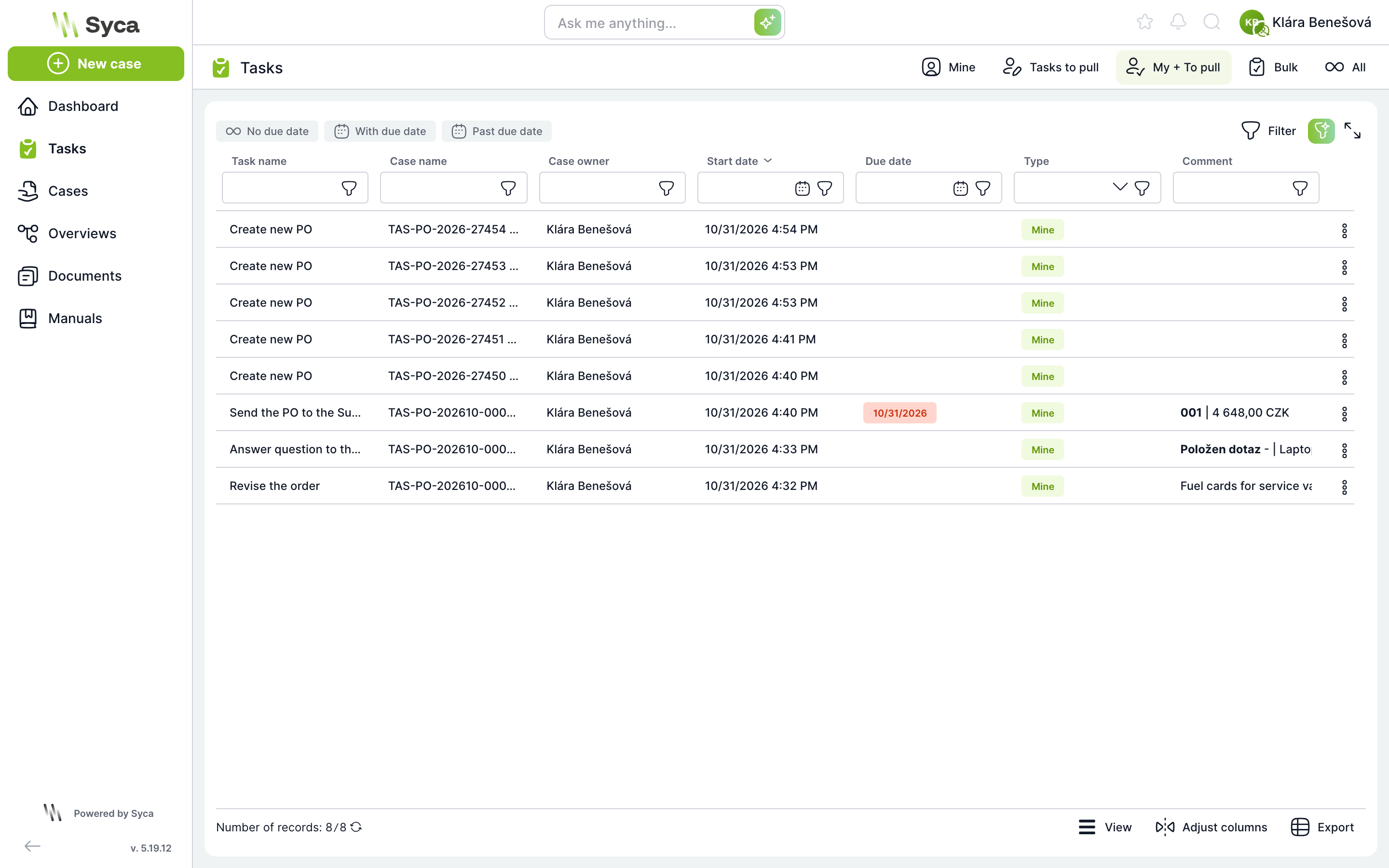
The Type column shows a Mine label (the task is assigned to you) or a To pull label (you can still pull the task) for each row. You can also filter by the Type column.
All
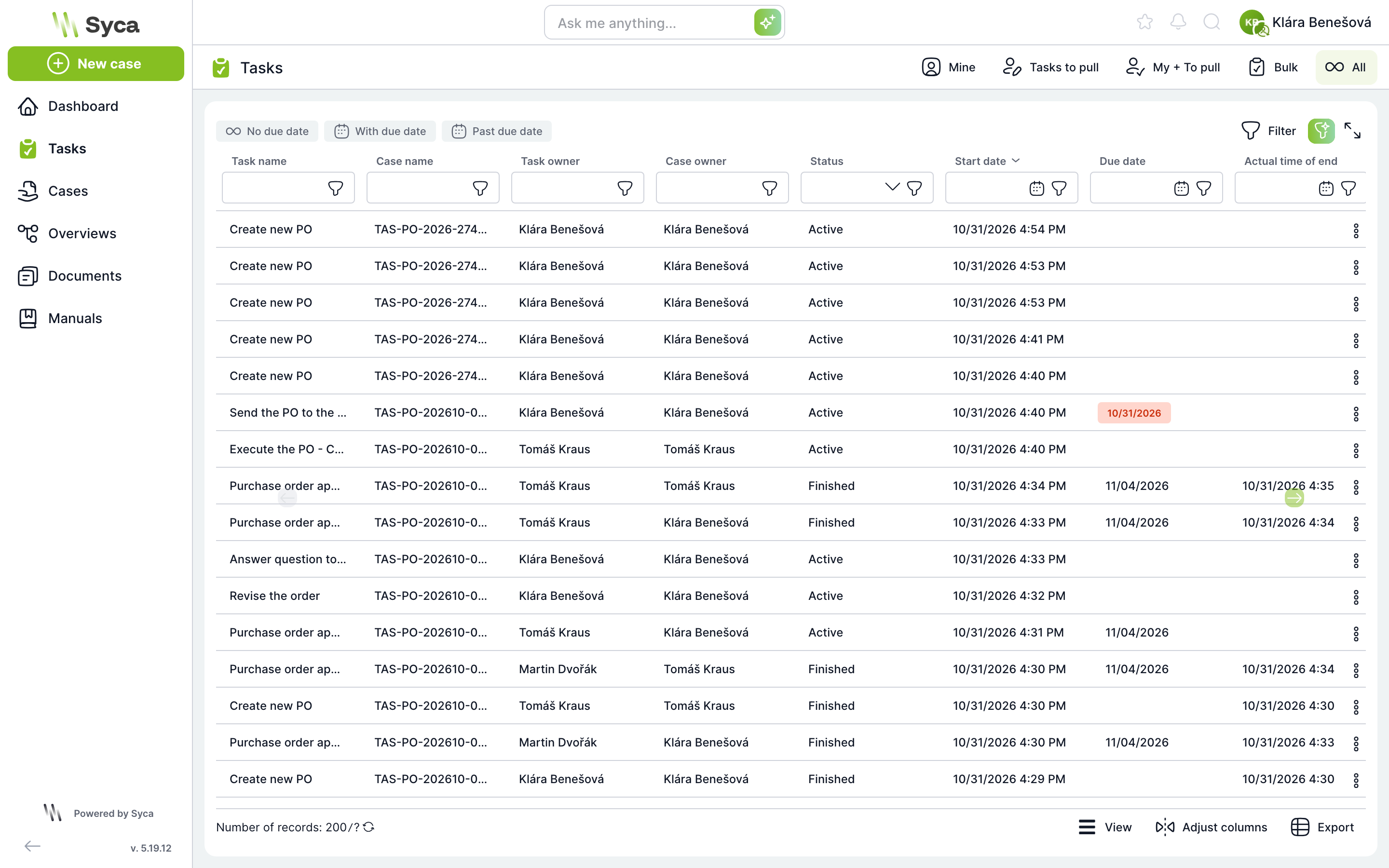
The All tab also shows tasks solved by other people and tasks that are already completed. The Status column has the values Active and Completed. Use the filter in the Status column to show only one or the other. The Solver column shows who is solving the task or who completed it, and Actual end shows when the task was completed.
On this tab, double-clicking a row always opens the task preview in a window, not the full task.
Quick filters
| Filter | What it shows |
|---|---|
| Without deadline | Tasks that have no deadline set. |
| With deadline | Tasks that have a deadline. |
| Overdue | Tasks whose deadline is earlier than today's date. |
Only one quick filter can be on at a time. When you turn on a filter, the Save filter and Clear filters buttons appear on the right. Clear filters turns off all filters at once. Quick filters are not available on the Bulk tab.
Column filters
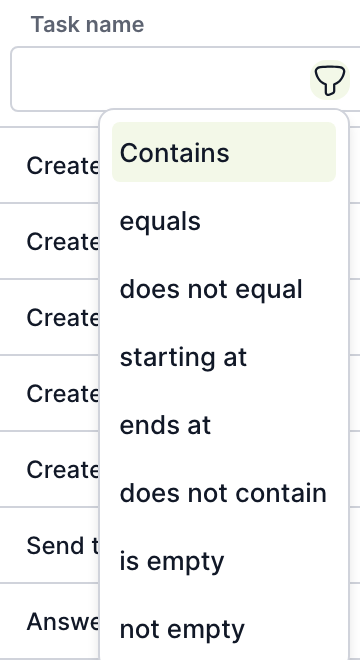
Type the value you are looking for in the field below the column name and press Enter. Use the funnel icon to choose how the value is compared:
| Column type | Conditions |
|---|---|
| Text | contains (default), equals, does not equal, starts with, ends with, does not contain, is empty, is not empty |
| Date | equals, does not equal, greater than, greater than or equal, less than, less than or equal, is empty, is not empty, from - to |
| Selection (Status, Type) | Is, Is not |
In date columns, the calendar icon opens a date picker. Besides a specific day, you can also choose a relative date, such as Today, Yesterday or Start of month. Filters in multiple columns apply at the same time.
Filter window
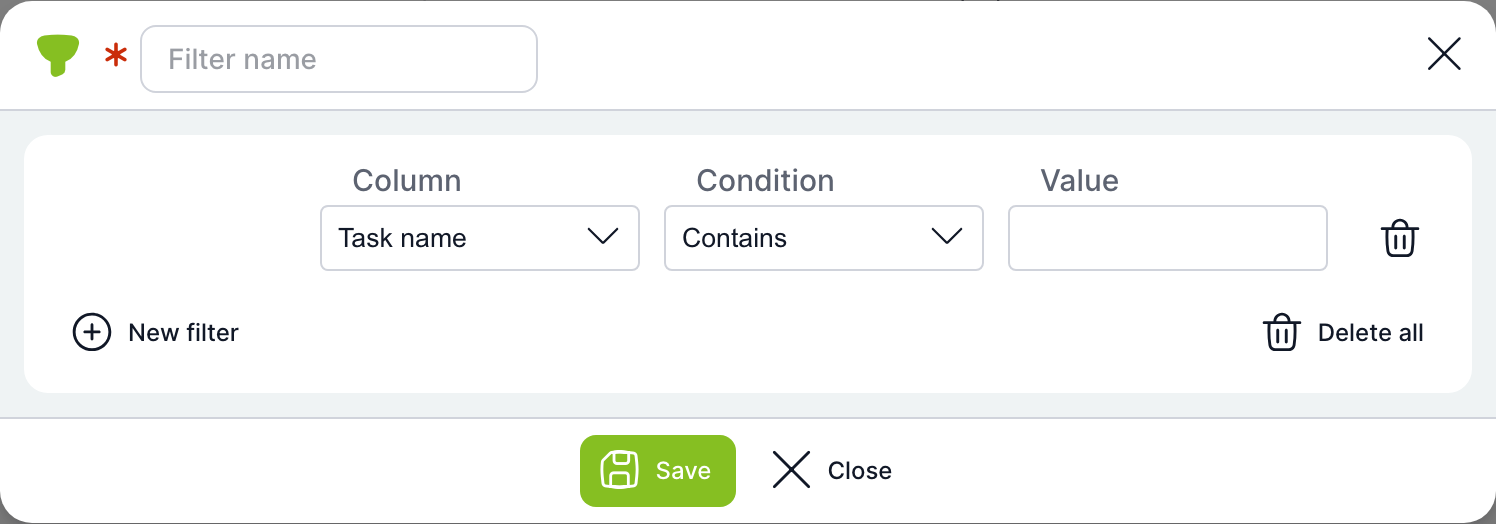
The Filter button opens a window where you can build a filter from multiple conditions and save it under your own name.
| Field | Purpose |
|---|---|
| Filter name | The name the filter is saved under. This field is required. |
| Column | The column to filter by. |
| Condition | The comparison method, with the same options as the column filter. |
| Value | The value you are looking for. |
| Trash icon in a row | Removes one condition. |
| New filter | Adds another condition. |
| Delete all | Removes all conditions. |
| Save | Saves the filter and applies it immediately. |
| Close | Closes the window without saving. |
A saved filter appears as another button next to the quick filters. Saved filters belong to you; other users cannot see them. Click the button to turn the filter on or off. Click the icon on the button to open the window again and edit or delete the filter.
Row actions
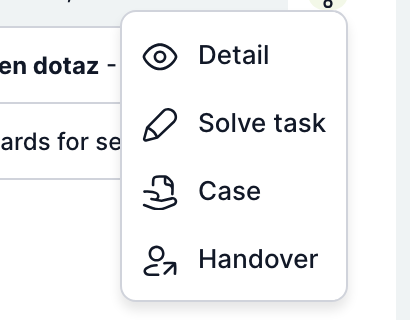
Open the menu with the three-dot icon at the end of the row. The items in the menu depend on the tab. An item you are not currently allowed to use is greyed out.
| Action | Purpose | Where available |
|---|---|---|
| Detail | Opens the task preview in a window without leaving the list. | All tabs |
| Solve | Opens the task for solving. | Mine, Mine + To pull (your tasks only), Bulk |
| Case | Opens the case the task belongs to. | All tabs |
| Hand over | Hands the task over to another user. Available only to users allowed to hand over the task. | Mine, Mine + To pull, All |
| Pull | Assigns the task to you. | To pull, Mine + To pull (tasks to pull), All |
You can also open a task with the mouse and keyboard:
- Double-clicking a row opens the task for solving. If you cannot solve it, it offers to pull it (for a task to pull) or opens the preview.
- Enter on a selected row does the same as double-clicking. Space always opens the preview in a window.
- Clicking with the middle mouse button opens the task in a new browser tab.
Task preview
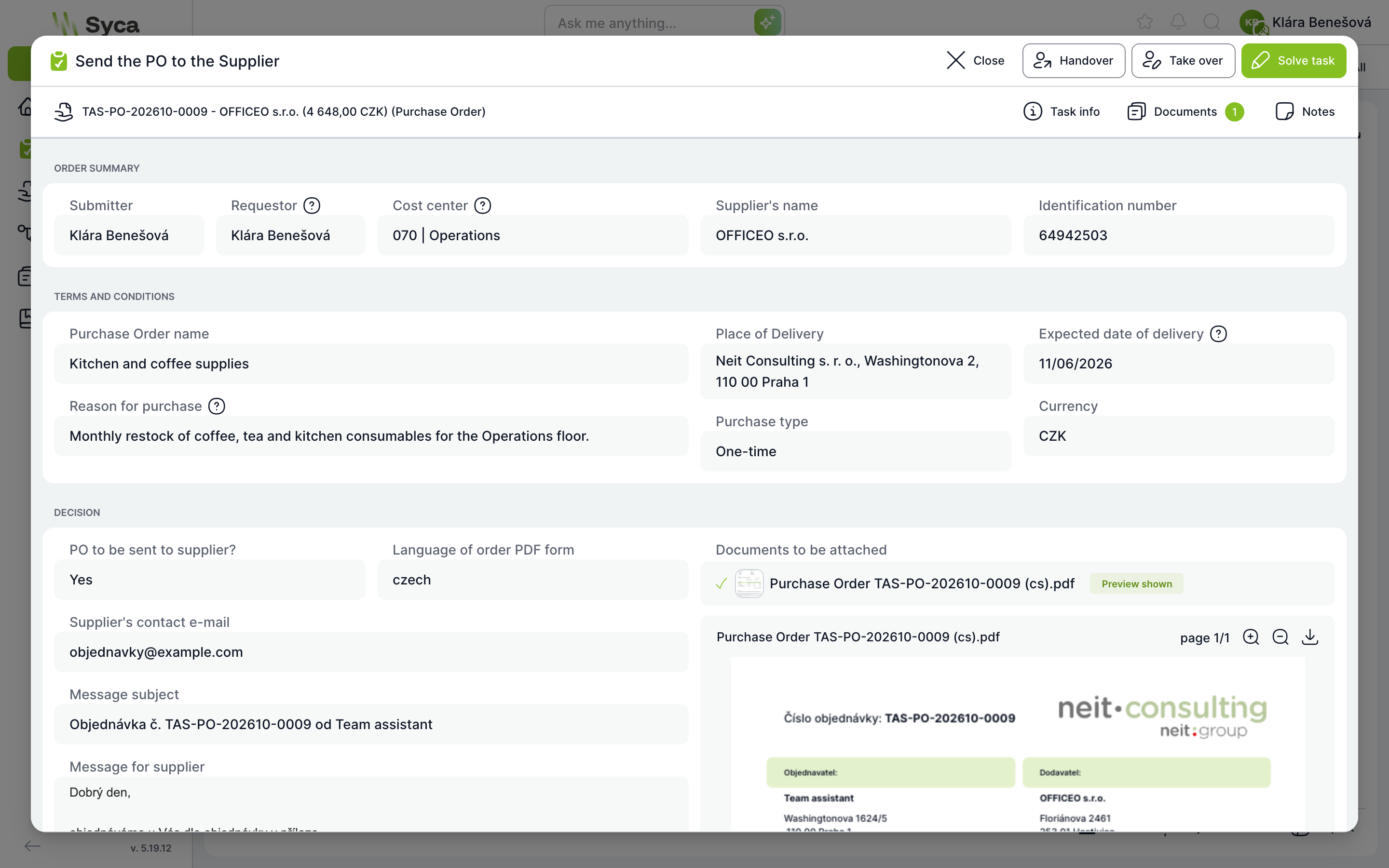
The preview shows the task form as read-only. The header contains these buttons:
| Button | Purpose |
|---|---|
| Close | Closes the preview. |
| Hand over | Opens the window for handing over the task. Appears only if you are allowed to hand over the task. |
| Pull | Assigns the task to you. Appears only if you are allowed to pull the task. |
| Solve | Opens the task for solving. If you are not allowed to solve the task, the button is called Open and opens the task for viewing only. |
Below the header are the same buttons as in the task: Task information, Documents and Notes. They are described in the article Solving a Task.
View and export
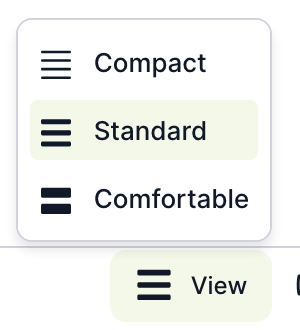
The View button sets the row height. Compact shows the most rows at once, Comfortable the fewest.
To change a column's width, drag its edge in the header. The Fit columns button resets all widths to their defaults.
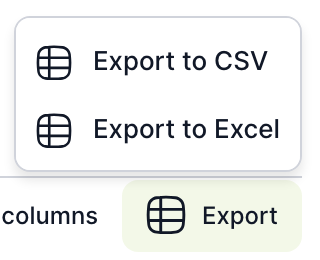
The Export button downloads the tasks from the current tab as a CSV or Excel file. The export respects active filters and sorting, so you download exactly what you see in the list.
Related: Solving a Task, Handing Over, Pulling and Tasks to Pull, Bulk Tasks.