Events and Rules
An event is a named signal sent by a template task. Rules are attached to an event and run when the event is sent: they start a new case, wake up a waiting task, load data from a CSV file or run a script. Events and their rules are managed by an administrator (role $Administrator) on the Events page in the main menu.
How events are fired
| Who sends the event | How it works |
|---|---|
| Event task | When the process reaches an Event task, the task sends the event selected in its settings and completes immediately. In the task, set Run event: immediately (the rules run right away within the task) or in the background (the rules are processed by the PostponedTaskCron cron). In the task's Variable assignment, you specify which case variables are passed with the event; the rules can then map them. |
| Wait for event task | A task waiting for an event wakes up when the event is sent, and the process continues. When you save such a task, TAS automatically adds a wait-type rule to the event (shown in the rule list with the task as its value), so on the Events page you can see who is waiting for the event. The task can either select an event or have one created automatically. |
| User via button | A waiting task can also be woken up manually. A user who is allowed to solve the task triggers it in the case detail with the Event button (or in the case list). If the task has Show as button in task overview enabled, it is also offered as a button. An external system can do the same via the REST API. |
| Subprocess | When saved, a Subprocess task creates two system events: $SUBP_<ID úkolu> with a Start process rule (starts the subprocess case and passes variables to it) and $SUBR_<ID úkolu> with a Reply to event rule (returns variables to the parent case when the subprocess completes). |
The
$SUBP_… and $SUBR_… events are managed by TAS itself based on the subprocess task and are not shown in the Events list. You set up subprocess variable mapping in the subprocess task, not here. The number in the name is the template task ID. Wait rules ($EVEW_<ID úkolu>) are created and removed according to Wait for event tasks; do not edit them manually.Event list
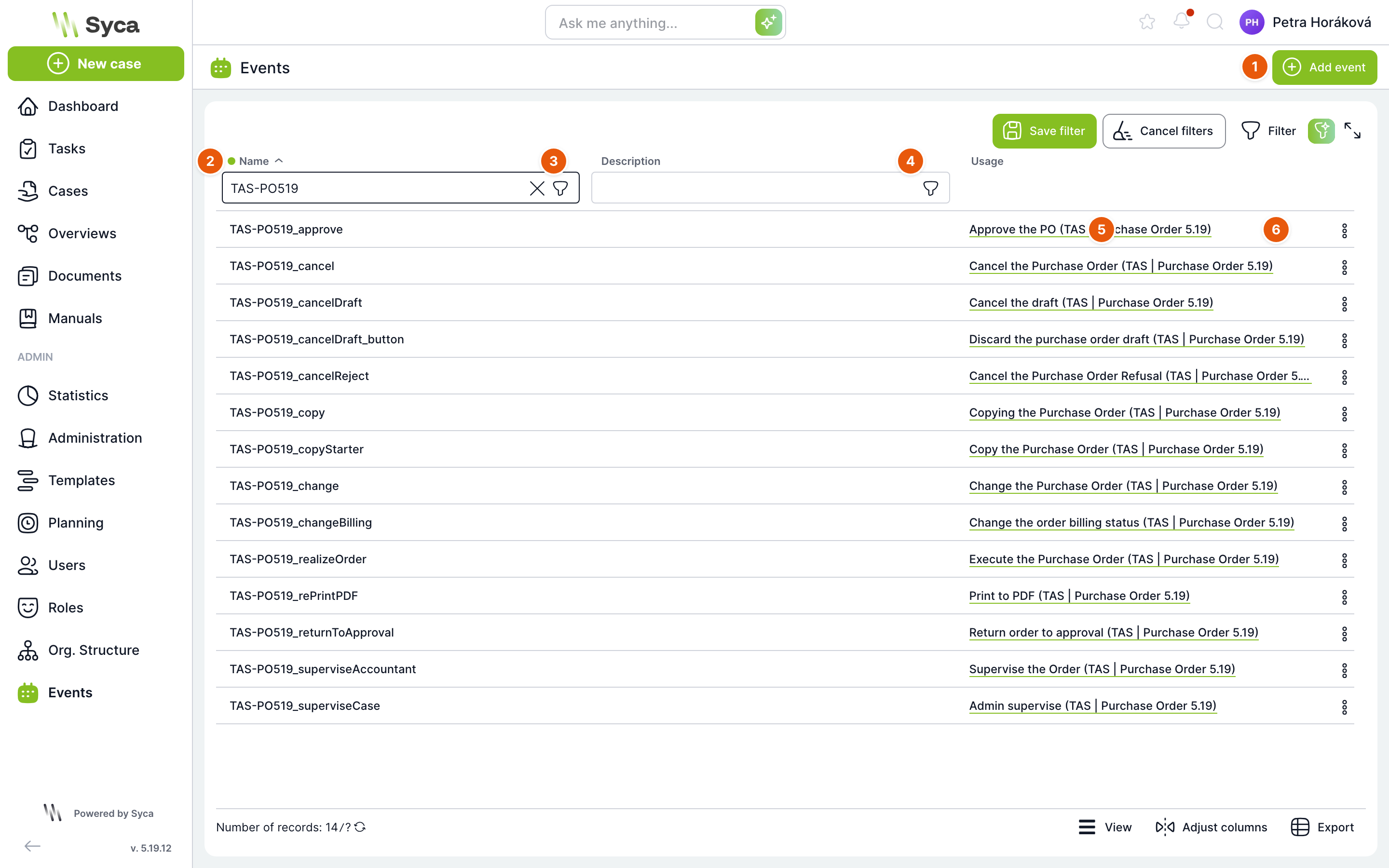
The image shows the list filtered to the events of the Purchase Order template (name starts with TAS-PO519).
| No. | Element | Purpose |
|---|---|---|
| 1 | Add event | Opens the New event window. |
| 2 | Name | Name of the event. Template tasks refer to the event by this name. Can be filtered; the list is sorted by it by default. |
| 3 | Name filter | Filter field for the Name column. An active filter is indicated by a green dot in the header, and Save filter and Clear filters appear next to the Filter button. |
| 4 | Description | Optional description of the event. Can be filtered. |
| 5 | Usage | Tasks that send or wait for the event, in the form task (template). Click the link to open the task in the template editor. |
| 6 | Row actions | Edit opens the event detail (double-clicking the row does the same), Delete removes the event after confirmation. Pressing the Delete key on a row also offers deletion. |
The footer contains Record count, View, Customize columns and Export; the top bar contains Filter, AI filter and Full screen.
New event
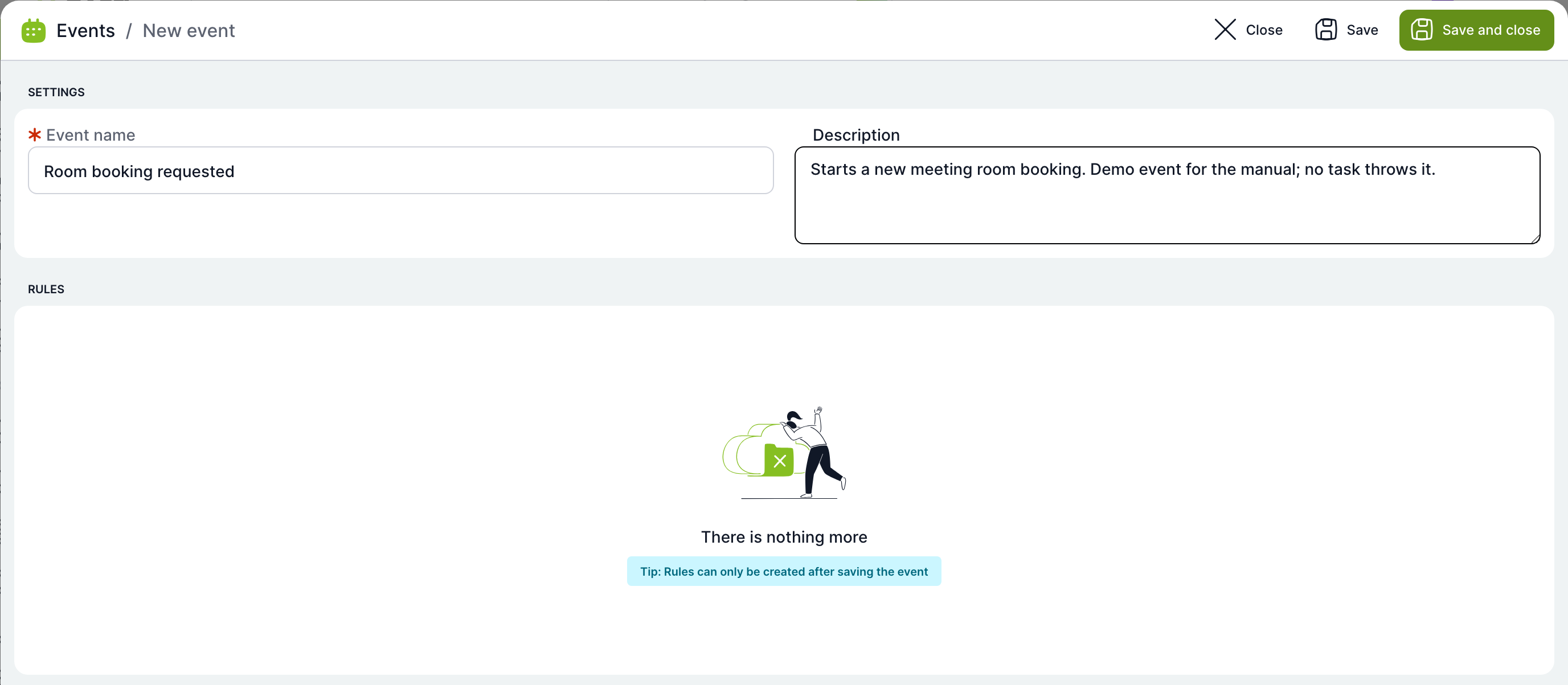
| Field | Purpose |
|---|---|
| Event name | Required. A unique name, for example Room booking requested. |
| Description | Optional description of what the event is for and who sends it. |
| Rules | Rules can only be created after the event is saved. After Save, the window stays open and a rule table with the Add rule button appears. |
| Close / Save / Save and close | Closes the window (TAS offers to save unsaved changes), saves and keeps the window open, or saves and closes. |
Event detail
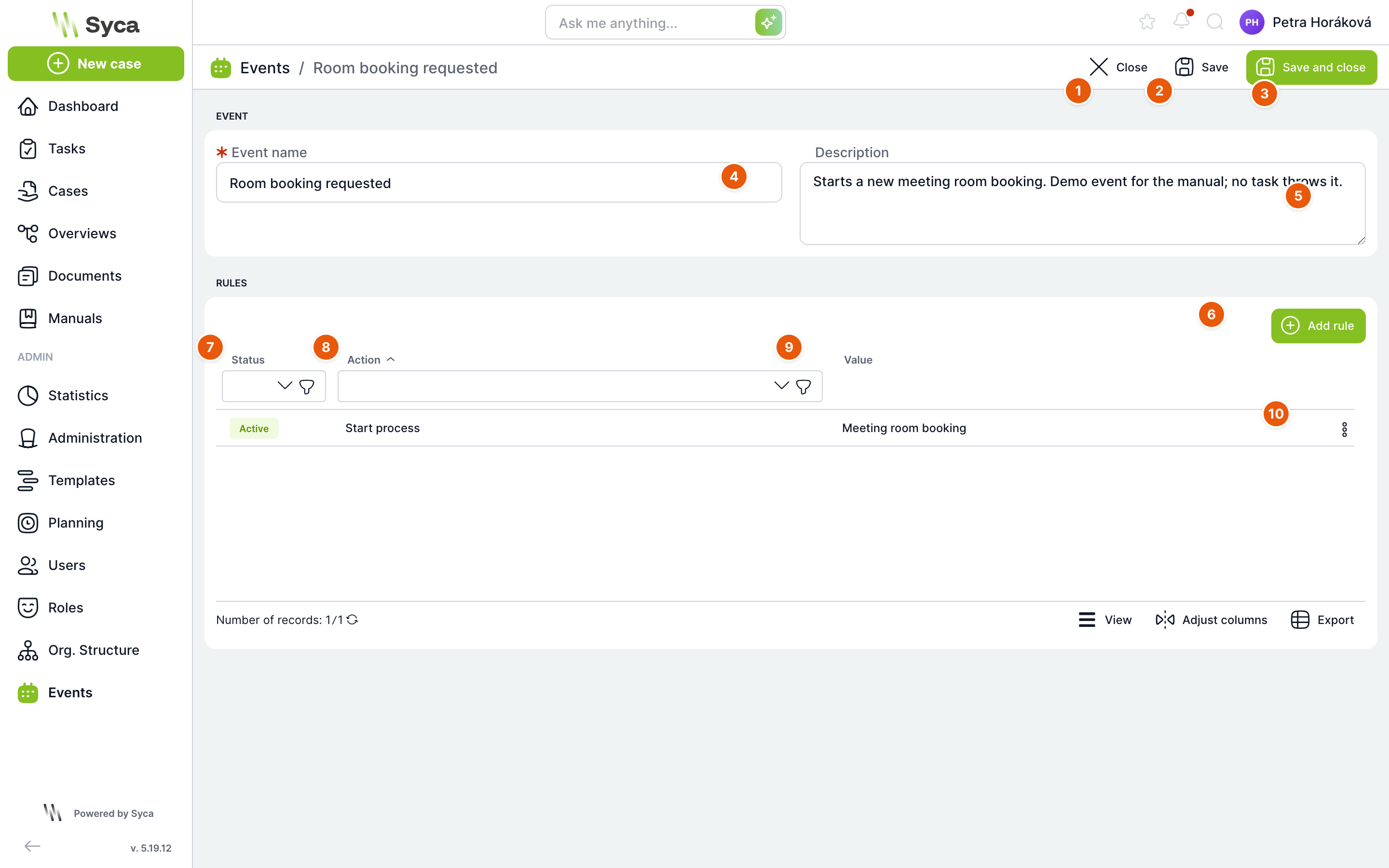
| No. | Element | Purpose |
|---|---|---|
| 1 | Close | Returns you to the event list. |
| 2 | Save | Saves the name and description. |
| 3 | Save and close | Saves and returns you to the list. |
| 4 | Event name | Required. If you change the name, it also changes in the tasks that use the event. |
| 5 | Description | Description of the event. |
| 6 | Add rule | Opens the New rule window. |
| 7 | Status | Active or Inactive. An inactive rule is skipped when the event is sent. |
| 8 | Action | Rule type, see the table below. |
| 9 | Value | Target of the rule: the template for Start process and CSV rules, the event name for Reply to event, the script name for Script. |
| 10 | Row actions | Edit opens the rule, Status switches the rule between Active and Inactive after confirmation, Delete removes it after confirmation. |
When the event is sent, all active rules run one after another.
Rule types
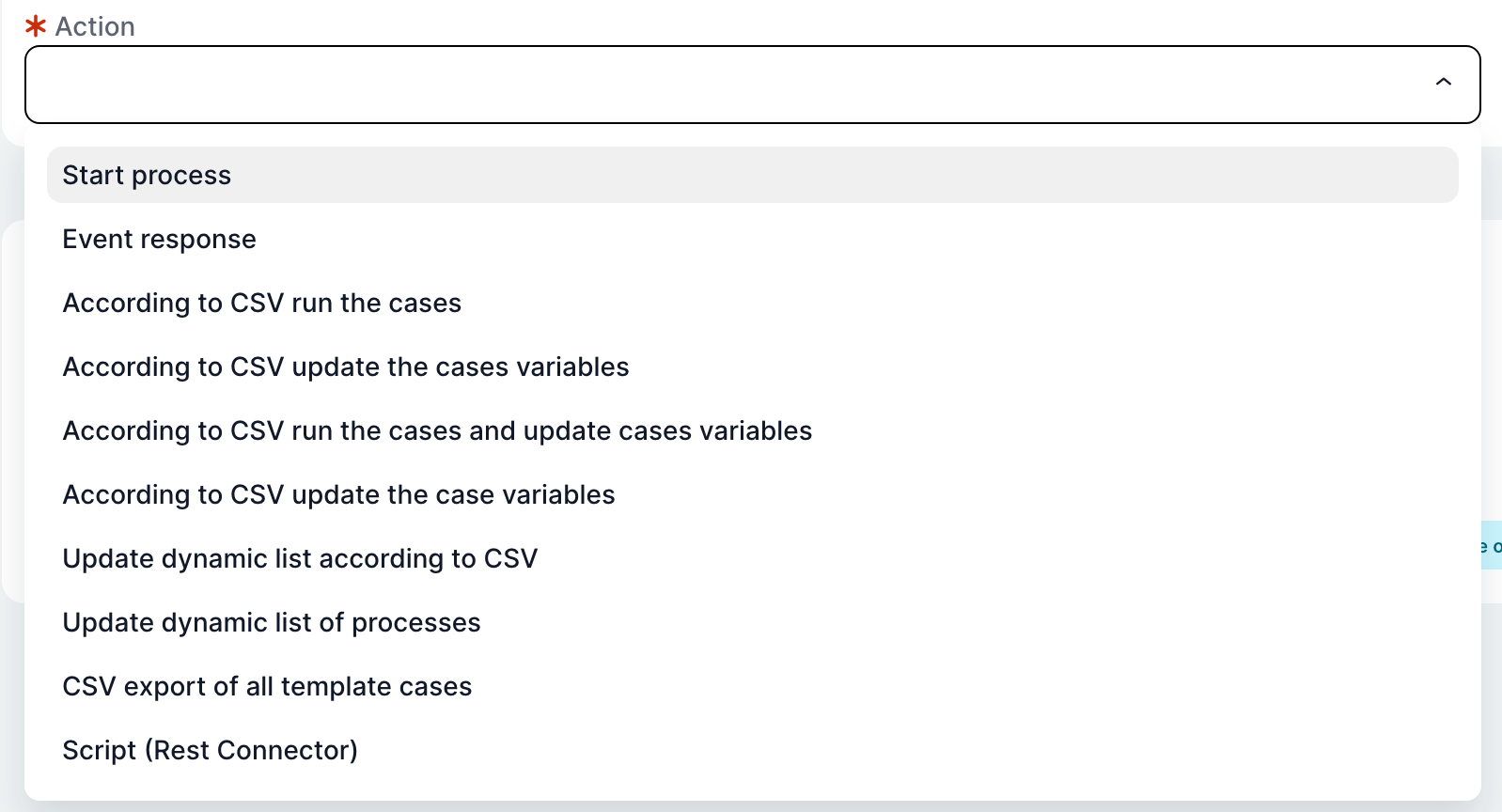
| Action | What it does |
|---|---|
| Start process | Starts a new case of the selected template. You set the case owner and name in the rule, and map the variable values of the new case from the event variables. |
| Reply to event | Returns variables from a completed case to the case that started it. Used for subprocesses (system events $SUBR_). |
| Start cases by CSV | Loads a CSV file and starts a case of the selected template for each row; you map the columns to variables. |
| Update case variables by CSV | For each CSV row, finds existing cases of the template using the columns marked as primary key and overwrites their variables. Does not start new cases. |
| Start cases and update case variables by CSV | Like the previous one, but if no case with the given key value exists, it starts one. |
| Update case variable by CSV | Same behaviour as Update case variables by CSV: finds cases by primary key. |
| Update dynamic list by CSV | Clears and refills dynamic lists with values from a CSV file. Both the list name and the value are taken from the mapping (CSV column or constant). |
| Update dynamic list of cases | Fills a dynamic list with the unique values of the selected variable from all active cases of the chosen template, for example a list of current suppliers. |
| CSV export of all template cases | Writes all cases of the selected template with the chosen variables to a CSV file. |
| Script | Runs a handler script installed in TAS, for example the REST connector. If only one is available, its name is shown directly in the menu, for example Script (Rest Connector). |
TAS reads and writes CSV files in the CSV folder on the server (installation setting). For rules that update cases, you can enter {název proměnné} instead of a file name: if it is a file variable, the CSV is loaded from the case document. A value that does not end in .csv is treated as the name of a Dynamic Table.
Rule detail
The New rule (or Edit rule) window has two parts: Settings and Variable mapping. The content changes depending on the selected action. The image shows the Start process rule of the sample event Room booking requested.
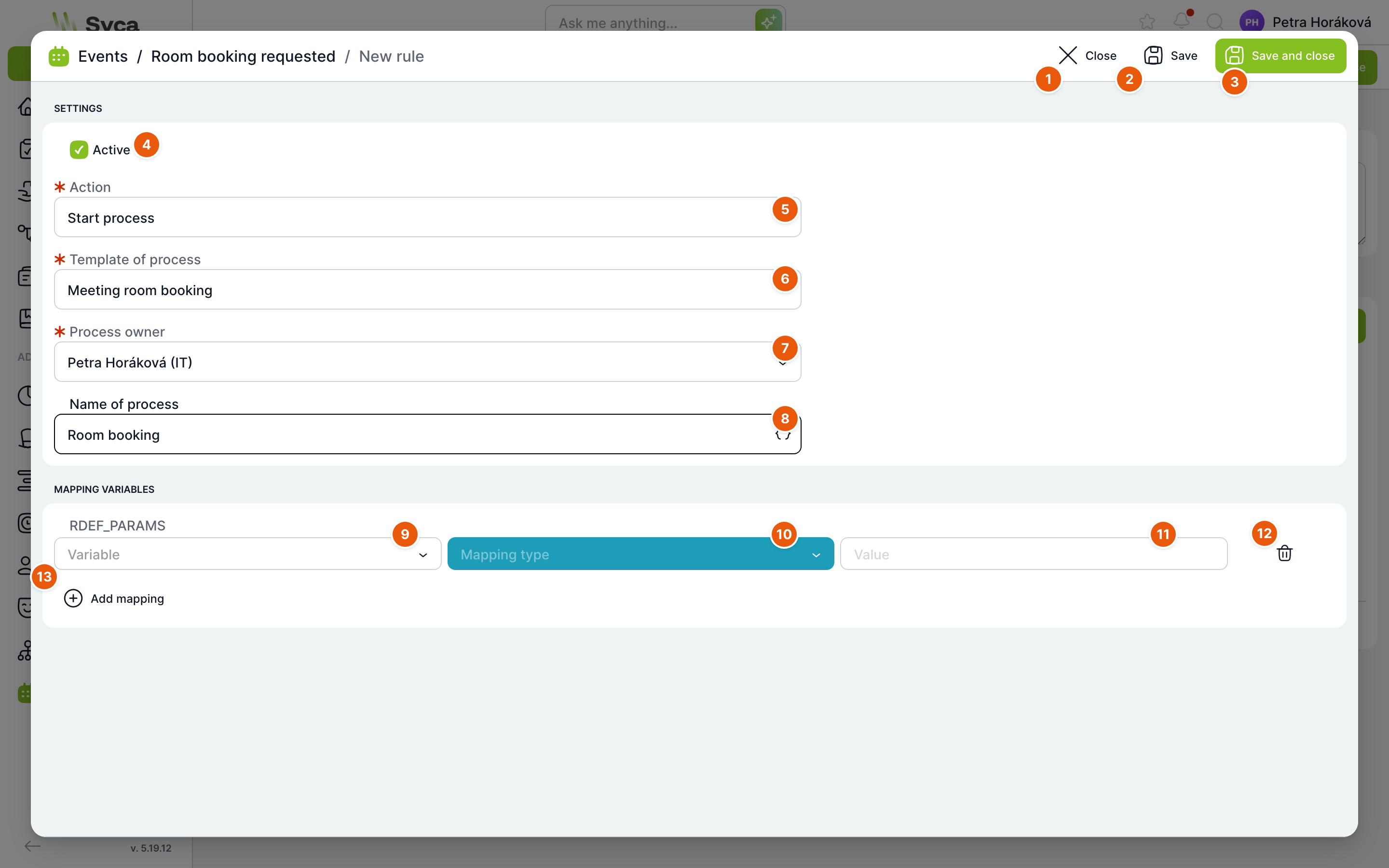
| No. | Element | Purpose |
|---|---|---|
| 1 | Close | Closes the window; TAS offers to save unsaved changes. |
| 2 | Save | Saves the rule; the window stays open. |
| 3 | Save and close | Saves the rule and closes the window. |
| 4 | Active | A checked rule is executed when the event is sent. |
| 5 | Action | Required. Rule type. |
| 6 | Process template | Required. The template from which the case is started. |
| 7 | Process owner | Required. The user and their organizational unit who become the owner of the new case. |
| 8 | Process name | Name of the new case. Use the { } icon to insert placeholders: Case name, Case owner, Entry date and Case deadline of the case that sent the event. |
| 9 | Variable | The variable of the new case you want to fill. |
| 10 | Mapping type | Where the value comes from, for example from an event variable or as a constant. |
| 11 | Value | Source variable or constant value. |
| 12 | Delete | Removes the mapping row. |
| 13 | Add mapping | Adds another row. |
Fields by rule type
| Action | Fields in Settings | Mapping |
|---|---|---|
| Start process | Process template, Process owner, Process name | Variables of the new case ← event variables or constants. |
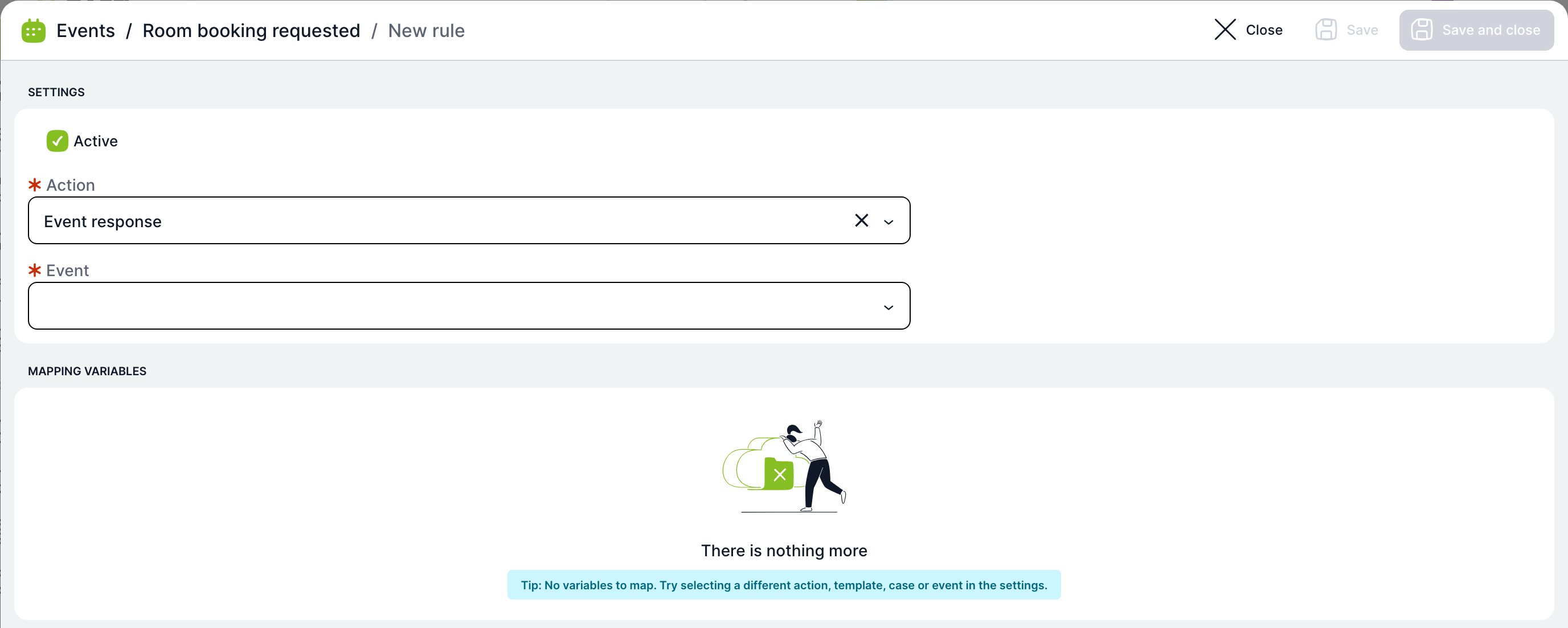
| Reply to event | Event | Case variables ← variables returned from the subprocess. |
| Start cases by CSV, Start cases and update… | Cases (template), Process name, Process owner (Defined in mapping, Task solver or Case owner), CSV file name mask, Column separator, First row of the CSV file is a header | CSV columns → variables; for the update variant, you mark the primary key. With Defined in mapping, a CSV column determines the owner. |
| Update case variables / case variable by CSV | Cases, CSV file name mask, Column separator, header | CSV columns → variables, at least one column as Primary key. |
| Update dynamic list by CSV | CSV file name mask, Column separator, header | List name and value from a CSV column or constant. |
| Update dynamic list of cases | Template ID | List name and the variable whose values are loaded into the list (Column name type only). |
| CSV export of all template cases | Cases, CSV file name, Column separator, header | Which variables and details (owner, start date) are written to the columns. |
| Script | Script (if there is more than one) | Instead of mapping, a Variable names section with the script parameters. |
The default column separator is a semicolon.
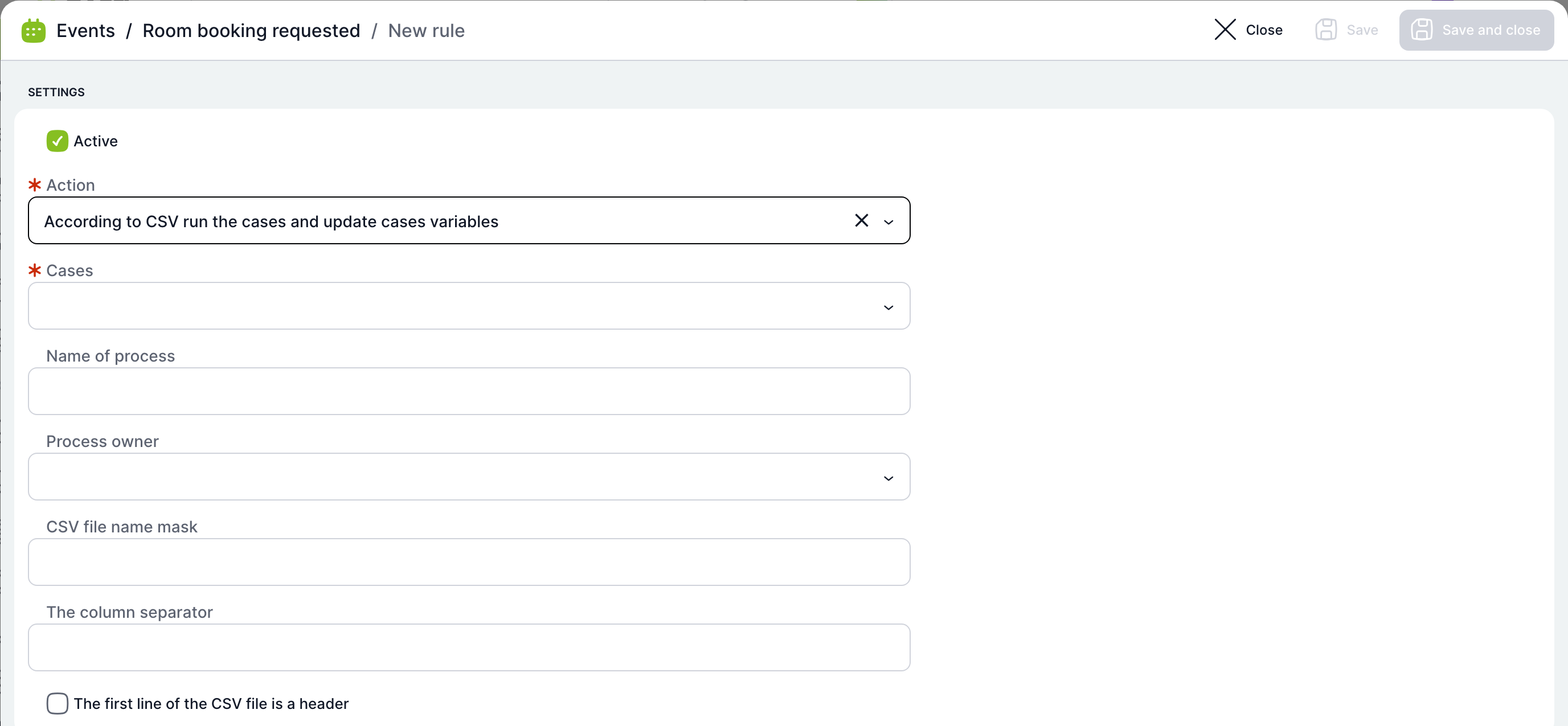
The Start cases and update case variables by CSV rule. The mapping appears after you select a template in the Cases field.
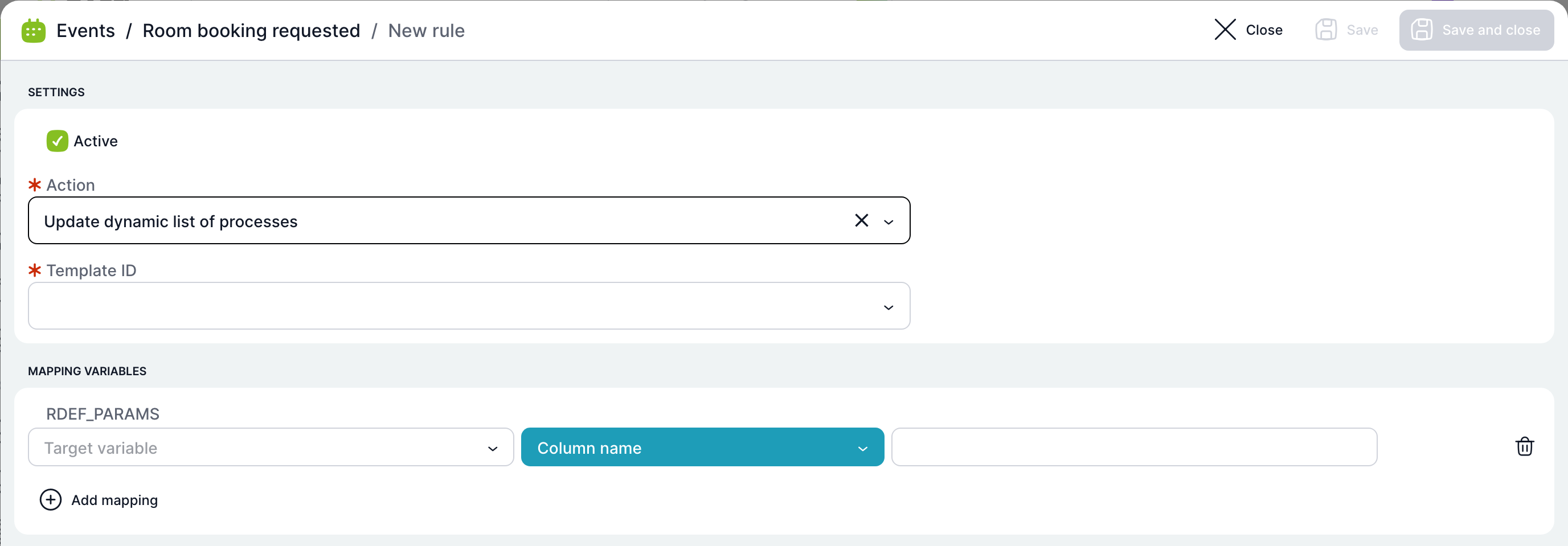
Column mapping: Target variable, source type (Column name, Column order or Constant), value and, for CSV rules, the Primary key checkbox. The Update dynamic list of cases rule offers only the Column name type.
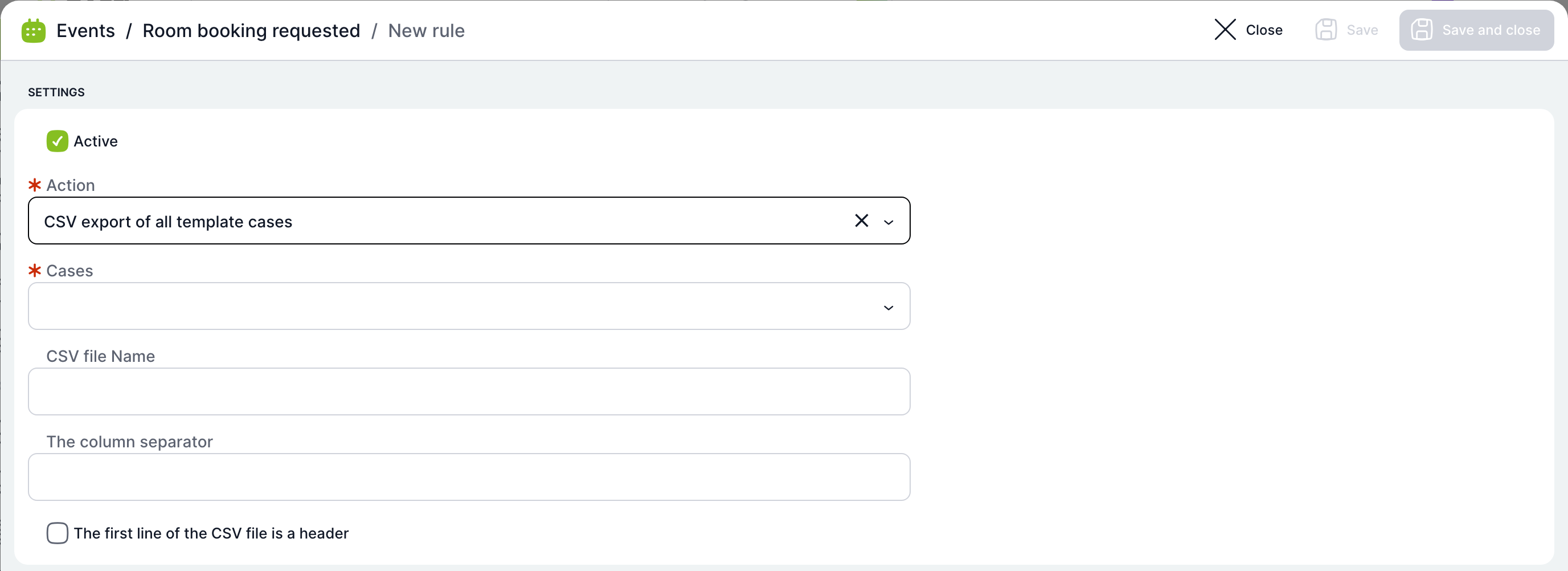
The CSV export of all template cases rule saves the file name from the CSV file name field, but in version 5.19.12 the export writes to a file based on a file name mask, which the form does not offer for this type. Verify the export in a test environment before using it.
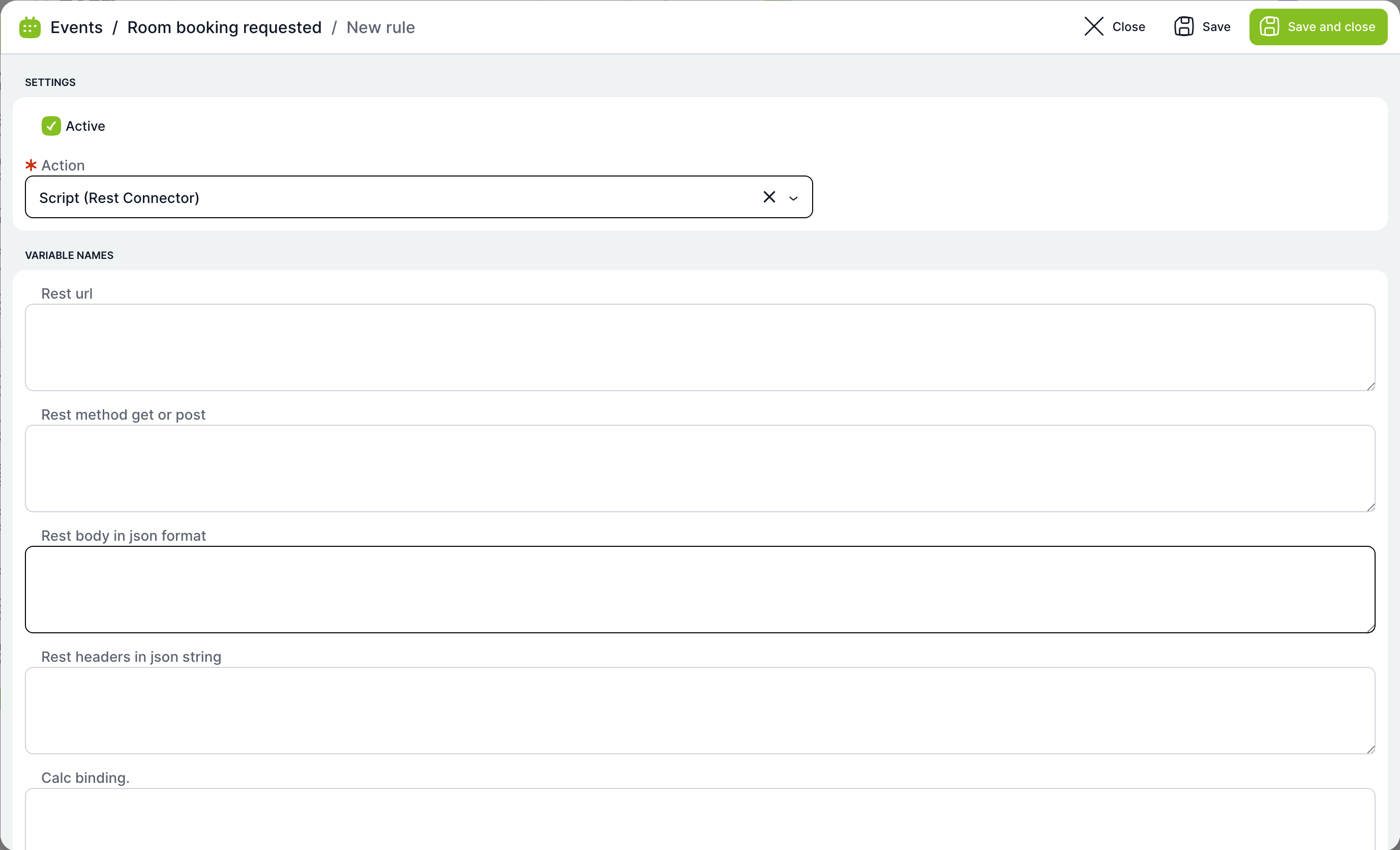
For the Script action, you fill in the parameters the script expects. For the REST connector these are Rest url, Rest method get or post, Rest body in json format, Rest headers in json string and Calc binding.
Example: an event a task is waiting for
In the Purchase Order template, the Approve – button task waits for the event TAS-PO519_approve. The detail of this event contains a single rule, which TAS created automatically when the task was saved.
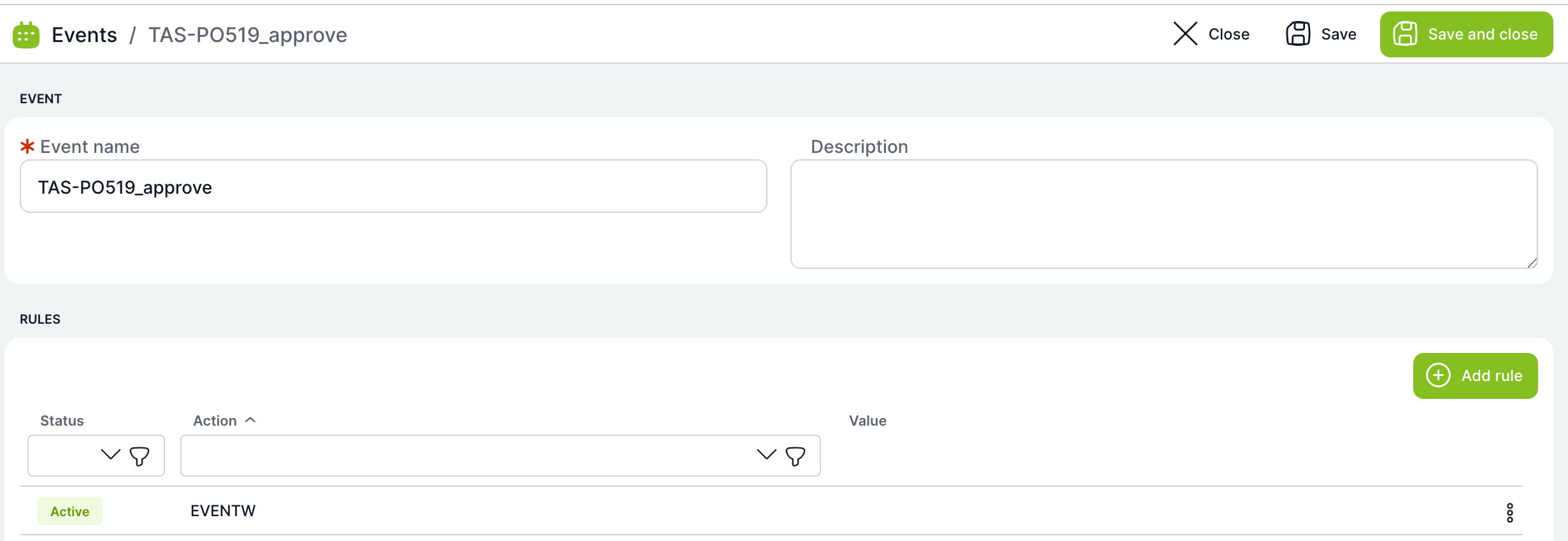
Do not edit or delete the wait rule manually. It disappears when you turn off waiting for an event in the task or select a different event.
How to create an event that starts a process
Example: the event Room booking requested, which starts a Meeting room booking case.
- On the Events page, click Add event.
- Enter the Event name Room booking requested and a Description.
- Click Save. A rule table appears in the window.
- Click Add rule and in the Action field select Start process.
- Select the Process template Meeting room booking and the Process owner, and enter a Process name, for example Room booking.
- If needed, fill the variables of the new case in Variable mapping.
- Click Save and close.
- The event is not sent by anything yet. In the template that should trigger the booking, add an Event task and select Room booking requested in it.
Related: Plans, Template tasks, Case events.