Task Form Builder
The Form Builder is used to design the appearance and logic of forms in detail in individual process template tasks. It allows administrators to quickly and clearly configure which variables should be displayed in the task, how they should behave, and what logic the form should follow.
Open the Builder directly in the template task detail, in the Form section.
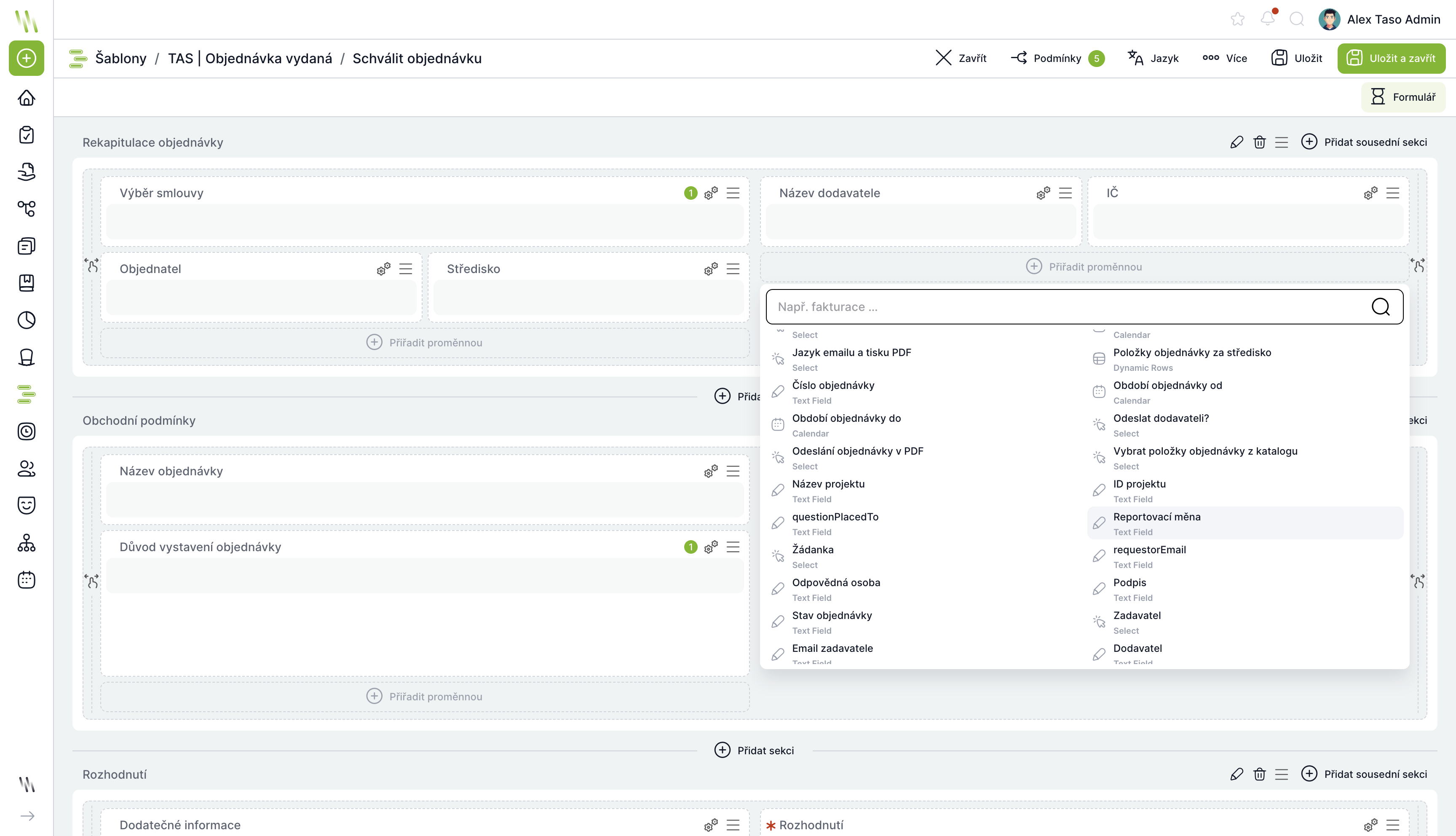
Form creation
Adding variables (Drag & Drop)
- Variables that are available in the template can be easily added to the task form.
- Each variable can be placed in any section or line.
- Once placed, it can be used at any time:
- move,
- remove,
- adjust its parameters.
Setting variable permissions (R/W/M)
Each variable has three basic visibility and editing modes:
Regime | Description |
Read | The user can see the variable, but cannot change it. |
Write | The user can edit the value. |
Mandatory (M) | The user must fill in the value to complete the task. |
The settings are available in the right panel after clicking on the variable.
Width and arrangement of variables
- Variables can be set to set the width within a row (e.g. 1/8, 2/8, 3/8, 4/8, 8/8 - full width).
- Different widths can be combined in one row.
- The variables will automatically adapt to the layout.
Form section
Sections are used to structure long or complex forms.
Section options:
- adding and naming a section,
- moving sections within a form.
Sections can contain any number of variables.
Form preview
Builder allows you to display the form in several modes:
Preview an existing task
- You select a specific existing task (process instance).
- In the preview you see:
- real added values,
- dynamic conditions,
- behavior of the form in practice.
Preview in another language
- If the instance is localized into multiple languages, you can switch the preview to another language.
- Translations of variable, section, and instruction names are displayed.
Instructions for the task
In the builder, you can set the following across the entire screen:
- detailed instructions for completing the task,
- structured description using a WYSIWYG editor,
- images, links, formatting.
Instructions are displayed to users directly in the task.
Copying a form
To speed up your work, you can configure the form:
- copy to other template tasks ,
including:- layout,
- conditions,
- authorization,
- sections.
This is very useful for similar approval tasks.
Dynamic conditions (Condition Builder)
Dynamic conditions allow you to control the behavior of a form based on the values of variables or other criteria.
The conditional builder includes:
- clear UI for creating the most common rules,
- pre-prepared functions for quick configuration,
- the ability to use JavaScript for complex logic.
Basic scenarios (without programming)
Hide variable by condition
- e.g. hide the "Rejection Reason" field if Status ≠ Rejected .
Change the value of a variable
- automatically override the value when certain circumstances occur.
Set variable as required
- if item A contains a special value, item B becomes mandatory.
Value validation
- display a warning if the value does not meet the requirements (date in the past, number out of range, wrong format, etc.).
Advanced Scenarios (JavaScript)
If more complex behavior is needed, you can write your own JS:
Examples of typical JS conditions:
- dynamic calculations (more complex than a simple sum),
- validation across multiple variables,
- overwriting values,
- text generation,
- complex conditional visibility.
Each script runs in isolation within the context of a given task and has access to all variables.
Recommended best practices
- use sections to keep long forms clear,
- set validation to the very end (just so you know that the logic doesn't change anything else),
- copy the same sections or tasks, it will speed up the work,
- don't waste JavaScript if everything can be set up using the basic builder functions,
- Use the form preview regularly in real tasks, it will reveal errors before production.